Showing posts with label SCCM. Show all posts

Monday, July 13, 2015

Quickly Check Build Numbers for Common Microsoft Applications

If you ever have a problem trying to identify which version of your application its build number relates to, then I've got something pretty useful to help you out.


For the past year I've been referencing a community-authored blog that posts current build number references for common Microsoft applications and provides a download link to each cumulative update or service pack.

The list of applications that are referenced include System Center and SQL (definitely one you'll use a lot here). It's regularly updated (the new 2016 Tech Preview releases are all there) and goes back quite a few versions - MOM 2000 is even listed!

There's a handy navigation ribbon to choose your application or if you like, just use the tags.

Here's the blog URL:


Friday, June 12, 2015

SCOM & MSOMS - Collecting ConfigMgr Logs with the NiCE Log File MP

Although I don't work much with ConfigMgr, I can appreciate the difficultly people have when they try to collect and analyze the various logs that it can generate and it was only a matter of time before someone sat down and worked out how to make this collection easier.

That's what my Australian friend and fellow MVP Tao Yang has been spending his spare-time on for the past few weeks. The result is a mashed-up collaboration of SCOM, the Microsoft Operations Management Suite (MSOMS), ConfigMgr and the ever-useful free NiCe Log File management pack.

Tao has written a comprehensive blog post on how he managed to get all these solutions working together to collect ConfigMgr logs and you can check it out from here:

http://blog.tyang.org/2015/06/10/collecting-configmgr-logs-to-microsoft-operation-management-suite-the-nice-way/

Great work as usual Tao!

Friday, January 30, 2015

System Center Universe 2015 is just around the corner!

It's that time of the year again where, since 2012, Cameron Fuller and the team over at Catapult Systems have organised one of the best one-day System Center events on the planet in System Center Universe (SCU).


If you haven't heard of SCU before, or just didn't get the chance to attend previously, bring yourself up to speed with the history of the conference first here.

This years event kicks off on February 4th in Dallas, TX and will run across two separate (simultaneous) breakout tracks.

As usual, there's an awesome list of speakers on the day and here's just a sample of them:

  • Anders Bengtsson: Microsoft
  • Brad Anderson: Microsoft
  • Cameron Fuller: MVP
  • Dieter Wijckmans: MVP
  • Jason Sandys: MVP
  • Johan Arwidmark: MVP
  • John Savill: Microsoft
  • Kent Agerlund: MVP
  • Maarten Goet: MVP
  • Marc van Eijk: MVP
  • Pete Zerger: MVP
  • Travis Wright: MVP
  • Wally Mead

You can check out the full speaker list here.

The agenda for the day will include topics that cover ConfigMgr, OpsMgr, Service Manager and Microsoft Azure to name but a few. Here's the full agenda.

Now, if you're not familiar with how this plays out and you're thinking to yourself that you're going to miss all this awesome content because you won't be there in-person, or that you'll have to wait for weeks before the recordings are uploaded, fear not - SCU has the solution!

This event is streamed LIVE across the internet and all you have to do is register your interest and you're in!

So, mark your calendars, order the pizza, crack open a beer and sit back and enjoy the content for SCU 2015!

Thursday, February 28, 2013

Full List of New System Center Downloads - Feb 2013


Wow! February has been a real busy month in terms of new Microsoft downloads made available for System Center and Cloud Technologies. There's a mixture of Management (Monitoring) Packs for SCOM, technical documentation for SCCM and SCVMM , some new System Center tools and also additional guides and white papers around cloud technologies. See below for the complete list of February 2013 downloads:

SCOM Management Packs

System Center 2012 Management Pack for Network Load Balancing

System Center 2012 Management Pack for Windows Deployment Services

System Center 2012 Management Pack for Microsoft Windows Server File & iSCSI Services 2012

System Center 2012 Management Pack for Message Queuing

System Center Management Pack for Windows Server 2012 Cluster

System Center Management Pack for WSUS on Windows Server 2012

System Center Monitoring Pack for System Center 2012 - Configuration Manager


Technical Documentation and Reference Guides

Cloud Infrastructure Solution for Enterprise IT (Reference Guide)

Technical Documentation Download for Technical Scenarios for System Center 2012 SP1

Consumerization of IT (Reference Guides)

Technical Documentation Download for System Center 2012 Configuration Manager

System Center Operations Manager 2012: Network Devices with Extended Monitoring Capability (Reference Guide)

Technical Documentation Download for System Center 2012 – Virtual Machine Manager


Tools, Utilities and Extensions

System Center 2012 SP1 Configuration Analyzer

System Center 2012 SP1 Configuration Manager Package Conversion Manager 2.0

System Center Data Protection Manager CSV Serialization Tool

System Center 2012 – Configuration Manager Component Add-ons and Extensions

Microsoft System Center Configuration Manager 2007 - Application Compatibility Toolkit Connector

Microsoft System Center 2012 Service Pack 1 Configuration Manager - Clients for Additional Operating Systems

Sunday, November 18, 2012

System Center 2012 Endpoint Protection (SCEP) Cookbook Review

A few weeks ago, I was given the opportunity to review a recently released book by Packt Publishing about System Center 2012 Endpoint Protection (SCEP).


SCEP 2012 is effectively the latest version of Microsoft's Forefront Endpoint Protection Anti-Virus and Anti-Malware suite but instead of it being a standalone product like it's predecessor, this release is integrated as a new addition to the System Center 2012 Configuration Manager (SCCM/ConfigMgr) product.

Background

People that know me (or anyone who reads this blog) will know that I typically keep away from working in depth with SCCM and instead try to focus on SCOM, Orchestrator, VMM, AppController and DPM with a working knowledge of SCSM thrown in for good measure! The reason for this is that apart from the facts that SCCM is such a huge product in itself and takes a long time to upskill to expert level on, we have a number of excellent SCCM consultants and Subject Matter Experts working in our company that would generally be involved in these types of customer deployments.

With the new licensing model that Microsoft has released for System Center 2012 (where a customer now can't individually purchase a single System Center product any more and instead needs to purchase the whole suite in one go), any new features or Unique Selling Points (USP's) that I can talk about when consulting with potential new System Center 2012 customers is a massive bonus. That's where SCEP 2012 comes in and why my motivation to review this new book stems as much from my own desire to learn more about the product and it's deployment as opposed to just recieving a free copy of it for personal use!


You might be thinking to yourself, "What exactly has a cookbook got to do with System Center?" and to be fair, the concept of technology centered cookbooks is new to me too. The idea of these books is to provide people who already have a basic understanding of a given technology (in this case SCEP or SCMM) with a set of 'recipes' for solving problems related to it. The publisher explains the cookbook concept in detail here.

The Book

Lead author on the book is Andrew Plue and it was reviewed by Nicolai Henriksen (SCCM MVP), Matthew Hudson (SCCM MVP) and Stephan Wibier.

Although I have this book nearly 3 weeks now, I intentionally left it until this week to have a read through it as I'm involved in building a new System Center 2012 demo environment in our datacenter and wanted to work through it to see if it would help me get the SCEP side of the demo up and running without calling in help from our SME's.

The book is just over 200 pages in lenght and contains the following chapters:

Chapter 1, Getting Started with Client-Side Endpoint Protection Tasks, provides a number of recipes for performing tasks at the local client level, such as forcing a definition update or modifying the SCEP client policy.

Chapter 2, Planning and Rolling Installation, will walk you through some of the considerations you will need to make before deploying SCEP, as well as showing you how to enable the SCEP role on your SCCM server.

Chapter 3, SCEP Configuration, will show you recipes for performing essential tasks, such as configuring SCEP policies and alerts, as well as walking you through the process of setting up SCEP's reporting features.

Chapter 4, Client Deployment Preparation and Deployment, includes a number of recipes to assist you with every step of client deployment from preparation to actually deploying the clients.

Chapter 5, Common Tasks, covers a number of day-to-day tasks that every SCEP administrator will need to know how to do it correctly in order to keep SCEP healthy and your Endpoints protected from malware.

Chapter 6, Management Tasks, covers important high level tasks, such as using policy templates, merging polices, and responding to SCEP alerts.

Chapter 7, Reporting, makes a deep dive into the reporting capabilities offered with SCEP. You will be shown how to execute reports, as well as provide access to reports. You will also be shown how to create your own custom reports.

Chapter 8, Troubleshooting, provides you with some tools to assist you with the time-consuming effort of troubleshooting an anti-malware product. The recipes in this chapter will help you deal with Definition Update issues, as well as how to approach false positives.

Chapter 9, Building an SCCM 2012 Lab, is a great chapter for anyone who has not yet taken the plunge on SCCM 2012. There is just a single recipe in the chapter that will show you the quickest down-and-dirty method for standing up an SCCM 2012 server in a lab environment. This is vital to anyone considering deploying SCEP, because with the total integration of SCEP with SCCM 2012, you can't experience SCEP without an SCCM environment.

My Thoughts

After reading through pretty much the whole book this week, I found the information to be concise and to the point. With its help, I managed to easily setup my demo environment with SCEP 2012 and learned how to quickly configure it to best practice recommendations. I also thought that the 'Notes', 'Tips and Tricks' and 'How It Works' sections scattered throughout the book provided some really good information that was evident of the real-world deployment experience the author and reviewers had.

Overall, if you're thinking of deploying SCCM 2012 with SCEP or if you have already deployed it and don't feel that you are getting enough out of it, then I'd recommend this book as a handy companion to get you up and running!

You can order the book in 'dead tree' format from Amazon here or in Kindle format from here.

Also, if you like this type of cookbook, then you might want to consider signing up to the publishers PacktLib which apart from serving as a portal to access your purchased books, from time to time they release free e-books on it that can come in handy as part of your technical library.

Tuesday, July 5, 2011

SCOM Dashboards - Conclusion and References

Before reading this post, please ensure you have reviewed my previous posts on SCOM Dashboarding from the links below:

SCOM Dashboards - The Intro
SCOM Dashboards - Part 1 - Installing WSS 3.0
SCOM Dashboards - Part 2 - Installing the Dashboard Solution Accelerator
SCOM Dashboards - Part 3 - Customizing the Dashboard Banner and Logo
SCOM Dashboards - Part 4 - Customizing the Dashboard Tabs
SCOM Dashboards - Part 5 - Installing the Service Level Dashboard (SLD 2.0)
SCOM Dashboards - Part 6 - Adding SQL Queries to the Dashboards
SCOM Dashboards - Part 7 - The SCOM Distributed Application Health State Tab
SCOM Dashboards - Part 8 - Adding the SLD Tab to the SCOM Dashboard

I hope that if you are reading this post that it means you have taken the time to review the other posts in this series and have found the information in them useful. Although I haven't come across this solution on the web previously that offers a central tabbed dashboard that includes a SCOM Admin dashboard, a SCOM Distributed Application Health State dashboard and the SCOM Service Level Dashboard, it doesn't mean that I came up with the ideas for each component all by myself.

Below are some links to the other SCOM community member blog posts that made this particular series possible and I would like to thank them for their hard work and time put in to their posts as without them I wouldn't have been able to come up with this solution.


Kevin Holman (Credit for a huge amount of SQL queries and the best resource on the web for them)
http://blogs.technet.com/b/kevinholman/archive/2007/10/18/useful-operations-manager-2007-sql-queries.aspx

Cameron Fuller (Credit for SCSM dashboard customization)
http://blogs.catapultsystems.com/cfuller/archive/2010/12/11/using-the-service-manager-2010-dashboard-for-operations-manager.aspx

Tim McFadden (Credit for SCCM dashboard customization)
http://www.scom2k7.com/how-to-create-a-custom-scom-dashboard-to-show-key-management-group-information/

Steve Beaumont (Credit for Distributed Application Health State Dashboard)
http://systemscentre.blogspot.com/2011/04/system-center-dashboards-sccm-scom-sql.html

Anders Bengtsson (Credit for additional dashboard customization)
http://contoso.se/blog/?p=1409


Finally, the purpose of this blog series is to highlight the use of dashboard solutions for SCOM that are FREE and that haven't been blogged about much in the past. I have decided to omit the dashboard integration that can be used with Visio 2010 and Sharepoint 2010 as this has been blogged about all over the web and I didn't want to go over old ground again.

I have also omitted the excellent Savision LiveMaps dashboard solution as it is not free - contrary to what a lot of people think, Savision allow the use of 5 maps for free for 12 months, then you need to purchase a licence for them. If you do have the budget to spend and are looking for an extra dimension in SCOM dashboards, then Savision LiveMaps is the only way to go.

For more information on the Visio 2010, Sharepoint 2010 and Savision LiveMaps solutions, see the excellent blog series by SCOM MVP Marnix Wolf from the link below:

Marnix Wolf
http://thoughtsonopsmgr.blogspot.com/2010/09/scom-and-dashboards.html


That brings this series to an end, thanks for reading and hopefully you have found the information helpful.

SCOM Dashboards - Part 8 - Adding the SLD Tab to the SCOM Dashboard

Before reading this post, please ensure you have reviewed my previous posts on SCOM Dashboarding from the links below:

SCOM Dashboards - The Intro
SCOM Dashboards - Part 1 - Installing WSS 3.0
SCOM Dashboards - Part 2 - Installing the Dashboard Solution Accelerator
SCOM Dashboards - Part 3 - Customizing the Dashboard Banner and Logo
SCOM Dashboards - Part 4 - Customizing the Dashboard Tabs
SCOM Dashboards - Part 5 - Installing the Service Level Dashboard (SLD 2.0)
SCOM Dashboards - Part 6 - Adding SQL Queries to the Dashboards
SCOM Dashboards - Part 7 - The SCOM Distributed Application Health State Tab

The final piece of this jigsaw is to add the Service Level Dashboard Web Page as an active tab alongside the SCOM Dashboard and SCOM Distributed Applications Health State tabs

Open the SCOM Dashboard home page and click on 'Site Actions' on the left hand side, then select 'Site Settings' from the drop down menu


Now click on the 'Top Link Bar' link
From here, click on 'New Link'


Now copy the URL for the Service Level Dashboard web page into the field as shown and then click 'OK'


You now have an additional tab for your 'SCOM Service Level Dashboard' and when you click on the tab, it opens up your SLD page


When you open your SLD page, click on the 'Site Settings' option to add the SCOM Dashboard tabs to this webpage

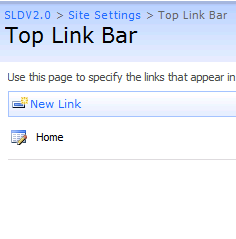
Again, in the 'Look and Feel' section, click on the 'Top Link Bar' to make the customisations. When you see the screen below, click on the icon beside 'Home' to edit the name of the Home tab.

Change the name of the 'Home' tab to something like 'SCOM Service Level Dashboard' as shown below, then click 'OK'


Now click on the 'New Link' button from the 'Top Link Bar' to create the other tabs for the SCOM dashboard


From the window below, copy the URL for your previously created 'SCOM Admin Dashboard' and type 'SCOM Admin Dashboard' into the description field as below, then click 'OK'


Now for the final time, click on the 'New Link' button again from the window below

This time, copy the URL for your previously created SCOM Distributed Applications Health State Dashboard into the web address field and type the description as shown below, then click 'OK'


Your top link bar from within the Service Level Dashboard site settings window should now look something like this


Click on the 'Change Order' button to move the order of the tabs around to reflect the same order that you have from within your SCOM Admin Dashboard to provide a seamless integration look to both dashboards. Once you are happy with the order of the tabs, click 'OK' to complete the tab editing


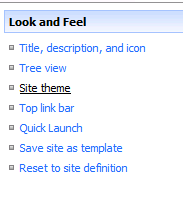
Now all that's left to do is to change the theme of the SCOM Service Level Dashboard to look similar to the other SCOM dashboards. We do this by clicking on 'Site Actions' on the right hand side and then selecting 'Site Settings' again. When this opens, click on 'Site Theme' from within the 'Look and Feel' column

I have used the default SCSM dashboard theme of 'Obsidian' for my other dashboards so I will again choose this for the SCOM Service Level Dashboard by highlighting it and then clicking on 'Apply'


Your final SCOM Service Level Dashboard with associated SCOM dashboard tabs should now look like this


This completes your configuration of the SCOM dashboard solution that incorporates a SCOM Admin Dashboard, SCOM Distributed Application Dashboard and a SCOM Service Level Dashboard as three separate tabs within one web browser view.

The final post of this series will summarise what we have achieved so far, will provide web links to sites that I have found very useful when working with dashboards in SCOM and will provide some of the SQL queries that I have used to create these web parts.

SCOM Dashboards - Part 7 - The SCOM Distributed Application Health State Tab

Before reading this post, please ensure you have reviewed my previous posts on SCOM Dashboarding from the links below:

SCOM Dashboards - The Intro
SCOM Dashboards - Part 1 - Installing WSS 3.0
SCOM Dashboards - Part 2 - Installing the Dashboard Solution Accelerator
SCOM Dashboards - Part 3 - Customizing the Dashboard Banner and Logo
SCOM Dashboards - Part 4 - Customizing the Dashboard Tabs
SCOM Dashboards - Part 5 - Installing the Service Level Dashboard (SLD 2.0)
SCOM Dashboards - Part 6 - Adding SQL Queries to the Dashboards

Next we are going to modify the 'SCOM Distributed Applications Health State' tab and provide a live view of the health state of all your DA's through the dashboard

Click on the 'Edit page' link as below to continue


Now we are going to remove all of the existing SCSM web parts simply by clicking on the 'X' beside each one until we get a screen that looks like this


Configure your Dataset exactly as shown below otherwise the DA health states and colours will be incorrect (the SQL query will be specific to your own site in relation to the DA names however and you can get the SQL query I used from Steve Beaumont's blog credited here)


The Score Card label and value information below is VERY IMPORTANT and needs to be exact!


Next up is to add a new web part to the horizontal bottom section of the screen as shown


Select the 'Microsoft Dashboard Viewer' option


Now from this newly created web part, click on the 'Edit' button, and then select 'Modify Shared Web Part' from the list


From the menu on the right hand side of the screen, select the 'DAHealthState' dataset that was configured earlier, and then click 'OK' to close the window

You should now have a tab that looks something like this


The penultimate Part 8 post of this SCOM Dashboard blog series will demonstrate how to create a new tab alongside your SCOM Dashboard and SCOM Distributed Application Health State Dashboard tabs that includes the Service Level Dashboard 2.0.

SCOM Dashboards - Part 6 - Adding SQL Queries to the Dashboards

Before reading this post, please ensure you have reviewed my previous posts on SCOM Dashboarding from the links below:

SCOM Dashboards - The Intro
SCOM Dashboards - Part 1 - Installing WSS 3.0
SCOM Dashboards - Part 2 - Installing the Dashboard Solution Accelerator
SCOM Dashboards - Part 3 - Customizing the Dashboard Banner and Logo
SCOM Dashboards - Part 4 - Customizing the Dashboard Tabs
SCOM Dashboards - Part 5 - Installing the Service Level Dashboard (SLD 2.0)

To customise your SCOM Dashboard and remove the pre-inserted SCSM web parts, follow the screens below:

Open your SCOM Dashboard and click on 'Edit Page' from the menu on the right hand side


Input in a new Dataset Configuration Name, add your SQL Server and instance name, add your OperationsManager database name and copy and paste your SQL query into the SQL Query window as below (SQL queries can be obtained from the list of community blog references in the final part of this series)


Select 'Parse Query' and then 'Validate Query' and ensure you get the green tick and preview data before continuing


Expand 'Charts', leave 'Pie' selected and then click 'Add' to create a Pie Chart with your SQL query information. Fill out the fields similar to the graphic below


Once this is completed, click on 'Save and Close' to complete the new SQL query injection

Now what you need to do is to add your new 'Top20AlertsbyRepeatCount.xml' file into an existing Web Part for display within your dashboard

Click on an the 'edit' button from within an existing web part on the dashboard and select 'Modify Shared Web Part'


This will open the web part for editing on the right hand side of the screen. From here, use the 'Select Data Set Configuration' button and highlight your previously created SQL query as below

 
Next, put an entry into the 'Title' field to give your new web part a name and then leave all of the other settings as they are and click on 'OK'

 
This should now replace the old SCSM web part on the dashboard with your new 'Top 20 Alerts by Repeat Count' dashboard as shown below


Repeat this process as many times as you like using different SQL queries and chart types and then changing the existing SCSM web parts one by one until you get the dashboard that you want for your business

If you want to remove any excess web parts and tidy up the dashboard a bit, then all you need to do is to select the 'X' in the corner beside the 'Edit' button to remove it completely

Your final SCOM Dashboard tab should look something like this:


With the SCOM dashboard itself finished now, in Part 7 I will describe how to create a scorecard web part that acts as a Distributed Application Health State dashboard.

SCOM Dashboards - Part 5 - Installing the Service Level Dashboard (SLD 2.0)

Before reading this post, please ensure you have reviewed my previous posts on SCOM Dashboarding from the links below:

SCOM Dashboards - The Intro
SCOM Dashboards - Part 1 - Installing WSS 3.0
SCOM Dashboards - Part 2 - Installing the Dashboard Solution Accelerator
SCOM Dashboards - Part 3 - Customizing the Dashboard Banner and Logo
SCOM Dashboards - Part 4 - Customizing the Dashboard Tabs

Download the Service Level Dashboard 2.0 from the following URL:

http://www.microsoft.com/downloads/en/details.aspx?FamilyId=1d9d709f-9628-46a8-952b-a78f5dd2bdd9&displaylang=en

Export the contents of the ZIP file to a folder on your SCOM management server


Import the Management pack highlighted below into SCOM

From the Management Server that is hosting the WSS 3.0 and SCOM dashboard websites, run the installer highlighted below with administrator rights.


Copy the URL from the URL field below so we can use this to quickly logon to the SLD for the first time


Open Internet Explorer and browse to the URL for the SLD that was noted during the install - typically something like: http://managementservername:51918

Click on 'Site Settings' to modify the users and groups allowed to access the website


Select 'People and Groups'


Now click on 'Add Users' to add new users to your group


Add the users or groups and select 'Full Control', then click 'OK'


From the SLD Home page, click on the options below to add previously created service level objects for your distributed applications into the SLD


Click on the available Service Levels from the list and then select 'Apply Filter'


When you go back to your home page, you should see something like the screen below


This completes the installation of your Service Level Dashboard 2.0. In Part 6 of this series, I will demonstrate how to add SQL queries to your SCOM dashboard and create web parts with them.