Saturday, March 10, 2012

Monitoring Windows Server 8 BETA with SCOM 2012 Part 1

When I heard last week that the brand new Windows Server 8 CTP (BETA) was released, I knew I had to do two things this weekend for sure. One was to download the BETA and try it out and the second was to try and configure System Center 2012 Operations Manager (SCOM 2012) to monitor and manage it. Thankfully, I've just finished configuring this scenario and surprisingly enough, it works quite well!

It goes without saying that as both products are currently BETA, that this IS NOT a supported configuration by Microsoft and is for lab/curiosity purposes only!
I've cut this blog posting into two parts due to the screenshots involved. In this first part, I'll walk through the install of Windows Server 8 BETA and the second part I'll go through the installation of the SCOM agent and demonstrate what is being monitored and some custom tasks running against it.

First up, download the Windows Server 8 BETA from the link below-you'll need to register with a Live ID:

http://technet.microsoft.com/en-us/evalcenter/hh670538.aspx?ocid=&wt.mc_id=TEC_108_1_33

Once you have the ISO downloaded, fire up your lab Hyper-V server (you are using Hyper-V right...?), create a new virtual machine with nominal resources (Windows Server 8 doesn't require an extra heavy spec as a minimum configuration for a lab environment - I'm using a VM with 2GB RAM and 1 CPU with a dynamic hard disk on local storage). When you have the VM created, attach the Windows Server 8 BETA ISO file and start it up.

The following screenshots show the Windows Server 8 BETA install:

Select your language, then click Next from the screen below


Click Install Now


Select the type of OS install you want - either Core or GUI based, then click Next


Select Custom install to start a fresh build


Accept the defaults and click Next from the screen below


Chill out for a few minutes while looking at this strange fish graphic as the OS is installing!


Once the OS is installed, we have our first glimpse of Windows Server 8. As I'm still using the old skool style keyboard and mouse (the Windows 8 client is built on touch and I'm presuming the server OS will follow suit), type your new admin password and hit ENTER


Check out the new CTRL+ALT+DEL screen to sign in now! (and yes, it is nearly 23:00 at night while I'm putting this post together!)


Input in your new admin password to logon


When it logs on, you'll be presented with the new Server Manager dashboard as below. If you're familiar with Windows Server 2008, then you'll figure this out pretty easily. I'm loving the new UI though!


No more traditional Start menu button for this release. If you click on the icon down the bottom left hand side of the screen (where the traditional Start menu button always was), you will open up the Server Manager menu from the screen above. If you hit the 'Windows' key on your keyboard, you'll be presented with the Start screen as shown below which includes 'Tiles' to navigate around with.


This concludes part 1 of this short series. In Part 2, I'll deploy the SCOM 2012 agent to the new Windows 8 server and demonstrate what we can do with it once it's installed.

Tuesday, February 21, 2012

SCOM 2012 - Quick Script to Backup your Unsealed Management Packs

Just a quick post to add a modification to a script that's been doing the rounds within the OpsMgr world for the last few years.

There's a management pack available from within the SCOM community that automates the export of your unsealed management packs (which of course contain all of your bespoke customisations and overrides). You can download the management pack for SCOM 2007 from SystemCenterCentral.com here.

This is an excellent tool for maintaing your SCOM 2007 environment, the problem now though is that it won't work with the new and soon to be released System Center 2012 Operations Manager (SCOM2012).

Update January 2013: Since I originally posted this, the System Center community has come up trumps again and a few months back delivered the SCOM 2012 release of this management pack. The new management pack was written by Pete Zerger, Neale Brown, Derek Harkin and Tommy Gunn and can be downloaded from the SystemCenterCentral.com site for free here. As was/is the case with the SCOM 2007 release, this management pack is ESSENTIAL to any SCOM administrator/consultant's toolkit and should be deployed as soon as possible to ensure quick backup and recovery of your unsealed management packs.

This is because of some changes to the Powershell commands that SCOM 2012 uses in comparison to SCOM 2007 R2.

I've taken a small piece of the powershell script from that management pack and made some minor changes to the code to reflect the new 2012 Powershell commands.

Here it is:

$all_mps = get-scmanagementpack
foreach($mp in $all_mps)
{
export-scmanagementpack -managementpack $mp -path "C:\MPBackups"
}

The small difference in the code above in comparison to the old code is that the 'get-managementpack' and 'export-managementpack' commands have been modified in SCOM 2012 to become 'get-scmanagementpack'' and 'export-scmanagementpack'

The above script will first unseal all of your sealed management packs and export them along with the already unsealed ones to a folder called 'C:\MPBackups' on your server.

If you want a script that will simply backup the unsealed management packs only, then use the following (this one will be what most people will probably want to use):

Get-SCOMManagementPack | where {$_.Sealed -eq $false} | export-SCOMmanagementpack -path C:\MPBackups

Now, I could be creative and go through all of the steps required to create an automated task with SCOM 2012 or SCORCH 2012 to run this on a daily basis, but instead, I'll point you in the direction of an excellent series on backing up your SCOM environment from start to finish that was written by a System Center buddy of mine called 'Dieter Wijckmans'.

Check out his posts from the link below and make sure to use the script modifications above if you are backing up your new System Center 2012 Operations Manager environment:

http://scug.be/blogs/dieter/archive/2011/06/22/scom-2007-how-to-backup-your-environment.aspx

Enjoy!

Come along to the Official Irish Launch of Microsoft System Center 2012!

The official Irish and Northern Irish launches for System Center 2012 have been confirmed by Microsoft Ireland for March 22nd in Dublin and March 27th in Belfast.

I've been asked to present a session as one of four speakers alongside the presenting talents of Aidan Finn (MVP Virtual Machine), Damian Flynn (MVP Cloud and Datacenter Management) and Paul Keely (MVP Cloud and Datacenter Management)!

Each event is a full day out and kicks off at 10:00 until 17:00. The Dublin event is being held in the Berkley Court Hotel and the Belfast event is being held at the Hilton Hotel.

Here's the agenda for the day:


Time
Session
10:00 – 10:30
Event Registration
10:30 – 11:30
Hear how Microsoft takes the experience of running the largest datacentres in the world and applies it to scalable management solutions for customers worldwide
11:30 – 12:00
Damian Flynn from Lionbridge Technologies shares the cost savings and efficiencies achieved from implementing System Center
12:00 – 13:00
Lunch
13:05 – 16:15
Real-world examples from Industry Experts
Demonstration based sessions sharing scenarios that you can take and apply to your business. Examples include Deep Application Insights, Cloud and Data Centre – Automation and managing from the desktop to the datacentre


And here's the BIO's for each of the speakers:

Subject Matter Experts

Aidan Finn (MVP - Virtual Machine), works for MicroWarehouse Ltd as a technical sales lead, working with Microsoft partners on Hyper-V, System Center and Forefront opportunities. He has been working with systems management technologies since 1996, and is experienced with Windows Server, desktop deployment and management, System Center, virtualisation, and so on. He blogs on http://www.aidanfinn.com, tweets as @joe_elway, and has written or contributed to books such as Mastering Hyper-V Deployment and Mastering Windows 7 Deployment.

Damian Flynn (MVP – System Center Cloud & Data Centre), works for Lionbridge Technologies (a Localisation, Logo Certification, Search & Content Services Company) as a Technical Architect of Corporate IT Infrastructure, working with the Business Stakeholders, IT Team, and Partners. Damian is a member of the Microsoft Windows Sever Futures Council, actively participating in multiple Microsoft TAP programs, and has being working on infrastructure technologies since 1994, with a high level of experience in Networking, Storage, Linux and Windows Servers, Virtualisation, System Center, etc. He blogs on http://www.damianflynn.com, tweets from time to time on @damian_flynn, and is a contributing author on the forthcoming book “Microsoft Private Cloud Computing”.

Kevin Greene (Subject Matter Expert – Microsoft System Center Operations Manager), works for Ergo Group Ireland. Kevin has been responsible for the deployment of a large number of System Center projects to enterprise level clients across all sectors. He blogs at http://kevingreeneitblog.blogspot.com and you can also find him on Twitter as @kgreeneit

Paul Keely (MVP – System Center Cloud & Data Centre), Paul has been working with System Center in its original from form for nearly ten years. He works for Infront Consulting group, a specialist system center practice that deploys system center to some of the biggest companies in the world.


You can register for the event on the Irish IT Pro website by clicking on the link below:

http://blogs.technet.com/b/ieitpro/archive/2012/02/21/system-centre-2012-launch-events-in-dublin-and-belfast.aspx

Registration places have already been filled so hurry up before it's booked out and I hope to see you there!!

Monday, February 13, 2012

SCOM 2012 - The Upgrade Helper Management Pack

Following on from my last post on creating a custom RDP alert task in SCOM2012, this is a quick post to demonstrate the new SCOM 2012 Upgrade Helper Management Pack that assists in the in-place upgrade of your SCOM 2007 R2 environment to SCOM 2012.

The in-place upgrade process is real easy but it's important that a number of installation steps are carried out in an exact sequence, otherwise you end up making a whole lot of extra work for yourself!

This is where the SCOM 2012 Upgrade Helper Management Pack comes in handy. Once it's installed onto your SCOM 2007 R2 RMS, you can then open it up and review which servers and agents are next to be upgraded to SCOM 2012 as per the upgrade best practices.

To install the Upgrade Helper Management Pack, firstly download the SCOM 2012 Release Candidate from the link below:

http://technet.microsoft.com/en-ie/evalcenter/hh505660.aspx

Once you have downloaded the Release Candidate, run the 'SCOM2012.exe' file and expand the contents to a location of your choosing.

Now browse to the location that you expanded the files to and double click on the 'Management Packs' folder as in the screen below


When you go into the 'Management Packs' folder, you should see the 'OperationsManager.Upgrade.mp' file inside. This is the file that we will be importing into SCOM 2007R2 to assist with the upgrade process.


To import the Management Pack, on your SCOM 2007R2 Root Management Server (RMS), go to the 'Administration' tab and then right mouse click on the 'Management Packs' link in the window on the left hand side. From the drop down menu, select 'Import Management Packs' to open the wizard


In the 'Import Management Packs' wizard, click on the 'Add' button and then select 'Add from disk'


Browse to the location that you exported your SCOM2012 media to and ensure you open up the 'Management Packs' folder. When here, locate and then double click on the 'OperationsManager.Upgrade.mp' file


Back in the wizard, ensure that the management pack is ready to import and then click on the 'Install' button to begin the short installation process


Once the Management Pack install is complete, you should see a status of 'Imported' in the window. Click on the 'Close' button to complete the import process.


Now, go back to the 'Monitoring' tab and you should see a new folder called 'Operation Manager Upgrade MP'. When you expand this folder, you will see 5 steps listed that will show the relevant management servers, gateway servers, Windows agents, Unix/Linux agents and RMS and databases that need to be upgraded and the order that the upgrade needs to be carried out in.


If your server/agent has a yellow exclamation symbol beside it within one of the steps, then this server or agent hasn't yet been upgraded to SCOM2012 and needs to be done. If the server/agent shows a green symbol beside it, then it has already been upgraded to SCOM2012 and you can move onto the next step of the upgrade process.

In a small environment, this MP may not be of much use as the step by step process is easier, the less servers and agents you have. However, in a large environment such as the one I just upgraded last weekend where you have a number of different SCOM Management Servers, Gateway Servers, Cross Platform and Windows agents, then you will definitely get some benefit from first deploying it as an assistant to your upgrade.

Thursday, February 9, 2012

SCOM 2012 - Run Remote Desktop from any alert in the Console

It has been a real busy few weeks for me in work and I've hardly had any time to blog/tweet about System Center 2012 since the middle of January!

Since my last post, I've been working on a mixture of System Center and Hyper-V projects both day and night so a severe lack of sleep distracted me from posting this really neat trick I've worked out to make managing and resolving alerts in SCOM much easier from the console.

The steps outlined in this post although referencing System Center 2012 Operations Manager, will work exactly the same for System Center Operations Manager 2007 R2.

I was working on System Center 2012 Operations Manager (SCOM) yesterday and was tuning out some alerts generated by some new management packs I had deployed when I found myself having to logon to the servers generating the alerts using Remote Desktop quite regularly.

Now, if the alert generated in SCOM is from the 'Windows Server Operating System' management pack, then this management pack comes with some built in 'Tasks' that can be run from the 'Tasks/Actions' menu on the right hand side of the screen.

These tasks can be seen from the Monitoring window below once you have clicked on an alert in the Console that was generated by the Windows Server OS MP


A closer look shows us all of the available tasks that we can run under this context


As we can see from above, one of these Windows Server Operating System Management Pack tasks is the ' Remote Desktop' task

When you click on the 'Remote Desktop' task, it then opens up the RDP application (mstsc.exe) with the computer name of the server that generated the alert in SCOM and all you have to do is click once to connect to the server to carry on your troubleshooting and alert tuning.

Now, this is all well and good if you are troubleshooting an alert that is related to the Windows Server Operating System Management Pack. What if the alert has been generated by another Management Pack? The answer is simple enough - you don't get the Remote Desktop task!!

The screenshots below show an example of the different tasks/actions that come with the SQL Management Pack


The tasks that come with the SQL Management Pack are specific to SQL Server troubleshooting and completely different to the Windows Server Operating System Management Pack tasks. Although the Management Pack specific tasks are really helpful and can assist in resolving most alerts quickly, if I wanted to Remote Desktop to the SQL server generating the alert above, I would either have to initiate an RDP connection myself from the 'Run' command using 'mstsc.exe' or if I wanted to use SCOM to initiate the RDP connection, I'd have to browse to the 'Windows Server' view or the 'Discovered Inventory' view to kick off the connection.

I just found having to carry out these extra steps on a constant basis was getting to be a bit of a pain and I started out looking for a solution to enable the RDP connection from any alert within the SCOM Console irregardless of the Windows Server OS Management Pack.

The solution to this problem is to create our own custom RDP task that will run independently of any management pack but with the same parameters as the 'Windows Server OS MP' RDP task.

To begin creating the new task, open up the System Center 2012 Operations Manager Console and click on the 'Authoring' tab from the wunderbar down the bottom left hand side.

Now click on 'Tasks' on the left hand side and then 'Change Scope' from the middle of the screen and modify the search scope to be just 'Windows Server'

You should see all of the tasks associated with the 'Windows Server Operating System' Management Pack as below


Double click on the 'Remote Desktop' task in the central window and have a look at the pre-defined parameters


Copy the text from the 'Application' line in the window above into a text editor such as Notepad and you should have a line like this:

%windir%\system32\mstsc.exe

Note that the 'Parameters' line of the screen above has a specific parameter that defines the 'Microsoft.Windows.Computer' class. There's no point in copying this line to your text editor as it won't work when we go to create our new custom RDP task.

Close the RDP task properties that's open from above and then select the 'Create New Task' option from either the 'Task' menu on the right hand side or by right mouse clicking on the 'Tasks' link on the left hand side.

When the 'Create Task Wizard' opens up, click on the 'New' button to create a new custom unsealed management pack so as to store the new custom task


Input a name and description into the relevant fields for the custom unsealed management pack and then click 'Next'


In the final screen of the 'Create a Management Pack' wizard, click on the 'Create' button and you will then return to the 'Create Task Wizard' screen with your new unsealed management pack selected as a destination as shown below.


Make sure you select the 'Alert Command Line' option under 'Console Tasks' and then click 'Next' to continue

From the screen below, enter a task name such as 'Run Remote Desktop' (try not to name it simply 'Remote Desktop' as you may get mixed up at a later date if you are trying to troubleshoot issues with this task or the original 'Remote Desktop' task from the 'Windows Server OS' MP. Type a description and then click 'Next' to continue


Now, it's at this step that you will run into problems (as I did when I got to this point initially!), if you don't enter in the information exactly as I specify.

In the 'Application' field, copy the text path to your RDP application from your text editor that you had saved earlier and you should have something like:

%windir%\system32\mstsc.exe

I ran into problems when trying to find a parameter that would work that could automatically add in the computer name reference that was generating the alert in the SCOM Console once the RDP connection prompt opened up. Thankfully after loads of searching and reading up on SCOM powershell commands, I came up with the 'secret sauce' solution to make this work!!

If you want to run the 'mstsc.exe' application while specifying a server, you need to use the /v:servername switch. However as we won't be entering in a new server name manually each time we fire up an RDP connection, I needed to find the correct reference that SCOM uses and I came across $MonitoringObjectPath$

With the above syntax worked out, all we need to type into the 'Parameters' field is the following:

/v: $MonitoringObjectPath$


The last setting we need to make in the screen above is to de-select the 'Display output when this task is run' option and then click on the 'Create' button to complete the process

Now, if you go back to the 'Monitoring' tab of the SCOM Console and click on any alert, you should now see an additional 'Alert Tasks' menu on the right hand side of the screen with an entry for 'Run Remote Desktop' as the two screens below show.


This new 'Alert Tasks' menu will appear above the specific management pack tasks menu every time you click on an alert. The example above shows the 'SQL' specific tasks along with the new 'Alert Tasks' option and the screen below shows the 'Windows Server 2008 Logical Disk Tasks ' also with the new 'Alert Tasks' option above it.


If the alert that is being generated in the SCOM Console has been generated by a Windows Server with the SCOM agent installed, then your new 'Run Remote Desktop' custom task will run every time making it nice and easy to troubleshoot and keeping all administrative duties within the single SCOM Management Server.

Tuesday, January 17, 2012

System Center 2012 Private Cloud CEP MMS 2012 Ticket Winner!!


"Congratulations!  You have won a ticket to MMS 2012 (http://www.mms-2012.com/) through the Private Cloud Community Evaluation Program Community Contest!"

It was so nice to wake up this morning to the sight of the above email in my inbox telling me I've won a free ticket to the Microsoft Management Summit 2012 In Las Vegas as part of my participation and efforts contributing to the Microsoft System Center 2012 Private Cloud Community Evaluation Program (CEP).
This email follows hot on the heels of delivery of my Microsoft Touch Mouse that I also won from the CEP as the November winner of the contest.

 I can't think of a better technical program that I've been involved in that has such expert speakers with deep levels of technical content sessions and one that rewards participants in this way with prizes of such great nominal and educational value.

There is still some time left to go on the System Center 2012 Private Cloud CEP and you can sign up at any time from the link below:

https://connect.microsoft.com/site799/program7383

If you want to learn more about the new range of System Center 2012 products that are due to be released in the first half of this year or want to look over some of the blog posts that won me this competition, then click on any of the links below:

Installation:

Installing System Center Virtual Machine Manager 2012

Installing System Center App Controller 2012

DPM 2012:

Upgrading System Center DPM 2010 to DPM 2012 Part 1

Upgrading System Center DPM 2010 to DPM 2012 Part 2

Managing and Monitoring System Center DPM 2012 with SCOM Part 1

Managing and Monitoring System Center DPM 2012 with SCOM Part 2

Managing and Monitoring System Center DPM 2012 with SCOM Part 3

Cloud Management with System Center:

Cloud Management with System Center - Building a Private Cloud with System Center Virtual Machine Manager 2012

Cloud Management with System Center - Creating a Virtual Machine Template with System Center Virtual Machine Manager 2012

Cloud Management with System Center - Creating a Service Template with System Center Virtual Machine Manager 2012

Cloud Management with System Center - Connecting your private cloud to System Center App Controller 2012

Cloud Management with System Center - Customizing System Center App Controller 2012

Cloud Management with System Center - Connecting App Controller to Azure Part 1

Cloud Management with System Center - Connecting App Controller to Azure Part 2

Cloud Management with System Center - Integrating App Controller with SCOM

SCOM 2012:

SCOM 2012 - Network Monitoring Magic!

SCOM 2012 - The All New 3 Tier Application (360) Service Template

SCOM 2012 - Creating your very own custom Distributed Application Template

SCOM 2012 - Recording a Web Browser Session

SCOM 2012 - Monitoring the System Center 2012 App Controller Website

Thanks for reading and 'Viva Las Vegas!'

Friday, January 13, 2012

SCOM 2012 - Creating your very own custom Distributed Application Template - Part 3

This is the final post in my 3 part series on 'SCOM 2012- Creating your very own custom Distributed Application Template'. You can review Parts 1 & 2 of the series from the links below:

SCOM 2012 - Creating your very own custom Distributed Application Template - Part 1

SCOM 2012 - Creating your very own custom Distributed Application Template - Part 2

This series was created with the Microsoft System Center 2012 Private Cloud Community Evaluation Program (CEP) in mind and you can sign up or get more information on the program from the link below:

https://connect.microsoft.com/site799/program7383

This post will cover the final steps in the process such as editing the unsealed XML file, sealing the unsealed template and then importing it back into SCOM and testing that it works.

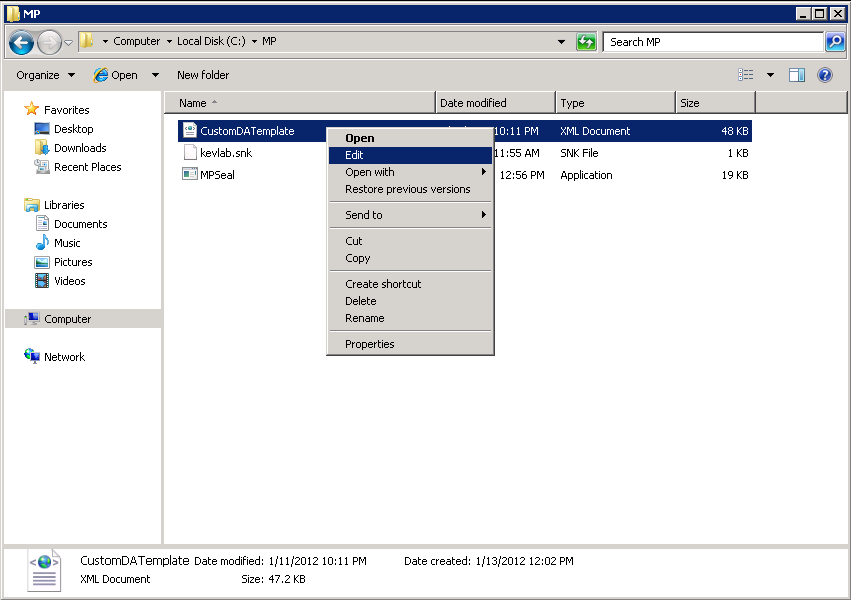
Carrying on from where we left off in Part 2, you should now have three files copied to the C:\MP directory on the root of your SCOM 2012 Management Server local disk. The three files are the unsealed distributed application template, the strong name key and the 'MPSeal' utility

Right mouse click on the unsealed custom template and select 'Edit' from the drop down menu


When the file opens, locate the string near the top of the file that starts with <ID> and replace the string name in there with the exact name that you gave to the unsealed distributed application template - making sure that you exclude the .XML extension. In the example below, I have called my file CustomDATemplate.xml so therefore the string that I will be adding as the <ID> is simply: CustomDATemplate as shown below


Three lines below the <ID> line, is another one called <NAME>. Again, replace the string that is in here with a display name that describes what the template is. See the graphic below for more


Once you have edited the file with the correct ID and Display Name, you need to confirm the location of your system management packs that were installed initially with SCOM 2012. The default installation of SCOM 2012 RC drops the system sealed management packs into the following location: C:\SCOM2012RC\ManagementPacks (see the screen below)


Note: The location of the system sealed management packs is important because we will need to specify this location when running the MPSeal utility against the unsealed template.

Now open up a command prompt with administrative privileges, browse to the C:\MP directory and run the following command - substituting file names and locations where necessary:

mpseal customdatemplate.xml /i c:\scom2012rc\managementopacks /Keyfile scomkey.snk /Company "Ergo"


The MPSeal utility then runs a verification and check on the unsealed template against its Management Pack references and ensures it can access any sealed dependencies from the specified location


Once the utility has finished, you should see the screen below confirming that the new .MP sealed file has been created


Browse back to the C:\MP directory and you will see two new files there now, one of which is your new sealed management pack - at last!!


Now all that's left to do is to import this into SCOM 2012 and test it!

Browse to the 'Administration' tab of the SCOM 2012 console, right mouse click on the 'Management Packs' link and then select 'Import Management Packs'


Click on 'Add' and then select 'Add from disk'


Click 'No' to confirm you don't want to search online for dependancies


Browse to the C:\MP directory on the SCOM 2012 Management Server and you should see both the sealed and unsealed Management Packs that reference your template. Click on the one that has the .MP extension and click on 'Open'


SCOM 2012 should quickly check the Management Pack and report back that it is OK to add into the environment. Click the 'Install' button to begin


Once completed you should see the 'Imported' status and you can then click 'Close'


When you take a look at the list of management packs imported into SCOM 2012, you should see your new one in there with a sealed reference of 'Yes' beside it


Now to test that the template works, open up the 'Authoring' tab again and right mouse click on 'Distributed Applications', then select 'Create a new distributed application' from the resulting menu


This time, you should see a new addition to your list of Distributed Application templates that you can choose from. Give it a name and description, select your new template and a management pack to store it in, then click 'OK'


 The new distributed application should open up exactly the way that you configured it to every time! No more having to create new custom component groups each time you want to build a distributed application with the same components (in my case it would have been 90 times!)


Populate the component groups with objects as below


Save the new distributed application and check that it appears in the list of distributed applications and then right click on it and select 'Diagram View'


Now you should see the Diagram View of your newly created Distributed Application Service using your very own custom sealed Distributed Application Template!


If you want to learn more about System Center 2012 products and in particular SCOM 2012, check out some of my previous posts below:

Cloud Management with System Center - Building a Private Cloud with System Center Virtual Machine Manager 2012

Cloud Management with System Center - Creating a Virtual Machine Template with System Center Virtual Machine Manager 2012

Cloud Management with System Center - Creating a Service Template with System Center Virtual Machine Manager 2012

Cloud Management with System Center - Connecting your private cloud to System Center App Controller 2012

Cloud Management with System Center - Customizing System Center App Controller 2012

Cloud Management with System Center - Connecting App Controller to Azure Part 1

Cloud Management with System Center - Connecting App Controller to Azure Part 2

Cloud Management with System Center - Integrating App Controller with SCOM