If you've been working with SCOM for as long as I have, you'll most likely have come across the very cool Global Service Monitor (GSM) feature that Microsoft first demonstrated way back in 2012 during the release of SCOM 2012 Service Pack 1 at the awesome Microsoft Management Summit in Vegas.
GSM simulates the end-user experience of accessing a web application as it can schedule automatic synthetic transactions from locations around the world - providing an 'Outside-In' availability, performance and reliability monitoring view of your externally facing web applications.
If you purchased a Software Assurance license for System Center 2012, then you were entitled to deploy the GSM management pack into your SCOM environments and use the Global Service Monitor connector shown in the following image to connect GSM in the cloud back into your on-premise SCOM deployment.
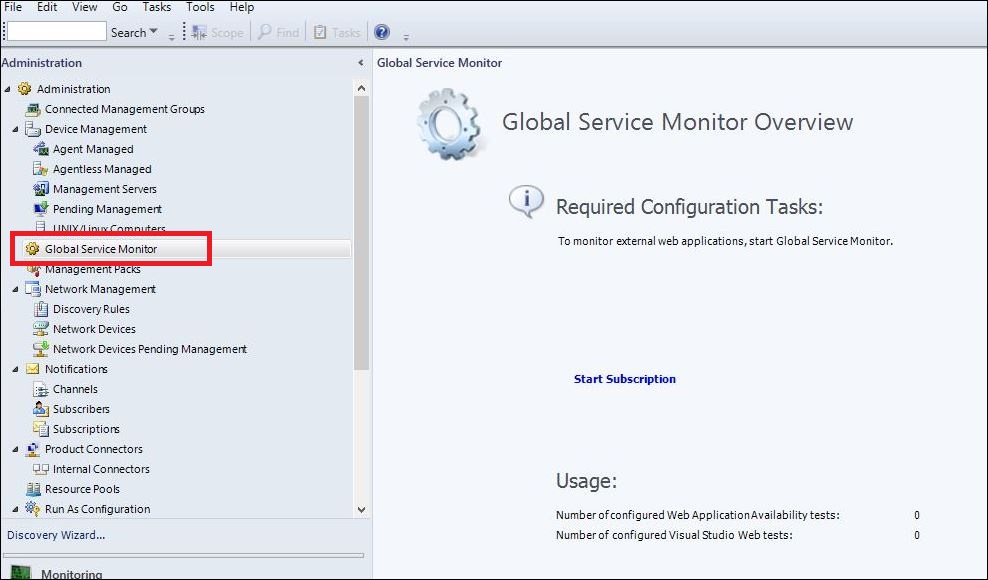
I've deployed GSM to a lot of customers over the years and it worked exactly as it was meant to along with adding some nice value when we were modeling IT services that needed an end-user perspective of the availability and performance of specific web applications.
Fast-forward to when SCOM 2016 was first released and although the GSM management pack guide only specified support for SCOM 2012, it still worked and delivered that 'Outside-In' monitoring experience.
Recently however, the GSM connector has stopped working for SCOM 2012 and also for SCOM 2016. If you had GSM running in your SCOM environment, you will probably have noticed an alert relating to a DNS resolution error - which on investigation looks like there's a DNS zone missing on the Microsoft side.
While no official statement has been released by Microsoft as to this connector being deprecated and this DNS issue may still be resolved, it's probably a good time to start thinking of an alternative option to GSM. This is where the Azure-based Application Insights platform comes in.
A few years back I wrote a few blog posts (here and here) that discussed an alternative to GSM when using Application Insights and last week after a discussion between a some MVP friends relating to the Global Service Monitor DNS resolution error in SCOM, Cameron Fuller (Cloud and Datacenter Management legend) put together an awesome walk-through blog post on using Application Insights as an alternative to GSM in SCOM.
Along with showing how to create a web availability test in Application Insights, Cameron also dives into some examples around custom dashboards and automatic application mapping. If you want to learn more, then I totally recommend checking out his post at the link below:
blogs.catapultsystems.com/cfuller/archive/2018/01/22/replacing-gsm-in-scom-with-application-insights/
Enjoy!
Showing posts with label SCOM 2012. Show all posts
Thursday, January 25, 2018
Thursday, October 6, 2016
Updated: SCOM 2016 & 2012 R2 Prerequisites Script
Last year when I was starting work on my new Getting Started with Operations Manager book, I needed a PowerShell script that would help me deploy the SCOM 2016 and 2012 R2 prerequisites without fail every time.
The script was a derivative of an earlier SCOM 2012 SP1 script that I published a few years back and it worked fine up until the download link for the ReportViewer prerequisite changed to support Windows Server 2016. I had it on my to-do list to update this script to reflect the new download link but before I got around to it, I noticed that my good friend (and the tallest Dutch guy I know) Oskar Landman had taken my original script and added his scripting magic to it!
Oskar's updated script now has interactive prompts to check which version of SCOM you're installing and whether or not you are deploying the Web Console role (which requires the most prerequisites) - awesome!
Taking your inputs from those prompts, it will then go and download the SQLSysClrTypes and ReportViewer prerequisites to a folder of your choice, install them and then deploy all required roles and features based on your input - nice!
You can review Oskar's original blog post about his work on this script here.
The updated script can be downloaded from my GitHub repo here:
The script was a derivative of an earlier SCOM 2012 SP1 script that I published a few years back and it worked fine up until the download link for the ReportViewer prerequisite changed to support Windows Server 2016. I had it on my to-do list to update this script to reflect the new download link but before I got around to it, I noticed that my good friend (and the tallest Dutch guy I know) Oskar Landman had taken my original script and added his scripting magic to it!
Oskar's updated script now has interactive prompts to check which version of SCOM you're installing and whether or not you are deploying the Web Console role (which requires the most prerequisites) - awesome!
Taking your inputs from those prompts, it will then go and download the SQLSysClrTypes and ReportViewer prerequisites to a folder of your choice, install them and then deploy all required roles and features based on your input - nice!
You can review Oskar's original blog post about his work on this script here.
The updated script can be downloaded from my GitHub repo here:
Wednesday, February 5, 2014
SCOM - New Management Pack for Team Foundation Server 2013 Available
Microsoft have just released a new Team Foundation Server (TFS) 2013 management pack for System Center Operations Manager (SCOM/OpsMgr).
Here's what it does (taken from the MP guide):
"The Team Foundation Server 2013 Monitoring Management Pack provides both proactive and reactive monitoring of Microsoft Team Foundation Server 2013. It monitors TFS components such as application tier server instances, team project collections, build servers, and proxy servers.
The monitoring provided by this management pack includes availability and configuration monitoring, performance data collection, and default thresholds. You can integrate the monitoring of Team Foundation Server components into your service-oriented monitoring scenarios."
This MP is essentially exactly the same as the TFS 2012 MP with the only exception being that it now supports TFS 2013.
However, according to the MP guide, there's one pretty big caveat here with this MP that you need to understand.....
It's not supported to run on System Center 2012 R2 - Operations Manager!
(see below screenshot of supported configurations noted in the MP guide)
So, if you're running SCOM 2007 SP1 right through to SCOM 2012 SP1, then you're good to go and all you'll need to do is read through the MP guide for full instructions on how to get it imported (you do read the MP guides every time you deploy an MP right?)
But, if you're running the latest and greatest version of SCOM 2012 R2, then you'll have to wait for support to follow I'm afraid.
Hopefully this post saves some people a bit of time!
Here's what it does (taken from the MP guide):
"The Team Foundation Server 2013 Monitoring Management Pack provides both proactive and reactive monitoring of Microsoft Team Foundation Server 2013. It monitors TFS components such as application tier server instances, team project collections, build servers, and proxy servers.
The monitoring provided by this management pack includes availability and configuration monitoring, performance data collection, and default thresholds. You can integrate the monitoring of Team Foundation Server components into your service-oriented monitoring scenarios."
This MP is essentially exactly the same as the TFS 2012 MP with the only exception being that it now supports TFS 2013.
However, according to the MP guide, there's one pretty big caveat here with this MP that you need to understand.....
It's not supported to run on System Center 2012 R2 - Operations Manager!
(see below screenshot of supported configurations noted in the MP guide)
So, if you're running SCOM 2007 SP1 right through to SCOM 2012 SP1, then you're good to go and all you'll need to do is read through the MP guide for full instructions on how to get it imported (you do read the MP guides every time you deploy an MP right?)
But, if you're running the latest and greatest version of SCOM 2012 R2, then you'll have to wait for support to follow I'm afraid.
Hopefully this post saves some people a bit of time!
Subscribe to:
Posts (Atom)


