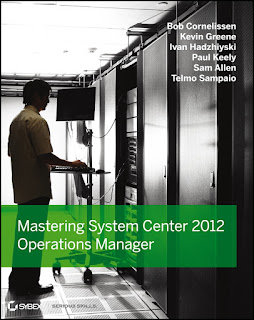
I've just arrived home from the commute to work today (still can't believe it's snowing at the end of March!) and found that this had arrived by post for me
As someone who has been working on pretty much nothing else but SCOM/OpsMgr for the past 3 years, the two previous versions of this book - System Center Operations Manager 2007 Unleashed and System Center Operations Manager 2007 R2 Unleashed - played a massive role in helping me understand how to deploy and administer this complex monitoring and management tool.
When I heard that the latest version for SCOM 2012 was available for pre-order months ago, I wasted no time in getting out the credit card and purchasing it in both 'dead-tree' and then kindle formats. This blog post isn't a review of the book in any way, shape or form but simply just some quick observations along with some advice to anyone out there who's working on SCOM.
The book is a massive 1500 pages of front-to-back content that gives you expert tips and advice in every chapter. As someone who has tried their hand at writing a SCOM 2012 book that came close to 700 pages, I can assure you it's no mean feat to put together this amount of good high-level content.
When you check out the members of the authoring team whose efforts combined to bring us this book, it's a "who's who" of the SCOM and System Center world:
Lead Authors
Kerrie Meyler - System Center Cloud and Datacenter MVP
Cameron Fuller - System Center Cloud and Datacenter MVP
John Joyner - System Center Cloud and Datacenter MVP
With
Pete Zerger - System Center Cloud and Datacenter MVP
Jonathan Almquist - Scomskills.com
Alex Fedotyev - AppDynamics.com
Scott Moss - System Center Cloud and Datacenter MVP
Oskar Landman - System Center Cloud and Datacenter MVP
Marnix Wolf - System Center Cloud and Datacenter MVP
Technical Editor
Kevin Holman - Microsoft TSP (owner of probably the best SCOM blog on the internet!)
So with this kind of SCOM authoring firepower bursting out of the 1500 pages, I don't even need to read through this book to tell you that it's a quality resource that you absolutely have to add to your library if you're serious about SCOM.
Side Note (and slight groupie story...)
I've just noticed that a link to one of my posts on SCOM 2012 APM got a mention and plug in the "General Resources" section of the OpsMgr 2012 Unleashed book and wanted to say a huge and sincere THANK YOU to whoever it was from the writing team above that took the time to read over my post and feel it worthy of a mention. It wasn't that long ago that I attended MMS 2011 and won a signed copy of the OpsMgr 2007 R2 Unleashed book from Cameron Fuller whilst attending (what still is so far for me) the most fun and interesting SCOM presentation I've ever seen. Reading that book on the plane back to Dublin, I never thought a few years later I'd have a mention in it's successor and it's an honour to be included.
Thursday, March 28, 2013
Thursday, March 21, 2013
New MSFT Blog To Help Keep Your Feet On the Ground and Head In The Clouds
For the last few years everyone has been talking about 'the cloud' and what it means for their businesses. Depending on where you look or who you talk to, you may well get A LOT of different versions of what exactly 'the cloud' is.
As I work primarily in the Microsoft space, I'm really only concerned about what 'the cloud' means from their perspective and I just had to write up this blog post to tell people about a new Microsoft blog called 'In The Cloud'. This blog is headed up by non other than Microsoft's Corporate VP Brad Anderson and it's aim is to help us all understand what the cloud means from the Microsoft side and where they're going to take us with this journey.
The blog has just been launched in the last couple of weeks and already Brad has some interesting posts up there that are worth taking a look over as a taste of what's to come. I'd expect as we get closer to MMS 2013 and TechEd 2013 that there will be a plethora of great information added and if Brad and his team maintain the content here, it could well become one of the most popular blogs around on MSFT Cloud.
Along with the new blog, Brad has taken the plunge and (very bravely) joined Twitter to help get his views across and information out there. If you're on Twitter and interested in Microsoft cloud technologies, then this is an account that you'll definitely want to follow and if you're not on Twitter, then I'd recommend adding the RSS feed for the blog to your Inbox to keep right up to date.
Check out the blog and Twitter account from these links:
'In The Cloud' (Blog)
@InTheCloudMSFT (Twitter)
Thanks to Brad and the rest of the System Center and Windows Server team for getting us access to these new resources!
As I work primarily in the Microsoft space, I'm really only concerned about what 'the cloud' means from their perspective and I just had to write up this blog post to tell people about a new Microsoft blog called 'In The Cloud'. This blog is headed up by non other than Microsoft's Corporate VP Brad Anderson and it's aim is to help us all understand what the cloud means from the Microsoft side and where they're going to take us with this journey.
The blog has just been launched in the last couple of weeks and already Brad has some interesting posts up there that are worth taking a look over as a taste of what's to come. I'd expect as we get closer to MMS 2013 and TechEd 2013 that there will be a plethora of great information added and if Brad and his team maintain the content here, it could well become one of the most popular blogs around on MSFT Cloud.
Along with the new blog, Brad has taken the plunge and (very bravely) joined Twitter to help get his views across and information out there. If you're on Twitter and interested in Microsoft cloud technologies, then this is an account that you'll definitely want to follow and if you're not on Twitter, then I'd recommend adding the RSS feed for the blog to your Inbox to keep right up to date.
Check out the blog and Twitter account from these links:
'In The Cloud' (Blog)
@InTheCloudMSFT (Twitter)
Thanks to Brad and the rest of the System Center and Windows Server team for getting us access to these new resources!
Wednesday, March 13, 2013
Guest Blogger on TechNet UK - 10 Top Tips to Make OpsMgr 2012 Rock!
Recently, I was asked to create some content for a guest blogger slot on Microsoft's TechNet UK site and yesterday saw the post I wrote on some tips and best practice recommendations go live.
If you want to learn more and maybe pick up a few useful pointers to help you with your SCOM / OpsMgr 2012 deployments, then check out my post from the link below:
10 Top Tips to Make OpsMgr 2012 Rock!
Enjoy :)
If you want to learn more and maybe pick up a few useful pointers to help you with your SCOM / OpsMgr 2012 deployments, then check out my post from the link below:
10 Top Tips to Make OpsMgr 2012 Rock!
Enjoy :)
Labels:
OPSMGR,
SCOM,
SCOM2012,
System Center 2012,
System Center 2012 SP1
Tuesday, March 12, 2013
SCOM - Official System Center MP Catalog Wiki
A couple of years ago I created a blog post with a link to an 'Unofficial System Center Management Pack Catlog' that a member of the community had put together as a central location to get access to all the download links for non-Microsoft developed management packs. This post proved pretty popular and I still refer to it a lot myself when looking for a particular MP on a deployment.
You can check out this post here: 'Unofficial System Center MP Catalog'
In the last week or so, Microsoft's 'MP Supremo' - Daniel Savage created a new Wiki page that lists all of the existing and soon to be released Microsoft Management Packs along with each and every one of the download links to get quick access to them.
And before anyone mentions it, I know we have the Pinpoint Site that also has a central location for these MP's, but if we as members of the System Center community can ensure that this Wiki is maintained and the links kept up-to-date, then this can be the 'de facto' location for us to get quick access to these management packs.
The new Wiki can be accessed from this link: 'Microsoft Management Packs'
Once again, well done to Microsoft and in particular Daniel and his team for putting the effort into the management pack experience and ensuring that all our queries and issues with them are getting resolved. This type of initiative can only add to the overall value of System Center 2012 in the long run.
**Update April 2015**
I've just come across another useful blog post on SystemCenterCore.com that lists all management packs for both SCOM and SCSM and comes with a really handy MP Elements table and download link for each one.
Check the library out here - http://systemcentercore.com/
You can check out this post here: 'Unofficial System Center MP Catalog'
In the last week or so, Microsoft's 'MP Supremo' - Daniel Savage created a new Wiki page that lists all of the existing and soon to be released Microsoft Management Packs along with each and every one of the download links to get quick access to them.
And before anyone mentions it, I know we have the Pinpoint Site that also has a central location for these MP's, but if we as members of the System Center community can ensure that this Wiki is maintained and the links kept up-to-date, then this can be the 'de facto' location for us to get quick access to these management packs.
The new Wiki can be accessed from this link: 'Microsoft Management Packs'
Once again, well done to Microsoft and in particular Daniel and his team for putting the effort into the management pack experience and ensuring that all our queries and issues with them are getting resolved. This type of initiative can only add to the overall value of System Center 2012 in the long run.
**Update April 2015**
I've just come across another useful blog post on SystemCenterCore.com that lists all management packs for both SCOM and SCSM and comes with a really handy MP Elements table and download link for each one.
Check the library out here - http://systemcentercore.com/
Labels:
OPSMGR,
SCOM,
SCOM2012,
System Center 2012,
System Center 2012 SP1
Monday, March 4, 2013
SCOM - Essential Community MPs, Scripts & Tools to Enhance Your Deployments
It's well known that System Center Operations Manager (SCOM/OpsMgr) is a complex product that can take a long time to master and be comfortable with. Without the right SCOM tools and resources to work with, then it can sometimes be like trying to solve a Rubik's Cube in the dark!
If you're responsible for delivering and managing SCOM either in-house or to your customers, you will also then know that just about every SCOM deployment is going to be different from the last one. The reason for this is that not every environment will require the same management packs and type of monitoring. For me though, there are a few management packs and scripts that I will nearly always install to every SCOM deployment and I thought it's about time that I shared them.
This post will describe some of my favourite free community management packs (some old and some new) and scripts that I think are essential to the majority of SCOM deployments out there. Although not an absolute and definitive list of all of the excellent community resources that are available, I will list the ones here that I deploy (or plan to deploy if it's a newly released MP) on a regular basis.
Management and Maintenance Tasks
These management packs will add a number of really useful maintenance and management tasks to the Tasks action pane inside the SCOM Operations Console.
OpsMgr Self Maintenance Management Pack (by Tao Yang)
SCOM Task Collection MP (by Stefan Roth)
Upgrading or Migrating to SCOM 2012
This is an excellent MP that will essentially allow you to modify the SCOM Management Group (MG) name on your multi-homed agents. Ideal for when you are migrating from SCOM 2007 to SCOM 2012 and want to remove the old MG name when the new environment is ready.
SCOM 2012 Extended Agent Info (by José Fehse)
Backing Up SCOM 2012
Tuning and customizing your SCOM environment is what takes the most amount of time during deployments and ensuring that these modifications are backed up and quickly recoverable is where this management pack comes in. A 'must have' MP in my opinion.
Backup Unsealed Management Packs (OpsMgr 2012 Edition from SystemCenterCentral.com)
Scheduled Maintenance Mode in SCOM 2012
In SCOM 2007 we could make use of the Scheduled Maintenance Mode utility that came bundled with the SCOM 2007 R2 Admin Resource Kit. Unfortunately, this great tool doesn't work with SCOM 2012 so Pete Zerger and Matthew Long from Infront Consulting came up with the perfect script to help you place groups of servers into maintenance mode whenever you wish.
OpsMgr 2012: Group Maintenance Mode via PowerShell (from SystemCenterCentral.com)
Stefan Roth has just recently (December 2013) created a new Maintenance Mode tool for SCOM 2012 SP1 and higher that will allow you to schedule your maintenance windows in much the same way as the old SCOM 2007 R2 Admin Resource Kit tool. Check it out here:
SCOM 2012 – Maintenance Mode Tool V 1.0
Viewing MPs, Overrides and Proxy Setting Tools
When Boris Yanushpolsky originally developed his MPViewer, OverrideExplorer and Proxy Settings utilities for SCOM 2007, he immediately endeared himself to SCOM administrators around the world! Daniele Muscetta has taken these tools and given them an upgrade to work with SCOM 2012 and you can get information and downloads to both sets of tools from the link below. I use at least one of these tools in just about every SCOM deployment I'm involved with.
Boris’s OpsMgr Tools – Updated (by Boris Yanushpolsky and Daniele Muscetta)
Additional SCOM Resources
The above tools and scripts are just a small portion of a huge number of resources available to you right now (and for free!) that have been developed by the greater System Center community. If some or all of these tools are new to you, then I'd highly advise you to take a good look around the websites and blogs of each of the authors above and when you've done that, then check out some of these links below for even more information to get you started on the right track:
ThoughtsOnOpsMgr (by Marnix Wolf)
Cameron Fuller's Catapult Systems Blog
Bob Cornelissen's Blog
Kevin Holman's System Center Blog
System Center: Operations Manager Engineering Blog (Official MSFT SCOM team blog)
System Center 2012 Operations Manager Survival Guide (Official SCOM Wiki page)
SystemCenterCentral.com (by Pete Zerger et al.)
MyITForum.com (by Rod Trent et al.)
SCOM 2012: Overview link blog (by Dieter Wijckmans)
SCOMfaq.ch (by Stefan Roth)
With these reference links and all of the MP's, scripts and tools, you should have more than enough information to truly enhance both your existing and new SCOM deployments.
If you're responsible for delivering and managing SCOM either in-house or to your customers, you will also then know that just about every SCOM deployment is going to be different from the last one. The reason for this is that not every environment will require the same management packs and type of monitoring. For me though, there are a few management packs and scripts that I will nearly always install to every SCOM deployment and I thought it's about time that I shared them.
This post will describe some of my favourite free community management packs (some old and some new) and scripts that I think are essential to the majority of SCOM deployments out there. Although not an absolute and definitive list of all of the excellent community resources that are available, I will list the ones here that I deploy (or plan to deploy if it's a newly released MP) on a regular basis.
Management and Maintenance Tasks
These management packs will add a number of really useful maintenance and management tasks to the Tasks action pane inside the SCOM Operations Console.
OpsMgr Self Maintenance Management Pack (by Tao Yang)
SCOM Task Collection MP (by Stefan Roth)
Upgrading or Migrating to SCOM 2012
This is an excellent MP that will essentially allow you to modify the SCOM Management Group (MG) name on your multi-homed agents. Ideal for when you are migrating from SCOM 2007 to SCOM 2012 and want to remove the old MG name when the new environment is ready.
SCOM 2012 Extended Agent Info (by José Fehse)
Backing Up SCOM 2012
Tuning and customizing your SCOM environment is what takes the most amount of time during deployments and ensuring that these modifications are backed up and quickly recoverable is where this management pack comes in. A 'must have' MP in my opinion.
Backup Unsealed Management Packs (OpsMgr 2012 Edition from SystemCenterCentral.com)
Scheduled Maintenance Mode in SCOM 2012
In SCOM 2007 we could make use of the Scheduled Maintenance Mode utility that came bundled with the SCOM 2007 R2 Admin Resource Kit. Unfortunately, this great tool doesn't work with SCOM 2012 so Pete Zerger and Matthew Long from Infront Consulting came up with the perfect script to help you place groups of servers into maintenance mode whenever you wish.
OpsMgr 2012: Group Maintenance Mode via PowerShell (from SystemCenterCentral.com)
Stefan Roth has just recently (December 2013) created a new Maintenance Mode tool for SCOM 2012 SP1 and higher that will allow you to schedule your maintenance windows in much the same way as the old SCOM 2007 R2 Admin Resource Kit tool. Check it out here:
SCOM 2012 – Maintenance Mode Tool V 1.0
Viewing MPs, Overrides and Proxy Setting Tools
When Boris Yanushpolsky originally developed his MPViewer, OverrideExplorer and Proxy Settings utilities for SCOM 2007, he immediately endeared himself to SCOM administrators around the world! Daniele Muscetta has taken these tools and given them an upgrade to work with SCOM 2012 and you can get information and downloads to both sets of tools from the link below. I use at least one of these tools in just about every SCOM deployment I'm involved with.
Boris’s OpsMgr Tools – Updated (by Boris Yanushpolsky and Daniele Muscetta)
Additional SCOM Resources
The above tools and scripts are just a small portion of a huge number of resources available to you right now (and for free!) that have been developed by the greater System Center community. If some or all of these tools are new to you, then I'd highly advise you to take a good look around the websites and blogs of each of the authors above and when you've done that, then check out some of these links below for even more information to get you started on the right track:
ThoughtsOnOpsMgr (by Marnix Wolf)
Cameron Fuller's Catapult Systems Blog
Bob Cornelissen's Blog
Kevin Holman's System Center Blog
System Center: Operations Manager Engineering Blog (Official MSFT SCOM team blog)
System Center 2012 Operations Manager Survival Guide (Official SCOM Wiki page)
SystemCenterCentral.com (by Pete Zerger et al.)
MyITForum.com (by Rod Trent et al.)
SCOM 2012: Overview link blog (by Dieter Wijckmans)
SCOMfaq.ch (by Stefan Roth)
With these reference links and all of the MP's, scripts and tools, you should have more than enough information to truly enhance both your existing and new SCOM deployments.
Labels:
OPSMGR,
SCOM,
SCOM2012,
System Center 2012,
System Center 2012 SP1
Thursday, February 28, 2013
Full List of New System Center Downloads - Feb 2013
Wow! February has been a real busy month in terms of new Microsoft downloads made available for System Center and Cloud Technologies. There's a mixture of Management (Monitoring) Packs for SCOM, technical documentation for SCCM and SCVMM , some new System Center tools and also additional guides and white papers around cloud technologies. See below for the complete list of February 2013 downloads:
SCOM Management Packs
System Center 2012 Management Pack for Network Load Balancing
System Center 2012 Management Pack for Windows Deployment Services
System Center 2012 Management Pack for Microsoft Windows Server File & iSCSI Services 2012
System Center 2012 Management Pack for Message Queuing
System Center Management Pack for Windows Server 2012 Cluster
System Center Management Pack for WSUS on Windows Server 2012
System Center Monitoring Pack for System Center 2012 - Configuration Manager
Technical Documentation and Reference Guides
Cloud Infrastructure Solution for Enterprise IT (Reference Guide)
Technical Documentation Download for Technical Scenarios for System Center 2012 SP1
Consumerization of IT (Reference Guides)
Technical Documentation Download for System Center 2012 Configuration Manager
System Center Operations Manager 2012: Network Devices with Extended Monitoring Capability (Reference Guide)
Technical Documentation Download for System Center 2012 – Virtual Machine Manager
Tools, Utilities and Extensions
System Center 2012 SP1 Configuration Analyzer
System Center 2012 SP1 Configuration Manager Package Conversion Manager 2.0
System Center Data Protection Manager CSV Serialization Tool
System Center 2012 – Configuration Manager Component Add-ons and Extensions
Microsoft System Center Configuration Manager 2007 - Application Compatibility Toolkit Connector
Microsoft System Center 2012 Service Pack 1 Configuration Manager - Clients for Additional Operating Systems
Labels:
SCCM,
SCOM,
SCOM2012,
System Center 2012,
System Center 2012 SP1
Friday, February 15, 2013
The MVP 2013 Global Summit, Seattle, USA
It's just a few hours until I'm in Dublin airport and ready for the first leg of my journey (Dublin to London Heathrow) to attend the MVP 2013 Global Summit. Once I get to London, I then have a 9.5 hour plane trip to tackle but it'll all be worth it I'm sure!
I'm really looking forward to the week ahead and getting an exclusive invitation to go over to Microsoft HQ in Seattle, Washington to interact with the product groups associated with your chosen technology is the highlight of earning an MVP in my opinion.
Instead of explaining everything that the summit is and has to offer -it's all under Non Disclosure Agreement (NDA) anyway - I'll let you take a look at this excellent 'Beginners Guide' to the MVP Summit article that Aidan Finn (Hyper-V MVP) wrote a couple of months ago.
A Beginners Guide To The MVP Summit
I know this guide will definitely be referenced more than a few times by me and some of the other newbie MVP's over the coming week!
I'm really looking forward to the week ahead and getting an exclusive invitation to go over to Microsoft HQ in Seattle, Washington to interact with the product groups associated with your chosen technology is the highlight of earning an MVP in my opinion.
Instead of explaining everything that the summit is and has to offer -it's all under Non Disclosure Agreement (NDA) anyway - I'll let you take a look at this excellent 'Beginners Guide' to the MVP Summit article that Aidan Finn (Hyper-V MVP) wrote a couple of months ago.
A Beginners Guide To The MVP Summit
I know this guide will definitely be referenced more than a few times by me and some of the other newbie MVP's over the coming week!
Monday, February 11, 2013
SCOM / OpsMgr - Hyper-V 2008 MP Issue
I've come across this problem a number of times over the last few months and know that a few of my other MVP colleagues have too so thought it'd be worth a quick blog post to help anyone out that comes across it.
Basically, if you have deployed the Hyper-V 2008 management pack and have a mixture of Hyper-V 2008 and Hyper-V 2012 hosts in your environment, then you will be hit with an error similar to this:
Here's how you resolve the issue:
First up, click on the Authoring button from the wunderbar in the SCOM Operations console as below
Now click on the Monitors view and then select the Scope button up top to scope your search criteria. When the Scope Management Pack Objects window appears, choose the View All Targets option and then type Hyper-V in the Look For field as shown below and then click OK to continue
Back at the now scoped Monitors window, in the Look For field at the top of the screen, type Port Connectivity as shown in the screenshot below and then hit the Find Now button
You should now be presented with the Port Connectivity monitor that forms part of the Microsoft Windows Hyper-V 2008 Monitoring management pack and this is one of the monitors that we need to disable for the Windows Server 2012 Hyper-V servers
If we double click on the Port Connectivity monitor to view its properties, we can see that its management pack is indeed the Microsoft Windows Hyper-V 2008 Monitoring one and that its virtual target is the Hyper-V Virtual Network class.
To confirm that this monitor is attempting to open the Microsoft-Windows-Hyper-V-Network-Admin event log that was mentioned in the original error message, we need to click on the Event Log (Unhealthy Events) tab as shown below. Hit the Close button to go back to the Monitors screen to disable this monitor.
Right-click on the Port Connectivity monitor, choose Overrides, select Disable the Monitor and choose the group or object of class that represents your Windows Server 2012 servers.
In this example, I've selected an Object of Class: Hyper-V Virtual Network and I am presented with all of the virtual networks that SCOM has discovered as shown below.
We can see in the screenshot that there are two entries here for Microsoft Network Adapter Multiplexor Driver - Virtual Switch and these two entries represent the two Windows Server 2012 Hyper-V hosts that I have deployed SCOM agents to. These are also the two servers that I constantly get the warning health state and alert about not being able to access the windows event log.
If I choose one of these entries and then hit OK, I will then be to the Override Properties window with the Enabled option set to False (as I had selected to disable this monitor earlier.) All that's left for me to do now is to add in a description for the override and choose an unsealed management pack to store it in - see below for details on what I've done
Once you've made the override, click on the OK button to close the Override properties window to return to the Monitors screen.
You will need to repeat this process again for one more monitor - this time selecting the Port Disconnectivity one as shown below
Once you have disabled both monitors for all Windows Server 2012 Hyper-V servers in your environment, then this alert will disappear and health states will return to a valid representation of the agents.
Hopefully, this will be resolved in the next update of the Hyper-V 2008 management pack and in the meantime, this post might have helped someone get past the alerts.
Basically, if you have deployed the Hyper-V 2008 management pack and have a mixture of Hyper-V 2008 and Hyper-V 2012 hosts in your environment, then you will be hit with an error similar to this:
The Windows Event Log Provider is still unable to open the
Microsoft-Windows-Hyper-V-Network-Admin event log on computer
‘ws2012-hyperv.kg.com’.
The Provider has been unable to open the Microsoft-Windows-Hyper-V-Network-Admin event log for 720 seconds.
Most recent error details: The specified channel could not be found. Check channel configuration.
One or more workflows were affected by this.
Workflow name: Microsoft.Windows.HyperV.2008.VirtualNetwork.PortConnectionMonitor
Instance name: Microsoft Network Adapter Multiplexor Driver - Virtual Switch
Instance ID: {63A20D0B-84E0-C128-C2E1-54F9B56B3EA8}
The key issue here is that there are specific monitors in the Hyper-V 2008 MP that look to access the event log highlighted above and in Windows Server 2012, this event log doesn't exist. The end result is that you will constantly have your Hyper-V 2012 agents showing up with a warning state in the SCOM console.The Provider has been unable to open the Microsoft-Windows-Hyper-V-Network-Admin event log for 720 seconds.
Most recent error details: The specified channel could not be found. Check channel configuration.
One or more workflows were affected by this.
Workflow name: Microsoft.Windows.HyperV.2008.VirtualNetwork.PortConnectionMonitor
Instance name: Microsoft Network Adapter Multiplexor Driver - Virtual Switch
Instance ID: {63A20D0B-84E0-C128-C2E1-54F9B56B3EA8}
Here's how you resolve the issue:
First up, click on the Authoring button from the wunderbar in the SCOM Operations console as below
Now click on the Monitors view and then select the Scope button up top to scope your search criteria. When the Scope Management Pack Objects window appears, choose the View All Targets option and then type Hyper-V in the Look For field as shown below and then click OK to continue
Back at the now scoped Monitors window, in the Look For field at the top of the screen, type Port Connectivity as shown in the screenshot below and then hit the Find Now button
You should now be presented with the Port Connectivity monitor that forms part of the Microsoft Windows Hyper-V 2008 Monitoring management pack and this is one of the monitors that we need to disable for the Windows Server 2012 Hyper-V servers
If we double click on the Port Connectivity monitor to view its properties, we can see that its management pack is indeed the Microsoft Windows Hyper-V 2008 Monitoring one and that its virtual target is the Hyper-V Virtual Network class.
To confirm that this monitor is attempting to open the Microsoft-Windows-Hyper-V-Network-Admin event log that was mentioned in the original error message, we need to click on the Event Log (Unhealthy Events) tab as shown below. Hit the Close button to go back to the Monitors screen to disable this monitor.
Right-click on the Port Connectivity monitor, choose Overrides, select Disable the Monitor and choose the group or object of class that represents your Windows Server 2012 servers.
In this example, I've selected an Object of Class: Hyper-V Virtual Network and I am presented with all of the virtual networks that SCOM has discovered as shown below.
We can see in the screenshot that there are two entries here for Microsoft Network Adapter Multiplexor Driver - Virtual Switch and these two entries represent the two Windows Server 2012 Hyper-V hosts that I have deployed SCOM agents to. These are also the two servers that I constantly get the warning health state and alert about not being able to access the windows event log.
If I choose one of these entries and then hit OK, I will then be to the Override Properties window with the Enabled option set to False (as I had selected to disable this monitor earlier.) All that's left for me to do now is to add in a description for the override and choose an unsealed management pack to store it in - see below for details on what I've done
Once you've made the override, click on the OK button to close the Override properties window to return to the Monitors screen.
You will need to repeat this process again for one more monitor - this time selecting the Port Disconnectivity one as shown below
Hopefully, this will be resolved in the next update of the Hyper-V 2008 management pack and in the meantime, this post might have helped someone get past the alerts.
Labels:
OPSMGR,
SCOM,
SCOM2012,
System Center 2012,
System Center 2012 SP1
Friday, February 8, 2013
Win a Copy of Mastering SCOM 2012 by Evaluating System Center

I have some copies of our recent Mastering System Center 2012 Operations Manager book to giveaway as part of a drive for us System Center MVP's to get more people evaluating and using System Center 2012.
Update May 2013: I've announced the winners of this competition here. Thanks to everyone for participating.
Here's a quick description of the book:
"Microsoft's powerful System Center 2012 Operations Manager introduces many exciting new and enhanced feature sets that allow for large-scale management of mission-critical servers. This comprehensive guide provides invaluable coverage to help organizations monitor their environments across computers, network, and storage infrastructures while maintaining efficient and effective service levels across their applications."
All you have to do to be in with a chance of winning a copy of this book is to click on the link below and download the evaluation software for System Center 2012 (you'll need to have a Windows Live ID to get the download and you MUST use the link below as it is linked to this campaign):
Evaluate System Center 2012 Today!
Please note that only one entry per e-mail address will be accepted. You can mail me your entry to here: kgreeneit AT outlook DOT com
Good Luck!
Tuesday, January 29, 2013
SCOM 2012 - NetApp Data ONTAP 3.1 MP Discovery Issues
I was working on a customer site today and came across this annoying discovery issue with the NetApp SAN Data ONTAP 3.1 Management Pack. This will most likely occur in every SCOM 2012 SP1 environment until you either apply the workaround below or until NetApp release Data ONTAP v3.2
After you install the NetApp Data ONTAP 3.1 management pack (check out Stefan's post here for some easy to follow instructions), you will probably find that shortly after adding in the NetApp controllers that they show up with a Critical health state.
If you have read the guide that comes with the NetApp ONTAP 3.1 MP, you can be forgiven for thinking that discovery of your controllers will happen automatically - as stated in the guide. As it turns out, Automatic Discovery of controllers in SCOM 2012 does not work and you will have to manually run the discovery task instead. The following NetApp kb article confirms this (you'll need to register first to read this):
https://kb.netapp.com/support/index?page=content&id=2017408&actp=LIST_RECENT&viewlocale=en_US&searchid=1359463483322
This is where the fun starts!
Taking heed of the NetApp kb article above, when you go and manually run the controller discovery using the task from inside the SCOM 2012 Operations Console, after a few minutes, the Windows Event viewer OnCommand Application Event Log reports the following message: 'Operations Manager could not log into controller'
Log Name: OnCommand
Source: Data ONTAP MP
Date: 12/19/2012 12:51:40 PM
Event ID: 1022
Task Category: (1)
Level: Error
Keywords: Classic
User: N/A
Computer: PHCHBS-S5194.XY.DOMAIN.net
Description:
Operations Manager could not log into controller XX.XX.XX.XX. Using the Data ONTAP credentials manager for System Center Operations Manager, check that valid credentials have been entered for this
These messages are logged every 15 minutes for each and every storage controller that is added into SCOM. When you've tired yourself out trying all different types of combinations to get the above error to go away (with https, without https, different user accounts etc.), then you'll be glad to know that NetApp have kindly provided a workaround to the problem along with a slight admission that this is a known issue with Data ONTAP 3.1 and that they will have it resolved in version 3.2!
This NetApp kb article has the information you need to get up and running (again, you will need to register first to view it):
https://kb.netapp.com/support/index?page=content&id=1014162&actp=search&viewlocale=en_US&searchid=1359463483322
I've copied the text from the kb article here for your convenience:
In the Run Discovery task
After you install the NetApp Data ONTAP 3.1 management pack (check out Stefan's post here for some easy to follow instructions), you will probably find that shortly after adding in the NetApp controllers that they show up with a Critical health state.
If you have read the guide that comes with the NetApp ONTAP 3.1 MP, you can be forgiven for thinking that discovery of your controllers will happen automatically - as stated in the guide. As it turns out, Automatic Discovery of controllers in SCOM 2012 does not work and you will have to manually run the discovery task instead. The following NetApp kb article confirms this (you'll need to register first to read this):
https://kb.netapp.com/support/index?page=content&id=2017408&actp=LIST_RECENT&viewlocale=en_US&searchid=1359463483322
This is where the fun starts!
Taking heed of the NetApp kb article above, when you go and manually run the controller discovery using the task from inside the SCOM 2012 Operations Console, after a few minutes, the Windows Event viewer OnCommand Application Event Log reports the following message: 'Operations Manager could not log into controller'
Log Name: OnCommand
Source: Data ONTAP MP
Date: 12/19/2012 12:51:40 PM
Event ID: 1022
Task Category: (1)
Level: Error
Keywords: Classic
User: N/A
Computer: PHCHBS-S5194.XY.DOMAIN.net
Description:
Operations Manager could not log into controller XX.XX.XX.XX. Using the Data ONTAP credentials manager for System Center Operations Manager, check that valid credentials have been entered for this
controller, and if "Require HTTPS" is selected, verify that the controller is configured to accept HTTPS connections.
Address: XX.XX.XX.XXThese messages are logged every 15 minutes for each and every storage controller that is added into SCOM. When you've tired yourself out trying all different types of combinations to get the above error to go away (with https, without https, different user accounts etc.), then you'll be glad to know that NetApp have kindly provided a workaround to the problem along with a slight admission that this is a known issue with Data ONTAP 3.1 and that they will have it resolved in version 3.2!
This NetApp kb article has the information you need to get up and running (again, you will need to register first to view it):
https://kb.netapp.com/support/index?page=content&id=1014162&actp=search&viewlocale=en_US&searchid=1359463483322
I've copied the text from the kb article here for your convenience:
In the Run Discovery task
GUI, use the option to run the task under a different domain admin user.- Create a new Run As action account. Go to Administration > Run As configuration > Accounts > Create Run As account.
- Under Run As Account Type, select Action Account.
- Make the new account the default action account. Go to Administration > Run As Configuration > Profiles > Default Action Account
- Select the Default Action Account, select Properties, and change the Run As Account for the Management Server to the new account created under Create Run As Account.
After the above modification to the new default action account, the discovery will work as expected.
Note: In OnCommand Plug-in 3.2, running the Manage Controller Credentials within the context of the default
Run As Account and issues such as this will be detected immediately when entering the credentials.
When you go to run the Discovery task manually again, make sure that you also specify an account in the Task Credentials section as below
Once the task is complete, you should see the following dialog box
That's all you should have to do now to ensure that your NetApp SAN and Storage infrastructure get discovered and managed in SCOM 2012 and after waiting for 10 or 15 minutes, you should see all of the LUN's, Volumes, vFilers etc. coming through inside the console.
Labels:
SCOM,
SCOM2012,
System Center 2012,
System Center 2012 SP1
Subscribe to:
Posts (Atom)