Thursday, February 28, 2013
Full List of New System Center Downloads - Feb 2013
Wow! February has been a real busy month in terms of new Microsoft downloads made available for System Center and Cloud Technologies. There's a mixture of Management (Monitoring) Packs for SCOM, technical documentation for SCCM and SCVMM , some new System Center tools and also additional guides and white papers around cloud technologies. See below for the complete list of February 2013 downloads:
SCOM Management Packs
System Center 2012 Management Pack for Network Load Balancing
System Center 2012 Management Pack for Windows Deployment Services
System Center 2012 Management Pack for Microsoft Windows Server File & iSCSI Services 2012
System Center 2012 Management Pack for Message Queuing
System Center Management Pack for Windows Server 2012 Cluster
System Center Management Pack for WSUS on Windows Server 2012
System Center Monitoring Pack for System Center 2012 - Configuration Manager
Technical Documentation and Reference Guides
Cloud Infrastructure Solution for Enterprise IT (Reference Guide)
Technical Documentation Download for Technical Scenarios for System Center 2012 SP1
Consumerization of IT (Reference Guides)
Technical Documentation Download for System Center 2012 Configuration Manager
System Center Operations Manager 2012: Network Devices with Extended Monitoring Capability (Reference Guide)
Technical Documentation Download for System Center 2012 – Virtual Machine Manager
Tools, Utilities and Extensions
System Center 2012 SP1 Configuration Analyzer
System Center 2012 SP1 Configuration Manager Package Conversion Manager 2.0
System Center Data Protection Manager CSV Serialization Tool
System Center 2012 – Configuration Manager Component Add-ons and Extensions
Microsoft System Center Configuration Manager 2007 - Application Compatibility Toolkit Connector
Microsoft System Center 2012 Service Pack 1 Configuration Manager - Clients for Additional Operating Systems
Labels:
SCCM,
SCOM,
SCOM2012,
System Center 2012,
System Center 2012 SP1
Friday, February 15, 2013
The MVP 2013 Global Summit, Seattle, USA
It's just a few hours until I'm in Dublin airport and ready for the first leg of my journey (Dublin to London Heathrow) to attend the MVP 2013 Global Summit. Once I get to London, I then have a 9.5 hour plane trip to tackle but it'll all be worth it I'm sure!
I'm really looking forward to the week ahead and getting an exclusive invitation to go over to Microsoft HQ in Seattle, Washington to interact with the product groups associated with your chosen technology is the highlight of earning an MVP in my opinion.
Instead of explaining everything that the summit is and has to offer -it's all under Non Disclosure Agreement (NDA) anyway - I'll let you take a look at this excellent 'Beginners Guide' to the MVP Summit article that Aidan Finn (Hyper-V MVP) wrote a couple of months ago.
A Beginners Guide To The MVP Summit
I know this guide will definitely be referenced more than a few times by me and some of the other newbie MVP's over the coming week!
I'm really looking forward to the week ahead and getting an exclusive invitation to go over to Microsoft HQ in Seattle, Washington to interact with the product groups associated with your chosen technology is the highlight of earning an MVP in my opinion.
Instead of explaining everything that the summit is and has to offer -it's all under Non Disclosure Agreement (NDA) anyway - I'll let you take a look at this excellent 'Beginners Guide' to the MVP Summit article that Aidan Finn (Hyper-V MVP) wrote a couple of months ago.
A Beginners Guide To The MVP Summit
I know this guide will definitely be referenced more than a few times by me and some of the other newbie MVP's over the coming week!
Monday, February 11, 2013
SCOM / OpsMgr - Hyper-V 2008 MP Issue
I've come across this problem a number of times over the last few months and know that a few of my other MVP colleagues have too so thought it'd be worth a quick blog post to help anyone out that comes across it.
Basically, if you have deployed the Hyper-V 2008 management pack and have a mixture of Hyper-V 2008 and Hyper-V 2012 hosts in your environment, then you will be hit with an error similar to this:
Here's how you resolve the issue:
First up, click on the Authoring button from the wunderbar in the SCOM Operations console as below
Now click on the Monitors view and then select the Scope button up top to scope your search criteria. When the Scope Management Pack Objects window appears, choose the View All Targets option and then type Hyper-V in the Look For field as shown below and then click OK to continue
Back at the now scoped Monitors window, in the Look For field at the top of the screen, type Port Connectivity as shown in the screenshot below and then hit the Find Now button
You should now be presented with the Port Connectivity monitor that forms part of the Microsoft Windows Hyper-V 2008 Monitoring management pack and this is one of the monitors that we need to disable for the Windows Server 2012 Hyper-V servers
If we double click on the Port Connectivity monitor to view its properties, we can see that its management pack is indeed the Microsoft Windows Hyper-V 2008 Monitoring one and that its virtual target is the Hyper-V Virtual Network class.
To confirm that this monitor is attempting to open the Microsoft-Windows-Hyper-V-Network-Admin event log that was mentioned in the original error message, we need to click on the Event Log (Unhealthy Events) tab as shown below. Hit the Close button to go back to the Monitors screen to disable this monitor.
Right-click on the Port Connectivity monitor, choose Overrides, select Disable the Monitor and choose the group or object of class that represents your Windows Server 2012 servers.
In this example, I've selected an Object of Class: Hyper-V Virtual Network and I am presented with all of the virtual networks that SCOM has discovered as shown below.
We can see in the screenshot that there are two entries here for Microsoft Network Adapter Multiplexor Driver - Virtual Switch and these two entries represent the two Windows Server 2012 Hyper-V hosts that I have deployed SCOM agents to. These are also the two servers that I constantly get the warning health state and alert about not being able to access the windows event log.
If I choose one of these entries and then hit OK, I will then be to the Override Properties window with the Enabled option set to False (as I had selected to disable this monitor earlier.) All that's left for me to do now is to add in a description for the override and choose an unsealed management pack to store it in - see below for details on what I've done
Once you've made the override, click on the OK button to close the Override properties window to return to the Monitors screen.
You will need to repeat this process again for one more monitor - this time selecting the Port Disconnectivity one as shown below
Once you have disabled both monitors for all Windows Server 2012 Hyper-V servers in your environment, then this alert will disappear and health states will return to a valid representation of the agents.
Hopefully, this will be resolved in the next update of the Hyper-V 2008 management pack and in the meantime, this post might have helped someone get past the alerts.
Basically, if you have deployed the Hyper-V 2008 management pack and have a mixture of Hyper-V 2008 and Hyper-V 2012 hosts in your environment, then you will be hit with an error similar to this:
The Windows Event Log Provider is still unable to open the
Microsoft-Windows-Hyper-V-Network-Admin event log on computer
‘ws2012-hyperv.kg.com’.
The Provider has been unable to open the Microsoft-Windows-Hyper-V-Network-Admin event log for 720 seconds.
Most recent error details: The specified channel could not be found. Check channel configuration.
One or more workflows were affected by this.
Workflow name: Microsoft.Windows.HyperV.2008.VirtualNetwork.PortConnectionMonitor
Instance name: Microsoft Network Adapter Multiplexor Driver - Virtual Switch
Instance ID: {63A20D0B-84E0-C128-C2E1-54F9B56B3EA8}
The key issue here is that there are specific monitors in the Hyper-V 2008 MP that look to access the event log highlighted above and in Windows Server 2012, this event log doesn't exist. The end result is that you will constantly have your Hyper-V 2012 agents showing up with a warning state in the SCOM console.The Provider has been unable to open the Microsoft-Windows-Hyper-V-Network-Admin event log for 720 seconds.
Most recent error details: The specified channel could not be found. Check channel configuration.
One or more workflows were affected by this.
Workflow name: Microsoft.Windows.HyperV.2008.VirtualNetwork.PortConnectionMonitor
Instance name: Microsoft Network Adapter Multiplexor Driver - Virtual Switch
Instance ID: {63A20D0B-84E0-C128-C2E1-54F9B56B3EA8}
Here's how you resolve the issue:
First up, click on the Authoring button from the wunderbar in the SCOM Operations console as below
Now click on the Monitors view and then select the Scope button up top to scope your search criteria. When the Scope Management Pack Objects window appears, choose the View All Targets option and then type Hyper-V in the Look For field as shown below and then click OK to continue
Back at the now scoped Monitors window, in the Look For field at the top of the screen, type Port Connectivity as shown in the screenshot below and then hit the Find Now button
You should now be presented with the Port Connectivity monitor that forms part of the Microsoft Windows Hyper-V 2008 Monitoring management pack and this is one of the monitors that we need to disable for the Windows Server 2012 Hyper-V servers
If we double click on the Port Connectivity monitor to view its properties, we can see that its management pack is indeed the Microsoft Windows Hyper-V 2008 Monitoring one and that its virtual target is the Hyper-V Virtual Network class.
To confirm that this monitor is attempting to open the Microsoft-Windows-Hyper-V-Network-Admin event log that was mentioned in the original error message, we need to click on the Event Log (Unhealthy Events) tab as shown below. Hit the Close button to go back to the Monitors screen to disable this monitor.
Right-click on the Port Connectivity monitor, choose Overrides, select Disable the Monitor and choose the group or object of class that represents your Windows Server 2012 servers.
In this example, I've selected an Object of Class: Hyper-V Virtual Network and I am presented with all of the virtual networks that SCOM has discovered as shown below.
We can see in the screenshot that there are two entries here for Microsoft Network Adapter Multiplexor Driver - Virtual Switch and these two entries represent the two Windows Server 2012 Hyper-V hosts that I have deployed SCOM agents to. These are also the two servers that I constantly get the warning health state and alert about not being able to access the windows event log.
If I choose one of these entries and then hit OK, I will then be to the Override Properties window with the Enabled option set to False (as I had selected to disable this monitor earlier.) All that's left for me to do now is to add in a description for the override and choose an unsealed management pack to store it in - see below for details on what I've done
Once you've made the override, click on the OK button to close the Override properties window to return to the Monitors screen.
You will need to repeat this process again for one more monitor - this time selecting the Port Disconnectivity one as shown below
Hopefully, this will be resolved in the next update of the Hyper-V 2008 management pack and in the meantime, this post might have helped someone get past the alerts.
Labels:
OPSMGR,
SCOM,
SCOM2012,
System Center 2012,
System Center 2012 SP1
Friday, February 8, 2013
Win a Copy of Mastering SCOM 2012 by Evaluating System Center

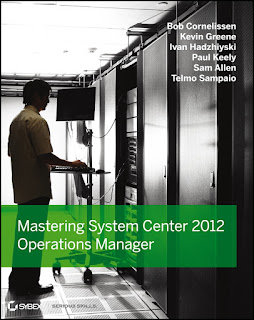
I have some copies of our recent Mastering System Center 2012 Operations Manager book to giveaway as part of a drive for us System Center MVP's to get more people evaluating and using System Center 2012.
Update May 2013: I've announced the winners of this competition here. Thanks to everyone for participating.
Here's a quick description of the book:
"Microsoft's powerful System Center 2012 Operations Manager introduces many exciting new and enhanced feature sets that allow for large-scale management of mission-critical servers. This comprehensive guide provides invaluable coverage to help organizations monitor their environments across computers, network, and storage infrastructures while maintaining efficient and effective service levels across their applications."
All you have to do to be in with a chance of winning a copy of this book is to click on the link below and download the evaluation software for System Center 2012 (you'll need to have a Windows Live ID to get the download and you MUST use the link below as it is linked to this campaign):
Evaluate System Center 2012 Today!
Please note that only one entry per e-mail address will be accepted. You can mail me your entry to here: kgreeneit AT outlook DOT com
Good Luck!
Tuesday, January 29, 2013
SCOM 2012 - NetApp Data ONTAP 3.1 MP Discovery Issues
I was working on a customer site today and came across this annoying discovery issue with the NetApp SAN Data ONTAP 3.1 Management Pack. This will most likely occur in every SCOM 2012 SP1 environment until you either apply the workaround below or until NetApp release Data ONTAP v3.2
After you install the NetApp Data ONTAP 3.1 management pack (check out Stefan's post here for some easy to follow instructions), you will probably find that shortly after adding in the NetApp controllers that they show up with a Critical health state.
If you have read the guide that comes with the NetApp ONTAP 3.1 MP, you can be forgiven for thinking that discovery of your controllers will happen automatically - as stated in the guide. As it turns out, Automatic Discovery of controllers in SCOM 2012 does not work and you will have to manually run the discovery task instead. The following NetApp kb article confirms this (you'll need to register first to read this):
https://kb.netapp.com/support/index?page=content&id=2017408&actp=LIST_RECENT&viewlocale=en_US&searchid=1359463483322
This is where the fun starts!
Taking heed of the NetApp kb article above, when you go and manually run the controller discovery using the task from inside the SCOM 2012 Operations Console, after a few minutes, the Windows Event viewer OnCommand Application Event Log reports the following message: 'Operations Manager could not log into controller'
Log Name: OnCommand
Source: Data ONTAP MP
Date: 12/19/2012 12:51:40 PM
Event ID: 1022
Task Category: (1)
Level: Error
Keywords: Classic
User: N/A
Computer: PHCHBS-S5194.XY.DOMAIN.net
Description:
Operations Manager could not log into controller XX.XX.XX.XX. Using the Data ONTAP credentials manager for System Center Operations Manager, check that valid credentials have been entered for this
These messages are logged every 15 minutes for each and every storage controller that is added into SCOM. When you've tired yourself out trying all different types of combinations to get the above error to go away (with https, without https, different user accounts etc.), then you'll be glad to know that NetApp have kindly provided a workaround to the problem along with a slight admission that this is a known issue with Data ONTAP 3.1 and that they will have it resolved in version 3.2!
This NetApp kb article has the information you need to get up and running (again, you will need to register first to view it):
https://kb.netapp.com/support/index?page=content&id=1014162&actp=search&viewlocale=en_US&searchid=1359463483322
I've copied the text from the kb article here for your convenience:
In the Run Discovery task
After you install the NetApp Data ONTAP 3.1 management pack (check out Stefan's post here for some easy to follow instructions), you will probably find that shortly after adding in the NetApp controllers that they show up with a Critical health state.
If you have read the guide that comes with the NetApp ONTAP 3.1 MP, you can be forgiven for thinking that discovery of your controllers will happen automatically - as stated in the guide. As it turns out, Automatic Discovery of controllers in SCOM 2012 does not work and you will have to manually run the discovery task instead. The following NetApp kb article confirms this (you'll need to register first to read this):
https://kb.netapp.com/support/index?page=content&id=2017408&actp=LIST_RECENT&viewlocale=en_US&searchid=1359463483322
This is where the fun starts!
Taking heed of the NetApp kb article above, when you go and manually run the controller discovery using the task from inside the SCOM 2012 Operations Console, after a few minutes, the Windows Event viewer OnCommand Application Event Log reports the following message: 'Operations Manager could not log into controller'
Log Name: OnCommand
Source: Data ONTAP MP
Date: 12/19/2012 12:51:40 PM
Event ID: 1022
Task Category: (1)
Level: Error
Keywords: Classic
User: N/A
Computer: PHCHBS-S5194.XY.DOMAIN.net
Description:
Operations Manager could not log into controller XX.XX.XX.XX. Using the Data ONTAP credentials manager for System Center Operations Manager, check that valid credentials have been entered for this
controller, and if "Require HTTPS" is selected, verify that the controller is configured to accept HTTPS connections.
Address: XX.XX.XX.XXThese messages are logged every 15 minutes for each and every storage controller that is added into SCOM. When you've tired yourself out trying all different types of combinations to get the above error to go away (with https, without https, different user accounts etc.), then you'll be glad to know that NetApp have kindly provided a workaround to the problem along with a slight admission that this is a known issue with Data ONTAP 3.1 and that they will have it resolved in version 3.2!
This NetApp kb article has the information you need to get up and running (again, you will need to register first to view it):
https://kb.netapp.com/support/index?page=content&id=1014162&actp=search&viewlocale=en_US&searchid=1359463483322
I've copied the text from the kb article here for your convenience:
In the Run Discovery task
GUI, use the option to run the task under a different domain admin user.- Create a new Run As action account. Go to Administration > Run As configuration > Accounts > Create Run As account.
- Under Run As Account Type, select Action Account.
- Make the new account the default action account. Go to Administration > Run As Configuration > Profiles > Default Action Account
- Select the Default Action Account, select Properties, and change the Run As Account for the Management Server to the new account created under Create Run As Account.
After the above modification to the new default action account, the discovery will work as expected.
Note: In OnCommand Plug-in 3.2, running the Manage Controller Credentials within the context of the default
Run As Account and issues such as this will be detected immediately when entering the credentials.
When you go to run the Discovery task manually again, make sure that you also specify an account in the Task Credentials section as below
Once the task is complete, you should see the following dialog box
That's all you should have to do now to ensure that your NetApp SAN and Storage infrastructure get discovered and managed in SCOM 2012 and after waiting for 10 or 15 minutes, you should see all of the LUN's, Volumes, vFilers etc. coming through inside the console.
Labels:
SCOM,
SCOM2012,
System Center 2012,
System Center 2012 SP1
Wednesday, January 23, 2013
Free SQL Server guide for System Center 2012
A good friend of mine and fellow Irish System Center MVP Paul Keely has taken the time to write up an excellent guide on SQL 2008 R2 and System Center that will help you make design decisions for your deployments.
From the description:
This is a guide to help you make design decisions and maintenance plans for SQL Server 2008 R2 to support System Center 2012. In the guide you will learn to make server and instance specific changes to support SQL server for the different workloads that System Center requires. We will look at the install requirements per product, what we need to move the data bases and how we should back them up.
Paul has made this guide available on the Microsoft TechNet site and it can be downloaded from here:
http://gallery.technet.microsoft.com/SQL-Server-guide-for-8584c403
He will be refreshing this guide to take into account SQL Server 2012 with System Center in the near future but until then, I'd highly recommend that you take advantage of yet another excellent FREE resource that the System Center community has made available to you and download this today!
From the description:
This is a guide to help you make design decisions and maintenance plans for SQL Server 2008 R2 to support System Center 2012. In the guide you will learn to make server and instance specific changes to support SQL server for the different workloads that System Center requires. We will look at the install requirements per product, what we need to move the data bases and how we should back them up.
Paul has made this guide available on the Microsoft TechNet site and it can be downloaded from here:
http://gallery.technet.microsoft.com/SQL-Server-guide-for-8584c403
He will be refreshing this guide to take into account SQL Server 2012 with System Center in the near future but until then, I'd highly recommend that you take advantage of yet another excellent FREE resource that the System Center community has made available to you and download this today!
Wednesday, January 16, 2013
SCOM 2012 SP1 Prerequisites - The PoSh Way
If like me, you're a System Center consultant and find yourself deploying SCOM/OpsMgr 2012 quite frequently (like once or twice a week), then you will know that acquiring and installing the software prerequisites can be a monotonous task. It's not that they are difficult, just a pain when you have to do it regularly as there are some files to be downloaded from the Microsoft download centre and then a number of Windows Server roles and features to be added too.
The order in which you deploy these prerequisites can also determine the number of additional tasks that you have to carry out to get IIS and .NET framework to work together properly. For these reasons, I wanted to share my quick and easy way of getting these prerequisites installed onto your servers.
This post will serve two purposes. Primarily, it's going to be my own central reference point for when I'm out doing deployments and secondly, it might just serve a useful purpose for others too.
In a Windows environment, if you want to get stuff done quickly and efficiently, then there's no better way in my opinion than to use PowerShell. People that know me, will also probably know that my PowerShell Kung Fu isn't great but that I've promised myself this year to ramp up on it. This post is the start of my New Years resolution and I've included some PowerShell scripts here that will download the relevant prerequisite software and install the roles and features for both Windows Server 2008 and Windows Server 2012 - depending on which O/S you are installing SCOM 2012 SP1 onto.
The Real Credits
Before I go any further, it needs to be noted that the scripts in this blog post are an amalgamated and modified version of the excellent scripts originally posted by Tim McFadden here and Steve Beaumont here. I take no credit for the original code and all I have done is to join the two of them together and add one or two very small changes to suit my own SCOM 2012 SP1 deployments. If you haven't already, then I'd encourage you to take the time to read through Tim and Steve's blog's as they contain loads of valuable information to help you along your way when working with System Center.
SCOM 2012 SP1 Prerequisites
If you are installing SCOM 2012 SP1, then here are the software prerequisites listed on TechNet based on server role:
System Requirements: System Center 2012 SP1 - Operations Manager
Windows Server 2008 - Management Server Role Only PreReq Script
#This section will download the .NET Framework 4.0 Redistributable Prereq for the SCOM 2012 SP1 Management Server role on Windows Server 2008 to a folder on the C:\ drive called SCOM2012SP1Prereqs and will then install it automatically #
$dwnld = "C:\SCOM2012SP1Prereqs"
if (!(Test-Path -path $dwnld))
{
New-Item $dwnld -type directory
}
$object = New-Object Net.WebClient
$RPTurl = 'http://download.microsoft.com/download/9/5/A/95A9616B-7A37-4AF6-BC36-D6EA96C8DAAE/dotNetFx40_Full_x86_x64.exe'
$object.DownloadFile($RPTurl, "$dwnld\dotNetFx40_Full_x86_x64.exe")
Start-Process -FilePath "$dwnld\dotNetFx40_Full_x86_x64.exe" -ArgumentList /q -Wait
Click here to download this PowerShell script as a .PS1 file
Windows Server 2008 - Operations Console Role Only PreReq Script
#This section will download the .NET Framework 4.0 Redistributable Prereq for the SCOM 2012 SP1 Management Server role on Windows Server 2008 to a folder on the C:\ drive called SCOM2012SP1Prereqs and will then install it automatically #
$dwnld = "C:\SCOM2012SP1Prereqs"
if (!(Test-Path -path $dwnld))
{
New-Item $dwnld -type directory
}
$object = New-Object Net.WebClient
$RPTurl = 'http://download.microsoft.com/download/9/5/A/95A9616B-7A37-4AF6-BC36-D6EA96C8DAAE/dotNetFx40_Full_x86_x64.exe'
$object.DownloadFile($RPTurl, "$dwnld\dotNetFx40_Full_x86_x64.exe")
Start-Process -FilePath "$dwnld\dotNetFx40_Full_x86_x64.exe" -ArgumentList /q -Wait
#This section will download the Report Viewer Distributable Prereq for the SCOM 2012 SP1 Operations Console role on Windows Server 2008 to a folder on the C:\ drive called SCOM2012SP1Prereqs and will then install it automatically #
$dwnld = "C:\SCOM2012SP1Prereqs"
if (!(Test-Path -path $dwnld))
{
New-Item $dwnld -type directory
}
$object = New-Object Net.WebClient
$RPTurl = 'http://download.microsoft.com/download/E/A/1/EA1BF9E8-D164-4354-8959-F96843DD8F46/ReportViewer.exe'
$object.DownloadFile($RPTurl, "$dwnld\ReportViewer.exe")
Start-Process -FilePath "$dwnld\ReportViewer.exe" -ArgumentList /q -Wait
Windows Server 2008 - Web Console Role Only PreReq Script
#This section will install all the Windows Server 2008 Roles and Feature Prereqs for the Web Console Role#
import-module servermanager
Add-WindowsFeature NET-Framework-Core,Web-Static-Content,Web-Default-Doc,Web-Dir-Browsing,Web-Http-Errors,Web-Http-Logging,Web-Request-Monitor,Web-Filtering,Web-Stat-Compression,AS-Web-Support,Web-Metabase,Web-Asp-Net,Web-Windows-Auth,AS-HTTP-Activation –restart
#This section will download the .NET Framework 4.0 Redistributable Prereq for Windows Server 2008 to a folder on the C:\ drive called SCOM2012SP1Prereqs and will then install it automatically#
$dwnld = "C:\SCOM2012SP1Prereqs"
if (!(Test-Path -path $dwnld))
{
New-Item $dwnld -type directory
}
$object = New-Object Net.WebClient
$RPTurl = 'http://download.microsoft.com/download/9/5/A/95A9616B-7A37-4AF6-BC36-D6EA96C8DAAE/dotNetFx40_Full_x86_x64.exe'
$object.DownloadFile($RPTurl, "$dwnld\dotNetFx40_Full_x86_x64.exe")
Start-Process -FilePath "$dwnld\dotNetFx40_Full_x86_x64.exe" -ArgumentList /q -Wait
#This section will enable the ISAPI and CGI extensions for IIS and .NET 4.0 once the .NET 4.0 redistributable has been installed#
c:\windows\system32\inetsrv\appcmd set config /section:isapiCgiRestriction /[path=`'C:\Windows\Microsoft.NET\Framework64\v4.0.30319\aspnet_isapi.dll`'].allowed:True
Click here to download this PowerShell script as a .PS1 file
Windows Server 2008 - Combined Management Server, Operations Console and Web Console Roles PreReq Script
#This section will install all the Windows Server 2008 Roles and Feature Prereqs for the Web Console Role#
import-module servermanager
Add-WindowsFeature NET-Framework-Core,Web-Static-Content,Web-Default-Doc,Web-Dir-Browsing,Web-Http-Errors,Web-Http-Logging,Web-Request-Monitor,Web-Filtering,Web-Stat-Compression,AS-Web-Support,Web-Metabase,Web-Asp-Net,Web-Windows-Auth,AS-HTTP-Activation –restart
#This section will download the Report Viewer Distributable Prereq for the SCOM 2012 SP1 Operations Console role on Windows Server 2008 to a folder on the C:\ drive called SCOM2012SP1Prereqs and will then install it automatically #
$dwnld = "C:\SCOM2012SP1Prereqs"
if (!(Test-Path -path $dwnld))
{
New-Item $dwnld -type directory
}
$object = New-Object Net.WebClient
$RPTurl = 'http://download.microsoft.com/download/E/A/1/EA1BF9E8-D164-4354-8959-F96843DD8F46/ReportViewer.exe'
$object.DownloadFile($RPTurl, "$dwnld\ReportViewer.exe")
Start-Process -FilePath "$dwnld\ReportViewer.exe" -ArgumentList /q -Wait
#This section will download the .NET Framework 4.0 Redistributable Prereq for Windows Server 2008 to a folder on the C:\ drive called SCOM2012SP1Prereqs and will then install it automatically#
$dwnld = "C:\SCOM2012SP1Prereqs"
if (!(Test-Path -path $dwnld))
{
New-Item $dwnld -type directory
}
$object = New-Object Net.WebClient
$RPTurl = 'http://download.microsoft.com/download/9/5/A/95A9616B-7A37-4AF6-BC36-D6EA96C8DAAE/dotNetFx40_Full_x86_x64.exe'
$object.DownloadFile($RPTurl, "$dwnld\dotNetFx40_Full_x86_x64.exe")
Start-Process -FilePath "$dwnld\dotNetFx40_Full_x86_x64.exe" -ArgumentList /q -Wait
#This section will enable the ISAPI and CGI extensions for IIS and .NET 4.0 once the .NET 4.0 redistributable has been installed#
c:\windows\system32\inetsrv\appcmd set config /section:isapiCgiRestriction /[path=`'C:\Windows\Microsoft.NET\Framework64\v4.0.30319\aspnet_isapi.dll`'].allowed:True
The updated script can be downloaded from my GitHub repo here:
The order in which you deploy these prerequisites can also determine the number of additional tasks that you have to carry out to get IIS and .NET framework to work together properly. For these reasons, I wanted to share my quick and easy way of getting these prerequisites installed onto your servers.
This post will serve two purposes. Primarily, it's going to be my own central reference point for when I'm out doing deployments and secondly, it might just serve a useful purpose for others too.
In a Windows environment, if you want to get stuff done quickly and efficiently, then there's no better way in my opinion than to use PowerShell. People that know me, will also probably know that my PowerShell Kung Fu isn't great but that I've promised myself this year to ramp up on it. This post is the start of my New Years resolution and I've included some PowerShell scripts here that will download the relevant prerequisite software and install the roles and features for both Windows Server 2008 and Windows Server 2012 - depending on which O/S you are installing SCOM 2012 SP1 onto.
The Real Credits
Before I go any further, it needs to be noted that the scripts in this blog post are an amalgamated and modified version of the excellent scripts originally posted by Tim McFadden here and Steve Beaumont here. I take no credit for the original code and all I have done is to join the two of them together and add one or two very small changes to suit my own SCOM 2012 SP1 deployments. If you haven't already, then I'd encourage you to take the time to read through Tim and Steve's blog's as they contain loads of valuable information to help you along your way when working with System Center.
SCOM 2012 SP1 Prerequisites
If you are installing SCOM 2012 SP1, then here are the software prerequisites listed on TechNet based on server role:
System Requirements: System Center 2012 SP1 - Operations Manager
As you can see from the link above, some of the server roles only have one or two but with the Web Console role, there are quite a few prerequisites that need to be taken into account. If you were using the GUI to configure and deploy these prerequisites, you can be sure that at some point you'll miss something and have to go back to it once or twice before you get it right.
The Windows Server 2012 Scripts
These scripts are also scoped to each individual SCOM 2012 SP1 role that is deployed onto the Windows Server 2012 Operating System. The main differences though to the Windows Server 2008 prerequisites is that .NET Framework 4.0 can be installed directly using PowerShell in Windows Server 2012 and as such we don't need to download the .NET 4.0 redistributable. This makes integration with IIS easier and therefore less scripting is needed to quickly deploy the prereqs onto Windows Server 2012.
Windows Server 2012 - Management Server Role Only PreReq Script
#This section installs the .NET Prereq for Windows Server 2012#
The Windows Server 2012 Scripts
These scripts are also scoped to each individual SCOM 2012 SP1 role that is deployed onto the Windows Server 2012 Operating System. The main differences though to the Windows Server 2008 prerequisites is that .NET Framework 4.0 can be installed directly using PowerShell in Windows Server 2012 and as such we don't need to download the .NET 4.0 redistributable. This makes integration with IIS easier and therefore less scripting is needed to quickly deploy the prereqs onto Windows Server 2012.
Windows Server 2012 - Management Server Role Only PreReq Script
#This section installs the .NET Prereq for Windows Server 2012#
Import-Module ServerManager
Add-WindowsFeature NET-Framework-Core
Click here to download this PowerShell script as a .PS1 file
Windows Server 2012 - Operations Console Role Only PreReq Script
#This section installs the .NET Prereq for Windows Server 2012#
#This section installs the .NET and IIS Prereqs for Windows Server 2012#
The Windows Server 2008 Scripts
Although most people will be using the Combined Management Server, Operations Console and Web Console Prereq Script, I'll scope the rest of the scripts here to suit each individual SCOM 2012 SP1 role that's deployed onto Windows Server 2008. The reason for doing this is that the prereq's for each role can vary and obviously we don't want to be installing any more roles or features than we actually have to for a server.
Add-WindowsFeature NET-Framework-Core
Click here to download this PowerShell script as a .PS1 file
Windows Server 2012 - Operations Console Role Only PreReq Script
#This section installs the .NET Prereq for Windows Server 2012#
Import-Module ServerManager
Add-WindowsFeature NET-Framework-Core
#This section will download the Report Viewer Distributable Prereq for Windows Server 2008 or Windows Server 2012 to a folder called C:\SCOM2012SP1Prereqs and will then install it automatically#
$dwnld = "C:\SCOM2012SP1Prereqs"
if (!(Test-Path -path $dwnld))
{
New-Item $dwnld -type directory
}
$object = New-Object Net.WebClient
$RPTurl = 'http://download.microsoft.com/download/E/A/1/EA1BF9E8-D164-4354-8959-F96843DD8F46/ReportViewer.exe'
$object.DownloadFile($RPTurl, "$dwnld\ReportViewer.exe")
Start-Process -FilePath "$dwnld\ReportViewer.exe" -ArgumentList /q -Wait
Click here to download this PowerShell script as a .PS1 file
Windows Server 2012 - Web Console Role Only PreReq Script
#This section installs the .NET and IIS Prereqs for Windows Server 2012#
Import-Module ServerManager
Add-WindowsFeature NET-Framework-Core,AS-HTTP-Activation,Web-Static-Content,Web-Default-Doc,Web-Dir-Browsing,Web-Http-Errors,Web-Http-Logging,Web-Request-Monitor,Web-Filtering,Web-Stat-Compression,AS-Web-Support,Web-Metabase,Web-Asp-Net,Web-Windows-Auth –restart
Windows Server 2012 - Combined Management Server, Operations Console and Web Console Roles PreReq Script
#This section installs the .NET and IIS Prereqs for Windows Server 2012#
Import-Module ServerManager
Add-WindowsFeature NET-Framework-Core,AS-HTTP-Activation,Web-Static-Content,Web-Default-Doc,Web-Dir-Browsing,Web-Http-Errors,Web-Http-Logging,Web-Request-Monitor,Web-Filtering,Web-Stat-Compression,AS-Web-Support,Web-Metabase,Web-Asp-Net,Web-Windows-Auth –restart
#This section will download the Report Viewer Distributable Prereq for Windows Server 2008 or Windows Server 2012 to a folder called C:\SCOM2012SP1Prereqs. Once the file has been downloaded it will automatically install#
$dwnld = "C:\SCOM2012SP1Prereqs"
if (!(Test-Path -path $dwnld))
{
New-Item $dwnld -type directory
}
$object = New-Object Net.WebClient
$RPTurl = 'http://download.microsoft.com/download/E/A/1/EA1BF9E8-D164-4354-8959-F96843DD8F46/ReportViewer.exe'
$object.DownloadFile($RPTurl, "$dwnld\ReportViewer.exe")
Start-Process -FilePath "$dwnld\ReportViewer.exe" -ArgumentList /q -Wait
The Windows Server 2008 Scripts
Although most people will be using the Combined Management Server, Operations Console and Web Console Prereq Script, I'll scope the rest of the scripts here to suit each individual SCOM 2012 SP1 role that's deployed onto Windows Server 2008. The reason for doing this is that the prereq's for each role can vary and obviously we don't want to be installing any more roles or features than we actually have to for a server.
#This section will download the .NET Framework 4.0 Redistributable Prereq for the SCOM 2012 SP1 Management Server role on Windows Server 2008 to a folder on the C:\ drive called SCOM2012SP1Prereqs and will then install it automatically #
$dwnld = "C:\SCOM2012SP1Prereqs"
if (!(Test-Path -path $dwnld))
{
New-Item $dwnld -type directory
}
$object = New-Object Net.WebClient
$RPTurl = 'http://download.microsoft.com/download/9/5/A/95A9616B-7A37-4AF6-BC36-D6EA96C8DAAE/dotNetFx40_Full_x86_x64.exe'
$object.DownloadFile($RPTurl, "$dwnld\dotNetFx40_Full_x86_x64.exe")
Start-Process -FilePath "$dwnld\dotNetFx40_Full_x86_x64.exe" -ArgumentList /q -Wait
Click here to download this PowerShell script as a .PS1 file
Windows Server 2008 - Operations Console Role Only PreReq Script
#This section will download the .NET Framework 4.0 Redistributable Prereq for the SCOM 2012 SP1 Management Server role on Windows Server 2008 to a folder on the C:\ drive called SCOM2012SP1Prereqs and will then install it automatically #
$dwnld = "C:\SCOM2012SP1Prereqs"
if (!(Test-Path -path $dwnld))
{
New-Item $dwnld -type directory
}
$object = New-Object Net.WebClient
$RPTurl = 'http://download.microsoft.com/download/9/5/A/95A9616B-7A37-4AF6-BC36-D6EA96C8DAAE/dotNetFx40_Full_x86_x64.exe'
$object.DownloadFile($RPTurl, "$dwnld\dotNetFx40_Full_x86_x64.exe")
Start-Process -FilePath "$dwnld\dotNetFx40_Full_x86_x64.exe" -ArgumentList /q -Wait
#This section will download the Report Viewer Distributable Prereq for the SCOM 2012 SP1 Operations Console role on Windows Server 2008 to a folder on the C:\ drive called SCOM2012SP1Prereqs and will then install it automatically #
$dwnld = "C:\SCOM2012SP1Prereqs"
if (!(Test-Path -path $dwnld))
{
New-Item $dwnld -type directory
}
$object = New-Object Net.WebClient
$RPTurl = 'http://download.microsoft.com/download/E/A/1/EA1BF9E8-D164-4354-8959-F96843DD8F46/ReportViewer.exe'
$object.DownloadFile($RPTurl, "$dwnld\ReportViewer.exe")
Start-Process -FilePath "$dwnld\ReportViewer.exe" -ArgumentList /q -Wait
Windows Server 2008 - Web Console Role Only PreReq Script
#This section will install all the Windows Server 2008 Roles and Feature Prereqs for the Web Console Role#
import-module servermanager
Add-WindowsFeature NET-Framework-Core,Web-Static-Content,Web-Default-Doc,Web-Dir-Browsing,Web-Http-Errors,Web-Http-Logging,Web-Request-Monitor,Web-Filtering,Web-Stat-Compression,AS-Web-Support,Web-Metabase,Web-Asp-Net,Web-Windows-Auth,AS-HTTP-Activation –restart
#This section will download the .NET Framework 4.0 Redistributable Prereq for Windows Server 2008 to a folder on the C:\ drive called SCOM2012SP1Prereqs and will then install it automatically#
$dwnld = "C:\SCOM2012SP1Prereqs"
if (!(Test-Path -path $dwnld))
{
New-Item $dwnld -type directory
}
$object = New-Object Net.WebClient
$RPTurl = 'http://download.microsoft.com/download/9/5/A/95A9616B-7A37-4AF6-BC36-D6EA96C8DAAE/dotNetFx40_Full_x86_x64.exe'
$object.DownloadFile($RPTurl, "$dwnld\dotNetFx40_Full_x86_x64.exe")
Start-Process -FilePath "$dwnld\dotNetFx40_Full_x86_x64.exe" -ArgumentList /q -Wait
#This section will enable the ISAPI and CGI extensions for IIS and .NET 4.0 once the .NET 4.0 redistributable has been installed#
c:\windows\system32\inetsrv\appcmd set config /section:isapiCgiRestriction /[path=`'C:\Windows\Microsoft.NET\Framework64\v4.0.30319\aspnet_isapi.dll`'].allowed:True
Click here to download this PowerShell script as a .PS1 file
Windows Server 2008 - Combined Management Server, Operations Console and Web Console Roles PreReq Script
#This section will install all the Windows Server 2008 Roles and Feature Prereqs for the Web Console Role#
import-module servermanager
Add-WindowsFeature NET-Framework-Core,Web-Static-Content,Web-Default-Doc,Web-Dir-Browsing,Web-Http-Errors,Web-Http-Logging,Web-Request-Monitor,Web-Filtering,Web-Stat-Compression,AS-Web-Support,Web-Metabase,Web-Asp-Net,Web-Windows-Auth,AS-HTTP-Activation –restart
#This section will download the Report Viewer Distributable Prereq for the SCOM 2012 SP1 Operations Console role on Windows Server 2008 to a folder on the C:\ drive called SCOM2012SP1Prereqs and will then install it automatically #
$dwnld = "C:\SCOM2012SP1Prereqs"
if (!(Test-Path -path $dwnld))
{
New-Item $dwnld -type directory
}
$object = New-Object Net.WebClient
$RPTurl = 'http://download.microsoft.com/download/E/A/1/EA1BF9E8-D164-4354-8959-F96843DD8F46/ReportViewer.exe'
$object.DownloadFile($RPTurl, "$dwnld\ReportViewer.exe")
Start-Process -FilePath "$dwnld\ReportViewer.exe" -ArgumentList /q -Wait
#This section will download the .NET Framework 4.0 Redistributable Prereq for Windows Server 2008 to a folder on the C:\ drive called SCOM2012SP1Prereqs and will then install it automatically#
$dwnld = "C:\SCOM2012SP1Prereqs"
if (!(Test-Path -path $dwnld))
{
New-Item $dwnld -type directory
}
$object = New-Object Net.WebClient
$RPTurl = 'http://download.microsoft.com/download/9/5/A/95A9616B-7A37-4AF6-BC36-D6EA96C8DAAE/dotNetFx40_Full_x86_x64.exe'
$object.DownloadFile($RPTurl, "$dwnld\dotNetFx40_Full_x86_x64.exe")
Start-Process -FilePath "$dwnld\dotNetFx40_Full_x86_x64.exe" -ArgumentList /q -Wait
#This section will enable the ISAPI and CGI extensions for IIS and .NET 4.0 once the .NET 4.0 redistributable has been installed#
c:\windows\system32\inetsrv\appcmd set config /section:isapiCgiRestriction /[path=`'C:\Windows\Microsoft.NET\Framework64\v4.0.30319\aspnet_isapi.dll`'].allowed:True
The updated script can be downloaded from my GitHub repo here:
Conclusion
Using the scripts above, you should be able to now deploy the prerequisites for SCOM 2012 SP1 in no time and maybe even utilise them as part of an automated service deployment in conjunction with SCVMM and Orchestrator - enjoy!
Labels:
SCOM,
SCOM2012,
System Center 2012,
System Center 2012 SP1
Tuesday, January 15, 2013
It's Official - System Center 2012 Service Pack 1 is now Generally Available!
Today Microsoft's Travis Wright announced on the System Center Team blog that System Center 2012 Service Pack 1 (SP1) is generally available. The RTM build bits for SP1 have been available to Technet and MSDN subscribers since before Christmas and two weeks ago you could grab it on the Volume License Center, but nothing was official until General Availability (GA) was announced.
Prior to this anticipated announcement, we've seen the release of a whole load of new SP1 specific downloads for System Center 2012 - I posted on some of them earlier this week here. We can expect to see a lot more of these updates and downloads in the coming weeks as the various product teams release updates to management packs, integration packs, solution accelerators and other tools that will take advantage of all of the new features that SP1 brings with it.
Check out the official announcement here:
Official System Center 2012 SP1 Release Announcement
Prior to this anticipated announcement, we've seen the release of a whole load of new SP1 specific downloads for System Center 2012 - I posted on some of them earlier this week here. We can expect to see a lot more of these updates and downloads in the coming weeks as the various product teams release updates to management packs, integration packs, solution accelerators and other tools that will take advantage of all of the new features that SP1 brings with it.
Check out the official announcement here:
Official System Center 2012 SP1 Release Announcement
So what are you waiting for?
If you can't wait to get started with SP1 and want to upgrade your existing System Center 2012 deployments then check out these posts I've written up recently to get you started:
- SCOM 2012 - Installing Service Pack 1 RTM (Part 1)
- SCOM 2012 - Installing Service Pack 1 RTM (Part 2)
- SCOM 2012 - Installing Service Pack 1 RTM (Part 3)
- System Center 2012 Orchestrator (SCORCH) - Installing Service Pack 1 RTM
- DPM 2012 - Installing Service Pack 1 RTM (Part 1)
- DPM 2012 - Installing Service Pack 1 RTM (Part 2)
Monday, January 14, 2013
DPM 2012 - Installing Service Pack 1 RTM (Part 2)
In Part 1 of this short series on DPM 2012 - Installing Service Pack 1 RTM, I detailed the pre-upgrade tasks that need to be carried out to prepare your DPM 2012 environment for upgrading to Service Pack 1 (SP1) along with the steps required to get your primary DPM 2012 management server upgraded. This post will go through the final steps of the upgrade deployment process to ensure that your agents, secondary DPM servers and backed up data are all running smoothly after the upgrade.
Upgrading the Agents
Once the upgrade of SP1 is complete on your primary DPM 2012 server, you will then need to update any DPM agents that you have deployed in your environment. To do this, open the DPM 2012 SP1 console and click on the Management tab from the wunderbar and then click on the Agents link to display a list of all your agents awaiting upgrade as shown below.
When you click on the Update Available link beside an agent, you will be presented with the following window asking you to confirm if you want to proceed with upgrading the agent to SP1. Click Yes to begin the agent upgrade process.
Upgrade Stand-Alone Consoles
If you have deployed the DPM 2012 console onto any other servers in your environment (such as to support integration with System Center 2012 Orchestrator for example), you will need to first uninstall the Microsoft System Center 2012 - DPM Remote Administration application from the computer before deploying the upgraded SP1 version.
To uninstall the stand-alone console, logon to the server with an administrative account, click Start and type appwiz.cpl as below.
Now hit Enter to open the Programs and Features applet, find the Microsoft System Center 2012 - DPM Remote Administration program from the list, right-mouse click on it and then choose the Uninstall option to remove it as below
Once you have uninstalled the previous version, browse to the location that you have extracted/mounted the DPM 2012 SP1 media to and then with an administrative account, right-mouse click on the Setup executable and choose the Run As Administrator option to begin the installation
From the Installation splash screen, choose the DPM Remote Administration link as shown below
Accept the licence agreement and click OK
Click Next from the Welcome screen
When all the prerequisites have passed, click Next to move on
Choose your installation location, then click Next to continue
Select your Microsoft Update option and then hit the Install button to begin the SP1 installation of the Remote Administration feature
When the installer is finished, you should see the screen below telling you that it has been successful and you can then hit the Close button to finish
Finally, open up the newly installed stand-alone console, choose the DPM server that you wish to connect with and then ensure that the title bar of the console references Service Pack 1 as below.
Upgrading the Agents
Once the upgrade of SP1 is complete on your primary DPM 2012 server, you will then need to update any DPM agents that you have deployed in your environment. To do this, open the DPM 2012 SP1 console and click on the Management tab from the wunderbar and then click on the Agents link to display a list of all your agents awaiting upgrade as shown below.
When you click on the Update Available link beside an agent, you will be presented with the following window asking you to confirm if you want to proceed with upgrading the agent to SP1. Click Yes to begin the agent upgrade process.
Once the agent update process completes, you should then be able to verify the SP1 upgrade by confirming that the version of the Protection Agent is set to 4.1.3313.0 as shown below
You might also notice from the Agents list that one or two servers have a status of Restart Pending beside them. These will need to be restarted before you can backup data from them and any downtime due to this will need to be planned for as part of your maintenance schedule.
Run a Manual Consistency Check on Protected Data
Once the primary server and the agents have all been upgraded, you will now need to run a manual consistency check on all of your protection groups. This for me forms the longest part of DPM upgrades when in production environments as the more data you have being backed up, the longer these manual consistency checks will take.
You might also notice from the Agents list that one or two servers have a status of Restart Pending beside them. These will need to be restarted before you can backup data from them and any downtime due to this will need to be planned for as part of your maintenance schedule.
Run a Manual Consistency Check on Protected Data
To run the consistency checks, open up the DPM 2012 SP1 console and navigate to the Protection tab in the wunderbar. Once here, you will see that all of your protection groups are in an inconsistent state. Simply right-mouse click on a protection group and then choose the Perform a Consistency Check option from the resulting menu as shown below to kick off a consistency check of replica's contained in that protection group.
Repeat this task on all protection groups until they are all returned to a healthy state.
Upgrade Stand-Alone Consoles
If you have deployed the DPM 2012 console onto any other servers in your environment (such as to support integration with System Center 2012 Orchestrator for example), you will need to first uninstall the Microsoft System Center 2012 - DPM Remote Administration application from the computer before deploying the upgraded SP1 version.
To uninstall the stand-alone console, logon to the server with an administrative account, click Start and type appwiz.cpl as below.
Now hit Enter to open the Programs and Features applet, find the Microsoft System Center 2012 - DPM Remote Administration program from the list, right-mouse click on it and then choose the Uninstall option to remove it as below
Once you have uninstalled the previous version, browse to the location that you have extracted/mounted the DPM 2012 SP1 media to and then with an administrative account, right-mouse click on the Setup executable and choose the Run As Administrator option to begin the installation
From the Installation splash screen, choose the DPM Remote Administration link as shown below
Accept the licence agreement and click OK
Click Next from the Welcome screen
When all the prerequisites have passed, click Next to move on
Choose your installation location, then click Next to continue
Select your Microsoft Update option and then hit the Install button to begin the SP1 installation of the Remote Administration feature
When the installer is finished, you should see the screen below telling you that it has been successful and you can then hit the Close button to finish
Finally, open up the newly installed stand-alone console, choose the DPM server that you wish to connect with and then ensure that the title bar of the console references Service Pack 1 as below.
Upgrade the Secondary DPM Servers
If you have deployed any additional DPM 2012 servers as a secondary or disaster recovery solution (a DPM server that is backing up another DPM server), then you will also need to run the SP1 upgrade on these. The process is identical to the steps you would have already followed up to this point but for reference, here are the steps again:
On the Secondary Server:
Post Upgrade Tasks
So we're just about finished the SP1 upgrade of DPM 2012 and all that's left to do is to carry out a few quick tasks/checks - some of which may not be applicable to every environment.
Conclusion
That should be all you need to do now to upgrade DPM 2012 to Service Pack 1. Ensure that you refer back to the 'Upgrade Sequencing for System Center 2012 SP1'. guide to ensure that you upgrade any other System Center 2012 products in the correct order.
If you have deployed any additional DPM 2012 servers as a secondary or disaster recovery solution (a DPM server that is backing up another DPM server), then you will also need to run the SP1 upgrade on these. The process is identical to the steps you would have already followed up to this point but for reference, here are the steps again:
On the Secondary Server:
- Close Administrator Console and Management Shell
- Carry out the tasks in the Upgrade Primary DPM Server section in Part 1 of this series
- Upgrade any protection agents on the secondary server by following the Upgrading the Agents section earlier in this post
- Run a consistency check on all protected data by following the steps in the Run a Manual Consistency Check on Protected Data section earlier in this post
Post Upgrade Tasks
So we're just about finished the SP1 upgrade of DPM 2012 and all that's left to do is to carry out a few quick tasks/checks - some of which may not be applicable to every environment.
- If you have previously configured tape library sharing and had to remove it as part of the initial pre-upgrade tasks for SP1, you can now go ahead and reconfigure it again using the How to Setup Tape Library Sharing link on TechNet for information.
- If you had SCVMM Hyper-V Live Migration configured before doing the upgrade, you must run Set-DpmGlobalProperty -KnownVmmServers <VmmServerName> to continue protection
- If you were protecting system state and you have customized the location of the backup that is staged, this customization will be lost in the PSdataSourceConfig.xml file during the upgrade. The staging location will be set to the drive with the largest available disk space. This will need to be reconfigured again.
Conclusion
That should be all you need to do now to upgrade DPM 2012 to Service Pack 1. Ensure that you refer back to the 'Upgrade Sequencing for System Center 2012 SP1'. guide to ensure that you upgrade any other System Center 2012 products in the correct order.
Labels:
DPM,
DPM2012,
SCDPM,
System Center 2012,
System Center 2012 SP1
Sunday, January 13, 2013
DPM 2012 - Installing Service Pack 1 RTM (Part 1)
At long last the final Release To Manufacturing (RTM) version bits of Service Pack 1 (SP1) for System Center 2012 are generally available (GA).
This Service Pack has been highly anticipated as it not only delivers the customary bug fixes that are to be expected with any such release , but it also brings a large number of new exciting feature additions and enhancements.
This post is one of a number of posts that I've been working on to help people get upgraded to System Center 2012 Service Pack 1. You can check out my other posts here:
Update February 2013 - If you want to be in with a chance of winning a copy of our Mastering System Center 2012 Operations Manager book, then check out the link below to see what you need to do:
Win a Copy of Mastering SCOM 2012 by Evaluating System Center
Be aware that System Center 2012 Service Pack 1 contains updates for the whole suite of products and not just Data Protection Manager (DPM) and it's advised that you follow a particular upgrade sequence of each product as per this warning:
If you are planning to upgrade two or more System Center components, it is imperative that you first consult the guide 'Upgrade Sequencing for System Center 2012 SP1'. The order in which you perform component upgrades is important. Failure to follow the correct upgrade sequence might result in component failure for which no recovery options exist
If you are happy enough with your product upgrade sequence and are now ready to start the DPM 2012 RTM upgrade to Service Pack 1, then this blog post will detail the pre and post SP1 upgrade tasks that you need to consider along with walking you through the deployment of SP1 to your DPM server infrastructure.
DPM 2012 Service Pack 1 Enhancements
The following list contains some of the enhancements that SP1 brings to System Center 2012 Data Protection Manager (DPM 2012):
In System Center 2012 Service Pack 1 (SP1) DPM, SMB shares support allows the following benefits:
DPM now allows you to exclude virtual machine pagefiles from incremental backups to improve usage of storage and improve backup performance
Upgrading From DPM 2010
Also, before we kick off, it's worth pointing out that although you can perform an in-place upgrade of Service Pack 1 from an existing DPM 2012 RTM installation, you CANNOT upgrade directly from DPM 2010 to DPM 2012 SP1. Instead you must first upgrade DPM 2010 to DPM 2012 and then perform an in-place upgrade.
If you are running DPM 2010 and want to deploy DPM 2012 Service Pack 1, you can check out these old posts of mine to get you started:
High-Level Overview
Pre-Upgrade Tasks
Note 1
To begin the SP1 upgrade, logon to your DPM 2012 Management Server with an administrative account and then browse to the location that you have mounted or extracted your DPM 2012 SP1 RTM media to. Now right-mouse click on 'Setup' and choose the 'Run As Administrator' option as shown below
From the splash screen, choose the Data Protection Manager link to begin
Click to accept the license terms and conditions, then hit OK
If you haven't installed Cumulative Update/Update Rollup 3 for System Center 2012 to DPM, then you will be presented with the error message below. To upgrade first to CU3, see Downloads for System Center Data Protection Manager.
If you have deployed CU3, then you will see the Welcome screen of the DPM 2012 Setup wizard. Click Next to continue
If you are performing an upgrade of the locally installed SQL instance that runs DPM, then from the Prerequisites Check window, choose the top option as shown below. If you are installing onto a remote SQL server, then you will select the bottom option. Once you have made your selection, click the Check and Install button to move on
When the check has completed, you will be given a final warning to ensure that you have your DPM SQL databases backed up. Click Next to continue
From the Product Registration screen, input your System Center 2012 product key and then click Next
Either choose where you want to install the database files or leave as the default settings, then click Next
At the Security Settings window, enter a password that you are going to use for the DPM SQL Server service account, then click Next
Select whether or not you want to Opt In to use Microsoft Update and then click Next to continue
Choose a setting for the CEIP and then click the Upgrade button to begin the upgrade
Note 2
I had a problem when deploying this upgrade initially to my production DPM 2012 server and halfway through the installation, I was presented with Error ID 820 as the screen below shows. If you come across this issue, take a look at this link for assistance in resolving the problem. For my environment, as I had performed numerous in-place upgrades of DPM over the last couple of years, the installation was strangely failing because the SQL Agent Service for DPM2010 wasn't running. When I started this service and re-ran the upgrade, everything worked as expected!
Once the upgrade finishes successfully, you will be presented with the screen below. Click Close to exit the wizard.
Conclusion
This completes the upgrade to SP1 of your primary DPM 2012 server. In Part 2, I'll walk through the final steps required to completely upgrade your Service Pack 1 deployment.
This Service Pack has been highly anticipated as it not only delivers the customary bug fixes that are to be expected with any such release , but it also brings a large number of new exciting feature additions and enhancements.
This post is one of a number of posts that I've been working on to help people get upgraded to System Center 2012 Service Pack 1. You can check out my other posts here:
- SCOM 2012 - Installing Service Pack 1 RTM (Part 1)
- SCOM 2012 - Installing Service Pack 1 RTM (Part 2)
- SCOM 2012 - Installing Service Pack 1 RTM (Part 3)
- System Center 2012 Orchestrator (SCORCH) - Installing Service Pack 1 RTM
Update February 2013 - If you want to be in with a chance of winning a copy of our Mastering System Center 2012 Operations Manager book, then check out the link below to see what you need to do:
Win a Copy of Mastering SCOM 2012 by Evaluating System Center
Be aware that System Center 2012 Service Pack 1 contains updates for the whole suite of products and not just Data Protection Manager (DPM) and it's advised that you follow a particular upgrade sequence of each product as per this warning:
If you are planning to upgrade two or more System Center components, it is imperative that you first consult the guide 'Upgrade Sequencing for System Center 2012 SP1'. The order in which you perform component upgrades is important. Failure to follow the correct upgrade sequence might result in component failure for which no recovery options exist
If you are happy enough with your product upgrade sequence and are now ready to start the DPM 2012 RTM upgrade to Service Pack 1, then this blog post will detail the pre and post SP1 upgrade tasks that you need to consider along with walking you through the deployment of SP1 to your DPM server infrastructure.
Some of the information contained in this post will be taken directly from the accompanying 'DPM2012_UpgradeSP1' guide from Microsoft.
DPM 2012 Service Pack 1 Enhancements
The following list contains some of the enhancements that SP1 brings to System Center 2012 Data Protection Manager (DPM 2012):
- Improved backup performance of Windows Server 2012 Hyper-V over CSV 2.0 deployments
- Cluster Shared Volumes (CSVs) provide a distributed file access solution so that multiple nodes in the cluster can simultaneously access the same NTFS file system
- 900% improvement in expressful backups
- Parallel backups
- No performance difference between backups from owner and non-owner nodes
- Support for SMB shares
- Protect Hyper-V over remote SMB share
In System Center 2012 Service Pack 1 (SP1) DPM, SMB shares support allows the following benefits:
- More efficient expressful backups
- Continued protection even after Live Migration
- Support for SMB shares in standalone and scaled-out deployments
DPM now allows you to exclude virtual machine pagefiles from incremental backups to improve usage of storage and improve backup performance
- Scale out support for Hyper-V virtual machines
- Protect Windows 8 deduplicated volumes
- Support for Live Migration
- Integration with Windows Azure Online Backup
- Support for protecting file server data
- Support for protecting virtual machines
- Support for protecting SQL Server 2012 databases that use the AlwaysOn feature
- You can use a stand-alone instance of SQL Server 2012 to host the DPM database
- Support for protecting file server using Resilient File System (ReFS)
- Support for protecting SharePoint 2013
- Support for protecting Exchange Server 2013
Upgrading From DPM 2010
Also, before we kick off, it's worth pointing out that although you can perform an in-place upgrade of Service Pack 1 from an existing DPM 2012 RTM installation, you CANNOT upgrade directly from DPM 2010 to DPM 2012 SP1. Instead you must first upgrade DPM 2010 to DPM 2012 and then perform an in-place upgrade.
If you are running DPM 2010 and want to deploy DPM 2012 Service Pack 1, you can check out these old posts of mine to get you started:
High-Level Overview
Here's a high-level overview of what's involved to get your DPM 2012 environment upgraded to SP1:
- Accomplish Pre-Upgrade Tasks
- Upgrade Primary DPM Servers
- Push Install Upgrade to Agents/ Upgrade Manually Installed Agents
- Run a Manual Consistency Check on Protected Data
- Upgrade any Stand-Alone Remote Administration Consoles
- Upgrade Secondary DPM Servers
- Accomplish Post-Upgrade Tasks
- Return to the Upgrade Sequencing Guide
- Install the latest DPM hotfixes on the DPM server and protected computers (Cumulative Update 3 KB 2751230 is the most recent). For the latest updates and hotfixes for DPM, see Downloads for System Center Data Protection Manager.
- Ensure that the hard disk on which DPM is installed has at least 4.5 gigabytes (GB) of free disk space
- You must back up the DPM database and save the backup file in a secure location. For obvious reasons, don't use DPM to backup it's own database prior to upgrading!
- If you have library sharing enabled, you must first disable library sharing and then backup your DPM dataset. You can enable tape library sharing after installing DPM successfully. For more information, see Removing Library Sharing on TechNet.
- If you are upgrading your instance of SQL Server to SQL Server 2012, it's recommended to install a new instance of SQL Server 2012 before proceeding with the upgrade. For step-by-step instructions for installing a remote instance of SQL Server, see Installing a Remote Instance of SQL Server 2008
- Then migrate your database using the steps outlined in Remote SQL Server instance to Remote SQL Server instance
- If you are also upgrading your operating system to Windows Server 2012, you must enable the Deduplication role.
Upgrade Primary DPM Server
Note 1
If you want to use a remote SQL instance, run the DPM Setup.exe installer on the remote SQL Server and select the DPM Remote SQL Prep tool option from the Setup page. For more information on upgrading DPM database, see the Upgrading the DPM Database article on Technet.
To begin the SP1 upgrade, logon to your DPM 2012 Management Server with an administrative account and then browse to the location that you have mounted or extracted your DPM 2012 SP1 RTM media to. Now right-mouse click on 'Setup' and choose the 'Run As Administrator' option as shown below
From the splash screen, choose the Data Protection Manager link to begin
Click to accept the license terms and conditions, then hit OK
If you haven't installed Cumulative Update/Update Rollup 3 for System Center 2012 to DPM, then you will be presented with the error message below. To upgrade first to CU3, see Downloads for System Center Data Protection Manager.
If you have deployed CU3, then you will see the Welcome screen of the DPM 2012 Setup wizard. Click Next to continue
If you are performing an upgrade of the locally installed SQL instance that runs DPM, then from the Prerequisites Check window, choose the top option as shown below. If you are installing onto a remote SQL server, then you will select the bottom option. Once you have made your selection, click the Check and Install button to move on
When the check has completed, you will be given a final warning to ensure that you have your DPM SQL databases backed up. Click Next to continue
From the Product Registration screen, input your System Center 2012 product key and then click Next
Either choose where you want to install the database files or leave as the default settings, then click Next
At the Security Settings window, enter a password that you are going to use for the DPM SQL Server service account, then click Next
Select whether or not you want to Opt In to use Microsoft Update and then click Next to continue
Choose a setting for the CEIP and then click the Upgrade button to begin the upgrade
Note 2
I had a problem when deploying this upgrade initially to my production DPM 2012 server and halfway through the installation, I was presented with Error ID 820 as the screen below shows. If you come across this issue, take a look at this link for assistance in resolving the problem. For my environment, as I had performed numerous in-place upgrades of DPM over the last couple of years, the installation was strangely failing because the SQL Agent Service for DPM2010 wasn't running. When I started this service and re-ran the upgrade, everything worked as expected!
Once the upgrade finishes successfully, you will be presented with the screen below. Click Close to exit the wizard.
Conclusion
This completes the upgrade to SP1 of your primary DPM 2012 server. In Part 2, I'll walk through the final steps required to completely upgrade your Service Pack 1 deployment.
Labels:
DPM,
DPM2012,
SCDPM,
System Center 2012,
System Center 2012 SP1
Subscribe to:
Posts (Atom)