Wednesday, January 2, 2013

SCOM 2012 - Installing Service Pack 1 RTM (Part 3)

This is the final post in a short three part series on upgrading your SCOM 2012 environment to Service Pack 1 (SP1) RTM. Please ensure that you have read through the first two parts of this series before commencing with the steps in this one.

In Part 1, I detailed the pre-upgrade tasks that need to be carried out to prepare your SCOM/OpsMgr 2012 environment for upgrading to Service Pack 1 (SP1). In Part 2, I covered a walkthrough of the upgrade deployment process of your management servers, ACS collectors, Gateway servers and stand-alone consoles. This post will finalise the upgrade process of your agents, Web console (stand-alone) and Reporting server (stand-alone) roles.

Upgrading Push-Installed Agents

When you have upgraded your management servers, you can then deploy the SP1 update out to your existing SCOM 2012 RTM agents either via push install or manual install.

Some important notes taken again from the 'OM12SP1_Upgrade' guide before we continue with our agent upgrades though:

Note 1
When you upgrade an agent, the Operations Manager installer service runs and is not removed until after the completion of the upgrade. If the agent upgrade fails, you might have to re-install the agent because the installer service was not properly removed. If you attempt to upgrade the agent again and it fails, you should re-install the agent after you have completed upgrading all features of Operations Manager.

Note 2
If the agent is installed on a computer that has System Center 2012 Operations Manager (RTM)Operations console or web console installed, you must first uninstall the consoles before you upgrade the agents. You can do this by uninstalling System Center 2012 Operations Manager in Programs and Features. You can reinstall these consoles after upgrade is completed.

Note 3
If UAC is enabled, you must run the agent upgrade from an elevated command prompt.

Note 4
Information about upgraded agents might not appear in the Operations console for up to 60 minutes after performing the upgrade

Now that we have the formalities out of the way, we can continue on and get the agents upgraded. Firstly, we'll start with the existing SCOM 2012 agents that can be upgraded by using a push install.

To upgrade these agents using the SCOM 2012 Console, simply browse to the Administration tab in the wunderbar, expand the Administration view, expand Device Management and then click on the Pending Management view to see all of the agents awaiting upgrade. Highlight the ones you want to upgrade, then right-mouse click and choose the Approve option as below.

Note: As a general rule of thumb, Microsoft say not to do any more than 200 agents at a time but personally, I'd do no more than 100 agents at a time to have more control and to ease bandwidth.


This will prompt you for some administrator credentials to allow the agent upgrade and once you enter these, you can click the Update button to begin the deployment


When the upgrade has completed, click Close to finish.

Upgrading Manually Installed Agents

Manually-installed agents are agents that were installed manually, either by using the Command Prompt window, or by using the MOMAgent.msi Setup Wizard. Use the following procedure to upgrade these agents.
  1. Log on to the computer that hosts the agent with an Operations Manager Administrators role account for your SCOM 2012 management group.
  2. Run Setup.exe from the Operations Manager installation media.
  3. On the first page of the Setup Wizard, click Local agent. When the Welcome to the System Center Operations Manager 2012 Agent Upgrade Wizard page opens, click Next.
  4. In the System Center Operations Manager 2012 Agent Setup dialog box, click Upgrade.
  5. When the Completing the System Center Operations Manager 2012 Agent Setup Wizard page appears, click Finish.
Upgrading Unix/Linux Agents

From the SCOM 2012 Operations console, click on the Administration tab in the wunderbar, expand the Administration view and then click on the Unix/Linux Computers view.

From here, you can highlight/select all of the agents that you want to upgrade, then right-mouse click on them and choose the Upgrade Agent option to begin the process.

Upgrading the Web Console (stand-alone)

If you have a separate stand-alone Web console deployed (i.e. one that isn't on the same server as your management server) then you can follow this process to upgrade it. If your Web console is located on the same server as one of your management servers, then you will have already upgraded this role when following the Upgrade Management Server steps in Part 2 of this series.

Note:When you upgrade the web console, any customizations that were made to the web.config file after the web console was installed will be reset.

If you made changes after you set up your web console to either enable or disable Secure Sockets Layer (SSL), then the SSL settings will be reset during upgrade.

To resolve the issue, you must make changes to the registry key before you upgrade the web console, as follows: (always ensure to backup your registry before making changes and know that any incorrect modification here can cause havok with your system!)
  1. Logon on to the web console with an account that has local administrator rights, and on the desktop, click Start, and then click Run.
  2. Type regedit, and then click OK. The Registry Editor starts.
  3. Navigate to the HKey_Local_Machine\Software\Microsoft\System Center Operations Manager\12\Setup\WebConsole\ key.
  4. To enable SSL, set the following:
HTTP_GET_ENABLED=0
BINDING_CONFIGURATION=DefaultHttpsBinding

To disable SSL, set the following:

HTTP_GET_ENABLED=1
BINDING_CONFIGURATION=DefaultHttpBinding

To upgrade a stand-alone Web console, follow these steps:
  1. To begin the SP1 upgrade, logon to your SCOM 2012 Management Server with an administrative account and then browse to the location that you have mounted or extracted your SCOM 2012 SP1 RTM media to. Now right-mouse click on 'Setup' and choose the 'Run As Administrator' option
  2. From the Operations Manager Service Pack 1 splash screen, choose the Install option to begin.
  3. On the Getting Started, System Center 2012 - Operations Manager Upgrade page, review the features that will be upgraded, and then click Next.
  4. On the Select installation location page, accept the default value of C:\Program Files\System Center Operations Manager 2012, or type in a new location or browse to one. Then click Next.
  5. On the Prerequisites page, review and address any warnings or errors that the Prerequisites checker returns, and then click Verify Prerequisites Again to recheck the system.
  6. If the Prerequisites checker does not return any warnings or errors, the Prerequisites, Proceed with Setup page appears. Click Next.
  7. When the Ready to Upgrade page appears, review the upgrade summary, and then click Upgrade.
Upgrading the Reporting Role (stand-alone)

If you have separated the Reporting role in your SCOM 2012 management group to exist on a server that is not a management server, then use this procedure to upgrade a stand-alone Reporting server to System Center 2012 Service Pack 1 (SP1), Operations Manager.

Note:You should not run the upgrade on the Reporting server until after you have upgraded the management servers, gateways, operation consoles, and agents
  1. To begin the SP1 upgrade, logon to your SCOM 2012 Reporting Role Server with an administrative account and then browse to the location that you have mounted or extracted your SCOM 2012 SP1 RTM media to. Now right-mouse click on 'Setup' and choose the 'Run As Administrator' option
  2. From the Operations Manager Service Pack 1 splash screen, choose the Install option to begin.
  3. On the Getting Started, System Center 2012 - Operations Manager Upgrade page, review the features that will be upgraded, and then click Next.
  4. On the Select installation location page, accept the default value of C:\Program Files\System Center Operations Manager 2012, or type in a new location or browse to one. Then click Next.
  5. On the Prerequisites page, review and address any warnings or errors that the Prerequisites checker returns, and then click Verify Prerequisites Again to recheck the system.
  6. If the Prerequisites checker does not return any warnings or errors, the Prerequisites, Proceed with Setup page appears. Click Next.
  7. When the Ready to Upgrade page appears, review the upgrade summary, and then click Upgrade.
  8. Click Close when the upgrade has completed successfully

Complete Post-Upgrade Tasks

When you have ran the SP1 upgrade installer on all of your SCOM 2012 components, all that you have left to do is to finalise a number of post-upgrade tasks to ensure that everything works as it should do. Carry out these tasks in the following order:

1. Re-enable the Notification Subscriptions
From the SCOM 2012 Operations console, click on the Administration tab in the wunderbar and then expand the Administration and then the Notifications view. Click on Subscriptions and then right-mouse click on any of your disabled subscriptions and choose the Enable option to re-enable them again.

2. Restart or Re-enable the Connector Services (if needed)
Refer to the third-party documentation for any installed connectors to determine if the connectors are supported for SCOM 2012 SP1

3. Verify That the Upgrade Was Successful
Perform the following tasks to verify that the upgrade was successful:
  • Check the health state of the management servers and agents in the Health Service Watcher state view. In the Administration workspace of the Operations console, ensure that the management servers and agents are healthy. In the Monitoring workspace, check if there are any alerts related to the management group health.
  • Review the event logs of all the management servers for new errors.
  • Sort alerts by the last-modified column to review the new alerts.
  • Check the CPU utilization and disk I/O on your database servers to ensure that they are functioning normally.
  • If the Reporting feature is installed, click Reporting, and then run a generic performance report to ensure that Reporting is functioning correctly.
  • Re-deploy any agents that you uninstalled during the upgrade process.

4. Carry out the SCOM 2012 Post-Upgrade Sequence Tasks
Follow the post-upgrade sequence steps in my recent blog post here to ensure that integration with other System Center 2012 products is maintained.

Conclusion

If you have worked through all of the steps relevant to your environment that are outlined in this series, then you should now have a fully functional and upgraded SCOM 2012 Service Pack 1 deployment.

SCOM 2012 - Installing Service Pack 1 RTM (Part 2)

In Part 1 of this three part series, I detailed the pre-upgrade tasks that need to be carried out to prepare your SCOM/OpsMgr 2012 environment for upgrading to Service Pack 1 (SP1). This post will walk through the upgrade deployment process of a Distributed SCOM 2012 Management Group.

Some important notes taken from the 'OM12SP1_Upgrade' guide before we continue though:

Note 1
Between the time that you upgrade the management servers and upgrade the agents, you might experience Application Platform Monitoring (APM)-related event log entries on the agent-managed servers. These event log entries might occur on agent-managed servers that are not APM-enabled. These event log entries will be resolved when you complete the upgrade of the agents. You might have to restart the health service after the agent is upgraded in order to clear the events

Note 2
When upgrading multiple management servers in a distributed management group, sequence the upgrades in a manner that best suits your business needs. Upgrade all management servers in the distributed management group as soon as possible to verify that your upgraded environment is healthy

Upgrade Management Servers

To begin the SP1 upgrade, logon to your SCOM 2012 Management Server with an administrative account and then browse to the location that you have mounted or extracted your SCOM 2012 SP1 RTM media to. Now right-mouse click on 'Setup' and choose the 'Run As Administrator' option as shown below


From the Operations Manager Service Pack 1 splash screen, choose the Install option to begin.


The Operations Manager Setup dialog box will open up and will present you with a list of all the components that are installed on the server to be upgraded. Click Next to continue


Read the license agreement and terms, click on the Radio box to agree and then click Next


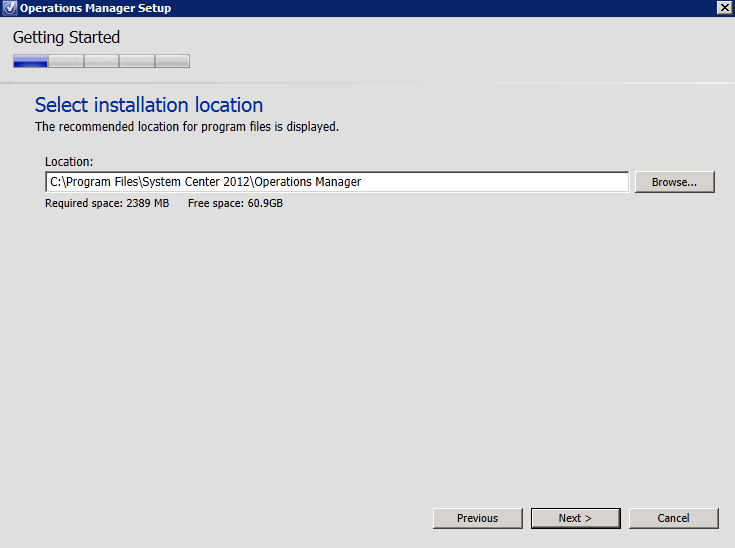
Confirm the installation location and then click Next to begin the prerequisite check. You can check out all of the prerequisites needed for SCOM 2012 SP1 from here.


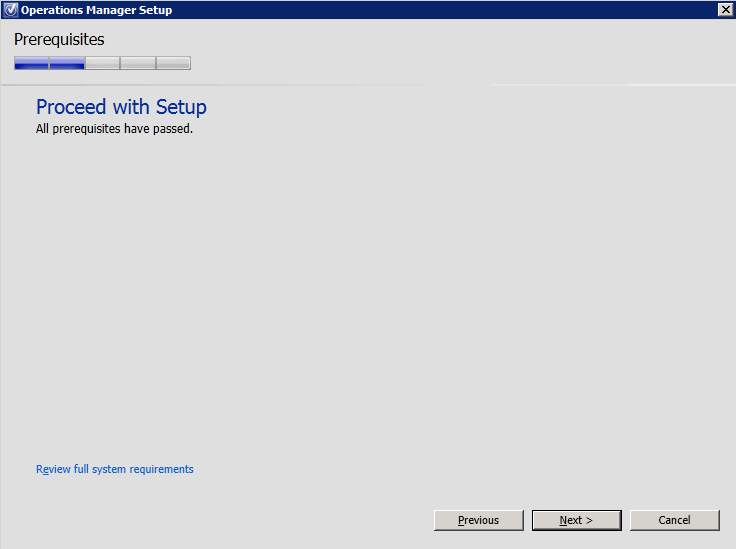
If all prerequisites have been met, you will be presented with the screen below. If some are missing, then you will be prompted to install these at this point. When ready, click Next to continue


In the Configuration dialog box, enter the username and password of your System Center Configuration Service and System Center Data Access Service account (aka SDK account) as shown below, then click Next


Now confirm that you are happy with all of your settings and then click Upgrade to start the installation process.


After a short while, the upgrade should complete successfully and you will be presented with the screen below. Click Close to finish this part of the SP1 upgrade process.


When you've updated your Management Server, browse to the SCOM 2012 installation folder - normally located at C:\Program Files\System Center Operations Manager 2012\Server. Once here, add a column view for 'File Version' and then sort the column by file version and locate the 'HealthService.dll' file. This should now be upgraded with a new version level of 7.0.9538 as the screen below shows


If you don't see the product version updated as above to your files, then your server hasn't updated properly and you will need to revisit the installation to see if you've missed something. If the files have upgraded successfully and there were no issues with your first management server upgrade, then you can repeat this process on any additional management servers in your distributed management group.

When you have upgraded your management servers to SP1, you need to be aware that there are still a number of steps to work through before you are finished.

Upgrade ACS Collectors

If you have deployed Audit Collection Services (ACS) in your environment, then the next step in this process is to upgrade any ACS collectors to SP1. As I haven't (yet) deployed ACS 2012 into my lab, I'll point you to the following TechNet article to work through to get ACS upgraded:

http://technet.microsoft.com/en-us/library/jj899846.aspx


Upgrade Gateway Servers

Once you have upgraded your management servers and ACS collectors, you can then go ahead and perform the upgrade on your Gateway servers using the following steps:

To begin the SP1 upgrade, logon to your SCOM 2012 Gateway Server with an account that has the Operations Manager Administrators role permission in your SCOM 2012 management group and then browse to the location that you have mounted or extracted your SCOM 2012 SP1 RTM media to. Now right-mouse click on 'Setup' and choose the 'Run As Administrator' option as shown below


From the Operations Manager Service Pack 1 splash screen, and in the Optional Installations area, choose the Gateway management server option as shown below


On the Welcome to the System Center 2012 - Operations Manager Gateway Upgrade Wizard dialog box, click Next.

From the next screen, click the Upgrade button to begin the upgrade process.

Once the Gateway upgrade has completed successfully, click Finish to close the window.

Upgrade Consoles

When you have upgraded your management servers, ACS and Gateway servers, you then need to upgrade any stand-alone SCOM 2012 consoles that you are using in your environment.

Note: You do not need to carry out this step on any management servers that have already been upgraded using the earlier steps in this post as the console on these servers will be automatically upgraded to SP1 as part of the management server upgrade.

Log on to the computer that hosts the stand-alone SCOM 2012 Operations console with an Operations Manager Administrators role account for your SCOM 2012 management group.

To begin the SP1 upgrade, logon to your SCOM 2012 Gateway Server with an account that has the Operations Manager Administrators role permission in your SCOM 2012 management group and then browse to the location that you have mounted or extracted your SCOM 2012 SP1 RTM media to. Now right-mouse click on 'Setup' and choose the 'Run As Administrator' option as shown below


From the Operations Manager Service Pack 1 splash screen, choose the Install option to begin.


The Operations Manager Setup dialog box will open up and will present you with a list of all the components that are installed on the server to be upgraded. Click Next to continue

On the Getting Started, Select installation location page, accept the default value of C:\Program Files\System Center 2012\Operations Manager, or type in a new location or browse to one. Then click Next.

Read the license agreement and terms, click on the Radio box to agree and then click Next

On the Prerequisites page, review and address any warnings or errors that are returned by the Prerequisites checker, and then click Verify Prerequisites Again to recheck the system.

If all prerequisites have been met, you will be presented with the screen below. If some are missing, then you will be prompted to install these at this point. When ready, click Next to continue


On the Configuration, Ready To Upgrade page, click Upgrade.

When the upgrade is finished, the Upgrade complete page appears. Click Close.

Note: You can verify the Operations Console upgrade has completed successfully by checking the following registry key (as always ensure you backup your registry before you work on it):
 
Browse to HKey_Local_Machine\Software\Microsoft\Microsoft Operations Manager\3.0\Setup.
If the value of the UIVersion entry is 9538 the Operations console was upgraded successfully


Conclusion Part 2

In this penultimate post, we have upgraded our SCOM 2012 management servers, ACS collectors and Gateway servers along with any stand-alone consoles in our environment. In Part 3 of this series we'll upgrade the agents, Web console and the Reporting role (if separate from the management server role). We will then finish off with any post-upgrade tasks that need to be carried out.

Monday, December 31, 2012

SCOM 2012 - Installing Service Pack 1 RTM (Part 1)

At long last the final Release To Manufacturing (RTM) version bits of Service Pack 1 (SP1) for System Center 2012 are generally available (GA). 

This Service Pack has been highly anticipated as it not only delivers the customary bug fixes that are to be expected with any such release , but it also brings a large number of new exciting feature additions and enhancements.

This post is one of a number of posts that I've been working on to help people get upgraded to System Center 2012 Service Pack 1. You can check out my other posts here:


The following list contains some of the enhancements that SP1 brings to SCOM/OpsMgr 2012:

  • Support for IIS 8
  • Monitoring of WCF, MVC and .NET NT services
  • Azure SDK support
  • Monitoring of SharePoint 2010 with APM (.NET application performance monitoring)
  • Integration with Team Foundation Server 2010 and Team Foundation Server 2012
  • Conversion of Application Performance Monitoring events to IntelliTrace format
  • Support for monitoring of CentOS, Debian, and Ubuntu Linux
  • Improved Heartbeat monitoring for Unix/Linux
  • ACS support for Dynamic Access Control in Windows Server 2012
  • Global Service Monitor – cloud based capability to monitor the health of your web applications from geo-distributed perspective
  • Additional network devices models supported
  • Visibility into virtual network switches in vicinity dashboard – thru integration with Virtual Machine Manager

This three part blog post series will walk you through the upgrade of your existing SCOM 2012 environment to SP1 RTM. Some of the information contained in this post will be taken directly from the accompanying 'OM12_SP1_Upgrade' guide from Microsoft.

Be aware that System Center 2012 Service Pack 1 contains updates for the whole suite of products (not just SCOM) and it's advised that you follow a particular upgrade sequence of each product as per this warning:

If you are planning to upgrade two or more System Center components, it is imperative that you first consult the guide 'Upgrade Sequencing for System Center 2012 SP1'. The order in which you perform component upgrades is important. Failure to follow the correct upgrade sequence might result in component failure for which no recovery options exist.

It should also be noted that you can only upgrade to SP1 from an existing SCOM 2012 RTM environment and not from a SCOM 2007 R2 one. If you want to upgrade from SCOM 2007 R2 then you first need to upgrade that environment to SCOM 2012 RTM.


High-Level Overview

Here's a high-level overview of what's involved to get your SCOM 2012 environment upgraded to SP1:

The following steps outline the process for upgrading a distributed management group configuration: 
  1. Install Update Rollup 3 for SCOM 2012
  2. Accomplish Pre-Upgrade Sequence Tasks on other integrated System Center products
  3. Accomplish Pre-Upgrade Tasks
  4. Upgrade Management Servers (each management server must be upgraded)
  5. If applicable, upgrade ACS (this is because the ACS server must be on the same machine as a management server, it's recommended that you perform this step along with the upgrade of the management server on which ACS resides.)
  6. If applicable, upgrade Gateway(s)
  7. Upgrade Console(s)
  8. Push Install to Agent(s) / Upgrading Manually Installed Agents
  9. Upgrade Web Console
  10. Upgrade Reporting Server
  11. Accomplish Post-Upgrade Tasks 
* Steps 5 to 9 after Upgrading Management Servers can occur in parallel.

Pre-Upgrade Tasks

So, beginning with Step 1 from above, first ensure that you upgrade your existing SCOM 2012 environment to the latest Cumulative Update Rollup (UR3 is the most current) and then run through the SP1 Pre-Upgrade Sequence Tasks using my recent blog posts for reference:

SCOM 2012 - Deploying Cumulative Update Rollup 3 (CU3) Hotfix

SCOM 2012 - Pre and Post SP1 Upgrade Sequence Tasks

Once you have upgraded to the latest Cumulative Update and carried out the pre-upgrade sequence tasks from the links above on any applicable integrated System Center 2012 products, you can begin working through the tasks in Step 3 ensuring that you perform them in the order listed below:

1. Review the Operations Manager Event Logs
Review the event logs for Operations Manager on the management servers to look for recurring warning or critical events. Address them and save a copy of the event logs before you perform your upgrade.

2. Remove Agents from Pending Management
Before you upgrade a management server, you need to remove any agents that are in Pending Management. You can view agents that are in this state by clicking on the Administration tab from the Wunderbar, then expanding the Administration view and accessing the Pending Management view from there. Just highlight any agents in here and click on the Reject option from the Tasks menu on the right hand side to remove them from the list.

3. Disable the Notification Subscriptions
You should disable any notification subscriptions that you have created before you upgrade the management group to ensure that notifications are not sent during the upgrade process - a whole lot of noisy alerts coming into your inbox is not cool! From the Administration tab in the Wunderbar, expand the Administration view and then click on Subscriptions. From here, just right-click on your subscriptions and choose the Disable option to turn them off.

4. Stop the Services or Disable any Connectors
If you have any non-Microsoft connectors configured, you will need to refer to the relevant documentation for them to determine which Windows services need to be stopped in relation to the connector.

5. Verify that the Operational Database Has More Than 50 Percent Free Space
You must verify that the operational database has more than 50 percent of free space before you upgrade the management group because the upgrade might fail if there isn't enough space. You should also ensure that the transactions logs are 50 percent of the total size of the operational database. To check this, follow these steps:
  • On the computer that hosts the operational database, open SQL Server Management Studio
  • In the Object Explorer, expand Databases
  • Right-click the operational database, point to Reports, Standard Reports, and then click Disk Usage
  • View the Disk Usage report to determine the percentage of free space as shown in the screen below

6. Back up the Operations Manager Databases
As is always the case before you make any major changes to your SCOM environment, make sure that you have verified recent backups of the operational database (OperationsManager) and of the data warehouse database (OperationsManagerDW) before you upgrade the secondary management server. You should also create backups of databases for optional features, such as the Reporting and the Audit Collection Services (ACS) database before you upgrade them.

Conclusion (Part 1)

This concludes Part 1 of this short series on SCOM 2012 - Installing Service Pack 1 RTM. In Part 2 I'll walk through the upgrade of the SCOM 2012 components.

SCOM 2012 - Pre and Post SP1 Upgrade Sequence Tasks

If you're upgrading your SCOM 2012 RTM deployment to Service Pack 1 (SP1), then there are a few tasks that need to be carried out in sequence both before and after the service pack upgrade.

You will also need to take a look over the sequence in which the other System Center 2012 products have to be upgraded as this will play a major role in ensuring a successful upgrade of your environment. I recently posted about this product upgrade sequence and would recommend taking a look at it first here:

System Center 2012 Service Pack 1 Upgrade Sequencing

If you are happy enough with your product upgrade sequence and are now ready to start the SCOM 2012 RTM upgrade to Service Pack 1, then this blog post will detail the pre and post SP1 upgrade tasks that you need to consider. The focus for these tasks are mainly around  SCOM 2012 integrating with Virtual Machine Manager (VMM), Data Protection Manager (DPM), Orchestrator (SCORCH) and Service Manager (SM).

SCOM 2012 SP1 Pre-Upgrade Sequence Tasks

  1. If configured and it exists, remove the VMM-to-Operations Manager Integration Pack. (This will disable monitoring of your VMM environment temporarily).
  2. Remove the System Center 2012 RTM version of the Operations Manager console from all VMM and Orchestrator servers.
  3. On the computer hosting the Orchestrator Deployment Manager, uninstall the IP for System Center 2012 – Operations Manager.
  4. Follow my other blog posts on SCOM 2012 - Installing Service Pack 1 RTM to upgrade the Operations Manager components

SCOM 2012 SP1 Post-Upgrade Sequence Tasks

  1. On the computer hosting the Orchestrator Deployment Manager, install the IP for System Center 2012 – Operations Manager.
  2. Install the System Center 2012 SP1 version of the Operations Manager console on Orchestrator and VMM.
  3. Re-establish connectivity between System Center 2012 – Virtual Machine Manager (VMM) and System Center 2012 – Operations Manager SP1.
  4. Register the Operations Manager SP1 integration packs on System Center 2012 - Orchestrator SP1.
  5. Make sure that the Configuration Manager agent continues to function.
  6. Make sure that the management pack continues to function with App Controller.

Confirm Integrated Connections

Make sure that the following connections with VMM continue to function:
  • Management pack
  • Integration using the Operations Manager console (for IP communication)
Make sure that the following connections with Service Manager continue to function:
  • Connectors (2)
  • Management pack
  • Agentless monitoring
Make sure that the following connections with DPM continue to function:
  • Management pack
  • Central Console Server components
Make sure that the following connections with Orchestrator continue to function:
  • Management pack
  • Integration Pack (Operations Manger console (SDK) connection required for IP)
If you've followed all of the above tasks and ensure that SP1 has been deployed to each System Center 2012 product in the correct sequence, then you should be good to go with your new deployments!

System Center 2012 Integration Points Map

While doing some upgrade research for System Center 2012 Service Pack 1, I came across a neat diagram on TechNet that shows all of the System Center 2012 Integration Points in a map.


This might come in useful when troubleshooting integration issues or planning new deployments.

System Center 2012 Service Pack 1 Upgrade Sequencing

If you have deployed any number of System Center 2012 products into your environment and are thinking of upgrading to Service Pack 1 (SP1) any time soon, then it is really important that you upgrade your System Center 2012 products in a particular sequence and that each of the products have first been updated to at least Update Rollup 2 (Cumulative Update 2).

The following list is the recommended upgrade sequence that should be followed for System Center 2012 SP1:

  1. Orchestrator
  2. Service Manager
  3. Data Protection Manager
  4. Operations Manager
  5. Configuration Manager
  6. Virtual Machine Manager
  7. App Controller
Microsoft has recently released an on-line TechNet article that explains this sequence in detail and it's a must-read before you go ahead and deploy SP1. 

You can check out the article here:


Download the (BETA) IPD Guide for DPM 2012

Admittedly, I'm a little bit slow putting this particular post up (the arrival of a new baby seriously messes up your time schedules) but nonetheless, it's worth giving a mention to the recent release of the Open BETA Infrastructure Planning and Design (IPD) Guide for System Center 2012 Data Protection Manager (DPM 2012).


The IPD guides are invaluable when designing a technology solution for your clients or own internal business and are the first port of call for me anytime I'm carrying out a new type of deployment for our customers.

The guide is over 50 pages long and deep dives into a design process which gets broken into different steps depending on your requirements and each of these steps are then further complemented with tasks that require actions to help you through the entire process.

Don't be fooled into thinking that DPM 2012 is just a simple backup product and that it can be installed and configured in a matter of a couple of hours (I hear this a lot from consultants). Although DPM 2012 is certainly one of the quicker products to deploy from the System Center 2012 suite, it's imperative that you scope and plan your deployments properly, otherwise you will soon find yourself running out of disk space or lacking when it comes to untrusted domain (e.g. DMZ) server backups.

This guide will walk you through all of the scenarios you need to successfully deploy DPM 2012 and includes considerations for integrating DPM 2012 with SCOM 2012 by using the new Central Console functionality.

As the guide has just been recently released as a BETA, you will need to access it through the Microsoft Connect site and if you haven't registered here, will need to do so first. Better still, you should sign up for the IPD BETA program here and this will give you access to any future BETA IPD guides that get released.

The benefits of using the Connect site is that you can make comments and requests on the content of the BETA guide and if enough people make the same requests, then it's possible that the final release of the guide will have your changes included.

Here's the link to register and download the IPD Guide for System Center 2012 - Data Protection Manager (BETA)

https://connect.microsoft.com/site14/Downloads/DownloadDetails.aspx?DownloadID=7925

Saturday, December 29, 2012

Learn PowerShell As Your New Year's Resolution

With New Year's Eve just around the corner, some of us may be thinking of making some New Year resolutions and personally, I find that the resolutions I tend to stick with are the ones where I commit to learning something new (as opposed to promising myself that I'll go for 5km jogs 4 days a week!)

With this in mind, I've promised myself that I'll really push on this year and go learn PowerShell v3 to bring me up to a proficient level that removes the requirement for me to constantly search the internet everytime I want to write a script to help with automating System Center.


To help me along the way with this, I've come across a few books and resources (see below) that will go a long way to helping me achieve my goal.

Books

There are absolutely so many books out there on PowerShell and I'm just gonna list the ones that I'll be reading through, but if anyone is reading this post and has some recommendations they want me to add to the list, then feel free to leave a comment below and I'll drop it in.

Learn Windows PowerShell 3 in a Month of Lunches (Authors: Don Jones and Jeff Hicks)

Learn Windows PowerShell in a Month of Lunches (Author: Don Jones)

Windows PowerShell 3.0 Step by Step (Author: Ed Wilson)

Windows PowerShell Cookbook: The Complete Guide to Scripting Microsoft's Command Shell (Author: Lee Holmes)


MVPs

If you are looking for free PowerShell resources from the community, then a great place to start is to check out the list of PowerShell MVP's on the Microsoft MVP site. Track down any blogs and Twitter accounts that these MVP's run and you'll be overloaded with great info in no time!

Click here for the link for the PowerShell MVP search.


Blogs

Windows PowerShell Blog

The PowerShell Guy

PowerShell Code Repository

Jeff Wouters's Blog

Poshoholic

Hopefully the list above is enough to get you started. I'll add to it as I come across additional resources on my journey to improving my PoSh Kung Fu!

Tuesday, December 4, 2012

Microsoft Service Templates and Template Explorer for System Center 2012

Just got an e-mail today about the availability of the Microsoft Service Templates for System Center 2012 and the Microsoft Service Template Explorer BETA's.


Having the ability to create service templates are an excellent addition to System Center 2012 Virtual Machine Manager (VMM) and I wrote up a post last year on how to create a basic service template here:

Cloud Management with System Center - Creating a Service Template with System Center Virtual Machine Manager 2012

Microsoft have now expanded on this concept and you can download service templates for Windows Server 2008 R2 and Windows Server 2012 to deliver automation of your server role deployments in a private cloud environment.

Use the new service templates to automate tasks, and reduce deployment time and cost by dynamically provisioning services that require Windows Server 2008 R2/2012 server roles for customer facing services.

The Service Template Explorer is an add-in that you can use in SCVMM to quickly discover and download new service templates from Microsoft - how cool is that!

To get access to these downloads, you will need to logon to the Microsoft Connect site and register for the BETA bits here:


The downloads come with some informative quick start guides that will walk you through the installation and configuration process in no time.

Sunday, November 18, 2012

System Center 2012 Endpoint Protection (SCEP) Cookbook Review

A few weeks ago, I was given the opportunity to review a recently released book by Packt Publishing about System Center 2012 Endpoint Protection (SCEP).


SCEP 2012 is effectively the latest version of Microsoft's Forefront Endpoint Protection Anti-Virus and Anti-Malware suite but instead of it being a standalone product like it's predecessor, this release is integrated as a new addition to the System Center 2012 Configuration Manager (SCCM/ConfigMgr) product.

Background

People that know me (or anyone who reads this blog) will know that I typically keep away from working in depth with SCCM and instead try to focus on SCOM, Orchestrator, VMM, AppController and DPM with a working knowledge of SCSM thrown in for good measure! The reason for this is that apart from the facts that SCCM is such a huge product in itself and takes a long time to upskill to expert level on, we have a number of excellent SCCM consultants and Subject Matter Experts working in our company that would generally be involved in these types of customer deployments.

With the new licensing model that Microsoft has released for System Center 2012 (where a customer now can't individually purchase a single System Center product any more and instead needs to purchase the whole suite in one go), any new features or Unique Selling Points (USP's) that I can talk about when consulting with potential new System Center 2012 customers is a massive bonus. That's where SCEP 2012 comes in and why my motivation to review this new book stems as much from my own desire to learn more about the product and it's deployment as opposed to just recieving a free copy of it for personal use!


You might be thinking to yourself, "What exactly has a cookbook got to do with System Center?" and to be fair, the concept of technology centered cookbooks is new to me too. The idea of these books is to provide people who already have a basic understanding of a given technology (in this case SCEP or SCMM) with a set of 'recipes' for solving problems related to it. The publisher explains the cookbook concept in detail here.

The Book

Lead author on the book is Andrew Plue and it was reviewed by Nicolai Henriksen (SCCM MVP), Matthew Hudson (SCCM MVP) and Stephan Wibier.

Although I have this book nearly 3 weeks now, I intentionally left it until this week to have a read through it as I'm involved in building a new System Center 2012 demo environment in our datacenter and wanted to work through it to see if it would help me get the SCEP side of the demo up and running without calling in help from our SME's.

The book is just over 200 pages in lenght and contains the following chapters:

Chapter 1, Getting Started with Client-Side Endpoint Protection Tasks, provides a number of recipes for performing tasks at the local client level, such as forcing a definition update or modifying the SCEP client policy.

Chapter 2, Planning and Rolling Installation, will walk you through some of the considerations you will need to make before deploying SCEP, as well as showing you how to enable the SCEP role on your SCCM server.

Chapter 3, SCEP Configuration, will show you recipes for performing essential tasks, such as configuring SCEP policies and alerts, as well as walking you through the process of setting up SCEP's reporting features.

Chapter 4, Client Deployment Preparation and Deployment, includes a number of recipes to assist you with every step of client deployment from preparation to actually deploying the clients.

Chapter 5, Common Tasks, covers a number of day-to-day tasks that every SCEP administrator will need to know how to do it correctly in order to keep SCEP healthy and your Endpoints protected from malware.

Chapter 6, Management Tasks, covers important high level tasks, such as using policy templates, merging polices, and responding to SCEP alerts.

Chapter 7, Reporting, makes a deep dive into the reporting capabilities offered with SCEP. You will be shown how to execute reports, as well as provide access to reports. You will also be shown how to create your own custom reports.

Chapter 8, Troubleshooting, provides you with some tools to assist you with the time-consuming effort of troubleshooting an anti-malware product. The recipes in this chapter will help you deal with Definition Update issues, as well as how to approach false positives.

Chapter 9, Building an SCCM 2012 Lab, is a great chapter for anyone who has not yet taken the plunge on SCCM 2012. There is just a single recipe in the chapter that will show you the quickest down-and-dirty method for standing up an SCCM 2012 server in a lab environment. This is vital to anyone considering deploying SCEP, because with the total integration of SCEP with SCCM 2012, you can't experience SCEP without an SCCM environment.

My Thoughts

After reading through pretty much the whole book this week, I found the information to be concise and to the point. With its help, I managed to easily setup my demo environment with SCEP 2012 and learned how to quickly configure it to best practice recommendations. I also thought that the 'Notes', 'Tips and Tricks' and 'How It Works' sections scattered throughout the book provided some really good information that was evident of the real-world deployment experience the author and reviewers had.

Overall, if you're thinking of deploying SCCM 2012 with SCEP or if you have already deployed it and don't feel that you are getting enough out of it, then I'd recommend this book as a handy companion to get you up and running!

You can order the book in 'dead tree' format from Amazon here or in Kindle format from here.

Also, if you like this type of cookbook, then you might want to consider signing up to the publishers PacktLib which apart from serving as a portal to access your purchased books, from time to time they release free e-books on it that can come in handy as part of your technical library.