Wednesday, November 16, 2011

Cloud Management with System Center - Creating a Service Template with System Center Virtual Machine Manager 2012

As part of my blog series on 'Cloud Management with System Center', this post will cover the creation of a Service Template within System Center Virtual Machine Manager 2012 (SCVMM 2012) and its deployment to your private cloud.

You can review the other posts in this series from the links below:

Cloud Management with System Center - Building a Private Cloud with System Center Virtual Machine Manager 2012

Cloud Management with System Center - Creating a Virtual Machine Template with System Center Virtual Machine Manager 2012


This series coincides with the new Microsoft Private Cloud Community Evaluation Program starting up and you can sign up at any time to the CEP by clicking on the link below (you will need a Microsoft Live ID to sign in):

https://connect.microsoft.com/site799/program7383

Creating the Service Template

The creation of Service Templates within SCVMM is a new concept and builds on the original idea of creating virtual machine templates for provisioning of resources to your hypervisors. Service Templates can be used to provision all the components that make up a service such as virtual machines, virtual networks, sequenced applications and load balancers in no more than a few clicks of a mouse!

The idea of a Service Template within SCVMM 2012 is similar to the Distributed Application/Service model in System Center Operations Manager (SCOM) and it is a representation of 'IT as a Service' within your environment.

To create the Service Template, open the SCVMM 2012 console, click on the 'Library' button from the wunderbar on the left hand side, expand 'Templates' and then click on the 'Service Templates' link. Now right mouse click on ‘Service Templates’ and click on ‘Create Service Template’


This will open up the ‘New Service Template’ window and will require you to select one of four options to begin your template design with.


I’ve selected the two tier option for simplicity but these are only guidelines and you may well want to just start from scratch with a blank template and design the tiers yourself.


You will see from the screen above that the template wizard has created a two tier service but has no references to any Virtual Machine templates or virtual networks at the moment. What you need to do now, is to drag and drop your virtual machine templates that are in your SCVMM 2012 library and displayed on the left hand side of the screen in the ‘VM Templates’ window onto each tier to populate them with data that is relevant to your environment templates.

Once you’ve dragged over your VM templates to each tier, you should then see something like this


As you can see here, we now have the VM templates imported over specifying the RAM, CPU, O/S and Virtual Network settings as taken from the Virtual Machine Templates earlier.

Now select the ‘Save and Validate’ button from the ribbon above to validate the Service Template and ensure that there are no errors within your configuration


If all is good, then you should see no more errors on each of the tiers of your Service Template as below


Now that you have built your new service template, you wil need to deploy it to a private cloud that has enough capacity to support each of the components of the service.

Deploying the Service Template to your Private Cloud

To deploy your Service Application template to your Private Cloud, you need to open up the ‘Library’ and then select ‘Service Templates’ within SCVMM 2012. You should see any service templates that you have created listed in here.

Select your desired Service Template, right mouse click on it and then select ‘Configure Deployment’ from the drop down menu


This will bring up a window asking you to type the name of the Service Instance and also the location that you want to deploy this to – in my case it’s ‘Ergo Private Cloud’


This will bring up the ‘Deploy Service’ window where you can check if there are any errors before deploying the service


If there are errors on any of the components of your Service Template, you can select the component with the error and click on the ‘Ratings’ button for a description of the error. The most likely cause of errors at this point of deployment are due to the Private Cloud you want to deploy to not having enough memory or disk space resources to host the new Service and all of its components


If there are no errors and you are happy to deploy the service, then click on the ‘Deploy Service’ button to begin the deployment of your Service Template to your Private Cloud


Check the ‘Jobs’ window for progress on the deployment of your service and once SCVMM 2012 has completed the deployment, you should see the following message in the ‘Jobs’ window


To confirm that the service has been deployed successfully, go to the ‘VMs and Services’ tab and expand the ‘Clouds’ option to see the contents of your Private Cloud


As above, you should see your newly deployed Service Template up and running within your new Private Cloud and fully manageable through the one console! Notice that the deployment wizard deployed multiple virtual machines to the private cloud virtual hosts and pre-configured them with all of the relevant settings, roles and features along with their virtual network placement too.

Now that's something that can save us all some time in future!!

Note:To learn more about the new Service Concept in SCVMM 2012, check out  the Technet Wiki post that 'Mr.Cloud' Kristian Nese (SCVMM MVP) wrote early this year. There are some caveats to watch out for when adding roles and features to your templates:


(Thanks for the heads up Kristian!!)

If you want to learn more about Cloud Management with System Center, click the link below for my next post:

Cloud Management with System Center - Connecting your private cloud to System Center App Controller 2012

Sunday, November 13, 2011

Cloud Management with System Center - Creating a Virtual Machine Template with System Center Virtual Machine Manager 2012

Following on from my last post about Cloud Management with System Center - Building a Private Cloud with System Center Virtual Machine Manager 2012 ,this post will describe the steps required to create a virtual machine template within System Center Virtual Machine Manager 2012 (SCVMM 2012) for use with your private and public cloud provisioning.

This post is part of a series that coincide with the new Microsoft Private Cloud Community Evaluation Program starting up and you can sign up at any time to the CEP by clicking on the link below (you will need a Microsoft Live ID to sign in):


https://connect.microsoft.com/site799/program7383


Once you have created your private cloud within SCVMM 2012, you then need to populate your VMM 2012 library with Virtual Machine templates. This process has been simplified from the old SCVMM 2008 R2 template creation but for the most part, the steps are the same.
I recommend building your baseline Virtual Machines on a Hyper-V host that is managed by SCVMM 2012 and then once configured, you will need to shut down the baseline virtual machine in preparation for importing it into the VMM 2012 library.

To begin with, open up the SCVMM 2012 console and click on the 'Library' button from the wunderbar on the left hand side of the screen. Now expand the 'Templates' icon to see three options. One of these options is 'VM Templates' and you need to right mouse click on this and then select 'Create VM Template' from the menu that opens to start the process.


This will open the 'Create VM Template Wizard' and you will need to select from one of two options that are available in this window. For this example, I am going to choose 'From an existing virtual machine that is deployed on a host'. Click 'Next' once you have made your selection.


SCVMM 2012 will now query all of the hosts that it is managing and come back with a list of virtual machines that are powered down. It's worth noting at this stage that if you have prepared a virtual machine to be used as a template but haven't turned the machine off, then it will not be available in this window for selection until you shut it down.


Select the virtual machine that you wish to use from the list above and then click on 'OK' to continue


The window above is a warning telling you that the source virtual machine you have selected will be destroyed and will advise you to clone the machine if you want to keep a copy of it in it's current state.

In this case, we are happy that the machine is to be used only as a VM template, so we will click 'Yes' to continue


The 'Create VM Template Wizard' returns in this screen and you now need to give the template a name and then click 'Next' to continue


From the screen above, choose your hardware profile and then click 'Next' again


From the next screen, you can make changes to the Operating System profile such as admin password, computer name, locale etc. Click 'Next' to continue


From the 'Select Library Server' screen, choose the SCVMM server that you wish to store this virtual machine template and then click 'Next'


Now select the library path on the SCVMM library server that you want to store the virtual machine template and click 'Next' again


When you click on the ‘Create’ button, SCVMM 2012 will move the baseline virtual machine that you have created from the Hyper-V host that it is sitting on into the SCVMM 2012 library share that you specified. Once it has been moved to the library share, it will sysprep the machine for provisioning use within your environment.

Once you have your VM templates imported into SCVMM 2012, you should see them available within your library under the ‘Templates’, ‘VM Templates’ section as below


This completes your virtual machine template creation and you are now ready to use these templates to form part of your Service Application templates within SCVMM and your cloud environments.

If you want to learn more about Cloud Management with System Center, click the link below for my next post:
 

Cloud Management with System Center - Building a Private Cloud with System Center Virtual Machine Manager 2012

With the release of System Center Virtual Machine Manager 2012 (SCVMM 2012), Microsoft have consolidated the creation and management of your Private Cloud environment into a single console and have made it really easy to setup!


I have decided to create a blog series titled 'Cloud Management with System Center' and this is the first post in the series.

Before continuing with this post, ensure you have followed my previous blog posts on installing System Center Virtual Machine Manager 2012 and App Controller 2012

This series coincides with the new Microsoft Private Cloud Community Evaluation Program starting up and you can sign up at any time to the CEP by clicking on the link below (you will need a Microsoft Live ID to sign in):

https://connect.microsoft.com/site799/program7383

In this post, I will walk through the steps required to create a Private Cloud for your environment using SCVMM 2012.

To begin, open up the SCVMM 2012 console and select the 'VMs and Services' tab from the Wunderbar on the left hand side of the screen.

Once this is open, right mouse click on the 'Clouds' icon on the left hand side of the screen and select the 'Create Cloud' option from the drop down menu as below


Now select which host group(s) you want to make a part of this particular private cloud and then click 'Next'


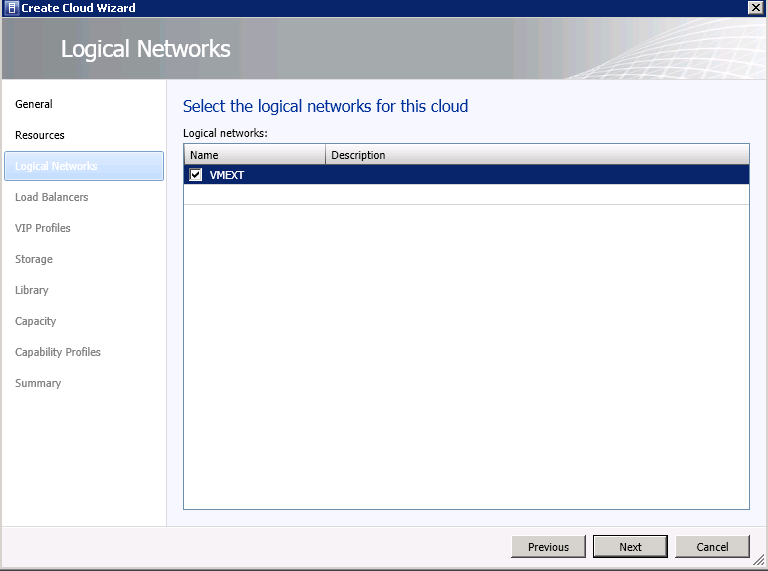
From the next screen, select the Logical Networks that are going to be a part of this private cloud and then click 'Next'


Next up, select if you want to use Load Balancers for your private cloud and then click 'Next' again


If you have selected a load balancer from the previous screen, then you will now need to choose the Virtual IP Profile that you want to assign to your private cloud. If you are not using load balancers in your cloud or are configuring them later, then you can leave this selection empty and click 'Next' to move on


Choose any storage classifications from the next screen if applicable, and then click 'Next'


In the next screen you can specify a stored virtual machine path and any read only library shares that you wish to assign to this private cloud and then click 'Next'


At the 'Capacity' screen, you can tell SCVMM 2012 what capacity limitations are going to be applied to this particular cloud and keep in mind that this will have an implication on what resources you can deploy at a later stage from your Service Application Templates if you have low capacity specified here


In the next screen, you can choose the capability profile for your cloud to span over VMWare, Citrix or Hyper-V hypervisors. I've just chosen the Hyper-V capability here and clicked 'Next'


From the final 'Summary' screen, confirm that all of your selections are correct and once you're happy enough with them, click 'Finish' to create your private cloud


Once the wizard has completed, go back to the 'VMs and Services' window and expand the 'Clouds' icon on the left hand side to confirm that your new private cloud has been created and is ready for provisioning


If you want to learn more about Cloud Management with System Center, click the link below for my next post:

Monday, November 7, 2011

Upcoming Event: Year Zero - New Ways of Working

I'll be presenting at an event that Ergo and Microsoft are hosting at the Irish Management Institute (IMI) in Sandyford, Dublin 16 on Thursday 24th November 2011.


The agenda for the event is packed with speakers and evangelists from the IT and public sectors with the concept of 'Year Zero' as a turning point, a chance to do things differently within IT.

I'll be speaking in Topic 5 : Automating IT Operations (Microsoft System Center Suite) and will be presenting with Gavin McShera (Datacentre Technology Specialist, Microsoft) on how Microsoft System Center can make life easier and more automated for you within your IT infrastructure.

Expect to see a demonstration around the new System Center App Controller 2012 integrating with System Center Orchestrator (Opalis) and System Center Operations Manager to provide management of your private and public cloud (Azure) environments!

You can find out all about the event here:  http://www.yearzero.ie/index.php

or you can simply go directly to registration here: http://www.yearzero.ie/register/index.php

Thursday, November 3, 2011

Notes from the Field: Installing SCOM 2007 R2 Databases into SQL 2008 R2 Part 2

In Part 1 of this short series, I walked through the manual installation of the SCOM databases using the DBCreateWizard.exe utility and also highlighted some of the issues that you will encounter when creating large SCOM databases manually with SQL 2008 R2.

In this post I will walk through the process of increasing the SCOM database and log files manually using SQL Server Management Studio and will also go through the pitfalls encountered when installing SCOM Reporting into and SQL 2008 R2 SSRS instance.

First up, we need to now increase the database and log sizes of the SCOM OperationsManager and OperationsMangerDW databases that we created earlier.

To do this open up your SQL Server Management Studio and right mouse click on the OperationsManagerDW database and then click ‘Properties’ from the drop down menu


No go to the ‘Files’ menu from the left hand side of the screen and you should see the MOM_DATA and MOM_LOG values for the database. The MOM_DATA value is the size of the database and the MOM_LOG value is the size of the log for that database. Firstly change the MOM_DATA value to the size that you want your OperationsManagerDW database to be in Megabytes – I’ve chosen 102400 for a 100GB data warehouse


Once the database sizing is complete, go back into the data warehouse properties and modify the MOM_LOG value to reflect your new log size


Repeat this process with your ‘OperationsManager’ database and modify the size of the DB and Log files to the required amounts.

Once you have your SCOM databases the correct size you can then go ahead and begin installing the SCOM RMS role (this is automatically assigned to the first server you build in a SCOM Management Group).

When you run the installer from the SCOM media on your SCOM RMS, you will need to be careful about what components you choose to install. You will need to ensure that you are not installing the ‘Database’ role as this has already been created using the ‘DBCreateWizard’ utility.

You need to de-select this role like the screen below


Carry on through the rest of the SCOM installation as normal and once it finishes, you should have your first SCOM server installed and connected to your SQL 2008 R2 ‘OperationsManager’ database.
The final hurdle that you will meet when installing SCOM onto an SQL 2008 R2 instance is when you go about installing the SCOM Reporting component. The reporting module uses the ‘OperationsManagerDW’ data warehouse database and has dependencies on SQL 2008 R2 Reporting Services.

On the SQL 2008 R2 server with the Reporting Services instance installed, run the SCOM installation media and select the ‘Install Operations Manager 2007 R2 Reporting’ option

Work through the wizard and again de-select the database option – in this case the ‘Data Warehouse


When you have inputted in your Root Management Server name and specified the SQL server and instance that the Data Warehouse database is located, you will be presented with the ‘SQL Server Reporting Services Instance’ window from which you need to select your SSRS instance and click ‘Next’………


It’s at this point however that your SCOM Reporting installation will hang and look like it has become unresponsive. I have seen this screen hang like this for sometimes 30 minutes without doing anything!! Very frustrating!

The fix is quite simple though and it’s related to a local user group that gets created on the SQL server when the SQL 2008 R2 Reporting Services (SSRS) role is installed.

To resolve the problem, on the SQL 2008 R2 SSRS server, click ‘Start’, then ‘Run’ on your server and then type ‘lusrmgr.msc’ and click ‘OK’ to open the ‘Local Users and Groups’ snapin


Once this opens, click on the ‘Groups’ folder and expand the ‘Name’ column out so you can see the full name of each group as below


You will notice that one of the groups is titled

‘SQLServerReportServerUser$SQLSERVERNAME$MSRS10_50.SSRSINSTANCENAME

If you right click on this group and remove the _50 characters from the name so it instead shows

‘SQLServerReportServerUser$SQLSERVERNAME$MSRS10.SSRSINSTANCENAME

You should then see a window opening up immediately from your hung SCOM Reporting install that looks something like this


If you see the window above, then all that’s left to do is to fill in the fields requested and work through the wizard and that will be your SCOM Reporting configured successfully!

If the above window doesn’t open for you and instead you see the window below immediately after renaming the SQL Local Group, then you need to carry out some more simple tasks before you're done.


When you see the Window above with an error message of:

'SQL Reporting Services Validation Error'

'Setup has encountered an error while installing Reporting'

then click the ‘Back’ button to go back one screen

Now open up the SQL ‘Reporting Services Configuration Manager’ from your start menu and ensure that you have a database specified. If this is the first time you’ve seen this configuration window, then you just need to run through each of the options on the left hand side and select default settings for each menu to complete the configuration (these options will be overwritten by the SCOM Reporting Installer). The main reason you get the error message from the SCOM Reporting installation above is because your SSRS instance hasn't been fully configured and most likely there is no reporting database or website specified.


Once you have configured your reporting services with default settings, exit the configuration wizard and then go back to your SCOM Reporting installation and click ‘Next’ again (or if you've closed out of it, just re-run the SCOM Reporting installation again). This time you should see the screen below allowing you to continue.

Once you see this screen, then you’re only a few clicks away from successfully completing your SCOM Reporting Services installation with SQL 2008 R2!!

Notes from the Field: Installing SCOM 2007 R2 Databases into SQL 2008 R2 Part 1

This is a blog post that I’ve been meaning to put up for nearly a year but kept forgetting to document the process during SCOM installs – until now!

There are a couple of issues when you are installing SCOM 2007 R2 into an SQL 2008 R2 environment that can be quite annoying and the fix isn’t that obvious at first glance for them. The issues occur when the DBCreateWizard.exe hangs or crashes and the SCOM Reporting installation hangs half way through too.

When you try to install the SCOM databases into an SQL 2008 R2 environment using the standard SCOM installation process, you will soon see that it fails on the pre-requisite check for SQL server and will report back that you don’t have SQL Server installed as the image below shows!


Because the SCOM 2007 R2 media is not SQL 2008 R2 aware, you need to manually create the SCOM ‘Operations Manager’ and ‘OperationsManagerDW’ databases using the ‘DBCreateWizard.exe’ utility.

Before creating the SCOM databases, it’s always a good idea to know what size you will want your databases to grow to, I always use the OpsMgr Sizing Tool v1.3 as a guideline to sizing and you can download it from here:

http://www.microsoft.com/download/en/details.aspx?displaylang=en&id=23016

To manually create the SCOM databases in your SQL 2008 R2 environment you first need to copy the SCOM media (or at least the ‘Support Tools’ folder from the media) to your SQL 2008 R2 server.

Note: Make sure that you have already created a new SQL instance for the SCOM databases with an SQL Collation setting of :

‘SQL_LATIN1_GENERAL_CP_CI_AS’ ( no other SQL collation will do for your SCOM install!)

Now open a command prompt with administrator privileges, browse to the SCOM media location and open up the \SupportTools\AMD64 folder


 Now run the 'DBCreateWizard.exe' utility


 Once the Database Configuration Wizard opens, click on 'Next' to continue 


From the next screen, choose which database you will be installing, select your SQL instance, specify the size of the database and ensure you have your database and log file locations correct, then click ‘Next’ to continue


Next up, choose a name for your SCOM Management Group and specify what administrative groups have access to the SCOM console


Choose whether or not you want to send your Error reports to Microsoft and then click ‘Next’ again


 Confirm all is good in the final screen, then click ‘Finish’ to build the first ‘OperationsManager’ database


All going well and you should see the screen below confirming that the Database installation was successful


So, what was the problem with that you might ask? So far, nothing! All goes well with this first ‘OperationsManager’ Database installation but you will start to run into problems when installing the ‘OperationsManagerDW’ database component on an SQL 2008 R2 server.

To begin installing the ‘OperationsManagerDW’ database, you will follow nearly identical steps to the ones above for the ‘OperationsManager’ database.

To kick it off, again run the ‘DBCreateWizard.exe’ utility from an administrative command line


Once the Database Configuration Wizard window opens, click 'Next' to continue


From the next screen, choose the ‘Operations Manager Data Warehouse Database’ option from the drop down menu, select your SQL instance, specify the size of the database and ensure you have your database and log file locations correct, then click ‘Next’ to continue


Confirm all of your settings are correct and then click ‘Finish’ to install the Data Warehouse DB


Now, after a short while, if you’ve selected to install a database that is any size larger than around 40GB (in my example above, I’ve chosen to create a 100GB one), you will get a timeout error back from your SQL server stating:

‘Database creation failed. The database might have been incompletely created or modified.’


The trick here is to create the database using the DBCreateWizard utility but don’t specify a size greater than 40960MB (40GB). Once this 40GB Data Warehouse completes successfully, then we have to go into the SQL Server Management Studio and increase the size of the databases from there. We will also need to increase the size of the log files for each database at this point too.

In Part 2 of this short 'Notes from the Field' series, I'll continue on with manually expanding the SCOM databases using the SQL Server Management Studio and will also walk through the SCOM Reporting installation and the issues that can arise when installing it into an SQL 2008 R2 SSRS environment.