Wednesday, March 12, 2014

Application Insights Deep Dive Part 5 - Monitoring Performance & Using Diagnostics

This post is Part 5 of my 'Application Insights Deep Dive' series and if you haven't yet read over the previous posts, then you can check them all out here:

Application Insights Deep Dive Part 1 - Getting Started

Application Insights Deep Dive Part 2 - Building A Demo Server

Application Insights Deep Dive Part 3 - Deploying A Demo Web Application

Application Insights Deep Dive Part 4 - Monitoring Availability

If you've been working through the various steps of my previous posts, you should now have your web application up and running in Application Insights and returning valuable availability data. It should go without saying, that monitoring the performance of your applications is critical to providing an optimal end-user experience and if you have a heads up on problems before your users notice, then you go from being re-active to pro-active in dealing with those problems.

In this post I'll focus on monitoring performance so that you can be sure that the application is performing within its defined thresholds. Once you get an overview of the performance of your application, I'll walk through the diagnostics capability to help you triage and find answers to your application problems.

Finding Performance Problems

Once you have your applications monitored in Application Insights, finding any performance related problems inside them is pretty easy. Here's all you need to do:

Logon to Visual Studio Online, open your Application Insights console and then click on the Performance view.

The first thing you should see is the 'Response Time and Load vs Dependencies' chart (shown below) which is useful for determining how your application is scaling under different load types over a given period of time.


If you want to change the time period for the performance chart from its default of 24 Hours, then just click the 'Selected Date Range' over in the right-hand corner and choose the range that you require.

The Response Time Distribution chart tells you how many requests to your application have returned a high latency value.


From the same performance view, you can also check out the number of exceptions that are thrown by your application per second...


See how much CPU, Network and Memory the application is using..


You even get a handy list of the Top 10 slowest requests by issue count.


Digging in with Diagnostics

Having nice performance graphs is all well and good if you're looking for some eye candy to stick up on a dashboard or to show the CEO, but if you want to get information as to why you are having performance problems, then you'll need to use the Diagnostics built into Application Insights to give you the answers.

With the Performance view of one of your web applications open, click on a title link from any of the dashboards to dig deeper into the diagnostic information for your application (see below for examples of links to click).


I'll click on the 'Exceptions Rate' link as I notice a small blip on the graph there that I want to investigate. This opens up the Diagnostics view (pointed out below) which is scoped to my web application and I can clearly see the spike in my exception rate at approximately 3PM as shown in the screenshot.


If you scroll down to the bottom of this same page, you will see a number of tiles grouped into 'Events' and 'Insights'.


Click on one of those tiles (I'll choose the Exception Events one), and you'll be brought to the 'Event' view where you will see a list of all the events that the application has a problem with.


Double click on one of the events in the list (here's where things start to become real familiar again if you've used the APM piece in SCOM 2012) and you'll see something like this....


The screenshot above gives a description of the event (in this case showing a spike in memory use), and if you click on the 'Performance Counters' view, you get additional information around timeframes and other components of the application that are affected.


From this view, you have the capability to download the memory snapshot by clicking on the link as shown below. This can be useful when you want to troubleshoot memory issues offline - similar to a memory dump, but much smaller and containing just instance counts and a reference graph.


Here's another example of an event generated about slow performance when accessing pages. You can see a breakdown of how long each execution and page load takes to run from one simple view.


If you want to extract event information out of Application Insights as an IntelliTrace download, then all you have to do while viewing an event is to click on the 'Download IntelliTrace' link as shown in the image below.


If you have a lot of events to sort through in the Diagnostics\Events view, then you can filter them by Event Type, by Problem or by Date Range using the links up in the top-left hand side of the screen.


With this new understanding of how to monitor the performance and diagnose issues inside your web applications, you're ready to move on to Part 6, where I'll explain how to monitor usage data as well as how to create your own custom dashboards in Application Insights.

Application Insights Deep Dive Part 4 - Monitoring Availability

This post is Part 4 of my 'Application Insights Deep Dive' series and if you haven't yet read over the previous posts, then you can check them all out here:

Application Insights Deep Dive Part 1 - Getting Started

Application Insights Deep Dive Part 2 - Building A Demo Server

Application Insights Deep Dive Part 3 - Deploying A Demo Web Application

Over the previous three posts in this series we've created a Visual Studio Online account, deployed a new demo virtual machine in Windows Azure and installed a demo .NET web application called Fabrikam Fiber into the environment. We're now ready to get started with enabling Application Insights to look inside our application and in this post I'll focus on two ways to monitor availability - using the Microsoft Monitoring Agent (MMA) or by instrumenting the application using some additional JavaScript code.

Deploying the Microsoft Monitoring Agent

If your web application is running on a Windows Server computer, then you can download and install an agent (the MMA) to the server to get some deep level information about your application back into Application Insights for analysis.

Follow these steps to get the agent deployed:

Logon to your demo web application server using an account with administrative permissions, then open a web browser and sign in to Visual Studio Online using the Microsoft account you configured in Part 1.

Click on the blue Application Insights tile, then click the 'Add application' menu from the top navigation bar as shown below.


From there, click on the 'Download Microsoft Monitoring Agent' tile to download the 64-bit version of the agent (if you're running your application on a 32-bit server, then click the link below the blue tile).

Right-click the downloaded agent file and choose Run As Administrator to begin.


Click through the first few options in the wizard accepting the default settings until you reach the 'Where do you want to connect the agent?' dialog box as shown below.


Check the box beside 'Application Insights for Visual Studio Online', then click Next to continue.

Note: If you have an existing SCOM environment and wanted to connect up this agent to it at a later stage, then you would need to choose the 'System Center Operations Manager' option here and then specify the management group info for the agent in the same way as you would work with a normal and manually installed SCOM agent in the past.

At the next dialog box, enter your unique Account ID and Instrumentation Key that you obtained from the 'Add Application' menu in the Application Insights console. When you have both values entered, hit the Validate Connection button and you should see a successful connection similar to the one in the following screenshot. Click Next to move on once the test works as it should do.


At the next dialog box, choose whether or not to use Microsoft Update to check for updates to the agent, then click Next.

Hit the Install button from the 'Ready to Install' dialog box to begin the installation and once complete, push the Finish button to close out the process.


You should now see a command window open up stating that it's 'Configuring Application Insights'. Leave this window open for a few minutes and it will report back that it has successfully started monitoring your web applications. When it's done, press any key to close the window.


Note: If you get prompted at this point to restart your computer, then DON'T!
Wait until this configuration phase has completed and then you can do a restart. I had an issue on one server that I ran this on and when I choose the option to restart my server, the configuration hadn't fully completed and I ended up with no application monitoring until I removed and reinstalled the agent again.

It'll take approx. 10 or 20 minutes for your web applications and Application Insights to start talking fully and in the meantime, on your demo web server, you can open up the Monitoring Agent PowerShell Prompt as shown in this graphic.


When you open this, you will be presented with 5 different commands that allow you to manage how the agent works with your web applications (typically - Set, Start, Checkpoint, Stop & Get cmdlets). To confirm that our applications are indeed communicating with Application Insights, we can type 'Get-WebApplicationMonitoringStatus' into the PowerShell prompt and it should report back to us that they have an output channel of 'Cloud' as shown here:


If this is the first time you have deployed Application Insights, then at this point if you refresh the console, you should see the options at the top of the main menu change and you will be able to see new menus for Availability, Performance, Usage and Diagnostics.

In the Application Insights console, click on 'Overview' then choose 'Servers' and you should see your newly deployed agent lighting up Green indicating that everything is going smoothly.


Note: If you see your agent in this screen but it still hasn't lit up green, then you might need to restart the computer or even reinstall the agent (see my other note above).

Now click on the 'Applications' menu and you should see a list of all the applications that are configured for monitoring with Application Insights - including your newly added one (Fabrikam in our case here).


For the moment, it's likely that there won't be any data values registered beside your application name because we haven't generated any traffic through it yet. That'll change soon though!

Instrumenting Your Application

As an alternative to installing the Microsoft Monitoring Agent onto the server that hosts your web application, you can add some JavaScript code to it by following this process:

Open the Application Insights console, browse to the 'Add Application' view and from Step 1, hit the 'Click here' link as shown in the following graphic.


Click the No button when asked 'Would you like to collect data from a server component?', and then choose the type of application you have (we'll use the Web Site button) here.


Now click the 'Click here to show instructions' link.

At this point, you will be presented with a number of steps and first thing you need to do is to give a name to your application, then hit the Create button.

Once the application is created, you will see a code snippet in Step 4 and some instructions telling you where to place the code in your application.


Copy the code snippet and insert it into your application as instructed (immediately before the closing </head> tag and before any script) and in approx. 30 minutes, you should see your application lighting up in the console.

Configuring Availability Monitors

Now that we have our web application available to be monitored inside Application Insights, we can start work on configuring synthetic transaction monitors (sound familiar SCOM users?).

Here's what you need to do:

Logon to the Application Insights console, click the 'Availability' view, then select the name of your web application from the drop-down menu beside 'Set Up Availability' as shown below.


Choose the 'Click here' option at the bottom of the page to dismiss the configuration page and open up the 'Synthetic Monitors' section for your application. Click on the green Plus symbol and choose 'New Single URL Test' from the resulting menu.


Now, if you've used SCOM 2012 with Global Service Monitor (GSM) in the past, then the 'New Synthetic Monitor' screen will be very familiar to you.


Give the monitor a name, enter your web application's external URL (including the relevant port number), choose some country locations to run the monitor from (I'm disappointed that Dublin isn't on this list yet!), and then check the 'Alert if' box to ensure that an alert is generated in the console if any of the locations fails to access your application.

Click OK to create the monitor then wait a short while for data to start showing up. Ideally, the longer you leave this the better, as it will build out availability charts based on the last 24 hours worth of data.

Note: You can monitor any publicly available website using this method without having to deploy an agent or instrument the web application in the exact same way that you can create a new 'Web Application Monitoring' test in SCOM 2012 R2. This is useful in scenarios where you need to bring a corporate externally hosted website that isn't under your direct management control into your monitoring environment.

The graphic below shows an example of the overall availability and response time of your web application.


This one shows specific availability communication points from your Single URL Test that was configured earlier (green dots are good!)


If you want to test this out to see some availability errors, then either stop the virtual website on your demo web application VM in IIS for a short while, or simply just power down the VM. Pretty soon you'll see some errors coming up as shown here:


That's it for Part 4 of this series and you should now be able to monitor your applications and external websites for availability using Application Insights. In Part 5 we'll dive into monitoring the performance of your applications.

Tuesday, March 11, 2014

Application Insights Deep Dive Part 3 - Deploying A Demo Web Application

This is the third post in my 'Application Insights Deep Dive' series and if you haven't read the previous posts in the series, then you can check them out here:

Application Insights Deep Dive Part 1 - Getting Started

Application Insights Deep Dive Part 2 - Building A Demo Server

APM

A few years ago, I wrote a blog series on the Application Performance Monitoring (APM) feature of SCOM 2012 and when I was working on it in my lab environment, I used a basic .NET application called DotNetNuke. The problem I had with this application when testing APM on it was that it wasn’t the best platform to demo problematic code as it wasn’t written specifically as an APM demo platform - although some people might say that there was enough programmatic errors in it to give it a good run!

A while later I started working on my first book and decided to take on the APM chapter. I didn’t want to use DotNetNuke as I really needed to get deep with the various capabilities of APM, so I came across the Talking Heads .NET application that was written specifically for demo APM environments with loads of intentional bugs and exceptions thrown in. This proved to be very useful for my demo environments, but I found in the end, it needed a bit of coaxing from time to time to throw the errors that I wanted.

So, for this series of posts on Application Insights, I wanted to find something similar to Talking Heads but better and designed specifically to showcase APM functionality. That’s when I came across ‘Fabrikam Fiber'.

Fabrikam Fiber

This APM demo application can be downloaded for free on Codeplex at the following address: http://fabrikam.codeplex.com/.

It’s based on a fictional company that provides cable television and related services to the United States. They are growing rapidly and have embraced the latest Microsoft technologies in order to scale their customer-facing web site. This will allow the end users to create/manage tickets and track technicians in a self-service way. There is also an on-premises ASP.NET MVC application for their customer service representatives to administer customer orders.

This post will focus on deploying Fabrikam Fiber onto the demo virtual machine that we spun up on Windows Azure in Part 2.

Note: If you come from a development background and have used this application in the past or know how to deploy it quicker than the steps I've walked through here with something like Visual Studio, then forgive my crude IT Pro methodology!

If you want to get quick access to all the downloads that I've listed below, then you can get them all in one place from my OneDrive here:

http://1drv.ms/1kdYNys

It's probably a good idea though to download the latest versions of each component using the URL's listed in the following sections, as they might contain updated bits compared to the ones I've made available in the link above.


Installing the Fabrikam Fiber Demo Web Application

To install Fabrikam Fiber, logon to the newly created virtual machine in Windows Azure that we created in Part 2 (or if you want to try this out on a different machine that you have already deployed elsewhere, then work away).

Once you've logged on, the first thing you'll need to do is to deploy the IIS role so open up a PowerShell window with Administrative permissions and enter the following:

Install-WindowsFeature -IncludeManagementTools -Name Web-Server
Install-WindowsFeature -Name Web-Scripting-Tools

Install-WindowsFeature -Name NET-Framework-45-ASPNET
Install-WindowsFeature -Name Web-Asp-Net45

Once the IIS role has been deployed, we need to modify some settings in the DefaultAppPool. To do this, open IIS Manager, click on Application Pools, right-click DefaultAppPool and then choose the 'Set Application Pool Defaults' option as shown.


From the Application Pool Defaults window, change the 'Enable 32-Bit Applications' option to True as shown in this next graphic.


From the same window, now change the 'Load User Profile' value from False to True as shown, then hit OK to close.


With IIS configured, we can now go about installing the LocalDB component of SQL Server 2012 Express which will serve as the database engine for our application.

Browse to the following URL and download the SQLLocalDB.msi bits:

http://www.microsoft.com/en-ie/download/details.aspx?id=29062


Open the folder that you downloaded the MSI to, right-click it and hit Install.


Click Next.


Accept the license agreement, then click Next.


Hit the Install button to begin.


Click Finish to close the Wizard.


If you haven't installed Visual Studio on this computer, then you'll need to download ASP.NET MVC 4 from the link below:

http://www.microsoft.com/en-us/download/details.aspx?id=30683

As before, browse to the location that you downloaded the MSI to, right-click on it, then choose the 'Run As Administrator' option to kick off the install with elevated privileges.


Agree the license terms, click the Install button and work your way through the wizard to complete the MVC 4 installation.


Once IIS, LocalDB and MVC 4 have been deployed to the demo virtual machine, we're finally ready to deploy the Fabrikam Fiber application bits.

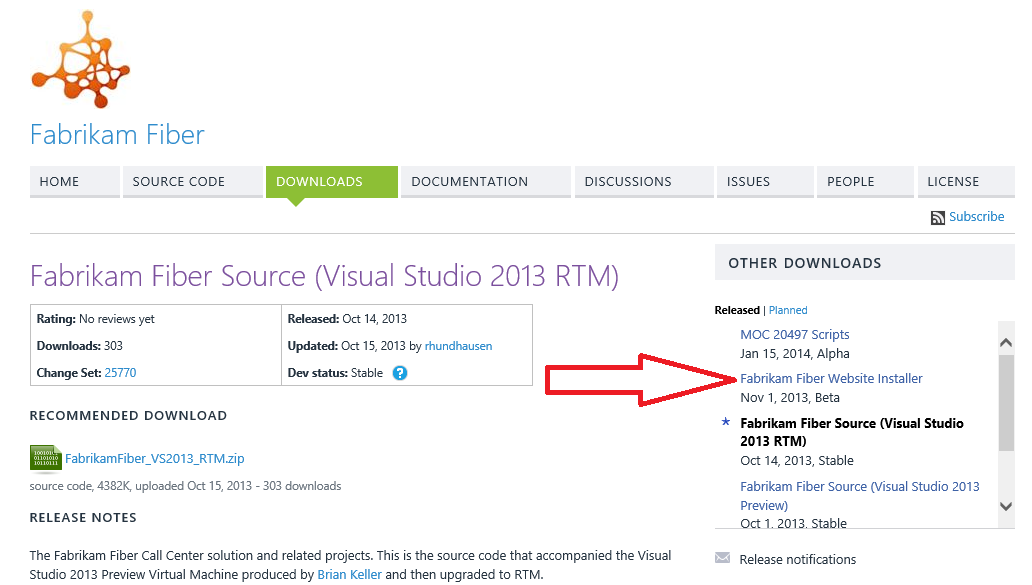
Head over to the Fabrikam Fiber site on Codeplex (http://fabrikam.codeplex.com/) and click on the 'Downloads' menu. From here, you'll notice the 'Other Downloads' section and a link to the 'Fabrikam Fiber Website Installer' as shown below.


Download the website installer to your demo virtual machine, browse to the download location, then right-click and hit the Install option to open up the installation wizard. Click Next to move on.


Accept the license agreement, then hit Next again.


Make a note of the destination folder that the website will be installed into (default is C:\inetpub\wwwroot\Fabrikam), then click Next.


Review the settings that you've chosen for your install, then hit the Install button to deploy the website to your demo virtual machine.


In a few seconds, the website installer should have completed successfully. Click Finish to close the wizard.


Now open up IIS Manager and you should see your new 'Fabrikam' website underneath the 'Default Web Site' one. Right-click the Fabrikam website, select Manage Website, then choose the Browse option from the menu as shown below.


This will attempt to open your web browser to the following path - http://localhost:1337/

At this point, after a few seconds of waiting you may see an error stating:

"CREATE FILE encountered operating system error 5 (Access is denied.) while attempting to open or create the physical file 'C:\inetpub\wwwroot\Fabrikam\App_Data\FabrikamFiber.mdf'."

Also shown in this screenshot:


If you see this error, then thankfully its just a permissions issue relating to the directory where the website installer deployed the application to. All you need to do is to browse to the directory (it'll be listed in the error string from above), go to the properties of the parent 'Fabrikam' folder, click on the Security tab, then give Full Control permissions to the 'Authenticated Users' security group and hit Apply to confirm.


Note: There are a number of ways that you can make these permissions more secure and granular such as editing the Web.config file but for the purposes of this series and our demo environment, this setting will suffice.

Now browse back to the Fabrikam Fiber website location (http://localhost:1337/) and you should see the application loading successfully this time.


The final thing to check before we close out on this post is that you can browse to your newly installed Fabrikam Fiber application from an external location. If you've deployed your demo virtual machine in Windows Azure, then your external application URL will be something like the following (substituting your own VM name in place of mine below):

http://fabrikamfiber:1337/

Make sure to add the correct port number to the end of your external URL and if you have problems accessing it externally, but not internally, then you've missed a step when configuring your Endpoints or Firewall/NAT rules. It's important that you can access your application both internally and externally at this point and if you can't do both, then you'll need to go back over these posts again to ensure you've configured everything correctly.

That's it for this post, in Part 4 we'll start monitoring our new demo web application for availability using both an agent deployed to the VM and also an agentless scenario where we simply instrument the application with some JavaScript code.