I've come across this issue randomly a couple of times over the past few months and have just had some time tonight to troubleshoot the problem and post it up here.
The issue relates to the Visio add-in for System Center 2012 - Operations Manager (SCOM/OpsMgr 2012) and the fact that in some cases, it simply doesn't load into Visio as it should do.
Typically, in my lab or test environments, if I am configuring theVisio and SharePoint integration of SCOM 2012 using the 'Visio 2010 and SharePoint 2010 Extensions for System Center 2012', I would download the file, unzip it and then run the Visio add-in installer on the computer that was running Visio 2010 Professional or Premium edition.
Generally, this would install without any issues and as soon as I open up Visio, the integration tab for Operations Manager is available. In some instances however, after the Visio add-in installer completed successfully, when I opened up Visio, the add-in wouldn't launch at all.
To troubleshoot, I opened up the Add-Ins tab from the File > Options menu inside Visio as below
When I clicked on the Go button to manage the COM Add-Ins, I was presented with a screen similar to the one below. I could also see from that screen that the Load Behavior was configured to 'Load at Startup', which means that I shouldn't have to do anything for the Add-In to start.
If I clicked on the check box for the add-in and then chose the OK button, the window would simply close with no warning and when I went back into it, I could see that the Load Behavior message had changed to the following:
Load Behavior: Not loaded. A runtime error occurred during the loading of the COM Add-in.
The solution to this problem in the end was actually quite simple. I found that the error tended to only occur when I was installing the add-in onto a server that had Visio installed on it as opposed to a client pc or laptop. In my lab/demo environments, I would normally just deploy Visio onto one of my SCOM management servers and enable the 'Desktop Experience' feature to allow for uploading graphics to SharePoint.
If I tried running the Visio add-in installer from a client pc or laptop, it always worked for me without issue so I went about comparing software prerequisites for the Visio add-in between my laptop and my servers. What I found was that on the server, I was missing the Visual Studio 2010 Tools for Office Runtime (VSTOR) and this was listed as a requirement in the Visio and SharePoint extensions documentation.
If you have encountered this problem, then all you need to do is to go to the following URL and download the VSTOR package for your architecture (x86 or x64):
http://www.microsoft.com/en-gb/download/details.aspx?id=35594
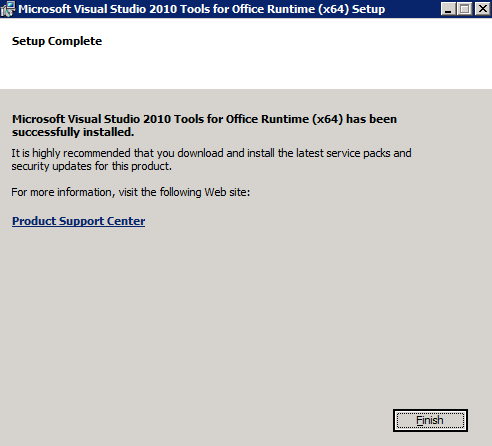
Once you have downloaded the tools, run the installer as an administrator and follow these screens to configure
When the tools have finished installing, open up Visio 2010 again and you should now be presented with an option to Install or Don't Install the Visio Add-In for System Center 2012 - Operations Manager. Click Install to continue
After you click Install, you will then be able to see the Operations Manager add-in tab from within you Visio window allowing you to configure integration to your SCOM 2012 management server.
Hopefully someone finds this quick solution helpful!
Tuesday, August 28, 2012
Wednesday, August 22, 2012
SCOM 2012 - The APM Consoles Part 2 - Application Advisor
In Part 1 of this series I walked through the Application Diagnostics console that comes as part of the System Center 2012 Operations Manager (SCOM/OpsMgr 2012) APM feature. This post will deal with the Application Advisor console that also comes bundled as part of APM.
Application Advisor Console Overview
The Application Advisor is a web-based console that comes bundled with over 30 pre-configured reports to help you to analyze event and performance issues over specified periods of time.It gives you transparency of the alerts that are causing you the most trouble, or generating the most noise and will give you a deep insight into a specific application’s overall health. In the words of the OpsMgr APM Product Team, Application Advisor is the tool that allows you to “follow the noise” in your APM environment.
Dependencies
As the primary function of the Application Advisor console is to deliver reports about APM, then it goes without saying that you will need to first have the SCOM Reporting role deployed for it to work. During the Application Advisor install a prerequiste check will kick off to see if you've already installed the SCOM Reporting role and if not, it will warn you that you need to have it installed first. Of course, this also means that you must have SQL Server Reporting Services (SSRS) installed too as it's a prerequisite of the SCOM Reporting role.
Launching
Similar to the Application Diagnostics console, if you want to launch the Application Advisor, there are several ways to do this. The easiest way is to open up a web browser and then input the URL of the Management Server that you've deployed the Web Console role to while adding /AppAdvisor to the end of it similar to:
Another way to launch the Application Advisor console is to logon to the server that you installed the Web Console to and browse to the built-in Start Menu shortcut at All Programs > Microsoft System Center 2012 > Operations Manager > Application Advisor as shown in the screenshot below
Update Feb 2013: I've made some changes to the required user account permissions below based on an inaccuracy/typo that Microsoft's Tim McFadden (Senior PFE) spotted while reading through this yesterday. Thanks Tim!
Security
Ensure that the user account you are logged in with has the relevant security permissions within SCOM to launch the Application Advisor console and be aware that these permissions are slightly different than what's required for the Application Diagnostics console. Your user account must be a member of the following roles:
Operations Manager Application Monitoring Operator Role
Operations Manager Report Operator Role
Alternatively, if your user account is a member of the Operations Manager Administrator Role, then you will have access to Application Advisor regardless of membership of the above two groups.
Using the Application Advisor Reports
The following process will walk you through running an application report from within the Application Advisor console with some basic options being selected:
Launch the Application Advisor console using one of the methods described above
From the Navigation pane on the upper left-hand side, choose the drop-down arrow beside the All Application Groups option and select an application group to scope the report to (if you haven't configured any application groups, then you will only see the 'All' option here)
Once you've chosen the application group, from the Select Report section you can choose the type of report that you want by simply expanding the Client Side Monitoring, Problem Utilization Analysis and Resource Utilization Analysis links or by clicking on any of the other seven reports. You can hover your mouse pointer over the name of a report to get a description box explaining exactly what the report gives you back.
Once you've chosen your report, you will be presented with a number of scoping parameters to define the the report contents. These parameters are as follows:
The screenshot below shows the output of a Problems Distribution Analysis report and in the top left-hand side, you can see that I've highlighted the Actions and Tools buttons as well as some icons just below these menus
You can easily schedule the report that you’ve just generated by hovering your mouse pointer over the six icons just below the Actions and Tools menus and clicking on the Schedule Report icon to open the Schedule Management Wizard. This wizard allows you to make some changes to your report configuration parameters if required, and will then present you with a dialog box to input your e-mail address and format preferences as shown below
Note: The e-mail option will only work here if it has been previously configured within SSRS.
Exploring the Tools Menu
You can access the Tools menu from any view or report inside Application Advisor and it contains six different tasks to help you administer your APM reporting environment. These tasks are detailed below:
That concludes this short series of posts on the SCOM 2012 APM consoles. You can check out some other APM related posts of mine here:
SCOM 2012 - Configuring Application Performance Monitoring (APM)
SCOM 2012 - APM CSM vs. GSM and Web Application Monitoring....Confused?
Hopefully you've found APM interesting and learnt something new about this cool addition to SCOM!
Application Advisor Console Overview
The Application Advisor is a web-based console that comes bundled with over 30 pre-configured reports to help you to analyze event and performance issues over specified periods of time.It gives you transparency of the alerts that are causing you the most trouble, or generating the most noise and will give you a deep insight into a specific application’s overall health. In the words of the OpsMgr APM Product Team, Application Advisor is the tool that allows you to “follow the noise” in your APM environment.
Dependencies
As the primary function of the Application Advisor console is to deliver reports about APM, then it goes without saying that you will need to first have the SCOM Reporting role deployed for it to work. During the Application Advisor install a prerequiste check will kick off to see if you've already installed the SCOM Reporting role and if not, it will warn you that you need to have it installed first. Of course, this also means that you must have SQL Server Reporting Services (SSRS) installed too as it's a prerequisite of the SCOM Reporting role.
Launching
Similar to the Application Diagnostics console, if you want to launch the Application Advisor, there are several ways to do this. The easiest way is to open up a web browser and then input the URL of the Management Server that you've deployed the Web Console role to while adding /AppAdvisor to the end of it similar to:
Another way to launch the Application Advisor console is to logon to the server that you installed the Web Console to and browse to the built-in Start Menu shortcut at All Programs > Microsoft System Center 2012 > Operations Manager > Application Advisor as shown in the screenshot below
Update Feb 2013: I've made some changes to the required user account permissions below based on an inaccuracy/typo that Microsoft's Tim McFadden (Senior PFE) spotted while reading through this yesterday. Thanks Tim!
Security
Ensure that the user account you are logged in with has the relevant security permissions within SCOM to launch the Application Advisor console and be aware that these permissions are slightly different than what's required for the Application Diagnostics console. Your user account must be a member of the following roles:
Alternatively, if your user account is a member of the Operations Manager Administrator Role, then you will have access to Application Advisor regardless of membership of the above two groups.
Using the Application Advisor Reports
The following process will walk you through running an application report from within the Application Advisor console with some basic options being selected:
Launch the Application Advisor console using one of the methods described above
From the Navigation pane on the upper left-hand side, choose the drop-down arrow beside the All Application Groups option and select an application group to scope the report to (if you haven't configured any application groups, then you will only see the 'All' option here)
Once you've chosen the application group, from the Select Report section you can choose the type of report that you want by simply expanding the Client Side Monitoring, Problem Utilization Analysis and Resource Utilization Analysis links or by clicking on any of the other seven reports. You can hover your mouse pointer over the name of a report to get a description box explaining exactly what the report gives you back.
Once you've chosen your report, you will be presented with a number of scoping parameters to define the the report contents. These parameters are as follows:
- Start Date and End Date - allows you to pick the time range you want the report to contain data from
- Status - this option relates to alert status and it defaults to New and Reviewed but there are also two other options for Deleted and By Design to choose from
- Sources - by default, this option selects all of your monitored .NET applications but you can select a specific application to target the report to
- Computers - allows you to focus on specific computers that are hosting your application
- Problems - allows you to select All problems or just Critical problems
The screenshot below shows the output of a Problems Distribution Analysis report and in the top left-hand side, you can see that I've highlighted the Actions and Tools buttons as well as some icons just below these menus
You can easily schedule the report that you’ve just generated by hovering your mouse pointer over the six icons just below the Actions and Tools menus and clicking on the Schedule Report icon to open the Schedule Management Wizard. This wizard allows you to make some changes to your report configuration parameters if required, and will then present you with a dialog box to input your e-mail address and format preferences as shown below
Note: The e-mail option will only work here if it has been previously configured within SSRS.
Exploring the Tools Menu
You can access the Tools menu from any view or report inside Application Advisor and it contains six different tasks to help you administer your APM reporting environment. These tasks are detailed below:
Task
|
Description
|
| Options | Provides the following event data options:
|
Schedule Wizard
| Enables the creation and modification of report schedules |
Favorites Wizard
| Allows you to save your favorite reports for future use without having to reconfigure them again. |
Remove Application Groups Wizard
| Helps you to delete unused application groups |
Remove Computers Wizard
| Deletes old computers |
Remove Applications Wizard
| Remove old application sources |
That concludes this short series of posts on the SCOM 2012 APM consoles. You can check out some other APM related posts of mine here:
SCOM 2012 - Configuring Application Performance Monitoring (APM)
SCOM 2012 - APM CSM vs. GSM and Web Application Monitoring....Confused?
Hopefully you've found APM interesting and learnt something new about this cool addition to SCOM!
Thursday, August 16, 2012
Download the IPD Guide for SCOM 2012 (BETA)
The new Infrastructure Planning and Design Guide (IPD) for System Center 2012 Operations Manager (SCOM/OpsMgr 2012) is now available for BETA review from the Microsoft Connect Site.
The IPD guides are invaluable when designing a technology solution for your clients or own internal business and are the first port of call for me anytime I'm carrying out a new type of deployment for our customers.
I've been waiting for this guide to be made available for a while - notably because I'm co-authoring a book on System Center 2012 Operations Manager and it certainly helps to have the knowledge contained in these guides when working on the architecture and installation chapters!
The guide is over 40 pages long and deep dives into a design process which gets broken into different steps depending on your requirements and each of these steps are then further complemented with tasks that require actions to help you through the entire process.
As the guide has just been released as a BETA last night, you will need to access it through the Microsoft Connect site and if you haven't registered here, will need to do so first.
The benefits of using the Connect site though is that you can make comments and requests on the content of the BETA guide and if enough people make the same requests, then it's possible that the final release of the guide will have your changes included.
Here's the link to register and download the IPD Guide for System Center 2012 - Operations Manager (BETA)
https://connect.microsoft.com/site14
The IPD guides are invaluable when designing a technology solution for your clients or own internal business and are the first port of call for me anytime I'm carrying out a new type of deployment for our customers.
I've been waiting for this guide to be made available for a while - notably because I'm co-authoring a book on System Center 2012 Operations Manager and it certainly helps to have the knowledge contained in these guides when working on the architecture and installation chapters!
The guide is over 40 pages long and deep dives into a design process which gets broken into different steps depending on your requirements and each of these steps are then further complemented with tasks that require actions to help you through the entire process.
As the guide has just been released as a BETA last night, you will need to access it through the Microsoft Connect site and if you haven't registered here, will need to do so first.
The benefits of using the Connect site though is that you can make comments and requests on the content of the BETA guide and if enough people make the same requests, then it's possible that the final release of the guide will have your changes included.
Here's the link to register and download the IPD Guide for System Center 2012 - Operations Manager (BETA)
https://connect.microsoft.com/site14
Wednesday, July 25, 2012
SCOM 2012 - Deploying Cumulative Update Rollup 2 (CU2) Hotfix
Here, we go again with another round of Cumulative Updates to apply to your System Center 2012 deployments. Yesterday, Microsoft announced the release of Cumulative Update 2 (UR2) for the System Center 2012 suite and you can find a description of it here.
Unlike Cumulative Update 1, this hotfix just provides resolution to five issues, three of which are on the Cross Platform/Unix/Linux side of the product.
This post will walkthrough the steps required to deploy the Update Rollup 2 to your SCOM / OpsMgr 2012 deployment. This post is effectively an update of my previous post on deploying Update Rollup 1 (CU1) to SCOM / OpsMgr 2012.
As before, the process to deploy the update is quite simple and this time there is no need to run any SQL queries against the SCOM databases as part of the update - as was the case with the SCOM 2007 R2 CU's. Some of the information below is taken directly from KB2706783 on the Microsoft Support website.
To begin, here are some known issues to be aware of when deploying this update rollup:
To resolve this issue, close and then restart Internet Explorer.
Installation Notes
<machineKey validationKey="AutoGenerate,IsolateApps" decryptionKey="AutoGenerate,IsolateApps" validation="3DES" decryption="3DES"/>Note This line should be added under <system.web>
Note: As with all updates, it goes without saying that you should first make a full backup of your SCOM 2012 environment before proceeding with these steps.
The supported installation order of CU2 is as follows:
Server Infrastructure Deployment Order Overview:
Note: If Connected MG/Tiering is enabled, the top tier should be patched first.
Update Management Packs Overview:
Agent Deployment Overview:
Note: This update rollup can be installed on agents either before or after server infrastructure.
Installation
Download CU2 to a location on your SCOM 2012 Management Server from the link below:
Update Rollup 2 for System Center 2012 Operations Manager
Right mouse click on the downloaded package and choose 'Run As Administrator' to begin the extraction of files
Click Yes to accept the licence
Choose a location to extract the files to (this can be a shared network folder if needs be), then click OK twice to finish the extraction
You should now see the following files extracted to the chosen folder
Server Infrastructure
Now you need to apply the relevant .MSP package to your computers depending on the architecture (AMD64 or i386) and the role each one has in your SCOM environment (Server, Console, Web Console, Reporting, Gateway or Agent)
Note: On servers that have User Account Control (UAC) enabled, be sure to run these updates from an elevated command prompt as you will most likely receive 'Access Denied' errors when running direct from the GUI.
The server I'm installing this to is a single SCOM (OpsMgr) 2012 Management Server with the Console and Web Console roles deployed so in this instance, I have to install three packages - KB2731874-AMD64-Server, KB2731874-AMD64-Console, KB2731874-AMD64-WebConsole.
In my environment, I also need to deploy the KB2731874-AMD64-Reporting package to my SQL Reporting Services (SSRS) server and the KB2731874-AMD64-Gateway to my SCOM (OpsMgr) 2012 Gateway server.
To install a package, just right mouse click on it and then choose Apply from the menu as below
Once you are happy that your first SCOM 2012 Management Server has been updated, then you can then move onto installing the new management packs that come with the CU2 hotfix.
From the Import Management Packs window, click on the Add button, choose the Add From Disk option and then click on No when prompted to go online to download any dependencies
Click on Yes from the security warning to confirm you are happy to continue
For any agents that have been manually installed, then you will manually need to copy the .MSP file for the agent to each server and manually carry out each upgrade.
Unix/Linux Infrastructure
Once you've upgraded your Windows based servers and agents, all that's left to do now is to upgrade any Unix/Linux agents that you have in your environment. The following is taken directly from KB2706783:
Installation instructions for Operations Manager UNIX and Linux monitoring packs and agents
To install the updated monitoring packs and agents for UNIX and Linux operating systems, follow these steps:
Note:The management pack bundle files for each UNIX and Linux operating system version contain the management pack and agent files. You may have to wait several minutes after you import the management pack bundle before the agent files are available for agent upgrades.
That completes the deployment of SCOM 2012 Cumulative Update Rollup 2 (CU2) into your environment.
Unlike Cumulative Update 1, this hotfix just provides resolution to five issues, three of which are on the Cross Platform/Unix/Linux side of the product.
This post will walkthrough the steps required to deploy the Update Rollup 2 to your SCOM / OpsMgr 2012 deployment. This post is effectively an update of my previous post on deploying Update Rollup 1 (CU1) to SCOM / OpsMgr 2012.
As before, the process to deploy the update is quite simple and this time there is no need to run any SQL queries against the SCOM databases as part of the update - as was the case with the SCOM 2007 R2 CU's. Some of the information below is taken directly from KB2706783 on the Microsoft Support website.
To begin, here are some known issues to be aware of when deploying this update rollup:
- Updates do not appear in the Add or Remove Programs item in Control Panel after you install Update Rollup 2.
- The version number of the console does not change after you install Update Rollup 2. After Update Rollup 2 is installed, the version number of the console remains 7.0.8560.0.
- After you install Update Rollup 2 on a web console, the following error occurs in Internet Explorer:
To resolve this issue, close and then restart Internet Explorer.
Installation Notes
- Operations Manager Update Rollup 2 will at first be available only in English and cannot be applied to non-English versions of System Center 2012. Non-English versions of Update Rollup 2 will be available later in 2012.
- You must run these updates as an administrator.
- You have to close the console before you apply the console update to avoid having to restart the computer.
- You must restart and clear the browser cache to start a new instance of Microsoft Silverlight.
- This update rollup should not be installed immediately after you install the server. Otherwise, you could encounter an issue in which the Health Service state remains uninitialized.
- If User Account Control is enabled, the .msp update files must be run from an elevated Command Prompt window.
- System Administrator rights on the database instances for the Operational Database and Data warehouse are required in order to run updates on these databases.
<machineKey validationKey="AutoGenerate,IsolateApps" decryptionKey="AutoGenerate,IsolateApps" validation="3DES" decryption="3DES"/>Note This line should be added under <system.web>
Note: As with all updates, it goes without saying that you should first make a full backup of your SCOM 2012 environment before proceeding with these steps.
The supported installation order of CU2 is as follows:
Server Infrastructure Deployment Order Overview:
- Management server or server
- Gateway servers
- Reporting servers
- Web console server role computer
- Operations console role computers
Note: If Connected MG/Tiering is enabled, the top tier should be patched first.
Update Management Packs Overview:
- Manually import CU2 management packs
Agent Deployment Overview:
- Apply the agent update to manually installed agents, or push installation from the Pending view in the Operations console.
Note: This update rollup can be installed on agents either before or after server infrastructure.
Installation
Download CU2 to a location on your SCOM 2012 Management Server from the link below:
Update Rollup 2 for System Center 2012 Operations Manager
Right mouse click on the downloaded package and choose 'Run As Administrator' to begin the extraction of files
Click Yes to accept the licence
Choose a location to extract the files to (this can be a shared network folder if needs be), then click OK twice to finish the extraction
You should now see the following files extracted to the chosen folder
Server Infrastructure
Now you need to apply the relevant .MSP package to your computers depending on the architecture (AMD64 or i386) and the role each one has in your SCOM environment (Server, Console, Web Console, Reporting, Gateway or Agent)
Note: On servers that have User Account Control (UAC) enabled, be sure to run these updates from an elevated command prompt as you will most likely receive 'Access Denied' errors when running direct from the GUI.
The server I'm installing this to is a single SCOM (OpsMgr) 2012 Management Server with the Console and Web Console roles deployed so in this instance, I have to install three packages - KB2731874-AMD64-Server, KB2731874-AMD64-Console, KB2731874-AMD64-WebConsole.
In my environment, I also need to deploy the KB2731874-AMD64-Reporting package to my SQL Reporting Services (SSRS) server and the KB2731874-AMD64-Gateway to my SCOM (OpsMgr) 2012 Gateway server.
To install a package, just right mouse click on it and then choose Apply from the menu as below
You will see a window similar to the one below open up and run through some processes before automatically closing without any notification or reference to the process being completed.
Once you have updated your server, browse to the SCOM 2012 installation folder - normally located at C:\Program Files\System Center Operations Manager 2012\Server. Once here, add a column view for 'File Version' and then sort the column by file version and you should see four files with a new version level of 7.0.8560.1027 as the screen below shows
If you don't see the product version updated as above to your files, then your server hasn't updated properly and you will need to revisit the installation to see if you've missed something.
Once you are happy that your first SCOM 2012 Management Server has been updated, then you can then move onto installing the new management packs that come with the CU2 hotfix.
Note: You only need to import the updated management packs once. You will not have to carry out this process for every SCOM server role that you upgrade.
To do this, simply open up the SCOM Console and click on the Administration button in the wunderbar from the bottom left hand side of the screen. From there, expand the Administration view, right mouse click on Management Packs and then select Import Management Packs from the resultant menu
From the Import Management Packs window, click on the Add button, choose the Add From Disk option and then click on No when prompted to go online to download any dependencies
You now need to browse to the location that you expanded the CU2 file into previously and you should see three management pack files (.MP). Select all three files and click on the Open button
If you have previously upgraded to Cumulative Update 1 (UR1), then you will notice that the version of the Data Warehouse Library management pack is the same version number for CU2 and this will not be imported. If you haven't upgraded to CU1, then the import will upgrade all three new management packs at this point.
Click on Yes from the security warning to confirm you are happy to continue
Once the import is completed, you should see a successful status beside either two or three management packs (as mentioned above, the number of management packs imported here depends on whether or not you've previously upgraded to CU1) confirming you have imported them without issue
When you have upgraded the first SCOM 2012 Management Server and imported the updated management packs into your environment, you then need to repeat the .MSP installation process on all of your other SCOM 2012 server roles as well
Agent Infrastructure
Although the agent installation upgrade can be carried out at any time, I prefer to wait until I have upgraded my SCOM 2012 server infrastructure first before working on the agents.
To upgrade the agents using the SCOM 2012 Console, simply browse to the Administration tab again in the wunderbar, expand the Administration view, expand Device Management and then click on the Pending Management view to see all of the agents awaiting upgrade. Highlight the ones you want to upgrade, then click on the Approve link from the Tasks pane on the right hand side to update all of your push based agents
For any agents that have been manually installed, then you will manually need to copy the .MSP file for the agent to each server and manually carry out each upgrade.
Unix/Linux Infrastructure
Once you've upgraded your Windows based servers and agents, all that's left to do now is to upgrade any Unix/Linux agents that you have in your environment. The following is taken directly from KB2706783:
Installation instructions for Operations Manager UNIX and Linux monitoring packs and agents
To install the updated monitoring packs and agents for UNIX and Linux operating systems, follow these steps:
- Download and then install the updated management packs from the following Microsoft website:
- Import the updated management pack for each version of Linux or UNIX that you are monitoring in your environment.
- Upgrade each agent to the latest version by using either the Update-SCXAgent Windows PowerShell cmdlet or the UNIX/Linux Agent Upgrade Wizard in the Administration pane of the Operations Console.
Note:The management pack bundle files for each UNIX and Linux operating system version contain the management pack and agent files. You may have to wait several minutes after you import the management pack bundle before the agent files are available for agent upgrades.
That completes the deployment of SCOM 2012 Cumulative Update Rollup 2 (CU2) into your environment.
Monday, July 23, 2012
SCOM 2012 - The APM Consoles Part 1 - Application Diagnostics
I don't know about you, but as a System Center consultant, I really appreciate when new features give us new consoles to work with as it keeps things different during deployments and when presenting.
With System Center 2012 Operations Manager (SCOM / OpsMgr 2012), we have the new Application Performance Monitoring (APM) feature that allows us to deep-dive into the code of our .NET applications from a server and client-side perspective. APM comes with two new web consoles that are installed together during the deployment of the SCOM 2012 Web Console role.
These are the Application Diagnostics and Application Advisor consoles and the aim of this short blog series is to give people a much better understanding of what they can do and how you can use them when managing your applications from an APM perspective.
If you haven't yet configured APM in your environment or still aren't too sure about exactly what it is, then check out these previous posts to get you started before reading through this series:
SCOM 2012 - Configuring Application Performance Monitoring (APM)
SCOM 2012 - APM CSM vs. GSM and Web Application Monitoring....Confused?
Application Diagnostics Console Overview
Known as SE Viewer in AVIcode 5.7, the Application Diagnostics console is used to organize and link events across your monitored .NET applications to help you quickly ascertain the root cause of a problem. It allows you to analyze the individual performance and reliability events that are being raised within your .NET application along with the transaction chains related to those events to help you to understand how these types of issues are impacting your business applications.
This console will be of definite interest to the members of the development team as it returns a whole raft of additional information that isn't available within the standard SCOM 2012 console as shown in the screenshot below.
Launching
If you want to launch the Application Diagnostics console, there are several ways to do this. The easiest way is to open up a web browser and then input the URL of the Management Server that you've deployed the Web Console role to while adding /AppDiagnostics to the end of it similar to:
http://<WebConsoleServerName>/AppDiagnostics
Another way to launch the Application Diagnostics console is to logon to the server that you installed the Web Console to and browse to the built-in Start Menu shortcut at All Programs > Microsoft System Center 2012 > Operations Manager > Application Diagostics as shown below
Regardless of the method used to open the Application Diagnostics console, you will still need to ensure that the user account you are logged in with has the relevant security permissions within SCOM to launch it. Your user account must be a member of the following roles:
Inside the Console
When you've launched the console, there are four navigation buttons that you can click on. Each one represents a different area that you can browse to that deliver the type of application diagnostics required to quickly find the root cause of a problem.
These buttons are shown in the screen below
Computers Button
The Computers button gives you information on the computers that are hosting your .NET applications. From here, you can create and select new Application Groups that allow you to focus in on events orginating from the same applications.
You also have the option of choosing between a Configuration view or a Resource Utilization view
The Configuration view lists the computers that your monitored .NET applications are running on and delivers basic information about the number of CPU cores they're running and their monitored processes too.
The Resource Utilization view also lists the computers that are running your .NET applications but returns additional information about resources such as % CPU Time, Memory, I/O and Application Load.
If you click on the name of a computer from within either the Configuration or Resource Utilization views, you'll then be presented with a new window containing four tabs listed as follows:
The screenshot below shows the four different tabs when clicking on a computer from within the Resource Utilization view
Applications Button
Clicking on the Applications button will give you a view very similar to the view you would see when clicking the Computers button as described above. However, this view displays information on the actual .NET applications as opposed to the computers that host them.
Inside here, you'll see that you can still filter using scoped Application Groups if you wish however, clicking on an application from the central pane will present four slightly different tabs to work with. These tabs are:
My personal favorite option here is the Topology tab and here you can segment alerts between the different .NET application components over a specified discovery period as shown below
Clicking on either the server or client-side component within this Topology view, will open an Events view for your application with only the events and alerts that have been scoped for that specific application component source as seen in this screenshot
Events Button
Clicking on this button generally shows a large amount of alerts and events in the central pane, however, we have the option to filter event data based on criteria such as:
In this view and from the central pane, we can see two different Sources for .NET application generated events (client-side and server-side) and these are easily identified in the Source column. When you click on an event here, the Source of the event will determine the different tab options available to you.
The Aspect of your event will also determine the type of information returned back to you and if you want to see the well known (and often demonstrated) graphic of a client-side performance event, then click on a client-side event with an Aspect type of Performance as shown below
Clicking on this type of event should then produce information similar to the following familiar screenshot
Advisor Button
Lastly, the only purpose of this button is to act as a shortcut to launch the Application Advisor console directly from inside the Application Diagnostics console. Part 2 in this series will cover Application Advisor in more detail.
With System Center 2012 Operations Manager (SCOM / OpsMgr 2012), we have the new Application Performance Monitoring (APM) feature that allows us to deep-dive into the code of our .NET applications from a server and client-side perspective. APM comes with two new web consoles that are installed together during the deployment of the SCOM 2012 Web Console role.
These are the Application Diagnostics and Application Advisor consoles and the aim of this short blog series is to give people a much better understanding of what they can do and how you can use them when managing your applications from an APM perspective.
If you haven't yet configured APM in your environment or still aren't too sure about exactly what it is, then check out these previous posts to get you started before reading through this series:
SCOM 2012 - Configuring Application Performance Monitoring (APM)
SCOM 2012 - APM CSM vs. GSM and Web Application Monitoring....Confused?
Application Diagnostics Console Overview
Known as SE Viewer in AVIcode 5.7, the Application Diagnostics console is used to organize and link events across your monitored .NET applications to help you quickly ascertain the root cause of a problem. It allows you to analyze the individual performance and reliability events that are being raised within your .NET application along with the transaction chains related to those events to help you to understand how these types of issues are impacting your business applications.
This console will be of definite interest to the members of the development team as it returns a whole raft of additional information that isn't available within the standard SCOM 2012 console as shown in the screenshot below.
Launching
If you want to launch the Application Diagnostics console, there are several ways to do this. The easiest way is to open up a web browser and then input the URL of the Management Server that you've deployed the Web Console role to while adding /AppDiagnostics to the end of it similar to:
http://<WebConsoleServerName>/AppDiagnostics
Another way to launch the Application Diagnostics console is to logon to the server that you installed the Web Console to and browse to the built-in Start Menu shortcut at All Programs > Microsoft System Center 2012 > Operations Manager > Application Diagostics as shown below
Lastly and probably the most common way that you'll launch this console is by clicking on the scoped URL link in the Alert Description or Alert Context pane of an APM alert that is located in the Monitoring > Application Monitoring > .NET Monitoring > Active Alerts view of the Operations Manager console. The screenshot below shows an example of the scoped URL presented from within the Alert Description tab of one of these alerts.
Security
Regardless of the method used to open the Application Diagnostics console, you will still need to ensure that the user account you are logged in with has the relevant security permissions within SCOM to launch it. Your user account must be a member of the following roles:
- Operations Manager Administrator Role
- Operations Manager Application Monitoring Operator Role
Inside the Console
When you've launched the console, there are four navigation buttons that you can click on. Each one represents a different area that you can browse to that deliver the type of application diagnostics required to quickly find the root cause of a problem.
These buttons are shown in the screen below
Computers Button
The Computers button gives you information on the computers that are hosting your .NET applications. From here, you can create and select new Application Groups that allow you to focus in on events orginating from the same applications.
You also have the option of choosing between a Configuration view or a Resource Utilization view
The Configuration view lists the computers that your monitored .NET applications are running on and delivers basic information about the number of CPU cores they're running and their monitored processes too.
The Resource Utilization view also lists the computers that are running your .NET applications but returns additional information about resources such as % CPU Time, Memory, I/O and Application Load.
If you click on the name of a computer from within either the Configuration or Resource Utilization views, you'll then be presented with a new window containing four tabs listed as follows:
- Key Metrics - Average and peak values of the computers key metrics
- Trend Reports - Reports on APM related performance counters over a given period
- Monitored Processes - Details over a specified time, the process name, uptime and additional information such as PID, Framework version and application pool type
- Monitored Applications - Overview of applications being monitored along with number of events, sessions and requests
The screenshot below shows the four different tabs when clicking on a computer from within the Resource Utilization view
Applications Button
Clicking on the Applications button will give you a view very similar to the view you would see when clicking the Computers button as described above. However, this view displays information on the actual .NET applications as opposed to the computers that host them.
Inside here, you'll see that you can still filter using scoped Application Groups if you wish however, clicking on an application from the central pane will present four slightly different tabs to work with. These tabs are:
- Key Metrics - Display a performance graph with data from the application on its load, monitored requests and average request time.
- Trend Reports - View trend reports on APM related performance counters over a given period
- Computers - An overview of the computers being monitored along with the number of events, sessions and requests.
- Topology - Overview of the basic topology of the application and gives a breakdown of where the events are happening based on chains across the server-side and client-side components.
My personal favorite option here is the Topology tab and here you can segment alerts between the different .NET application components over a specified discovery period as shown below
Clicking on either the server or client-side component within this Topology view, will open an Events view for your application with only the events and alerts that have been scoped for that specific application component source as seen in this screenshot
Events Button
Clicking on this button generally shows a large amount of alerts and events in the central pane, however, we have the option to filter event data based on criteria such as:
- Status (New, Reviewed, Deleted and By Design)
- Aspects (Application Failure, Connectivity, Security and Performance)
- Event ID
- Description
- User
- Date (Any Date, From Recent Perfiod and Between Dates)
- Location (Sources and Computers)
- Client Data (IP and Session ID)
In this view and from the central pane, we can see two different Sources for .NET application generated events (client-side and server-side) and these are easily identified in the Source column. When you click on an event here, the Source of the event will determine the different tab options available to you.
The Aspect of your event will also determine the type of information returned back to you and if you want to see the well known (and often demonstrated) graphic of a client-side performance event, then click on a client-side event with an Aspect type of Performance as shown below
Clicking on this type of event should then produce information similar to the following familiar screenshot
Advisor Button
Lastly, the only purpose of this button is to act as a shortcut to launch the Application Advisor console directly from inside the Application Diagnostics console. Part 2 in this series will cover Application Advisor in more detail.
SCOM 2012 - Export List of Agent Managed Devices to CSV File
I had a requirement today to export a list of all the SCOM / OpsMgr 2012 agent managed devices to a CSV file and thought I'd do up a quick post in case anyone else finds it useful.
This also might come in handy as an add-in for your System Center 2012 Orchestrator runbooks too.
All that's needed is just a single line of PowerShell as follows:
SCOM 2012
get-scomagent|export-csv -notype c:\scomagentdevices.csv
SCOM 2007 R2
get-agent|export-csv -notype c:\scomagentdevices.csv
Just copy and paste the relevant line of script from above into PowerShell on one of your SCOM management servers to create a file on the C:\ drive called 'scomagentdevices.csv'. This CSV file contains all of the information available on the agent such as -Patchlist, PrimaryManagementServerName, ManagementGroup, ID, LastModified, Name, DisplayName, HostComputer - etc.
You can easily scope down the criteria to be exported by simply modifying the PowerShell line above to include a property value such as just the DisplayName as below:
SCOM 2012
get-scomagent|select DisplayName|export-csv -notype c:\scomagentdevices.csv
If you are presented with any errors within the Operations Manager Shell when you first open it such as:
The term '.\OperationsManager\Functions.ps1' is not recognized as the name of a
cmdlet, function, script file, or operable program. Check the spelling of the
name, or if a path was included, verify that the path is correct and try again.
At line:1 char:67
+ Import-Module OperationsManager; .\OperationsManager\Functions.ps1 <<<< ; .\O
perationsManager\Startup.ps1
+ CategoryInfo : ObjectNotFound: (.\OperationsManager\Functions.p
s1:String) [], CommandNotFoundException
+ FullyQualifiedErrorId : CommandNotFoundException
Then simply type the following in before running the export line of script outlined above:
import-module OperationsManager
Hopefully someone else finds this helpful too!
This also might come in handy as an add-in for your System Center 2012 Orchestrator runbooks too.
All that's needed is just a single line of PowerShell as follows:
SCOM 2012
get-scomagent|export-csv -notype c:\scomagentdevices.csv
SCOM 2007 R2
get-agent|export-csv -notype c:\scomagentdevices.csv
Just copy and paste the relevant line of script from above into PowerShell on one of your SCOM management servers to create a file on the C:\ drive called 'scomagentdevices.csv'. This CSV file contains all of the information available on the agent such as -Patchlist, PrimaryManagementServerName, ManagementGroup, ID, LastModified, Name, DisplayName, HostComputer - etc.
You can easily scope down the criteria to be exported by simply modifying the PowerShell line above to include a property value such as just the DisplayName as below:
SCOM 2012
get-scomagent|select DisplayName|export-csv -notype c:\scomagentdevices.csv
If you are presented with any errors within the Operations Manager Shell when you first open it such as:
The term '.\OperationsManager\Functions.ps1' is not recognized as the name of a
cmdlet, function, script file, or operable program. Check the spelling of the
name, or if a path was included, verify that the path is correct and try again.
At line:1 char:67
+ Import-Module OperationsManager; .\OperationsManager\Functions.ps1 <<<< ; .\O
perationsManager\Startup.ps1
+ CategoryInfo : ObjectNotFound: (.\OperationsManager\Functions.p
s1:String) [], CommandNotFoundException
+ FullyQualifiedErrorId : CommandNotFoundException
Then simply type the following in before running the export line of script outlined above:
import-module OperationsManager
Hopefully someone else finds this helpful too!
Monday, July 16, 2012
Quick Reference Post - SCOM (OpsMgr) 2012 Group Maintenance Mode Script
This post is as much a place-holder for me as it is for anyone else and something that is of utmost importance in System Center 2012 Operations Manager (SCOM / OpsMgr 2012) deployments.
Pete Zerger and Matthew Long of Infront Consulting have put together a nice and simple (but very effective) script that enables maintenance mode of groups in SCOM 2012.
This script has been designed to make scheduling it as a Windows Scheduled Task work seamlessly.
Check out the magic here:
OpsMgr 2012: Group Maintenance Mode via PowerShell (the way it should be)
Nice one guys :)
Pete Zerger and Matthew Long of Infront Consulting have put together a nice and simple (but very effective) script that enables maintenance mode of groups in SCOM 2012.
This script has been designed to make scheduling it as a Windows Scheduled Task work seamlessly.
Check out the magic here:
OpsMgr 2012: Group Maintenance Mode via PowerShell (the way it should be)
Nice one guys :)
SCOM 2012 - APM CSM vs. GSM and Web Application Monitoring....Confused?
Every time a new product is released, we get bombarded with loads of new acronyms to try get our heads around. Once we figure out what these acronyms mean, then we have to understand what new features they actually refer to and how (or if) we can use them in our deployments. System Center 2012 Operations Manager (SCOM /OpsMgr 2012) is no different.
APM
When Microsoft acquired AVIcode in 2010 and integrated it into SCOM 2012, we then had access to Application Performance Monitoring or APM straight out of the box. APM brings a new level of deep-dive monitoring and is designed to try and bridge the gap between the development and infrastructure teams responsible for your applications. A while back, I wrote a short series of blog posts on configuring APM and if you want to learn how to set it up in your environment, then check them out using the following link: SCOM 2012 - Configuring Application Performance Monitoring (APM)
CSM
With APM, we get two types of monitoring to work with from an application level. Server-side Monitoring and Client-Side Monitoring - also known as CSM. CSM works with a specified application from the 'inside' and raises alerts based on the actual code. It also has a pre-requisite that APM Server-Side Monitoring is configured first and that the IIS websites hosting the web application must also be discovered and monitored too.
The screenshot below shows an example of CSM in SCOM 2012
From a performance perspective, CSM can tell us when there is a performance related problem with our application and then deep-dive into it 'to tell us why' there’s a problem. CSM returns real data based on the users experience of the web application.
Web Application Monitoring
Web Application Monitoring is another feature that comes out of the box with SCOM 2012. It works with any given web application's URL to probe the application from the 'outside' using designated watcher nodes that have the SCOM agent installed on them.This type of monitoring also provides the functionality to record web browser sessions and the screenshot below shows an example of this in action.
To use Web Application Monitoring, there's no requirement to have APM or IIS monitoring in place first. Although this type of monitoring can certainly tell us that there's a performance issue when accessing a particular website, it 'cannot tell us why' there is a problem. Web Application Monitoring simulates the users experience of the web application.
Check out this post for more on Web Application Monitoring: SCOM 2012 - Recording a Web Browser Session
GSM
Recently, Microsoft announced the 2nd Customer Technology Preview (CTP2) release of Service Pack 1 for System Center 2012 which includes a new feature called Global Service Monitor or GSM. GSM is a cloud based service running on Microsoft's Azure platform that extends SCOM 2012 capabilities by providing a kind of "agents in the cloud" extension to your on-premise monitoring and delivering an 'outside-in' perspective of your applications.
It allows you to schedule automatic synthetic transactions from locations around the world providing the capability to monitor the availability, performance and reliability of your externally facing web applications as shown in the screenshot below. Essentially, GSM also simulates the users experience of the web application.
Microsoft's Ã…ke Pettersson has put together a very informative blog post on configuring GSM that's well worth taking a look at here.
Better Together
From the information above, we can see that on the surface of it, you would be forgiven for thinking that they are all simply application monitoring features that deliver the same 'end goal'. It's understandable that some people might then presume that you don't need to deploy or use all of these features inside your SCOM 2012 environment and that one feature or the other would suffice.
When comparing these different application monitoring features however, it’s important to be aware that it most definitely isn’t a case of choosing one over the other. On the contrary, APM CSM, GSM and Web Application Monitoring all complement each other and, although they all monitor the users experience of the web application, they use very different methods to do it.
The best way to ensure that you get the full '360 Degree' monitoring view of your web applications is to first use APM CSM to deliver the rich in-depth code analysis that you need. Then to have it working in conjuction with GSM and Web Application Monitoring which have responsibility for probing the application websites for availability from locations all around the world and ensuring that web transactions are actually happening in the first place.
Don't forget of course, that if you want to be able to use APM CSM to manage alerts and exceptions that are generated from within your applications, you need to have users hitting your website and using the application in the first place. If nobody can access it by URL or if the performance of it is poor from certain locations around the world, then APM CSM alone won't be able to help you!
All things considered, it's always recommended to configure your application monitoring using a combination of all the above features to get the transparency that you need to be pro-active as opposed to re-active when it comes to resolving availability and performance issues.
An added bonus will also be a happy joining of your Dev and Ops teams when it comes to application troubleshooting!
APM
When Microsoft acquired AVIcode in 2010 and integrated it into SCOM 2012, we then had access to Application Performance Monitoring or APM straight out of the box. APM brings a new level of deep-dive monitoring and is designed to try and bridge the gap between the development and infrastructure teams responsible for your applications. A while back, I wrote a short series of blog posts on configuring APM and if you want to learn how to set it up in your environment, then check them out using the following link: SCOM 2012 - Configuring Application Performance Monitoring (APM)
CSM
With APM, we get two types of monitoring to work with from an application level. Server-side Monitoring and Client-Side Monitoring - also known as CSM. CSM works with a specified application from the 'inside' and raises alerts based on the actual code. It also has a pre-requisite that APM Server-Side Monitoring is configured first and that the IIS websites hosting the web application must also be discovered and monitored too.
The screenshot below shows an example of CSM in SCOM 2012
From a performance perspective, CSM can tell us when there is a performance related problem with our application and then deep-dive into it 'to tell us why' there’s a problem. CSM returns real data based on the users experience of the web application.
Web Application Monitoring
Web Application Monitoring is another feature that comes out of the box with SCOM 2012. It works with any given web application's URL to probe the application from the 'outside' using designated watcher nodes that have the SCOM agent installed on them.This type of monitoring also provides the functionality to record web browser sessions and the screenshot below shows an example of this in action.
To use Web Application Monitoring, there's no requirement to have APM or IIS monitoring in place first. Although this type of monitoring can certainly tell us that there's a performance issue when accessing a particular website, it 'cannot tell us why' there is a problem. Web Application Monitoring simulates the users experience of the web application.
Check out this post for more on Web Application Monitoring: SCOM 2012 - Recording a Web Browser Session
GSM
Recently, Microsoft announced the 2nd Customer Technology Preview (CTP2) release of Service Pack 1 for System Center 2012 which includes a new feature called Global Service Monitor or GSM. GSM is a cloud based service running on Microsoft's Azure platform that extends SCOM 2012 capabilities by providing a kind of "agents in the cloud" extension to your on-premise monitoring and delivering an 'outside-in' perspective of your applications.
It allows you to schedule automatic synthetic transactions from locations around the world providing the capability to monitor the availability, performance and reliability of your externally facing web applications as shown in the screenshot below. Essentially, GSM also simulates the users experience of the web application.
Microsoft's Ã…ke Pettersson has put together a very informative blog post on configuring GSM that's well worth taking a look at here.
Better Together
From the information above, we can see that on the surface of it, you would be forgiven for thinking that they are all simply application monitoring features that deliver the same 'end goal'. It's understandable that some people might then presume that you don't need to deploy or use all of these features inside your SCOM 2012 environment and that one feature or the other would suffice.
When comparing these different application monitoring features however, it’s important to be aware that it most definitely isn’t a case of choosing one over the other. On the contrary, APM CSM, GSM and Web Application Monitoring all complement each other and, although they all monitor the users experience of the web application, they use very different methods to do it.
The best way to ensure that you get the full '360 Degree' monitoring view of your web applications is to first use APM CSM to deliver the rich in-depth code analysis that you need. Then to have it working in conjuction with GSM and Web Application Monitoring which have responsibility for probing the application websites for availability from locations all around the world and ensuring that web transactions are actually happening in the first place.
Don't forget of course, that if you want to be able to use APM CSM to manage alerts and exceptions that are generated from within your applications, you need to have users hitting your website and using the application in the first place. If nobody can access it by URL or if the performance of it is poor from certain locations around the world, then APM CSM alone won't be able to help you!
All things considered, it's always recommended to configure your application monitoring using a combination of all the above features to get the transparency that you need to be pro-active as opposed to re-active when it comes to resolving availability and performance issues.
An added bonus will also be a happy joining of your Dev and Ops teams when it comes to application troubleshooting!
Friday, July 13, 2012
SCOM 2012 Network Monitoring - Dude, Where's My Network Device Components?
With System Center 2012 Operations Manager (SCOM / OpsMgr 2012), we now have some excellent new Network Monitoring functionality that I've previously blogged about how to configure and described what type of discoveries where available.
Sometimes though, when administrators or consultants deploy the SCOM 2012 Network Monitoring feature, they find that SCOM doesn't retrieve the information and discoveries on their network devices that they had initally hoped for or read about.
Instead they find that all that get's discovered is the network interface that the device was initally discovered on and it has simply performed an availability poll to return a health status back to the console- effectively giving them just a simple "Up or Down" scenario which is pretty much the same type of network monitoring that was made available out of the box with SCOM 2007 R2.
The screenshot below shows an example of this basic level of network monitoring
If this scenario seems familiar to you and you are contemplating scrapping the built-in network monitoring features of SCOM 2012 and instead downloading and importing the old and reliable xSNMP Extensions MP that delivered so much in SCOM 2007 R2, then DON'T!
First up, the xSNMP Extensions MP breaks cookdown in SCOM 2012 and won't work. All it will do is impact performance in your newly deployed SCOM 2012 environment and cause you endless headache.
Secondly, there is a valid reason as to why you are only seeing basic availability monitoring with your network devices.
SCOM 2012 lets you discover and monitor a large variety of different vendors network devices. It monitors any network device that supports SNMP and also provides extended monitoring for devices that implement the Management Information Base (MIB) RFC 2863 and MIB-II RFC 1213 standards.
It's this extended monitoring that delivers the deep level discoveries and performance data that you are looking for.
Microsoft have published an Excel spreadsheet with a list of over 800 network devices that support the extended monitoring capability of SCOM 2012. The information in the list is based on OID, device type, vendor, model name, and whether or not the processor and memory are monitored as part of the extended monitoring function.
The Excel spreadsheet list can be downloaded from here:
http://www.microsoft.com/en-us/download/details.aspx?displaylang=en&id=26831
From the spreadsheet (see screenshot below) you can see what level of network monitoring you can expect from your device.
The level of information that you are going to see is dependent on the MIB that Microsoft has used in the discovery. If your device is on the list then it will be “Certified” and this means that some level of detailed monitoring will take place that can include information on Processor, Memory and Chassis.
The screen below shows an example of a Certified network device in SCOM
If your network device is not on the Excel spreadsheet then it will be discovered in SCOM as a “Generic” network device, and it's this type of basic monitoring that you would have encountered in the first place.
A quick way to see what type of monitoring is available for your already discovered network devices in SCOM is to simply click on the Monitoring tab within the Operations Manager console, then browse to the Network Monitoring folder and click on the Network Devices view.
Once here, click on the Personalize View link from the Tasks pane on the right-hand side of the screen and in the Columns To Display section, choose the Certification check box then click OK
This view will then show you the type of certification that your network device holds as shown below
Hopefully this post has now given you an understanding of the different certification types and the associated diagram views they can produce for your network devices.
Sometimes though, when administrators or consultants deploy the SCOM 2012 Network Monitoring feature, they find that SCOM doesn't retrieve the information and discoveries on their network devices that they had initally hoped for or read about.
Instead they find that all that get's discovered is the network interface that the device was initally discovered on and it has simply performed an availability poll to return a health status back to the console- effectively giving them just a simple "Up or Down" scenario which is pretty much the same type of network monitoring that was made available out of the box with SCOM 2007 R2.
The screenshot below shows an example of this basic level of network monitoring
If this scenario seems familiar to you and you are contemplating scrapping the built-in network monitoring features of SCOM 2012 and instead downloading and importing the old and reliable xSNMP Extensions MP that delivered so much in SCOM 2007 R2, then DON'T!
First up, the xSNMP Extensions MP breaks cookdown in SCOM 2012 and won't work. All it will do is impact performance in your newly deployed SCOM 2012 environment and cause you endless headache.
Secondly, there is a valid reason as to why you are only seeing basic availability monitoring with your network devices.
SCOM 2012 lets you discover and monitor a large variety of different vendors network devices. It monitors any network device that supports SNMP and also provides extended monitoring for devices that implement the Management Information Base (MIB) RFC 2863 and MIB-II RFC 1213 standards.
It's this extended monitoring that delivers the deep level discoveries and performance data that you are looking for.
Microsoft have published an Excel spreadsheet with a list of over 800 network devices that support the extended monitoring capability of SCOM 2012. The information in the list is based on OID, device type, vendor, model name, and whether or not the processor and memory are monitored as part of the extended monitoring function.
The Excel spreadsheet list can be downloaded from here:
http://www.microsoft.com/en-us/download/details.aspx?displaylang=en&id=26831
From the spreadsheet (see screenshot below) you can see what level of network monitoring you can expect from your device.
The level of information that you are going to see is dependent on the MIB that Microsoft has used in the discovery. If your device is on the list then it will be “Certified” and this means that some level of detailed monitoring will take place that can include information on Processor, Memory and Chassis.
The screen below shows an example of a Certified network device in SCOM
If your network device is not on the Excel spreadsheet then it will be discovered in SCOM as a “Generic” network device, and it's this type of basic monitoring that you would have encountered in the first place.
A quick way to see what type of monitoring is available for your already discovered network devices in SCOM is to simply click on the Monitoring tab within the Operations Manager console, then browse to the Network Monitoring folder and click on the Network Devices view.
Once here, click on the Personalize View link from the Tasks pane on the right-hand side of the screen and in the Columns To Display section, choose the Certification check box then click OK
This view will then show you the type of certification that your network device holds as shown below
Hopefully this post has now given you an understanding of the different certification types and the associated diagram views they can produce for your network devices.
Subscribe to:
Posts (Atom)