The new Infrastructure Planning and Design Guide (IPD) for System Center 2012 Virtual Machine Manager (VMM) is now available for BETA review from the Microsoft Connect Site.
The IPD guides are invaluable when designing a technology solution for your clients or own internal business and are the first port of call for me anytime I'm carrying out a new type of deployment for our customers.
This one is 40 pages long and deep dives into the VMM 2012 architecture, sample scenarios and design best practices.
You can register and download the VMM 2012 IPD from here:
https://connect.microsoft.com/InvitationUse.aspx?ProgramID=1587&InvitationID=IPDM-QX6H-7TTV&SiteID=14

Kevin Greene's IT Blog. This is a blog about all things Cloud and Datacenter!
Friday, June 22, 2012

Friday, June 15, 2012
MCSE Private Cloud Exam - Monitoring & Operating a Private Cloud with System Center 2012 - Passed!
After seeing some of the other attendees of MMS 2012 updating their blog's with news that they had passed the BETA MCSE Private Cloud exams that they had tested on over in Vegas, I dreaded the worst this morning when I went to check my own results.
Before I left for Vegas back in April, I had booked myself in to sit exam number 071-246 - 'Monitoring & Operating a Private Cloud w/System Center 2012' on the Thursday. I had picked the Thursday intentionally because after attending MMS 2011 last year, I knew that the Monday, Tuesday and Wednesday morning's would be filled with hangovers from the parties being held the nights before - I know, it's a tough life! With the MMS 2012 closing party being held on the Thursday night, I figured for sure that the Friday morning would be a no-go so Thursday afternoon seemed the best choice to sit the exam.
After attending an excellent Exam Cram session by UK System Center MVP Gordon McKenna during the day on the Wednesday and taking it nice and easy that night with a meal and a couple of quiet drinks out with the Irish contingent (honest!), I felt I'd be ready to take the exam no problem the next day........How wrong I was!
I didn't take into account that during the day over there at around 16:00, due to the jet lag and total lack of sleep during the early part of the week, just as I was sitting the exam, my body decided it wanted to go to sleep! I spent the next two hours trying to literally keep my eyes open while doing the exam and I'm sure at one stage, the exam attendent caught me closing my eyes too!
The fact that out of a total of 60 questions on the exam, I counted 21 of them that were asked on Service Manager - which is not part of my Kung Fu just yet, I was full sure I'd failed the exam at that point and couldn't argue with the impending result.
Fast forward to this morning again and I've just found out that despite everything, I managed to pass the exam!

It turns out that I must know a little bit about System Center 2012 after all!
Before I left for Vegas back in April, I had booked myself in to sit exam number 071-246 - 'Monitoring & Operating a Private Cloud w/System Center 2012' on the Thursday. I had picked the Thursday intentionally because after attending MMS 2011 last year, I knew that the Monday, Tuesday and Wednesday morning's would be filled with hangovers from the parties being held the nights before - I know, it's a tough life! With the MMS 2012 closing party being held on the Thursday night, I figured for sure that the Friday morning would be a no-go so Thursday afternoon seemed the best choice to sit the exam.
After attending an excellent Exam Cram session by UK System Center MVP Gordon McKenna during the day on the Wednesday and taking it nice and easy that night with a meal and a couple of quiet drinks out with the Irish contingent (honest!), I felt I'd be ready to take the exam no problem the next day........How wrong I was!
I didn't take into account that during the day over there at around 16:00, due to the jet lag and total lack of sleep during the early part of the week, just as I was sitting the exam, my body decided it wanted to go to sleep! I spent the next two hours trying to literally keep my eyes open while doing the exam and I'm sure at one stage, the exam attendent caught me closing my eyes too!
The fact that out of a total of 60 questions on the exam, I counted 21 of them that were asked on Service Manager - which is not part of my Kung Fu just yet, I was full sure I'd failed the exam at that point and couldn't argue with the impending result.
Fast forward to this morning again and I've just found out that despite everything, I managed to pass the exam!

It turns out that I must know a little bit about System Center 2012 after all!
Thursday, June 14, 2012
TechEd 2012 North America - Download the Sessions Offline
Stefan Roth has been at it again with his offline viewing scripts but this time, instead of giving us a quick and easy way to download MMS 2012 sessions, he has modified his script to enable the download of the TechEd 2012 Orlando sessions in much the same way.
Check out his blog posting here with instructions on how to download the script and what you need to do for it to work:
http://blog.scomfaq.ch/2012/06/13/teched-2012-orlando-download-sessions-offline-viewing/
Thanks again Stefan!
Check out his blog posting here with instructions on how to download the script and what you need to do for it to work:
http://blog.scomfaq.ch/2012/06/13/teched-2012-orlando-download-sessions-offline-viewing/
Thanks again Stefan!
Wednesday, June 13, 2012
SCOM 2012 - More Free Stuff - Veeam Extended Generic Report Library MP
Following quickly on from my last post about the free dashboard authoring tool and samples that the OpsMgr product team have released, now it's Veeam's turn to offer up a free management pack for SCOM 2012.
Thanks to Chris Dearden of Veeam UK for bringing this one to my attention
Although the reporting functionality inside SCOM 2012 is really excellent, the Veeam Extended Generic Report Library (GRL) includes the following reports:

The cool thing about this reporting extension is that it DOES NOT require any Veeam products or other Veeam management packs to run. The reports can be targeted at any of the objects in your SCOM environment that the standard Generic Report Library that comes out of the box with SCOM can run against.
The GRL is compatible with both SCOM 2012 and SCOM 2007 R2 but a pre-requsisite is to ensure you are running SSRS 2008 upwards for your reporting engine.
Check out the link below to register and download the free management pack and accompanying guide:
http://www.veeam.com/extended-generic-report-library.html
Thanks to Chris Dearden of Veeam UK for bringing this one to my attention
Although the reporting functionality inside SCOM 2012 is really excellent, the Veeam Extended Generic Report Library (GRL) includes the following reports:
- Veeam Alert Statistics Report - Analyze alert statistics in two modes – per rule/monitor and per object
- Veeam Generic Performance Top (Bottom) N Report - Show infrastructure objects, performance counters, or both, for a specific rule
- Veeam Performance Report - Visualize performance counter values on one or more charts and tables
- Veeam Performance Details Report - Analyze trends with drill down to performance details

The cool thing about this reporting extension is that it DOES NOT require any Veeam products or other Veeam management packs to run. The reports can be targeted at any of the objects in your SCOM environment that the standard Generic Report Library that comes out of the box with SCOM can run against.
The GRL is compatible with both SCOM 2012 and SCOM 2007 R2 but a pre-requsisite is to ensure you are running SSRS 2008 upwards for your reporting engine.
Check out the link below to register and download the free management pack and accompanying guide:
http://www.veeam.com/extended-generic-report-library.html
SCOM 2012 - Free Dashboard Authoring Tool from the OpsMgr Product Team
The OpsMgr (SCOM) product team have yesterday just released a really cool tool and some management packs that allow you to customise and author SCOM 2012 dashboard widgets and then save them into an unsealed Management Pack for export to a different Management Group.
This is a huge benefit in that normally, if you have created your customized dashboard widgets and have them deployed in your Management Group (such as Pre-Production), then you want to move these dashboards to another Management Group (Production for example), it won't work because the original dashboard widget has dependencies on the GUID reference for your first management group.
You can also create a console task that launches your pre-configured dashboard from the Navigation view every time you select a computer - another handy feature.
There are two dashboard templates that this solution offers:
Summary Dashboard
Task Pane Dashboard
Have a look at the link below to get a full overview of what's on offer and how to download and configure it:
http://blogs.technet.com/b/momteam/archive/2012/06/12/free-windows-server-2008-dashboards-for-opsmgr-2012-and-tool-to-help-create-your-own-customized-dashboards.aspx
This is a huge benefit in that normally, if you have created your customized dashboard widgets and have them deployed in your Management Group (such as Pre-Production), then you want to move these dashboards to another Management Group (Production for example), it won't work because the original dashboard widget has dependencies on the GUID reference for your first management group.
You can also create a console task that launches your pre-configured dashboard from the Navigation view every time you select a computer - another handy feature.
There are two dashboard templates that this solution offers:
Summary Dashboard
- Ability to create a custom template layout
- Use any widgets available in the product
- Can be hosted under any MP folder view
Task Pane Dashboard
- Ability to create a custom template layout
- Use any widgets available in the product
- Shows up in the task pane when you select a particular target
Have a look at the link below to get a full overview of what's on offer and how to download and configure it:
http://blogs.technet.com/b/momteam/archive/2012/06/12/free-windows-server-2008-dashboards-for-opsmgr-2012-and-tool-to-help-create-your-own-customized-dashboards.aspx
Sunday, May 27, 2012
System Center SQL Collation Requirements
I don't normally like posting about other people's blog posts but I felt this one is important enough to bend the rules a little for.
When installing any System Center product in your environment, you will need to install it's database(s) into an instance of SQL. One of the main reasons that I've come across in the past for dysfunctional System Center deployments - particularly SCOM and SCCM - is attributed to an incorrect SQL collation setting being specified during installation.
When deploying System Center and when using the English language within your Operating System, you will nearly always want to use the SQL_Latin1_General_CP1_CI_AS collation setting.
I use the word 'nearly' in the above sentence because after reading an excellent post yesterday from Microsoft's Travis Wright, he explains how Microsoft are starting to move away from this once 'De Facto' standard of SQL collation due to issues around search and data retrieval within the new System Center Service Manager product.
Travis also posts a list of the other SQL collation settings that are applicable when not using the English language.
The link to his excellent post is below:
http://blogs.technet.com/b/servicemanager/archive/2012/05/24/clarification-on-sql-server-collation-requirements-for-system-center-2012.aspx
Even though all of System Center 2012 products have the recommended SQL collation configuration built into their Pre-Requisite checks, I'd suggest bookmarking this post for future reference as it can save you or someone else a LOT of time in the future!
When installing any System Center product in your environment, you will need to install it's database(s) into an instance of SQL. One of the main reasons that I've come across in the past for dysfunctional System Center deployments - particularly SCOM and SCCM - is attributed to an incorrect SQL collation setting being specified during installation.
When deploying System Center and when using the English language within your Operating System, you will nearly always want to use the SQL_Latin1_General_CP1_CI_AS collation setting.
I use the word 'nearly' in the above sentence because after reading an excellent post yesterday from Microsoft's Travis Wright, he explains how Microsoft are starting to move away from this once 'De Facto' standard of SQL collation due to issues around search and data retrieval within the new System Center Service Manager product.
Travis also posts a list of the other SQL collation settings that are applicable when not using the English language.
The link to his excellent post is below:
http://blogs.technet.com/b/servicemanager/archive/2012/05/24/clarification-on-sql-server-collation-requirements-for-system-center-2012.aspx
Even though all of System Center 2012 products have the recommended SQL collation configuration built into their Pre-Requisite checks, I'd suggest bookmarking this post for future reference as it can save you or someone else a LOT of time in the future!
Thursday, May 24, 2012
Community Power!
The last few months have been real busy for me with the release of System Center 2012, attending MMS, writing a book and working between all of the different System Center 2012 project deployments that we're involved in. Not to mention trying to make some quality time to spend with the family!
In fact, the last year has been pretty much the same story with everything that has gone on and I find myself never having the time to study for and sit the certification exams that I set myself targets for. Nor have I had anywhere near the free time that I would like to have so I can ramp up my skills on the likes of Orchestrator and Service Manager.
Still, when new technologies come to market or unusual fixes and workarounds are made public for the products that I deal with on a daily basis, I always seem to be able to quickly find the information I need to enable me to do my job. This is all thanks to the huge amount of community resources that are available to us all every day. It doesn't matter whether your preference is for System Center, Hyper-V, Exchange or Linux - there's always going to be specialists in the relevant disciplines from across the world who love to share their knowledge and experiences with their respective online and local technology communities. These community experts share their information through blogs, central community based websites, forums, Twitter and even by presenting at local user groups and events. Best of all - it's shared completely free!
It's with the latter in mind that this week allowed me the opportunity through expert local community resources to attend some excellent sessions on the upcoming Windows Server 2012 and newly released SQL 2012 technologies. Apart from the fantastic technical content on offer, the best part was, the events were completely free!
Windows Server 2012
Yesterday I attended the Windows Server 2012 Rocks event in Microsoft Ireland which was presented by Alex Juschin (RDP MVP) and Aidan Finn (Hyper-V MVP). Although this was never going to be a deep dive Level 400 type session (you'd never fit all that info into 4 hours!), it was perfect to get an overall understanding with some really cool demo's of the new features around managebility, remote access and virtualization that comes out of the box with this release.
Although the Irish Windows Server 2012 Rocks events have now finished, this event is taking place all over the world and you can check out the official site from the link below to see if there's a presentation on in your locality in the coming month:
https://ws2012rocks.msregistration.com/EventList.aspx
I left there yesterday with a much better understanding of what we can now do with Windows Server and Hyper-V and more importantly for me, how my future System Center deployments will benefit from all of the new game-changing features. Did I mention that all this is for free?
SQL Server 2012
If the Windows Server 2012 event was more for me to brush up on my already pretty good Hyper-V and Server O/S knowledge, then the SQL 2012 Always On Deep Dive event that I've just attended tonight in Microsoft Ireland was purely to help me on the long road to improving my SQL 'Kung Fu' -which by the way, just about get's me out of trouble when I need it to!
I realised a long time ago that no matter how good you are at System Center, if you don't know SQL, then you're missing a trick and it's something that is a MUST for anyone deploying System Center 2012. Of course I've earmarked the SQL MCITP exams as ones to sit and pass, but I hardly ever can find the time these days to commit to studying for them!
Step forward another community resource in Ireland and that's the SQL User Group run by Niall Flanagan and Bob Duffy. The session this evening was presented by Bob Duffy who's been working on databases since I was still in school! He's an SQL Ranger and also an SSAS Maestro and definitely someone who knows what they're talking about when it comes to databases!
The session on SQL 2012 Always On was excellent and the demo's backed up seamlessly what Bob was presenting on and to top it all off, we all got our fair share of pizza's and refreshments. Once again, did I mention that this was all free?
The point I'm trying to make I suppose, is that, although as IT Pro's we might get caught up with all of the new technologies being released and the pressure of trying to juggle any spare time we have to get to know and understand them, it doesn't have to cost a load of money on instructer-led training or expensive books - we're in a recession right - to get the knowledge you need to become proficient.
Instead, if sometimes, you're prepared to give up a small amount of your own time, then take a look around the Internet and pay attention to your local IT community user groups, you can get expert technical advice from some of the best in the world, right on your doorstep and all for FREE!!
That's what I call Community Power!
In fact, the last year has been pretty much the same story with everything that has gone on and I find myself never having the time to study for and sit the certification exams that I set myself targets for. Nor have I had anywhere near the free time that I would like to have so I can ramp up my skills on the likes of Orchestrator and Service Manager.
Still, when new technologies come to market or unusual fixes and workarounds are made public for the products that I deal with on a daily basis, I always seem to be able to quickly find the information I need to enable me to do my job. This is all thanks to the huge amount of community resources that are available to us all every day. It doesn't matter whether your preference is for System Center, Hyper-V, Exchange or Linux - there's always going to be specialists in the relevant disciplines from across the world who love to share their knowledge and experiences with their respective online and local technology communities. These community experts share their information through blogs, central community based websites, forums, Twitter and even by presenting at local user groups and events. Best of all - it's shared completely free!
It's with the latter in mind that this week allowed me the opportunity through expert local community resources to attend some excellent sessions on the upcoming Windows Server 2012 and newly released SQL 2012 technologies. Apart from the fantastic technical content on offer, the best part was, the events were completely free!
Windows Server 2012
Yesterday I attended the Windows Server 2012 Rocks event in Microsoft Ireland which was presented by Alex Juschin (RDP MVP) and Aidan Finn (Hyper-V MVP). Although this was never going to be a deep dive Level 400 type session (you'd never fit all that info into 4 hours!), it was perfect to get an overall understanding with some really cool demo's of the new features around managebility, remote access and virtualization that comes out of the box with this release.
Although the Irish Windows Server 2012 Rocks events have now finished, this event is taking place all over the world and you can check out the official site from the link below to see if there's a presentation on in your locality in the coming month:
https://ws2012rocks.msregistration.com/EventList.aspx
I left there yesterday with a much better understanding of what we can now do with Windows Server and Hyper-V and more importantly for me, how my future System Center deployments will benefit from all of the new game-changing features. Did I mention that all this is for free?
SQL Server 2012
If the Windows Server 2012 event was more for me to brush up on my already pretty good Hyper-V and Server O/S knowledge, then the SQL 2012 Always On Deep Dive event that I've just attended tonight in Microsoft Ireland was purely to help me on the long road to improving my SQL 'Kung Fu' -which by the way, just about get's me out of trouble when I need it to!
I realised a long time ago that no matter how good you are at System Center, if you don't know SQL, then you're missing a trick and it's something that is a MUST for anyone deploying System Center 2012. Of course I've earmarked the SQL MCITP exams as ones to sit and pass, but I hardly ever can find the time these days to commit to studying for them!
Step forward another community resource in Ireland and that's the SQL User Group run by Niall Flanagan and Bob Duffy. The session this evening was presented by Bob Duffy who's been working on databases since I was still in school! He's an SQL Ranger and also an SSAS Maestro and definitely someone who knows what they're talking about when it comes to databases!
The session on SQL 2012 Always On was excellent and the demo's backed up seamlessly what Bob was presenting on and to top it all off, we all got our fair share of pizza's and refreshments. Once again, did I mention that this was all free?
The point I'm trying to make I suppose, is that, although as IT Pro's we might get caught up with all of the new technologies being released and the pressure of trying to juggle any spare time we have to get to know and understand them, it doesn't have to cost a load of money on instructer-led training or expensive books - we're in a recession right - to get the knowledge you need to become proficient.
Instead, if sometimes, you're prepared to give up a small amount of your own time, then take a look around the Internet and pay attention to your local IT community user groups, you can get expert technical advice from some of the best in the world, right on your doorstep and all for FREE!!
That's what I call Community Power!
Tuesday, May 15, 2012
SCOM 2007 R2 (OpsMgr) - Cumulative Update Rollup 6 (CU6) - Available Now
Microsoft has just released their latest cumulative update for SCOM 2007 R2 - CU6. This update hotfix comes with a number of fixes including some I've had in the past in relation to reports failing on Windows 7 and the reporting pane not opening from the console sometimes too.
It also brings some new feature set additions for Cross Platform monitoring including:
An overview of the fixes and issues that this rollup resolves are below:
Cumulative Update 6 for Operations Manager 2007 R2 resolves the following issues:
You can download the CU6 for SCOM 2007 R2 from the link below:
http://www.microsoft.com/en-us/download/details.aspx?id=29850
It also brings some new feature set additions for Cross Platform monitoring including:
- Support for IBM AIX 7.1 (POWER)
- Support for Oracle Solaris 11 (x86 and SPARC)
An overview of the fixes and issues that this rollup resolves are below:
Cumulative Update 6 for Operations Manager 2007 R2 resolves the following issues:
- RMS promotion fails if NetworkName and PrincipalNames are not in sync for agents.
- UI is limited to only 100 MB for the Memory Usage field in the wizard.
- Additional OIDs in auth certificate are not processed correctly.
- AEM creates duplicate computer objects in OpsMgr based on Agents NetBIOS name.
- Cannot open reporting pane on OpsMgr 2007 R2 remote console.
- Cannot view schedule for scheduled report.
- ManagementServerConfigTool with the option "promoterms" fails because it stops polling the SDK Service.
- OpsMgr reports are failing on Windows 7 with the error: "Cannot initialize report."
- ACS events have "n/a" as their category in the ACS database.
- Watch agentless monitoring listener to detect failure to respond.
- SCOM SDK memory leak on cryptography keys and cryptography contexts.
- After you click Edit Schedule, a message box appears, and you cannot save the change value.
- Audit events can be lost when the AdtServer process crashes.
- The installation process for the IBM AIX 6.1 agent incorrectly checks for AIX 5.3 packages.
- After a system restart, the OpsMgr agent for Solaris may start to run before local file systems are mounted.
- On Red Hat Linux version 4 and SUSE Linux version 9, LVM disks are not discovered and cannot be monitored.
- The OpsMgr agent for AIX does not report the arguments for monitored processes.
- When Microsoft security update MS12-006 is installed on an OpsMgr management server, that management server can no longer communicate with the OpsMgr agent on any Linux or UNIX server.
- On HP-UX, OpsMgr cannot discover and monitor a logical volume that is composed of more than 127 physical volumes.
You can download the CU6 for SCOM 2007 R2 from the link below:
http://www.microsoft.com/en-us/download/details.aspx?id=29850
Friday, May 11, 2012
Beta Guide: Managing and Operating a Microsoft Private Cloud with MOF Application
After spending the last few months involved in writing a book that included a chapter on Systems Management with the Microsoft Operations Framework and Private Cloud components, it's typical that when I finish the writing process that Microsoft have just announced the release of the 'Managing and Operating a Microsoft Private Cloud-How to Apply the Microsoft Operations Framework (MOF) Beta' guide that covers most of what I was trying to research!
The guide is available on the Microsoft Connect site and you will need to click on the link below to register (if you aren't already registered) and then download the guide:
https://connect.microsoft.com/site14/InvitationUse.aspx?ProgramID=1880&InvitationID=MOFN-M6H9-PV3X
The following is an excerpt from the Overview section of the guide to give you a feel for what's contained in it:
Overview
This guide describes how to manage and operate a Microsoft private cloud using the service management processes of the Microsoft® Operations Framework (MOF). MOF is a framework that helps IT organizations plan, create, operate, and support IT services that deliver expected business value at an acceptable level of risk.
The guide assumes an organization has already built an infrastructure-as-a-service private cloud environment based on one of Microsoft’s three private cloud options, using the conceptual architecture and technical components that are recommended. More information about those options can be found in the “Microsoft Private Cloud” section of this guide.
The guide applies MOF’s IT service management principles to that conceptual architecture and technology stack. However, the guide’s approach and principles can be applied to any private cloud, regardless of the technology used, with the understanding that the specific technical references will not be relevant.
If you have deployed System Center 2012 or are planning on implementing it over the coming months, then this guide is essential reading before you deploy to get you in the correct frame of mind when designing your ITSM processes.
The guide is available on the Microsoft Connect site and you will need to click on the link below to register (if you aren't already registered) and then download the guide:
https://connect.microsoft.com/site14/InvitationUse.aspx?ProgramID=1880&InvitationID=MOFN-M6H9-PV3X
The following is an excerpt from the Overview section of the guide to give you a feel for what's contained in it:
Overview
This guide describes how to manage and operate a Microsoft private cloud using the service management processes of the Microsoft® Operations Framework (MOF). MOF is a framework that helps IT organizations plan, create, operate, and support IT services that deliver expected business value at an acceptable level of risk.
The guide assumes an organization has already built an infrastructure-as-a-service private cloud environment based on one of Microsoft’s three private cloud options, using the conceptual architecture and technical components that are recommended. More information about those options can be found in the “Microsoft Private Cloud” section of this guide.
The guide applies MOF’s IT service management principles to that conceptual architecture and technology stack. However, the guide’s approach and principles can be applied to any private cloud, regardless of the technology used, with the understanding that the specific technical references will not be relevant.
If you have deployed System Center 2012 or are planning on implementing it over the coming months, then this guide is essential reading before you deploy to get you in the correct frame of mind when designing your ITSM processes.
Tuesday, May 8, 2012
SCOM 2012 - Deploying Cumulative Update Rollup 1 (CU1) Hotfix
With the recent RTM of SCOM 2012, Microsoft have just announced the release of Cumulative Update Rollup 1 (CU1). Unlike previous Cumulative Rollups for SCOM 2007 R2 which were over 1GB in size, thankfully this one is only 74MB!
Edit July 2012: This update has now been replaced with Cumulative Update 2 (UR2). Check out my post on it's deployment here:
SCOM 2012 - Deploying Cumulative Update Rollup 2 (CU2) Hotfix
The process to deploy the update is quite simple and this time there is no need to run any SQL queries against the SCOM databases as part of the update - as was the case with the SCOM 2007 R2 CU's. Some of the information below is taken directly from kb 2686249 on the Microsoft Support website.
Note: As with all updates, it goes without saying that you should first make a full backup of your SCOM 2012 environment before proceeding with these steps.
The supported installation order of CU1 is as follows:
Server Infrastructure Deployment Order Overview:
Note: If Connected MG/Tiering is enabled, the top tier should be patched first.
Update Management Packs Overview:
Note: This update rollup can be installed on agents either before or after server infrastructure.
Installation
Download CU1 to a location on your SCOM 2012 Management Server from the link below:
Update Rollup 1 for System Center 2012 - Operations Manager
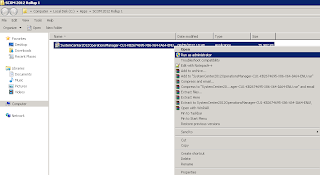
Right mouse click on the downloaded package and choose 'Run As Administrator' to begin the extraction of files
Click Yes to accept the licence

Choose a location to extract the files to (this can be a shared network folder if needs be), then click OK twice to finish the extraction


You should now see the following files extracted to the chosen folder

Server Infrastructure
Now you need to apply the relevant .MSP package to your computers depending on the architecture (AMD64 or i386) and the role each one has in your SCOM environment (Server, Console, Web Console, Reporting, Gateway or Agent)
On servers that have User Account Control (UAC) enabled, be sure to run these updates from an elevated command prompt as you will most likely receive 'Access Denied' errors when running direct from the GUI.
The server I'm installing this to is a single SCOM 2012 Management Server with the Console and Web Console roles deployed so in this instance, I have to install three packages - KB2674695-AMD64-Server, KB2674695-AMD64-Console, KB2674695-AMD64-WebConsole.
Edit: Thanks to my good man Steve Beaumont for pointing out that I forgot to mention that when deploying the KB2674695-AMD64-WebConsole update to your Web Console server, a line within the 'web.config' file needs to be modified to allow the fixes within the update to be applied - nice one Steve, can't let the standards slip at all these days :)
The following is taken directly from the KB:
Web console fixes will work after adding the following line to the %windir%\Microsoft.NET\Framework64\v2.0.50727\CONFIG\web.config file:
<machineKey validationKey="AutoGenerate,IsolateApps"
decryptionKey="AutoGenerate,IsolateApps" validation="3DES" decryption="3DES"/>
The line should be added under <system.web>, as described in the following article in the Microsoft Knowledge Base:
911722 You may receive an error message when you access ASP.NET Web pages that have ViewState enabled after you upgrade from ASP.NET 1.1 to ASP.NET 2.0
In my environment, I also need to deploy the KB2674695-AMD64-Reporting package to my SQL Reporting Services (SSRS) server and the KB2674695-AMD64-Gateway to my SCOM 2012 Gateway server.
To install a package, just right mouse click on it and then choose Apply from the menu as below

You will see a window similar to the one below open up and run through some processes before automatically closing without any notification or reference to the process being completed.

Once you have updated your server, browse to the SCOM 2012 installation folder - normally located at C:\Program Files\System Center Operations Manager 2012\Server. Once here, add a column view for 'File Version' and then sort the column by file version and you should see four files with a new version level of 7.0.8560.1021 as the screen below shows

If you don't see the product version updated as above to your files, then your server hasn't updated properly and you will need to revisit the installation to see if you've missed something.
Thanks to Shaun Loughton for pointing these updated file names out in his comment below!
Once you are happy that your first SCOM 2012 Management Server has been updated, then you can then move onto installing the new management packs that come with the CU1 hotfix.
Note: You only need to import the updated management packs once. You will not have to carry out this process for every SCOM server role that you upgrade.
To do this, simply open up the SCOM Console and click on the Administration button in the wunderbar from the bottom left hand side of the screen. From there, expand the Administration view, right mouse click on Management Packs and then select Import Management Packs from the resultant menu

From the Import Management Packs window, click on the Add button, choose the Add From Disk option and then click on No when prompted to go online to download any dependencies

You now need to browse to the location that you expanded the CU1 file into previously and you should see three management pack files (.MP). Select all three files and click on the Open button


Click on Yes from the security warning to confirm you are happy to continue

Once the import is completed, you should see a successful status beside all three management packs confirming you have imported them without issue

Once you have upgraded the first SCOM 2012 Management Server and imported the updated management packs into your environment, you then need to repeat the .MSP installation process on all of your other SCOM 2012 server roles as well
Agent Infrastructure
Although the agent installation upgrade can be carried out at any time, I prefer to wait until I have upgraded my SCOM 2012 server infrastructure first before working on the agents.
To upgrade the agents using the SCOM 2012 Console, simply browse to the Administration tab again in the wunderbar, expand the Administration view, expand Device Management and then click on the Pending Management view to see all of the agents awaiting upgrade. Highlight the ones you want to upgrade, then click on the Approve link from the Tasks pane on the right hand side to update all of your push based agents

For any agents that have been manually installed, then you will manually need to copy the .MSP file for the agent to each server and manually carry out each upgrade.
Unix/Linux Infrastructure
Once you have upgraded your Windows based servers and agents, all that's left to do now is to upgrade any Unix/Linux agents that you have in your environment. The following is taken directly from KB2686249:
Update Rollup 1 for System Center 2012 Operations Manager contains new agents and management packs for all supported Linux and UNIX operating systems. Therefore, to fully install Update Rollup 1, follow these steps to make sure that your monitoring of UNIX and Linux computers is up to date.
Download and then install the updated management packs from the following Microsoft website:
http://www.microsoft.com/downloads/details.aspx?FamilyID=9f947878-6bf6-48a1-adb1-3cc4c2e5d4af
Import the updated management pack for each version of Linux or UNIX that you are monitoring in your environment.
Use the Update-SCXAgent Windows PowerShell cmdlet or the UNIX/Linux Agent Upgrade Wizard in the Administration pane of the Operations Console to upgrade each agent to the latest version.
Note:The Management Pack Bundle files for each UNIX and Linux operating system version contain the management pack and agent files. It may take several minutes after importing the Management Pack Bundle for the agent files to become available for agent upgrades
For each UNIX or Linux Management Pack Bundle that is imported, the update installs new UNIX and Linux agents to the following folder:
Program Files\System Center 2012\Operations Manager\Server\AgentManagement\UnixAgents\DownloadedKits
The updated agents have file names that use the following format and a version number of 214:
Scx-1.3.0-214-server type.server version.architecture.package type
Notes:
The placeholder server type represents the name of the UNIX or Linux server product.
The placeholder server version represents the version number of the server type.
The placeholder architecture represents the processor architecture of the destination computer.
The placeholder package type represents the kind of installation file.
For example, the following is the file name format for the agent for SUSE Linux Enterprise Server 10 (x86):
Scx-1.3.0-214-sles.10.x86.rpm
The agents that are included with the original release of System Center 2012 Operations Manager have a version number of 204. These files are not removed during installation. These files are as follows:
Scx-1.3.0-206.aix.5.ppc.lpp.gz
Scx-1.3.0-206.aix.6.ppc.lpp.gz
Scx-1.3.0-206.aix.7.ppc.lpp.gz
Scx-1.3.0-206.hpux.11iv2.ia64.depot.Z
Scx-1.3.0-206.hpux.11iv2.parisc.depot.Z
Scx-1.3.0-206.hpux.11iv3.ia64.depot.Z
Scx-1.3.0-206.hpux.11iv3.parisc.depot.Z
Scx-1.3.0-206.rhel.4.x64.rpm
Scx-1.3.0-206.rhel.4.x86.rpm
Scx-1.3.0-206.rhel.5.x64.rpm
Scx-1.3.0-206.rhel.5.x86.rpm
Scx-1.3.0-206.sles.10.x64.rpm
Scx-1.3.0-206.sles.10.x86.rpm
Scx-1.3.0-206.sles.9.x86.rpm
Scx-1.3.0-206.solaris.10.sparc.pkg.Z
Scx-1.3.0-206.solaris.10.x86.pkg.Z
Scx-1.3.0-206.solaris.9.sparc.pkg.Z
That completes the deployment of SCOM 2012 Cumulative Update Rollup 1 (CU1) into your environment.
Edit July 2012: This update has now been replaced with Cumulative Update 2 (UR2). Check out my post on it's deployment here:
SCOM 2012 - Deploying Cumulative Update Rollup 2 (CU2) Hotfix
The process to deploy the update is quite simple and this time there is no need to run any SQL queries against the SCOM databases as part of the update - as was the case with the SCOM 2007 R2 CU's. Some of the information below is taken directly from kb 2686249 on the Microsoft Support website.
Note: As with all updates, it goes without saying that you should first make a full backup of your SCOM 2012 environment before proceeding with these steps.
The supported installation order of CU1 is as follows:
Server Infrastructure Deployment Order Overview:
- Management server or servers
- Gateway servers
- Reporting servers
- Web console server role computer
- Operations console role computers
Note: If Connected MG/Tiering is enabled, the top tier should be patched first.
Update Management Packs Overview:
- Manually import CU1 management packs
- Apply the agent update to manually installed agents, or push installation from the Pending view in the Operations console.
Note: This update rollup can be installed on agents either before or after server infrastructure.
Installation
Download CU1 to a location on your SCOM 2012 Management Server from the link below:
Update Rollup 1 for System Center 2012 - Operations Manager
Right mouse click on the downloaded package and choose 'Run As Administrator' to begin the extraction of files

Click Yes to accept the licence

Choose a location to extract the files to (this can be a shared network folder if needs be), then click OK twice to finish the extraction


You should now see the following files extracted to the chosen folder

Server Infrastructure
Now you need to apply the relevant .MSP package to your computers depending on the architecture (AMD64 or i386) and the role each one has in your SCOM environment (Server, Console, Web Console, Reporting, Gateway or Agent)
On servers that have User Account Control (UAC) enabled, be sure to run these updates from an elevated command prompt as you will most likely receive 'Access Denied' errors when running direct from the GUI.
The server I'm installing this to is a single SCOM 2012 Management Server with the Console and Web Console roles deployed so in this instance, I have to install three packages - KB2674695-AMD64-Server, KB2674695-AMD64-Console, KB2674695-AMD64-WebConsole.
Edit: Thanks to my good man Steve Beaumont for pointing out that I forgot to mention that when deploying the KB2674695-AMD64-WebConsole update to your Web Console server, a line within the 'web.config' file needs to be modified to allow the fixes within the update to be applied - nice one Steve, can't let the standards slip at all these days :)
The following is taken directly from the KB:
Web console fixes will work after adding the following line to the %windir%\Microsoft.NET\Framework64\v2.0.50727\CONFIG\web.config file:
<machineKey validationKey="AutoGenerate,IsolateApps"
decryptionKey="AutoGenerate,IsolateApps" validation="3DES" decryption="3DES"/>
The line should be added under <system.web>, as described in the following article in the Microsoft Knowledge Base:
911722 You may receive an error message when you access ASP.NET Web pages that have ViewState enabled after you upgrade from ASP.NET 1.1 to ASP.NET 2.0
In my environment, I also need to deploy the KB2674695-AMD64-Reporting package to my SQL Reporting Services (SSRS) server and the KB2674695-AMD64-Gateway to my SCOM 2012 Gateway server.
To install a package, just right mouse click on it and then choose Apply from the menu as below

You will see a window similar to the one below open up and run through some processes before automatically closing without any notification or reference to the process being completed.

Once you have updated your server, browse to the SCOM 2012 installation folder - normally located at C:\Program Files\System Center Operations Manager 2012\Server. Once here, add a column view for 'File Version' and then sort the column by file version and you should see four files with a new version level of 7.0.8560.1021 as the screen below shows

If you don't see the product version updated as above to your files, then your server hasn't updated properly and you will need to revisit the installation to see if you've missed something.
Thanks to Shaun Loughton for pointing these updated file names out in his comment below!
Once you are happy that your first SCOM 2012 Management Server has been updated, then you can then move onto installing the new management packs that come with the CU1 hotfix.
Note: You only need to import the updated management packs once. You will not have to carry out this process for every SCOM server role that you upgrade.
To do this, simply open up the SCOM Console and click on the Administration button in the wunderbar from the bottom left hand side of the screen. From there, expand the Administration view, right mouse click on Management Packs and then select Import Management Packs from the resultant menu

From the Import Management Packs window, click on the Add button, choose the Add From Disk option and then click on No when prompted to go online to download any dependencies

You now need to browse to the location that you expanded the CU1 file into previously and you should see three management pack files (.MP). Select all three files and click on the Open button


Click on Yes from the security warning to confirm you are happy to continue

Once the import is completed, you should see a successful status beside all three management packs confirming you have imported them without issue

Once you have upgraded the first SCOM 2012 Management Server and imported the updated management packs into your environment, you then need to repeat the .MSP installation process on all of your other SCOM 2012 server roles as well
Agent Infrastructure
Although the agent installation upgrade can be carried out at any time, I prefer to wait until I have upgraded my SCOM 2012 server infrastructure first before working on the agents.
To upgrade the agents using the SCOM 2012 Console, simply browse to the Administration tab again in the wunderbar, expand the Administration view, expand Device Management and then click on the Pending Management view to see all of the agents awaiting upgrade. Highlight the ones you want to upgrade, then click on the Approve link from the Tasks pane on the right hand side to update all of your push based agents

For any agents that have been manually installed, then you will manually need to copy the .MSP file for the agent to each server and manually carry out each upgrade.
Unix/Linux Infrastructure
Once you have upgraded your Windows based servers and agents, all that's left to do now is to upgrade any Unix/Linux agents that you have in your environment. The following is taken directly from KB2686249:
Update Rollup 1 for System Center 2012 Operations Manager contains new agents and management packs for all supported Linux and UNIX operating systems. Therefore, to fully install Update Rollup 1, follow these steps to make sure that your monitoring of UNIX and Linux computers is up to date.
Download and then install the updated management packs from the following Microsoft website:
http://www.microsoft.com/downloads/details.aspx?FamilyID=9f947878-6bf6-48a1-adb1-3cc4c2e5d4af
Import the updated management pack for each version of Linux or UNIX that you are monitoring in your environment.
Use the Update-SCXAgent Windows PowerShell cmdlet or the UNIX/Linux Agent Upgrade Wizard in the Administration pane of the Operations Console to upgrade each agent to the latest version.
Note:The Management Pack Bundle files for each UNIX and Linux operating system version contain the management pack and agent files. It may take several minutes after importing the Management Pack Bundle for the agent files to become available for agent upgrades
For each UNIX or Linux Management Pack Bundle that is imported, the update installs new UNIX and Linux agents to the following folder:
Program Files\System Center 2012\Operations Manager\Server\AgentManagement\UnixAgents\DownloadedKits
The updated agents have file names that use the following format and a version number of 214:
Scx-1.3.0-214-server type.server version.architecture.package type
Notes:
The placeholder server type represents the name of the UNIX or Linux server product.
The placeholder server version represents the version number of the server type.
The placeholder architecture represents the processor architecture of the destination computer.
The placeholder package type represents the kind of installation file.
For example, the following is the file name format for the agent for SUSE Linux Enterprise Server 10 (x86):
Scx-1.3.0-214-sles.10.x86.rpm
The agents that are included with the original release of System Center 2012 Operations Manager have a version number of 204. These files are not removed during installation. These files are as follows:
Scx-1.3.0-206.aix.5.ppc.lpp.gz
Scx-1.3.0-206.aix.6.ppc.lpp.gz
Scx-1.3.0-206.aix.7.ppc.lpp.gz
Scx-1.3.0-206.hpux.11iv2.ia64.depot.Z
Scx-1.3.0-206.hpux.11iv2.parisc.depot.Z
Scx-1.3.0-206.hpux.11iv3.ia64.depot.Z
Scx-1.3.0-206.hpux.11iv3.parisc.depot.Z
Scx-1.3.0-206.rhel.4.x64.rpm
Scx-1.3.0-206.rhel.4.x86.rpm
Scx-1.3.0-206.rhel.5.x64.rpm
Scx-1.3.0-206.rhel.5.x86.rpm
Scx-1.3.0-206.sles.10.x64.rpm
Scx-1.3.0-206.sles.10.x86.rpm
Scx-1.3.0-206.sles.9.x86.rpm
Scx-1.3.0-206.solaris.10.sparc.pkg.Z
Scx-1.3.0-206.solaris.10.x86.pkg.Z
Scx-1.3.0-206.solaris.9.sparc.pkg.Z
That completes the deployment of SCOM 2012 Cumulative Update Rollup 1 (CU1) into your environment.
Subscribe to:
Posts (Atom)