Showing posts with label OMS. Show all posts

Wednesday, July 25, 2018

SCOM - New Management Packs for Connecting to OMS

Microsoft have just announced the following three new management packs to connect your SCOM environments to Azure Log Analytics/OMS:

  • For SCOM 1801, download the management pack from here. 
  • For SCOM 2016, download the management pack from here. 
  • For SCOM 2012 R2, download the management packs from here.

These new MP's contain a new on-boarding wizard (shown below) that enables your SCOM environments to communicate with the new OMS/Azure API's.


For all new SCOM to OMS connections, you need to import the relevant management pack to your environment first.

If you've already configured an OMS connection, then you don't need to deploy the new management pack for now however, if you need to reconfigure that connection again, you will then need to import it.


Friday, June 15, 2018

Azure Monitor - Alerting Gets an Upgrade

Earlier this week, Microsoft announced some upgrades to the alerts experience inside Azure Monitor and if you've ever worked with SCOM, then a few of these changes will have a pretty familiar look about them.


New Alert Enumeration Experience
There's a new Alert Enumeration feature which delivers a centralized view of all the alerts that have occurred across your various Azure deployments. You can query alerts across multiple subscriptions and sort them based on severity, signal types, resource type, and even resolution state. The enhanced alert enumeration feature is a serious upgrade on the previous Azure Monitor Alerts experience shown in the following image...


To upgrade to the new feature, click the purple banner at the top of the old Monitor - Alerts view and you will be presented with the following new enhanced user interface...


When you've upgraded, the first thing you will notice (assuming you've already got a few alerts present across your subscriptions), is that Azure Monitor has gathered all of your alerts into a central view and sorted them by Severity.

Now, if you've used SCOM Alert Rules in the past, you'll be familiar with Microsoft's method of defining severity levels using integers (where Critical = 2, Warning = 1 and Informational = 0). In Azure Monitor, Microsoft use a similar mapping process however, the lower numbered severity is the most important (which is the opposite to SCOM). You can read more about the exact Azure Monitor Alert Severity Mappings in my previous blog post here.

Clicking on any of the Severity links will then pivot you into the All Alerts page with a filter that's scoped to that particular severity.


Additional filters can then be applied to scope the view even further with options such as subscriptions, resource groups, time range and conditions to choose from.

Alert State Management

The next addition to Azure Monitor alerting is the new Alert State Management feature. These are essentially very similar to SCOM Alert Resolution States and in Azure Monitor, three alert resolution states are currently supported - New, Acknowledged and Closed.

You can manage the alert resolution state by drilling into an alert in the All Alerts view and clicking the Change Alert State button shown in the following image...


From there, you can use the drop-down menu to change the alert resolution state from New to either Acknowledged or Closed as shown here..


After that, you have the option to add a comment as to why you're changing the resolution state before then returning to the All Alerts view - where you should see the new Alert Resolution State assigned to your alert.

If you need to bulk-edit the resolution state of a number of alerts, then Microsoft have made this easy for you too. All you need to do is select each of the alerts that you need to modify, then hit the Change State button as shown in the following image...


Then modify your resolution state, add your comment and hit OK to return to the All Alerts view. Alert resolution states should now be easy to identify for all alerts that you've modified.

Something to keep in mind when working with these new Alert States is that they are completely separate from the Monitoring Condition - which supports two values - Fired and Resolved.  The Monitoring Condition indicates whether or not the condition that created a metric alert has subsequently been resolved.

To define the Monitoring Condition, the metric alert rules sample a particular metric at regular intervals and if the criteria in the alert rule is met, then a new alert is created with a condition of Fired. When the metric is sampled again and if the criteria is still the same, then nothing happens. However, if the criteria is not met, then the condition of the alert is changed to Resolved. The next time that the criteria is met, then a new alert is created with a condition of Fired.

Putting my SCOM hat back on again, the Monitoring Condition is a similar process to how SCOM Alert Monitors fire when a specific threshold is breached and then auto-close when that threshold is no longer breached.

One gotcha that might catch people out however, is that even though the system may set the Monitor Condition to Resolved, the alert state isn't changed until the user changes it manually and vice-versa. For example, if I modify an alert resolution state for a number of alerts and I set the resolution state to Closed, the Monitoring Condition will still show that the alert is still in a Fired state. The following image shows this exact scenario - where I've set the resolution state of a couple of my alerts to Closed, but as the metric that fired the alert in the first place is still present, the alerts are still displaying a Monitoring Condition of Fired.


Smart Groups

The final new alerting feature that I wanted to post about is Smart Groups. These contain alerts that were automatically grouped together based on either similarity, historical patterns or a combination of both. Smart Groups are automatically created using machine learning algorithms looking for similarity and co-occurrence patterns among alerts originating from a monitor service such as Log Analytics or across the rest of the Azure platform.

There's a couple of ways that you can view/access Smart Groups. The first method is to simply click the Smart Groups button from the All Alerts view in the new Alert Enumeration feature shown here...


The second method is to open the All Alerts view then click the blue banner as shown in this image...


Using Smart Groups, you can significantly reduce the number of alerts to analyze by focusing on only a handful of groups with some handy alert correlation in place.

As an example, if a performance counter such as CPU or RAM spikes on multiple virtual machines in your Azure subscription at the same time, this will generate a lot of alerts in Azure Monitor. When you click the Smart Groups feature, those alerts will get automatically grouped into a single Smart Group - offering up a much clearer picture of a common root cause.

In the following image, you can see a Smart Group that Azure Monitor has automatically created in my subscription where it has correlated 25 alerts together based on the reason that they are very similar to other alerts that have fired. From here, I can change the alert resolution state of individual alerts or I can use the Change Smart Group State button to change the resolution state of all alerts contained in the group.


Microsoft kicked the tires with alert correlation in SCOM when they released the Exchange 2010 management pack a few years ago and although it was quite noisy, the event correlation engine it came with was a similar concept to what we now have with Smart Groups. I think this is a pretty handy feature to have in your Azure monitoring toolbox and along with all the other features that have just launched, things are looking good for the next generation of Microsoft monitoring!


Azure Monitor Alert Severity Mappings


When I first started using SCOM, one of the things that I had to quickly get my head around was how alerts that were generated by rules were defined with a Severity that mapped to an integer value (e.g. Critical = 2, Warning = 1, and Informational = 0).

With alerts in Azure Monitor, Microsoft have taken a similar approach where they have defined five alert severity levels - each one mapping to it's own integer. These severity levels have been color-coded to help quickly identify alerts that should be treated as more important than others but for clarity, I've detailed the exact mappings as follows:

Azure Monitor Alert Severity Levels

Sev 0 = Critical
Sev 1 = Error
Sev 2 = Warning
Sev 3 = Informational
Sev 4 = Verbose


As you can see from the mappings above, in Azure, the lower the integer, the higher the severity - which is the opposite to alert rule severity mappings in SCOM. Hopefully this post will prove useful for any SCOM administrators who are dipping more into the Azure Monitor world over the coming year and might get slightly confused by the reverse numbering mapping between the two platforms.

If you'd like to read more about some newly announced feature enhancements in Azure Monitor, then check out my recent post here.

Wednesday, June 13, 2018

The OMS Portal is Moving to Azure

Over the last couple of years, I've worked a lot with the awesome Microsoft Operations Management Suite (aka OMS) and at one of the presentations I attended during Microsoft Ignite last year, it was announced that they would soon be retiring the OMS Portal and integrating all of it's functionality directly into the Azure Portal.

Earlier this week, Microsoft confirmed that the OMS Portal would indeed be retired and all it's functionality moved into the Azure Portal. The idea behind this move is to deliver a more centralized experience for monitoring and managing your on-premise and Azure-based workloads.

As it stands, nearly all of the existing OMS solutions have been available within the Azure Portal for a number of months and the only solutions still waiting to be ported over are as follows:
If you're using any of these solutions, then you'll still need to manage them within the original OMS Portal and Microsoft have committed to moving these solutions over to Azure by August 2018. When this happens, Microsoft will then communicate an official timeline for 'sunsetting' the original OMS Portal.

When this happens, the old OMS Portal that looks something like this (depending on which solutions you have enabled)...


Will then look like something similar to this in the Azure Portal...


As you can see from the two images above, they're not too dissimilar and in the Azure Portal, we get the added management benefit of being able to quickly pivot directly into Azure Resources using the navigation menu on the left or by simply drilling down into one of the dashboard widgets.

At the time of writing and along with the five OMS solutions mentioned earlier, there are still a few additional gaps that Microsoft need to address. These gaps are as follows:

  • To access Log Analytics resource in Azure, the user must be granted access through Azure role-based access.
  • Update schedules that were created with the OMS portal may not be reflected in the scheduled update deployments or update job history of the Update management dashboard in the Azure portal. This gap is expected to be addressed by the end of June 2018.
  • Custom logs preview feature can only be enabled through OMS Portal. By the end of June 2018, this will be automatically enabled for all work spaces.

You can read more about these gaps and the planned migration from the OMS portal to the Azure Portal in Microsoft's original post here.

They've also put together a useful FAQ post to help answer some common questions that you or your customers might have and you can access this post here.

All-in-all, I'm pretty happy with this move as I find that lately, I've been spending all of my time in the Azure Portal instead of the original OMS Portal. Having the additional management capabilities inside the Azure Portal definitely makes it a more seamless user experience and hopefully others will see the benefit of this too.

Tuesday, February 6, 2018

Speaking at CDC Germany 2018

Last year I had the opportunity to head over to Munich and present at the awesome Cloud and Datacenter (CDC) conference organised by my good friend and well-known MVP Carsten Rachfal and I'm delighted to confirm I've been invited back again this year to present at CDC 2018.


I really enjoyed my time presenting over in Munich last year and the conference was packed with some of the best cloud and datacenter-focused speakers from around the world (the plentiful food and quality local beer helped too!). The attendees also came well prepared with some excellent interaction and questions across all of the sessions that I watched or was involved in.

This years event is being held in Congress Park Hanau (just east of Frankfurt) and with nearly thirty speakers already confirmed, it has the makings to be an even better conference than last years one - which will be hard to top!

Held over two days (15th & 16th May) and across six different tracks, there will be a mixture of sessions to choose from - some in English, some in German.

You can register to attend CDC Germany 2018 here and I'll post back with an update closer to the event.

Hope to see some of you guys over there 😊

Monday, February 5, 2018

SCOM 2016 and OMS '101' Series

A few years back, Antoni Hanus (Microsoft PFE) released a really useful beginners guide for SCOM titled 'Operations Manager 101'.


This PDF-style guide contained over 100 pages of information and walk-through's designed to get people up and running with SCOM quickly. It was that useful, that I always recommended it to my SCOM customers as a great free learning resource and the feedback on it was always positive.

The only downside to the guide was that it was authored specifically for SCOM 2007 and along with the retro-style Microsoft logo that you can see in the image above, all of the screenshots and content looked way too out-of-date for people dipping their toes with SCOM 2016. There was also no reference to how SCOM can now connect to OMS.

Thankfully, over the weekend I came across a blog post from Antoni where he has taken the opportunity to update this guide and push it out as a combined web-series for SCOM 2016 and OMS.

He's already got over 20 new blog posts linked to this series with more to come and if you're deploying SCOM (or just want to ramp up your SCOM 2016 administration skills), then I encourage you to check it out at the link below:

https://aka.ms/101

Happy reading!

Thursday, January 25, 2018

Dude, where's my 'Outside-In' monitoring gone?

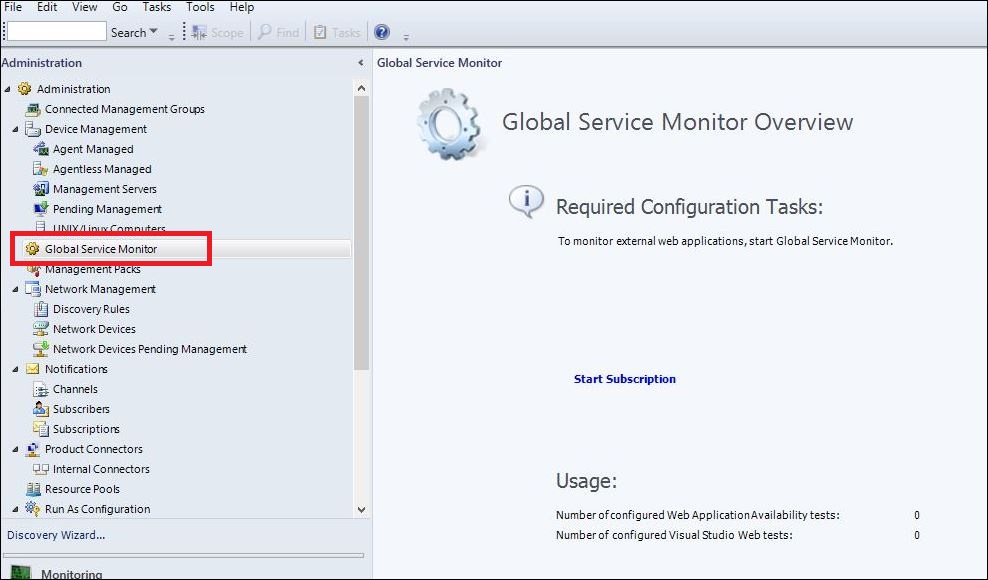
If you've been working with SCOM for as long as I have, you'll most likely have come across the very cool Global Service Monitor (GSM) feature that Microsoft first demonstrated way back in 2012 during the release of SCOM 2012 Service Pack 1 at the awesome Microsoft Management Summit in Vegas.


GSM simulates the end-user experience of accessing a web application as it can schedule automatic synthetic transactions from locations around the world - providing an 'Outside-In' availability, performance and reliability monitoring view of your externally facing web applications.

If you purchased a Software Assurance license for System Center 2012, then you were entitled to deploy the GSM management pack into your SCOM environments and use the Global Service Monitor connector shown in the following image to connect GSM in the cloud back into your on-premise SCOM deployment.


I've deployed GSM to a lot of customers over the years and it worked exactly as it was meant to along with adding some nice value when we were modeling IT services that needed an end-user perspective of the availability and performance of specific web applications.

Fast-forward to when SCOM 2016 was first released and although the GSM management pack guide only specified support for SCOM 2012, it still worked and delivered that 'Outside-In' monitoring experience.

Recently however, the GSM connector has stopped working for SCOM 2012 and also for SCOM 2016. If you had GSM running in your SCOM environment, you will probably have noticed an alert relating to a DNS resolution error - which on investigation looks like there's a DNS zone missing on the Microsoft side.

While no official statement has been released by Microsoft as to this connector being deprecated and this DNS issue may still be resolved, it's probably a good time to start thinking of an alternative option to GSM. This is where the Azure-based Application Insights platform comes in.

A few years back I wrote a few blog posts (here and here) that discussed an alternative to GSM when using Application Insights and last week after a discussion between a some MVP friends relating to the Global Service Monitor DNS resolution error in SCOM, Cameron Fuller (Cloud and Datacenter Management legend) put together an awesome walk-through blog post on using Application Insights as an alternative to GSM in SCOM.

Along with showing how to create a web availability test in Application Insights, Cameron also dives into some examples around custom dashboards and automatic application mapping. If you want to learn more, then I totally recommend checking out his post at the link below:

blogs.catapultsystems.com/cfuller/archive/2018/01/22/replacing-gsm-in-scom-with-application-insights/

Enjoy!


Tuesday, August 29, 2017

Available Now: Inside the Microsoft Operations Management Suite (V2)

These past few months have been pretty hectic for me and as a result, this blog had to take a back seat for a while. Along with the day job, presenting at conferences and some family vacation time, I've been busy working with the team on an updated release of the awesome 'Inside the Microsoft Operations Management Suite' book.

The original release of this book was an essential 'must-have' for anybody working with Microsoft's Operations Management Suite (OMS) and it was a constant reference for me over the last year and a half while I tried to get my head around this new technology. As is always the case with cloud technologies however, things change at a drastic pace and an updated release of the original book was duly needed.

Meet the Team

With so many new features added to OMS, this update was never going to be a quick and easy task. Thankfully, the full original authoring team of Stan, Tao, Pete and Anders signed up again for the new release (bio's below):


Along with the original authors, a new team of technical editors (myself included) were brought on-board to help get this over the line:


What's it about?

This updated release provides readers with an end-to-end deep dive into the full range of Microsoft Operations Management Suite (OMS) features and functionality, complete with downloadable sample scripts.

Here's a rundown of the chapters to give you a good idea of the type of content you'll learn about:

Chapter 1: Introduction and Onboarding 
Chapter 2: Searching and Presenting OMS Data 
Chapter 3: Process Automation 
Chapter 4: Configuration Management 
Chapter 5: Change & Update Management 
Chapter 6: Extending OMS Using Log Search 
Chapter 7: Alert Management 
Chapter 8: Log Management & Performance Data 
Chapter 9: Azure & Office 365 Solutions 
Chapter 10: Service Map & Wire Data 
Chapter 11: Network Performance Monitor 
Chapter 12: Other OMS Solutions  
Chapter 13: Assessment Solutions 
Chapter 14: Security & Compliance 
Chapter 15: Protection & Recovery 
Chapter 16: ITSM Integration 
Chapter 17: Custom OMS Solutions

How much will it cost?

Keeping with the community spirit behind the first book, this release will be COMPLETELY FREE for download in E-Book format with the Kindle and Paperback versions coming to Amazon a couple months later. Keep in mind that the Kindle and Paperback versions will carry a nominal price to help cover production costs.

Download Info

You can download the e-book version right now from the link below and the Kindle and Paperback versions will be available on Amazon over the coming months:

 http://tinyurl.com/insideomsbook

Hopefully you enjoy reading this book and working through all the demos as much as we did and if you've any comments/requests, please ping them to the email address here.


Monday, August 21, 2017

Experts Live Europe 2017

After a few weeks off work on vacation, it's back to full swing this week as I prepare to travel over to Berlin tomorrow for the awesome Experts Live Europe conference.


Formerly known as System Center Universe Europe, this is one of my favourite conferences to present, network and learn at. If it's anything like last years event, then the week ahead is going to be a blast.

I'll be presenting a session on Wednesday afternoon titled 'Monitoring...The Next Generation' where I'll be talking about some of the best new monitoring features available in the Microsoft space.

Later on Wednesday, I'll be back on stage with my buddy Stefan Roth for an 'Experts Discussion Panel' titled 'Monitoring, Insights and Analytics'. For this panel, we're encouraging attendees to bring their questions and engage in conversations - which will hopefully give people some real technical value to bring back to their workplace.

With close to 100 different sessions to choose from spanning topics such as Microsoft Azure, OMS, EMS, Azure Stack, System Center and Windows Server, there's something for everyone. Check out the session schedule here.

Looking forward to seeing everyone over there and make sure to drop in to one of my sessions and say hello!

Tuesday, February 14, 2017

Scandinavian SCOM Solutions with a Global Reach

A few months before the Christmas break, I had the pleasure of being invited over to the excellent SCOM Day event in Sweden to present a session and hang out with some of my friends from the Scandinavian region.


The event was organised by Approved Consulting in Gothenburg and the target audience had a mix of IT administrators, consultants and senior IT managers. This was my first-time visiting Sweden and from the venue, to the food, the craft beers and of course, the people, it was a really enjoyable experience.

While I was over there, I had the chance to sit down with Approved CEO Jonas Lenntun and go through some of the solutions they offer to complement System Center and OMS. I was already aware of the free community SCOM Health Check Report they released a couple of years ago (if you haven’t tried this out yet, then download it from here):


Free solutions like this for SCOM are always good and the Health Check Report delivers an excellent overview of the health of your SCOM deployments - showing you information about the top alerts, events, performance counters, discoveries and even state changes along with database space usage and grooming history.

IT Service Analytics from Approved

Another cool solution that Jonas and the guys have been working on is their new IT Service Analytics platform. This plug and play solution enables organisations to analyse their IT services being monitored with SCOM and then forecast potential issues – well before they occur. If you’ve deployed Service Manager (SCSM) or even Microsoft’s new Operations Management Suite (OMS), then the IT Service Analytics platform can pull data from any combination of SCOM, SCSM and OMS to give you an even deeper analysis of your IT estate.

Here’s an overview taken from their blog on how it works:

By optimizing and combining data from System Center Operations Manager, Microsoft OMS and System Center Service Manager into one holistic data model, you are able to put the IT service in focus. This allows you to extract, correlate and predict information about IT Service Management processes for things like event, capacity, availability, incident and change management.

We utilize most of the Microsoft Business Intelligence tools, such as SQL Server, SSIS, SSAS, R and SSRS. This allows our analytical platform to seamlessly blend with your System Center installation and tap software and hardware resources that are readily available.


Taking it for a Test Drive

Earlier this week I had a chance to take the IT Analytics platform for a test drive and my first impression is that it’s an awesome reporting tool to have in your locker to help with troubleshooting and predictive analysis.

From the home screen, you can choose from a wide range of pre-built reports with information about alerts, capacity management, events, configuration changes and IT service overviews to name just a few.


One of the reports I really like is the Services report. Clicking this tile from the main reports window brings me to the Service Overview shown in following image:


This report gives me a 30-day availability overview of all the IT services that I have modelled and monitored in my SCOM environment along with information about alerts, change tracking, capacity and predictive event risks.

Here’s a description of what the information in each of the report columns mean:

  • Goal – Has the SLA goal been met or not? IT Services that have met their SLA will be displayed as green instead of red (in this demo environment, I’ve sorted the column to display all SLA’s that haven’t been met).
  • Service – The name of the IT service.
  • Availability – Displays the last 12 months of the IT service availability.
  • Percentage – The SLA percentage that has been reached. The upwards arrow means that the SLA has reached a better result than the previous month.
  • Failures – The number of outages for the service during this period.
  • Downtime – Displays the number of minutes the service has been unavailable for the month.
  • Alerts – The number of alerts that have been generated by the service during this defined report period. The arrow shows decreasing or increasing compared to last month.
  • Events – The number of events that have been generated by the service during this period. The arrow shows decreasing or increasing compared to last month.
  • Change Tracking – The amount of changes made to servers or other components of the service.
  • Capacity Risks – Shows if there are risks with capacity, such as a server running out of free memory based on the usage.
  • Event Risks – Shows if there are any predicted events for the service.

Identifying Bottlenecks

When I drill into a particular IT Service from the Service Overview report, I get a more targeted Service Details report with a number of informational tiles and a Top N view of common KPI’s like % CPU, % Memory and % Disk Space used.

The Bottlenecks tile sparked my interest here so I clicked this one first…


This brought me deeper to the following view – where I could see that two of my servers in this IT service were displaying potential bottlenecks.


Clicking into the server with two potential bottlenecks identified, I was then presented with a performance chart that showed a very high percentage of bandwidth used on a new network adapter we recently installed into the server to support DPM backups. The performance chart also confirms for me that although my network adapter spiked on and off for the past few days (no doubt when backup jobs are running), the overall average performance of it seems fine and it’s projected to stay around the 10% utilisation mark for the next few months.


The other potential bottleneck that was identified relates to the % Free Disk Space of a logical disk on the Hyper-V server. I can see from the chart that in the past year, the free disk space on this logical disk has fluctuated from approx. 30% free to a minimum value of less than 1%. The chart looks ahead a few months and predicts that the best I can hope for (assuming I leave things as they are) is no more than 7% free disk space.


Predictive Alerts

Back at the Service Details report, I can click the Events tile shown in the image below to give me an Events Report with a heads-up on the forecasted events and alerts that are likely to occur in my environment within the next 24 hours.


All Alert and Event reports have built-in filters for every chart to give you a more scoped analysis view of what's going on. From the Event Report shown in the image below, I can see there are some predicted alerts and events that I need to pay attention to.


Drilling further into the predicted alert value for a particular monitored object, I’m presented with a ‘IIS 8 Web Server is unavailable’ alert that´s been predicted and the amount of times it has happened over the last month. I can see the time of day the alerts usually show up. In this example, these alerts typically occur around 6am every day.


If I go back to the previous view and click into the Events tile, I can see it’s broken down into three sections.

The first section is a summary where you can see information on the top hosts, data channels, rules, management packs etc. which are generating the most events. In the image below, we can see that the server generating the most events is SEGOTSQL01. The grey bar in the middle displays last month´s value. You can also see that this server alone has generated 88% of all events for the current period.


The middle section of this report displays the time and day of the week that the events are generated.


The final section of this report gives us an insight into both the last 30 days and the last 12 months for how events are being generated.


Custom Reports

It's easy to create your own custom reports and you can export them to PowerBi or Microsoft Excel in a matter of minutes. Here's a nice example of one-such custom exported report...


Licensing

I mentioned earlier that I love free solutions for SCOM and when I quizzed Jonas on how much this awesome offering costs to license, I was delighted to hear that Approved have decided to release it for free! They do require a one-off nominal setup and training fee but aside from that, there's no other limitations on the platform.

Summary

If you're interested in deploying these free solutions into your SCOM environment, then use the contact info here to get in touch with the team at Approved. For more information on the IT Analytics platform, take a read of some blog posts written by well known SCOM community blogger Daniel Örneling here and here.


Tuesday, November 22, 2016

Experts Live NL 2016

Today I've just finished up presenting my last public conference session of 2016 at the awesome Experts Live conference in the Netherlands.


This is my second year to attend Experts Live NL and it already seems like the conference attendee and speaker count has grown significantly in that short space of time.

My presentation this year was titled 'Hacking OMS with your OpsMgr Skills' and is an extension of the session that I co-presented with my good friend Cameron Fuller at System Center Universe 2016 in August.

The original idea and title for this session was all Cameron's and with his blessing, I put my own spin on the content to ensure that Experts Live attendees were treated to a significantly different version of the one we delivered previously at SCU. Also, with the vast number of changes and feature additions that we've now become accustomed to with OMS, there was much to show on the day.

My session was the first to open after the keynote and it was refreshing to see the room filled with a large number of current OpsMgr users waiting to hear how to advance their skillsets with OMS.


(Photo credit Pedro van Vliet)

When my presentation was done, I took some time to hang out with old friends and to network with the attendees and various booth vendors around the event.


All in all, Experts Live NL was a good closure for me to a hectic few months of traveling and presenting. I'm looking forward to now refocusing my attention back onto my poor neglected blog and bringing some useful posts into the community over the coming months!


Sunday, September 25, 2016

Looking back on System Center Universe Europe 2016

A few weeks back I had the honour of presenting again at the annual System Center Universe Europe conference - which was held this year in Berlin, Germany.


This was my fourth year presenting at System Center Universe Europe and I can honestly say that the conference just keeps getting better and better each time. This is mainly due to the epic amount of time and effort the team over at itnetX dedicate to organising it.

I went into this conference initially with two sessions to present. One was a solo effort titled 'What's New with OpsMgr 2016' and the other was a joint presentation with the one and only Cameron Fuller titled 'Using your OpsMgr skills to hack OMS'.

A few short hours after landing in Germany, I ended up adding another presentation to my list. This third one was another joint presentation with Cameron Fuller and it came with the awesome title of 'OMS & OpsMgr: Mortal Enemies, Casual Acquaintances, Best Friends, or Inbred Cousins?' - only Cameron could think up a fun and quirky title like this!

Here's the low-down on how each day over there went for me:

Pre-Conference
The day before the conference began, a few of us (myself, Cameron, Robert Hedblom and Janaka Rangama) decided to do some sightseeing and took a cab over to the Berlin Wall Memorial. Although this is one of the top sights to see when you visit Berlin and definitely something on my bucket list to check out, the sombre historical significance of the wall was never far from our minds.


After a few hours soaking up some culture, we walked through the various meandering side-streets of Berlin until we came across the conference centre that would host this years System Center Universe event. Located right in the middle of Berlin's Alexanderplatz, it wasn't hard to miss due to the large SCU flags that greeted us on arrival at the front of the building.


After a quick recon mission of the rooms we would be presenting in and the overall venue, we all agreed that this was going to be a good week ahead.


When we left the conference centre, we decided (actually Robert decided) to get some food accompanied with some local beverages. Being in Germany, it would've been rude to order anything smaller than this as a beer to wash down the local staple dish of Currywurst...


Another great thing about this years host city is the fact that everything is so central and after catching up with my geek friends, it was only a short night-time walk back to the hotel - which was always easy to navigate back to due to the prominence of the building on the Berlin skyline!


Day 1
We had a bright and early start on the Wednesday morning as Marcel Zehner kicked off the opening keynote with a run-down of the few days ahead (including the all-important party list!)


When Marcel got the formalities out of the way, it was straight into tech with special guest Ed Wilson (aka The Scripting Guy). Ed delivered an awesome presentation on how to approach traditional IT challenges in a hybrid IT world.


Straight after the keynote, myself and Cameron headed over to our room to get ready for our first co-presented session titled 'OMS & OpsMgr: Mortal Enemies, Casual Acquaintances, Best Friends, or Inbred Cousins?'...


It wasn't long before the room filled up and in true Cameron style, he kicked off the presentation with a pre-recorded video of songs and images that represented mortal enemies, casual acquaintances, best friends and inbred cousins!

The interaction from the audience during our session was awesome and we had so many questions in the Q & A section that we ran out of time!


The rest of the day was spent watching and learning from some of the other presentations and later that night, it was time to chill at the speakers and sponsors party - which was hosted at Club Mio and included a top quality open-air barbecue dinner.


Due to some very suspect MVP dance moves, I'll keep the after-hours nightclub photo's away from the internet!

Day 2
On the second day, I took in a cool session from the dynamic Stefan duo (Stefan Roth & Stefan Koell) before heading over to Bob Cornelissen and Savision's session titled 'Prepare for Hybrid Monitoring - SCOM 2012, SCOM 2016 and OMS'.  Due to an unexpected hospital visit, Bob had initially asked me to be on standby to take over and deliver this presentation as he wasn't sure he'd even make it over to Berlin but, like a true professional, he stood up on stage and rocked it!

Following this, myself Cameron and Jan Vidar Elven headed over to the 'Ask the Experts' booth to host questions from attendees related to System Center 2016.

Later that afternoon me and Cameron were back on stage again for our  'Using your OpsMgr skills to hack OMS' session. This was another well attended presentation (especially considering the SquaredUp guys were doing an impromptu Whiskey Tasting in the room next door)!

When the final sessions of the day finished up, the conference venue played host to the SCU Networking Party where the mix of geek-talk, cocktails and music was rampant.


Day 3
With more than a few sore heads on the last day from the parties the previous night, I had my final presentation to deliver at the opening 09:15 time-slot. This session was titled 'What's New with OpsMgr 2016' and in it I covered all of the new features and enhancements that we can look forward to with the latest release of our favourite monitoring platform. Again, this was another session that had great interaction from the attendees.

An interesting method of gauging attendee feedback for each session was the 'Happy or Not' button stand that was positioned outside the door of each breakout session.


The results from this new rating system were uploaded and sent to speakers within a few days of the conference and thankfully the sessions I participated in where well received.

When I finished my last presentation, it was time to finally chill out a bit after prepping and rehearsing for most of the week and just after lunch a few of us decided to do some final sight-seeing before heading home the following day.

Here's me with my Ergo buddy Gareth checking out some of the amazing architecture around Berlin..


We also stumbled across what we initially thought was a normal Microsoft Store (similar to the ones in the US) however, when we went inside it was a strange bar/café combination so of course, we stopped here for some light refreshments!


When we were finished in the Microsoft bar, we headed on to the famous Brandeburg Gate (one of the top historical tourist attractions in Germany).


Closing Announcements
After the sight-seeing, we headed back to the conference for the closing keynote where some significant announcements were made relating to the future of SCU Europe.

The first announcement was that the conference would be back again in Berlin next year - which is a decision that has gone down very well with speakers and attendees.

The second announcement was that SCU Europe would be re-branded to Experts Live Europe...


I think this is a sensible decision as the conference has morphed into so much more than just System Center. Yes we will have a new release of System Center 2016 coming shortly but when you consider the amount of content discussed at this years conference on Azure and OMS technologies, it just makes perfect sense.

All-in-all, it was a great week and I'm really looking forward to heading back to Berlin next year to what has now turned into Europe's premier community conference for Microsoft IT pro's and geeks.