Showing posts with label Hyper V. Show all posts

Thursday, June 4, 2015

SCOM - Updated Hyper-V 2012 R2 Community MP

The SCOM MP authoring machines that are Daniele Grandini and Tao Yang have joined forces to create a super-charged management pack for Hyper-V 2012 R2 environments. The requirement for this community released MP has come about due to the lack of functionality and engineering effort gone into the existing Microsoft Hyper-V MP.

Here's a list of some of the features this new MP has:

Comprehensive discovery with at least the same information you can get from the SCVMM MP integration:
  • OS and platform 
  • Farm (very useful to create dashboards and groups)
  • Hardware configuration
  • Connected VHD(x)
  • Connected NICs 
An optimized discovery that gets triggered when virtual machines are moved, started or stopped.

A complete replica monitoring scenario with diagnostics, recoveries (disabled by default) and tasks to resume replica.

A couple of monitor related to GPUs and remoteFX inherited from the MS provided MP, disabled by default since I consider them not useful. But in any case I didn’t want to lose monitoring capabilities.

Integration services obsolescence (only for Windows VMs since I don’t know how to update *nix VMs now that MS isn’t releasing anymore IS for platforms that have the services included in the kernel).

VHD(x) fragmentation level monitoring, this one can be noisy, but if you have fragmented VHDs you better know it, since the performance impact can be significant.

VM uptime in % in the observation period -  this can useful to bill on uptime.

VM measures as performance counters for enabled virtual machines (Enable-VMMeasure).

You can learn more about this MP from Daniele's blog post here and you can download it directly from GitHub or the Technet Gallery using these links:


When you give it a test drive, feel free to add your comment's or requests to Daniele's blog posting or on GitHub.

Monday, June 24, 2013

SCOM 2012 Hyper-V Management Pack Extensions Released by the Community

This is a quick cross-reference post from Kevin Holman's excellent System Center blog about a new community released management pack (MP) for Microsoft's Hyper-V 3.0 on Windows Server 2012.

The current official Microsoft Hyper-V 2012 MP is quite basic and poor and this new extensions one gives us an extra dimension of Hyper-V monitoring till Microsoft decide to revamp their own official one. You'll still need to deploy the official Hyper-V MP along with the Windows O/S and Cluster MP's, all of which can be found on the Management Pack Wiki Page.

Here's Where To Get It

You can download the new Hyper-V Extensions MP for free on Codeplex here:

Hyper-V Management Pack Extensions 2012

Also Check Out..

I'd recommend that you take a read of Kevin Holman's original post to see exactly what's on offer from this MP (includes screenshots):

http://blogs.technet.com/b/kevinholman/archive/2013/06/22/opsmgr-2012-hyper-v-management-pack-extensions-published.aspx

Enjoy!

Friday, June 21, 2013

Failed Cluster While Backing Up Windows Server 2012 Hyper-V CSV's

Last week I had the opportunity to do something other than SCOM and get my hands dirty with a new Windows Server 2012 Hyper-V cluster project for one of our customers.

The build went well and I used the excellent Hyper-V Installation and Configuration Guide book along with this blog post on Windows Server 2012 Hyper-V Best Practices (In Easy Checklist Form) to double and then triple check all was deployed to best practice recommendations.


After we P2V'd a number of the customers physical machines and configured the DPM 2012 SP1 backup application to perform host-level backups (i.e. backing up the entire virtual machine while it's still running using the agent deployed to a Hyper-V host), we started seeing problems with performance on the cluster nodes and then ultimately inside each virtual machine running on the cluster.

Leaving the cluster in this state resulted in both hosts becoming unresponsive and everything grinding to a halt. We had to power cycle down the SAN (FC connected HP) and both hosts to get everything back online - not cool :(


So, after a small bit of searching for an answer we came across the following two recently released Hotfixes from Microsoft that needed to be applied to the Hyper-V hosts:

When I spoke with some of my MVP buddies about this particular issue, I was pointed in the direction of this excellent script from Hans Vredevoort over at Hyper-V.nu:

Updated: Windows Server 2012 Hyper-V and Cluster Hotfixes and Updates

This script can be run against your Windows Server 2012 hosts to report on any missing hotfixes or updates that should be applied. Although we thought we had deployed all the relevant updates to our customers cluster, once we ran the script it was apparent that there were a few more that still needed to be added in.

Edit: Microsoft's Cristian Edwards has mentioned in his comment below that there are some additional and updated scripts that you can also use to ensure you keep your Hyper-V hosts up to date. Check out his updated blog post here:

http://blogs.technet.com/b/cedward/archive/2013/05/31/validating-hyper-v-2012-and-failover-clustering-hotfixes-with-powershell-part-2.aspx

Conclusion

If you're running a Hyper-V 2012 cluster and are using ANY backup application (not just specifically DPM 2012 SP1) that performs host-level backups of virtual machines located on Cluster Shared Volumes (CSV's), then I'd highly recommend you install the above two hotfixes at least and then also run Hans' script to see what else you need to get deployed.

With the hotfixes applied to the environment, it works perfectly now!

Thursday, November 17, 2011

Cloud Management with System Center - Connecting your private cloud to System Center App Controller 2012

In this part of my 'Cloud Management with System Center' series I will explain how to connect your newly created private cloud within System Center Virtual Machine Manager 2012 (SCVMM 2012) to the newest member of Microsoft's System Center Suite - System Center App Controller 2012 (SCAC 2012).

If you want to know how to install System Center App Controller 2012, see my previous post:  Installing System Center App Controller 2012

See below for the links to the other posts in this series:

Cloud Management with System Center - Building a Private Cloud with System Center Virtual Machine Manager 2012

Cloud Management with System Center - Creating a Virtual Machine Template with System Center Virtual Machine Manager 2012

Cloud Management with System Center - Creating a Service Template with System Center Virtual Machine Manager 2012

This series coincides with the new Microsoft Private Cloud Community Evaluation Program starting up and you can sign up at any time to the CEP by clicking on the link below (you will need a Microsoft Live ID to sign in):

https://connect.microsoft.com/site799/program7383


Once you have SCAC 2012 and SCVMM 2012 installed, you should also have your private cloud configured, your virtual machine templates built and your new service template deployed to the private cloud. All that you need to do now is to connect your private cloud to App Controller to allow for central management of all private clouds in your environment with inegration and visibility between any public clouds you have deployed within Azure.

To begin, double click on the App Controller shortcut on your desktop to open up the logon page seen below


Enter your Active Directory credentials and then click 'Sign In'. This should then open up the App Controller overview screen


Now click on the 'Clouds' link from the left hand side of the screen and then click on the 'Connect' button to access a drop down menu that you then need to select 'VMM Server' from


In the 'Add a new VMM connection' box, enter a name for this connection. This name is displayed in the Name column of Clouds page.

Add an optional description in the Description text box.

In the Server name text box, enter the fully qualified domain name (FQDN) of the VMM management server.

In the Port field, enter a port number that matches the port used by the VMM management server (default: 8100).


Select 'Automatically import SSL certificates' if you plan to copy files and templates to and from VMM cloud libraries.

Note: SSL certificates must be imported to the App Controller server in order to copy files or templates to and from VMM cloud libraries. In order for the import to succeed, users need to be part of all of the following roles: the local administrator of the App Controller server, local administrator of the VMM server, and VMM administrator

Once you have entered all of you information,click 'OK' to create the connection between SCAC 2012 and your SCVMM 2012 servers.

You may then be asked to select which SCVMM user role to use from the new SCVMM server connection for the current session.

Once the link between the two applications has been configured, you should then see your private cloud from SCVMM 2012 available to manage within the 'Clouds' window of System Center App Controller as below


If you click on the 'Services' link on the left hand side, App Controller will show you all of the available services from your private clouds


Clicking on the 'Virtual Machines' link on the left hand side will reveal all of the virtual machines on your private cloud


The 'Library' link on the left hand side will show you a central library location that consolidates all of the templates across your cloud estate in one screen


And finally, to get a feel for the 'WOW' factor of App Controller, go back to the 'Services' link on the left hand side to view your deployed service applications again.
Now click on the 'Open Diagram' button above the list of deployed services

This opens up a nice quick Silverlight view of your deployed service application and allows for easy customization and zoom views at the click of a mouse

If you want to learn more about Cloud Management with System Center, click the link below for my next post:
 

Wednesday, November 16, 2011

Cloud Management with System Center - Creating a Service Template with System Center Virtual Machine Manager 2012

As part of my blog series on 'Cloud Management with System Center', this post will cover the creation of a Service Template within System Center Virtual Machine Manager 2012 (SCVMM 2012) and its deployment to your private cloud.

You can review the other posts in this series from the links below:

Cloud Management with System Center - Building a Private Cloud with System Center Virtual Machine Manager 2012

Cloud Management with System Center - Creating a Virtual Machine Template with System Center Virtual Machine Manager 2012


This series coincides with the new Microsoft Private Cloud Community Evaluation Program starting up and you can sign up at any time to the CEP by clicking on the link below (you will need a Microsoft Live ID to sign in):

https://connect.microsoft.com/site799/program7383

Creating the Service Template

The creation of Service Templates within SCVMM is a new concept and builds on the original idea of creating virtual machine templates for provisioning of resources to your hypervisors. Service Templates can be used to provision all the components that make up a service such as virtual machines, virtual networks, sequenced applications and load balancers in no more than a few clicks of a mouse!

The idea of a Service Template within SCVMM 2012 is similar to the Distributed Application/Service model in System Center Operations Manager (SCOM) and it is a representation of 'IT as a Service' within your environment.

To create the Service Template, open the SCVMM 2012 console, click on the 'Library' button from the wunderbar on the left hand side, expand 'Templates' and then click on the 'Service Templates' link. Now right mouse click on ‘Service Templates’ and click on ‘Create Service Template’


This will open up the ‘New Service Template’ window and will require you to select one of four options to begin your template design with.


I’ve selected the two tier option for simplicity but these are only guidelines and you may well want to just start from scratch with a blank template and design the tiers yourself.


You will see from the screen above that the template wizard has created a two tier service but has no references to any Virtual Machine templates or virtual networks at the moment. What you need to do now, is to drag and drop your virtual machine templates that are in your SCVMM 2012 library and displayed on the left hand side of the screen in the ‘VM Templates’ window onto each tier to populate them with data that is relevant to your environment templates.

Once you’ve dragged over your VM templates to each tier, you should then see something like this


As you can see here, we now have the VM templates imported over specifying the RAM, CPU, O/S and Virtual Network settings as taken from the Virtual Machine Templates earlier.

Now select the ‘Save and Validate’ button from the ribbon above to validate the Service Template and ensure that there are no errors within your configuration


If all is good, then you should see no more errors on each of the tiers of your Service Template as below


Now that you have built your new service template, you wil need to deploy it to a private cloud that has enough capacity to support each of the components of the service.

Deploying the Service Template to your Private Cloud

To deploy your Service Application template to your Private Cloud, you need to open up the ‘Library’ and then select ‘Service Templates’ within SCVMM 2012. You should see any service templates that you have created listed in here.

Select your desired Service Template, right mouse click on it and then select ‘Configure Deployment’ from the drop down menu


This will bring up a window asking you to type the name of the Service Instance and also the location that you want to deploy this to – in my case it’s ‘Ergo Private Cloud’


This will bring up the ‘Deploy Service’ window where you can check if there are any errors before deploying the service


If there are errors on any of the components of your Service Template, you can select the component with the error and click on the ‘Ratings’ button for a description of the error. The most likely cause of errors at this point of deployment are due to the Private Cloud you want to deploy to not having enough memory or disk space resources to host the new Service and all of its components


If there are no errors and you are happy to deploy the service, then click on the ‘Deploy Service’ button to begin the deployment of your Service Template to your Private Cloud


Check the ‘Jobs’ window for progress on the deployment of your service and once SCVMM 2012 has completed the deployment, you should see the following message in the ‘Jobs’ window


To confirm that the service has been deployed successfully, go to the ‘VMs and Services’ tab and expand the ‘Clouds’ option to see the contents of your Private Cloud


As above, you should see your newly deployed Service Template up and running within your new Private Cloud and fully manageable through the one console! Notice that the deployment wizard deployed multiple virtual machines to the private cloud virtual hosts and pre-configured them with all of the relevant settings, roles and features along with their virtual network placement too.

Now that's something that can save us all some time in future!!

Note:To learn more about the new Service Concept in SCVMM 2012, check out  the Technet Wiki post that 'Mr.Cloud' Kristian Nese (SCVMM MVP) wrote early this year. There are some caveats to watch out for when adding roles and features to your templates:


(Thanks for the heads up Kristian!!)

If you want to learn more about Cloud Management with System Center, click the link below for my next post:

Cloud Management with System Center - Connecting your private cloud to System Center App Controller 2012

Sunday, November 13, 2011

Cloud Management with System Center - Creating a Virtual Machine Template with System Center Virtual Machine Manager 2012

Following on from my last post about Cloud Management with System Center - Building a Private Cloud with System Center Virtual Machine Manager 2012 ,this post will describe the steps required to create a virtual machine template within System Center Virtual Machine Manager 2012 (SCVMM 2012) for use with your private and public cloud provisioning.

This post is part of a series that coincide with the new Microsoft Private Cloud Community Evaluation Program starting up and you can sign up at any time to the CEP by clicking on the link below (you will need a Microsoft Live ID to sign in):


https://connect.microsoft.com/site799/program7383


Once you have created your private cloud within SCVMM 2012, you then need to populate your VMM 2012 library with Virtual Machine templates. This process has been simplified from the old SCVMM 2008 R2 template creation but for the most part, the steps are the same.
I recommend building your baseline Virtual Machines on a Hyper-V host that is managed by SCVMM 2012 and then once configured, you will need to shut down the baseline virtual machine in preparation for importing it into the VMM 2012 library.

To begin with, open up the SCVMM 2012 console and click on the 'Library' button from the wunderbar on the left hand side of the screen. Now expand the 'Templates' icon to see three options. One of these options is 'VM Templates' and you need to right mouse click on this and then select 'Create VM Template' from the menu that opens to start the process.


This will open the 'Create VM Template Wizard' and you will need to select from one of two options that are available in this window. For this example, I am going to choose 'From an existing virtual machine that is deployed on a host'. Click 'Next' once you have made your selection.


SCVMM 2012 will now query all of the hosts that it is managing and come back with a list of virtual machines that are powered down. It's worth noting at this stage that if you have prepared a virtual machine to be used as a template but haven't turned the machine off, then it will not be available in this window for selection until you shut it down.


Select the virtual machine that you wish to use from the list above and then click on 'OK' to continue


The window above is a warning telling you that the source virtual machine you have selected will be destroyed and will advise you to clone the machine if you want to keep a copy of it in it's current state.

In this case, we are happy that the machine is to be used only as a VM template, so we will click 'Yes' to continue


The 'Create VM Template Wizard' returns in this screen and you now need to give the template a name and then click 'Next' to continue


From the screen above, choose your hardware profile and then click 'Next' again


From the next screen, you can make changes to the Operating System profile such as admin password, computer name, locale etc. Click 'Next' to continue


From the 'Select Library Server' screen, choose the SCVMM server that you wish to store this virtual machine template and then click 'Next'


Now select the library path on the SCVMM library server that you want to store the virtual machine template and click 'Next' again


When you click on the ‘Create’ button, SCVMM 2012 will move the baseline virtual machine that you have created from the Hyper-V host that it is sitting on into the SCVMM 2012 library share that you specified. Once it has been moved to the library share, it will sysprep the machine for provisioning use within your environment.

Once you have your VM templates imported into SCVMM 2012, you should see them available within your library under the ‘Templates’, ‘VM Templates’ section as below


This completes your virtual machine template creation and you are now ready to use these templates to form part of your Service Application templates within SCVMM and your cloud environments.

If you want to learn more about Cloud Management with System Center, click the link below for my next post:
 

Cloud Management with System Center - Building a Private Cloud with System Center Virtual Machine Manager 2012

With the release of System Center Virtual Machine Manager 2012 (SCVMM 2012), Microsoft have consolidated the creation and management of your Private Cloud environment into a single console and have made it really easy to setup!


I have decided to create a blog series titled 'Cloud Management with System Center' and this is the first post in the series.

Before continuing with this post, ensure you have followed my previous blog posts on installing System Center Virtual Machine Manager 2012 and App Controller 2012

This series coincides with the new Microsoft Private Cloud Community Evaluation Program starting up and you can sign up at any time to the CEP by clicking on the link below (you will need a Microsoft Live ID to sign in):

https://connect.microsoft.com/site799/program7383

In this post, I will walk through the steps required to create a Private Cloud for your environment using SCVMM 2012.

To begin, open up the SCVMM 2012 console and select the 'VMs and Services' tab from the Wunderbar on the left hand side of the screen.

Once this is open, right mouse click on the 'Clouds' icon on the left hand side of the screen and select the 'Create Cloud' option from the drop down menu as below


Now select which host group(s) you want to make a part of this particular private cloud and then click 'Next'


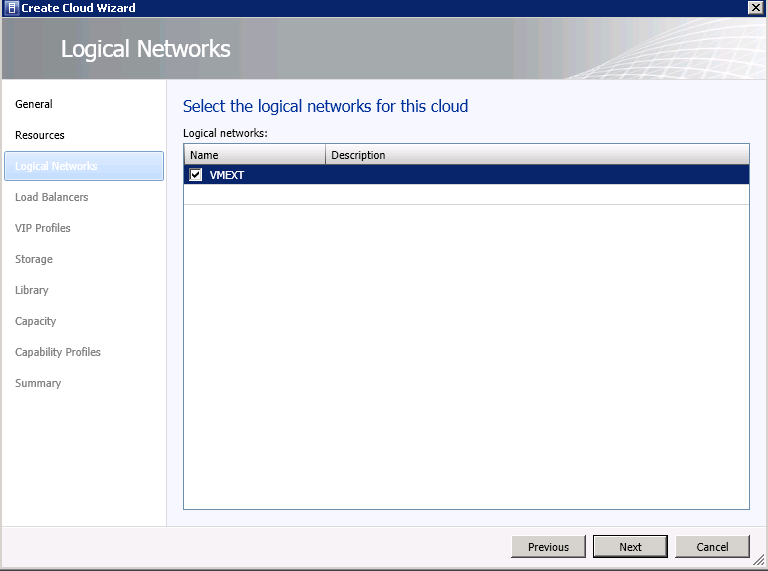
From the next screen, select the Logical Networks that are going to be a part of this private cloud and then click 'Next'


Next up, select if you want to use Load Balancers for your private cloud and then click 'Next' again


If you have selected a load balancer from the previous screen, then you will now need to choose the Virtual IP Profile that you want to assign to your private cloud. If you are not using load balancers in your cloud or are configuring them later, then you can leave this selection empty and click 'Next' to move on


Choose any storage classifications from the next screen if applicable, and then click 'Next'


In the next screen you can specify a stored virtual machine path and any read only library shares that you wish to assign to this private cloud and then click 'Next'


At the 'Capacity' screen, you can tell SCVMM 2012 what capacity limitations are going to be applied to this particular cloud and keep in mind that this will have an implication on what resources you can deploy at a later stage from your Service Application Templates if you have low capacity specified here


In the next screen, you can choose the capability profile for your cloud to span over VMWare, Citrix or Hyper-V hypervisors. I've just chosen the Hyper-V capability here and clicked 'Next'


From the final 'Summary' screen, confirm that all of your selections are correct and once you're happy enough with them, click 'Finish' to create your private cloud


Once the wizard has completed, go back to the 'VMs and Services' window and expand the 'Clouds' icon on the left hand side to confirm that your new private cloud has been created and is ready for provisioning


If you want to learn more about Cloud Management with System Center, click the link below for my next post:

Thursday, November 3, 2011

Installing System Center App Controller 2012

Finally Microsoft have released the BETA of System Center App Controller (SCAC) 2012 last week and just in time for a System Center event that I’m involved in this month that I wanted to use as part of my demonstration!!

So, what is System Center App Controller 2012? It's the newest member of the System Center family and is the link needed to seamlessly connect and manage Application Self Service between both your private cloud and public cloud offerings.

When I attended MMS 2011 early this year, this product was showcased with a name of ‘Project Concero’. The demonstration that the MS guys gave of this product was amazing and with all the talk of public, private and hybrid cloud around these days, it’s the perfect time for the launch of this product.

I've just also finished an online session as part of the Microsoft Private Cloud Community Evaluation Program (CEP) and App Controller played a big part in the demos and slides and had a lot of people talking about it!

You can sign up for the Private Cloud CEP from the link below:

https://connect.microsoft.com/site799/program7383

This blog post will provide the information and steps required to install System Center App Controller 2012 into your private cloud environment and configure the link between your private cloud and Microsoft’s public cloud offering – Azure.

Firstly, see below for the hardware and software requirements needed to install SCAC 2012 as taken directly from the Microsoft website.

System Requirements—Server

This section provides information about system requirements and supported operating systems for installing and running System Center 2012 - App Controller.

Hardware Requirements

The following are the minimum and recommended hardware requirements for the App Controller server.

Hardware component

Minimum

Recommended
Processor
Pentium 4, 2 GHz (x64)
Dual-Processor, Dual-Core, 2.8 GHz (x64) or greater
RAM
1 GB
2 GB
Hard disk space
512 MB
1 GB

Note: For better performance, it's recommended that you use a version of SQL Server installed on a different system for the App Controller database. 

Software Requirements

The following software must be installed before installing App Controller.

Software Requirement

Notes
A supported operating system
For more information, see Supported Operating Systems in this topic.
Microsoft .NET Framework 4
If .NET Framework 4 is not installed (it is not installed by default), the App Controller setup wizard will install it.
Web Server (IIS)
If the Web Server (IIS) role and the following Web Server (IIS) features are not installed, the App Controller setup wizard will install them:
Static Content
Default Document
Directory Browsing
HTTP Errors
ASP.NET
.NET Extensibility
ISAPI Extensions
ISAPI Filters
HTTP Logging
Request Monitor
Tracing
Basic Authentication
Windows Authentication
Request Filtering
Static Content Compression
IIS Management Console
The VMM console feature in System Center 2012 – Virtual Machine Manager (VMM)
Only the VMM console feature is required for App Controller.
A supported version of SQL Server
For more information about supported versions of SQL Server, see Database Requirements in this topic.

To begin with, you need to build either a physical or virtual machine that meets the above requirements. The machine that I am installing onto is a virtual Windows Server 2008 R2 SP1 server on Microsoft Hyper-V. You also need to have previously installed System Center Virtual Machine Manager 2012 into your environment.

Once you have your new machine built and ready, you need to install the System Center Virtual Machine Manager 2012 Console onto the SCAC 2012 server. Copy the SCVMM 2012 Release Candidate media to your System Center App Controller 2012 server and then right mouse click on the 'setup.exe' file and select 'Run as Administrator' to begin the SCVMM 2012 console install.

Note: It is important that you use the SCVMM 2012 Release Candidate or higher for the SCVMM 2012 console installation as your SCAC 2012 pre-requisite check will fail. I ran into a problem in my environment where I had installed the SCVMM 2012 BETA build and the SCAC installer failed and wouldn’t go any further. The error message that came back was:

“Install a supported version of the virtual machine manager for system center 2012 console”

As there is no upgrade path from SCVMM 2012 BETA to SCVMM 2012 RC, I had to uninstall my SCVMM 2012 BETA environment and then reinstall with the later SCVMM 2012 RC (nothing wrong with this and it was a task that had to be done anyway!)


 Now click on the 'Install' option to continue


Select only the 'VMM Administrator Console' option and then click 'Next'


 Agree with the terms and conditions and click 'Next' again


 Choose the Installation Location and then click 'Next'


Leave the port configuration as it is (or change it if you wish) and click 'Next'


 Finally, click on 'Install' to begin the SCVMM 2012 RC console installation


Once this has completed, you should see the screen below showing a successful install of the console


Once the SCVMM 2012 Administrator Console has been installed, ensure that you have a pre-installed SQL 2008 instance either locally on your SCAP 2012 server or remotely on a separate SQL 2008 server.

When I’m installing System Center products, I prefer to have a standalone (preferably physical) SQL server with a separate SQL Database instance for each of the System Center products. If the System Center product has a reporting module, then I will also install a separate SQL Reporting Services (SSRS) instance for each System Center product too. This allows for easy administration and patching of your individual System Center applications without affecting anything else.

Sticking to these recommendations, I have pre-installed a new SQL 2008 R2 instance for System Center App Controller 2012 onto my physical SQL 2008 R2 server and I have used the by now ‘de facto’ standard SQL collation for all System Center products of ‘SQL_Latin1_General_CP1_CI_AS’

The SCAC 2012 documentation doesn’t specify that this SQL collation be used (or any SQL collation for that matter), but as it is needed for most of the other System Center products, I’d recommend using it here too

When you have your SQL instance ready to go, click on the link below to download the System Center App Controller 2012 installation file to a location on your hard disk:

http://www.microsoft.com/download/en/details.aspx?displaylang=en&id=27843

Browse to the SCAC 2012 installation media, right mouse click on the 'AppController.beta' application and then select 'Run as Administrator' to begin the installation


Click on the 'Install' option from the splash screen below


The initial pre-requisite check should begin and if you don't have the .NET Framwork 4.0 installed, it will ask you if you want the installer to automatically install it now


When the .NET Framework 4.0 installation is complete, the App Controller setup will continue


Enter your product registration information and then click 'Next'


Agree with the terms of the licence agreement and then click 'Next'


Now SCAC 2012 will perform another pre-requisite check and will come back to you with a list of software that is missing and that needs to be installed. If you didn't follow the instructions above and ensure that the SCVMM 2012 Release Candidate is installed (as opposed to the BETA version), then you will see an error highlighting the SCVMM console as being an issue at this point.

Once I had installed the SCVMM 2012 RC console onto the SCAC 2012 server, the error message went away and all that was missing from the pre-requisite check was the Web Server (IIS) role. The SCAC 2012 installer will identify this as missing and will then add this role as part of the installation process.


Click ‘Install’ to kick off the missing pre-requisite installation


Once the pre-requisites are installed, the SCAC installer will continue as shown below. Select the installation location and then click 'Next'


On the Configure services page, specify the account that will be used by App Controller services. You can configure App Controller services to use either the Network Service account or a domain account.

Note: If you specify a domain account, it is strongly recommended that you create an account that is specifically designated to be used for use by App Controller services.

You can also choose the port for internal communication here too


On the Configure website page, specify the following:
  • IP address: Select an IP address from the IP address list or type an IP address that users can use to access this site.

  • Port: Type the port on which HTTP.sys must listen for requests made to this website. If you specify a port different from the default port (443 for HTTPS), clients must specify the port number in requests to the server or they will not connect to the Web site.

  • SSL certificate: Select whether you want App Controller Setup to generate a self-signed certificate or use a previously imported certificate for SSL.

Note: To add or configure server certificates, use the Server Certificates feature in IIS Manager.
If you use a self-signed certificate, the certificate must be added to the Trusted Root Certification Authorities store of all computers that will access the App Controller website. Some browsers will fail to display App Controller if the certificate is not trusted. It is recommended that you use a certificate from a trusted certification authority instead of using a self-signed certificate.

The port that you assign during the installation of App Controller cannot be changed without uninstalling and reinstalling App Controller


On the Configure the database page, specify the following:

  • Server name: Type the name of the computer that is running SQL Server. If you are installing the App Controller server on the same computer that is running SQL Server, the Server name will be prepopulated with the name of the computer.

  • Port: Type the port to use for communication with the computer that is running SQL Server. By default, this value is not required and is therefore left blank.

  • Instance name: Select or type the name of the instance of SQL Server to use. There will be a short delay while the instance names are populated in the list. The list of available instances may not correspond to the Port specified above.
  • Database name: Type the name of the database to use. The account with which you are installing the App Controller server must have at least database owner (dbo) permissions in the specified database. If the specified database does not exist and the current user has the appropriate permissions, the App Controller setup wizard will create it for you. If you are performing a high availability installation, the second and subsequent server installs need to use the same database as the first server.
Note: Only one App Controller database can be installed per SQL Server instance


Choose whether or not to join the CEIP and also to use Microsoft Update for receiving updates within App Controller


 Confirm your selections are correct in the below screen and click on the 'Install' button


The installer should work through the components needed for App Controller


Once setup completes succesfully, ensure you have selected the 'Start the App Controller window when Setup closes' box and then click on the 'Finish' button to close the window


 If you don't have Microsoft Silverlight installed, you will be prompted to install it at this point


When the Silverlight installation is complete,enter your credentials to sign into System Center App Controller 2012


You should now see the screen below with the new System Center App Controller 2012 installation completed and you're now ready to manage your public and private cloud environments all from one window!


For further information on using System Center App Controller to manage your clouds, see my series of posts on 'Cloud Management with System Center'