Wednesday, March 12, 2014

Application Insights Deep Dive Part 4 - Monitoring Availability

This post is Part 4 of my 'Application Insights Deep Dive' series and if you haven't yet read over the previous posts, then you can check them all out here:

Application Insights Deep Dive Part 1 - Getting Started

Application Insights Deep Dive Part 2 - Building A Demo Server

Application Insights Deep Dive Part 3 - Deploying A Demo Web Application

Over the previous three posts in this series we've created a Visual Studio Online account, deployed a new demo virtual machine in Windows Azure and installed a demo .NET web application called Fabrikam Fiber into the environment. We're now ready to get started with enabling Application Insights to look inside our application and in this post I'll focus on two ways to monitor availability - using the Microsoft Monitoring Agent (MMA) or by instrumenting the application using some additional JavaScript code.

Deploying the Microsoft Monitoring Agent

If your web application is running on a Windows Server computer, then you can download and install an agent (the MMA) to the server to get some deep level information about your application back into Application Insights for analysis.

Follow these steps to get the agent deployed:

Logon to your demo web application server using an account with administrative permissions, then open a web browser and sign in to Visual Studio Online using the Microsoft account you configured in Part 1.

Click on the blue Application Insights tile, then click the 'Add application' menu from the top navigation bar as shown below.


From there, click on the 'Download Microsoft Monitoring Agent' tile to download the 64-bit version of the agent (if you're running your application on a 32-bit server, then click the link below the blue tile).

Right-click the downloaded agent file and choose Run As Administrator to begin.


Click through the first few options in the wizard accepting the default settings until you reach the 'Where do you want to connect the agent?' dialog box as shown below.


Check the box beside 'Application Insights for Visual Studio Online', then click Next to continue.

Note: If you have an existing SCOM environment and wanted to connect up this agent to it at a later stage, then you would need to choose the 'System Center Operations Manager' option here and then specify the management group info for the agent in the same way as you would work with a normal and manually installed SCOM agent in the past.

At the next dialog box, enter your unique Account ID and Instrumentation Key that you obtained from the 'Add Application' menu in the Application Insights console. When you have both values entered, hit the Validate Connection button and you should see a successful connection similar to the one in the following screenshot. Click Next to move on once the test works as it should do.


At the next dialog box, choose whether or not to use Microsoft Update to check for updates to the agent, then click Next.

Hit the Install button from the 'Ready to Install' dialog box to begin the installation and once complete, push the Finish button to close out the process.


You should now see a command window open up stating that it's 'Configuring Application Insights'. Leave this window open for a few minutes and it will report back that it has successfully started monitoring your web applications. When it's done, press any key to close the window.


Note: If you get prompted at this point to restart your computer, then DON'T!
Wait until this configuration phase has completed and then you can do a restart. I had an issue on one server that I ran this on and when I choose the option to restart my server, the configuration hadn't fully completed and I ended up with no application monitoring until I removed and reinstalled the agent again.

It'll take approx. 10 or 20 minutes for your web applications and Application Insights to start talking fully and in the meantime, on your demo web server, you can open up the Monitoring Agent PowerShell Prompt as shown in this graphic.


When you open this, you will be presented with 5 different commands that allow you to manage how the agent works with your web applications (typically - Set, Start, Checkpoint, Stop & Get cmdlets). To confirm that our applications are indeed communicating with Application Insights, we can type 'Get-WebApplicationMonitoringStatus' into the PowerShell prompt and it should report back to us that they have an output channel of 'Cloud' as shown here:


If this is the first time you have deployed Application Insights, then at this point if you refresh the console, you should see the options at the top of the main menu change and you will be able to see new menus for Availability, Performance, Usage and Diagnostics.

In the Application Insights console, click on 'Overview' then choose 'Servers' and you should see your newly deployed agent lighting up Green indicating that everything is going smoothly.


Note: If you see your agent in this screen but it still hasn't lit up green, then you might need to restart the computer or even reinstall the agent (see my other note above).

Now click on the 'Applications' menu and you should see a list of all the applications that are configured for monitoring with Application Insights - including your newly added one (Fabrikam in our case here).


For the moment, it's likely that there won't be any data values registered beside your application name because we haven't generated any traffic through it yet. That'll change soon though!

Instrumenting Your Application

As an alternative to installing the Microsoft Monitoring Agent onto the server that hosts your web application, you can add some JavaScript code to it by following this process:

Open the Application Insights console, browse to the 'Add Application' view and from Step 1, hit the 'Click here' link as shown in the following graphic.


Click the No button when asked 'Would you like to collect data from a server component?', and then choose the type of application you have (we'll use the Web Site button) here.


Now click the 'Click here to show instructions' link.

At this point, you will be presented with a number of steps and first thing you need to do is to give a name to your application, then hit the Create button.

Once the application is created, you will see a code snippet in Step 4 and some instructions telling you where to place the code in your application.


Copy the code snippet and insert it into your application as instructed (immediately before the closing </head> tag and before any script) and in approx. 30 minutes, you should see your application lighting up in the console.

Configuring Availability Monitors

Now that we have our web application available to be monitored inside Application Insights, we can start work on configuring synthetic transaction monitors (sound familiar SCOM users?).

Here's what you need to do:

Logon to the Application Insights console, click the 'Availability' view, then select the name of your web application from the drop-down menu beside 'Set Up Availability' as shown below.


Choose the 'Click here' option at the bottom of the page to dismiss the configuration page and open up the 'Synthetic Monitors' section for your application. Click on the green Plus symbol and choose 'New Single URL Test' from the resulting menu.


Now, if you've used SCOM 2012 with Global Service Monitor (GSM) in the past, then the 'New Synthetic Monitor' screen will be very familiar to you.


Give the monitor a name, enter your web application's external URL (including the relevant port number), choose some country locations to run the monitor from (I'm disappointed that Dublin isn't on this list yet!), and then check the 'Alert if' box to ensure that an alert is generated in the console if any of the locations fails to access your application.

Click OK to create the monitor then wait a short while for data to start showing up. Ideally, the longer you leave this the better, as it will build out availability charts based on the last 24 hours worth of data.

Note: You can monitor any publicly available website using this method without having to deploy an agent or instrument the web application in the exact same way that you can create a new 'Web Application Monitoring' test in SCOM 2012 R2. This is useful in scenarios where you need to bring a corporate externally hosted website that isn't under your direct management control into your monitoring environment.

The graphic below shows an example of the overall availability and response time of your web application.


This one shows specific availability communication points from your Single URL Test that was configured earlier (green dots are good!)


If you want to test this out to see some availability errors, then either stop the virtual website on your demo web application VM in IIS for a short while, or simply just power down the VM. Pretty soon you'll see some errors coming up as shown here:


That's it for Part 4 of this series and you should now be able to monitor your applications and external websites for availability using Application Insights. In Part 5 we'll dive into monitoring the performance of your applications.

Tuesday, March 11, 2014

Application Insights Deep Dive Part 3 - Deploying A Demo Web Application

This is the third post in my 'Application Insights Deep Dive' series and if you haven't read the previous posts in the series, then you can check them out here:

Application Insights Deep Dive Part 1 - Getting Started

Application Insights Deep Dive Part 2 - Building A Demo Server

APM

A few years ago, I wrote a blog series on the Application Performance Monitoring (APM) feature of SCOM 2012 and when I was working on it in my lab environment, I used a basic .NET application called DotNetNuke. The problem I had with this application when testing APM on it was that it wasn’t the best platform to demo problematic code as it wasn’t written specifically as an APM demo platform - although some people might say that there was enough programmatic errors in it to give it a good run!

A while later I started working on my first book and decided to take on the APM chapter. I didn’t want to use DotNetNuke as I really needed to get deep with the various capabilities of APM, so I came across the Talking Heads .NET application that was written specifically for demo APM environments with loads of intentional bugs and exceptions thrown in. This proved to be very useful for my demo environments, but I found in the end, it needed a bit of coaxing from time to time to throw the errors that I wanted.

So, for this series of posts on Application Insights, I wanted to find something similar to Talking Heads but better and designed specifically to showcase APM functionality. That’s when I came across ‘Fabrikam Fiber'.

Fabrikam Fiber

This APM demo application can be downloaded for free on Codeplex at the following address: http://fabrikam.codeplex.com/.

It’s based on a fictional company that provides cable television and related services to the United States. They are growing rapidly and have embraced the latest Microsoft technologies in order to scale their customer-facing web site. This will allow the end users to create/manage tickets and track technicians in a self-service way. There is also an on-premises ASP.NET MVC application for their customer service representatives to administer customer orders.

This post will focus on deploying Fabrikam Fiber onto the demo virtual machine that we spun up on Windows Azure in Part 2.

Note: If you come from a development background and have used this application in the past or know how to deploy it quicker than the steps I've walked through here with something like Visual Studio, then forgive my crude IT Pro methodology!

If you want to get quick access to all the downloads that I've listed below, then you can get them all in one place from my OneDrive here:

http://1drv.ms/1kdYNys

It's probably a good idea though to download the latest versions of each component using the URL's listed in the following sections, as they might contain updated bits compared to the ones I've made available in the link above.


Installing the Fabrikam Fiber Demo Web Application

To install Fabrikam Fiber, logon to the newly created virtual machine in Windows Azure that we created in Part 2 (or if you want to try this out on a different machine that you have already deployed elsewhere, then work away).

Once you've logged on, the first thing you'll need to do is to deploy the IIS role so open up a PowerShell window with Administrative permissions and enter the following:

Install-WindowsFeature -IncludeManagementTools -Name Web-Server
Install-WindowsFeature -Name Web-Scripting-Tools

Install-WindowsFeature -Name NET-Framework-45-ASPNET
Install-WindowsFeature -Name Web-Asp-Net45

Once the IIS role has been deployed, we need to modify some settings in the DefaultAppPool. To do this, open IIS Manager, click on Application Pools, right-click DefaultAppPool and then choose the 'Set Application Pool Defaults' option as shown.


From the Application Pool Defaults window, change the 'Enable 32-Bit Applications' option to True as shown in this next graphic.


From the same window, now change the 'Load User Profile' value from False to True as shown, then hit OK to close.


With IIS configured, we can now go about installing the LocalDB component of SQL Server 2012 Express which will serve as the database engine for our application.

Browse to the following URL and download the SQLLocalDB.msi bits:

http://www.microsoft.com/en-ie/download/details.aspx?id=29062


Open the folder that you downloaded the MSI to, right-click it and hit Install.


Click Next.


Accept the license agreement, then click Next.


Hit the Install button to begin.


Click Finish to close the Wizard.


If you haven't installed Visual Studio on this computer, then you'll need to download ASP.NET MVC 4 from the link below:

http://www.microsoft.com/en-us/download/details.aspx?id=30683

As before, browse to the location that you downloaded the MSI to, right-click on it, then choose the 'Run As Administrator' option to kick off the install with elevated privileges.


Agree the license terms, click the Install button and work your way through the wizard to complete the MVC 4 installation.


Once IIS, LocalDB and MVC 4 have been deployed to the demo virtual machine, we're finally ready to deploy the Fabrikam Fiber application bits.

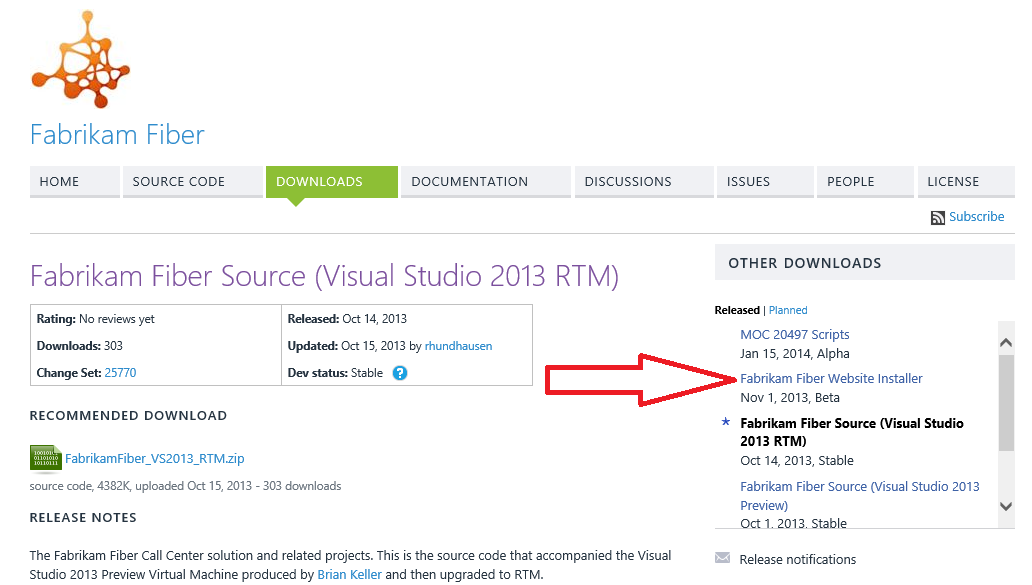
Head over to the Fabrikam Fiber site on Codeplex (http://fabrikam.codeplex.com/) and click on the 'Downloads' menu. From here, you'll notice the 'Other Downloads' section and a link to the 'Fabrikam Fiber Website Installer' as shown below.


Download the website installer to your demo virtual machine, browse to the download location, then right-click and hit the Install option to open up the installation wizard. Click Next to move on.


Accept the license agreement, then hit Next again.


Make a note of the destination folder that the website will be installed into (default is C:\inetpub\wwwroot\Fabrikam), then click Next.


Review the settings that you've chosen for your install, then hit the Install button to deploy the website to your demo virtual machine.


In a few seconds, the website installer should have completed successfully. Click Finish to close the wizard.


Now open up IIS Manager and you should see your new 'Fabrikam' website underneath the 'Default Web Site' one. Right-click the Fabrikam website, select Manage Website, then choose the Browse option from the menu as shown below.


This will attempt to open your web browser to the following path - http://localhost:1337/

At this point, after a few seconds of waiting you may see an error stating:

"CREATE FILE encountered operating system error 5 (Access is denied.) while attempting to open or create the physical file 'C:\inetpub\wwwroot\Fabrikam\App_Data\FabrikamFiber.mdf'."

Also shown in this screenshot:


If you see this error, then thankfully its just a permissions issue relating to the directory where the website installer deployed the application to. All you need to do is to browse to the directory (it'll be listed in the error string from above), go to the properties of the parent 'Fabrikam' folder, click on the Security tab, then give Full Control permissions to the 'Authenticated Users' security group and hit Apply to confirm.


Note: There are a number of ways that you can make these permissions more secure and granular such as editing the Web.config file but for the purposes of this series and our demo environment, this setting will suffice.

Now browse back to the Fabrikam Fiber website location (http://localhost:1337/) and you should see the application loading successfully this time.


The final thing to check before we close out on this post is that you can browse to your newly installed Fabrikam Fiber application from an external location. If you've deployed your demo virtual machine in Windows Azure, then your external application URL will be something like the following (substituting your own VM name in place of mine below):

http://fabrikamfiber:1337/

Make sure to add the correct port number to the end of your external URL and if you have problems accessing it externally, but not internally, then you've missed a step when configuring your Endpoints or Firewall/NAT rules. It's important that you can access your application both internally and externally at this point and if you can't do both, then you'll need to go back over these posts again to ensure you've configured everything correctly.

That's it for this post, in Part 4 we'll start monitoring our new demo web application for availability using both an agent deployed to the VM and also an agentless scenario where we simply instrument the application with some JavaScript code.

Application Insights Deep Dive Part 2 - Building A Demo Server

In Part 1 of this series, I gave an overview of what Application Insights was and walked through configuring a new Visual Studio Online account, before then activating the Application Insights capability inside the same account. In this post, I’ll assume you don’t have an existing .NET web application to test your new Application Insights capabilities on and will walk through deploying a demo server which will be used to host a new web application environment to use and highlight the Application Insight features.

Creating Your Demo Web Server

For the purpose of this blog series, I’m going to create my demo web server VM in Windows Azure. If you already have a demo web server ready to go, then you can skip over this section as you wish.

Follow these steps to create a new Windows Azure virtual machine:

Open the Windows Azure portal and logon with your Microsoft Account credentials.

Click the ‘New’ button at the bottom of the screen, highlight, Compute\Virtual Machine, then click on the 'From Gallery' option as shown below.


Choose the type of image that you want to deploy to your virtual machine (we’ll use Windows Server 2012 R2 Datacenter), then hit the Arrow button down the bottom-right hand side of the page to move on.


Enter a name for your demo VM as well as a username and password, then click the arrow button down the bottom-right hand side to move on.


At the Virtual Machine Configuration screen, make whatever changes you need, then hit the arrow down the bottom-right again to move on to the final page.


From the final screen, you will need to configure your endpoints to allow communication between the web application and your Application Insights environment. If you don’t have an existing .NET web application to test with and you will be following the steps later in this post to create one, then here’s the endpoint you need to add:
 
NameProtocolPublic PortPrivate Port
FFProd TCP 1337 1337

After entering this endpoint, you should have a screen like this


Now hit the checkmark at the bottom to complete the configuration of your VM and kick off the provisioning and build.

When your VM has been created and is up and running, click the Connect button at the bottom of the Virtual Machines page as shown.


Accept any warning messages that appear and click Connect again from the RDP session window to logon to your new VM.

When you’re logged into the VM, add the following two firewall rules using PowerShell:

New-NetFirewallRule -DisplayName FabrikamFiberProduction -Action Allow -Direction Inbound -LocalPort 1337 -Profile Any -Protocol TCP -RemotePort Any
 
New-NetFirewallRule -DisplayName WebDeploy -Action Allow -Direction Inbound -LocalPort 8080 -Profile Any -Protocol TCP -RemotePort Any

With the firewall rules now added, you've got your demo web server up and running in Windows Azure and ready for the deployment of your .NET web application - which we will deploy in Part 3.

Application Insights Deep Dive Part 1 - Getting Started

Last month, I wrote an introductory post about the new Application Insights (AI) feature of Microsoft’s Visual Studio Online. In that post, I briefly touched on how the Microsoft Management Agent is now used for both SCOM 2012 R2 and AI. By bringing these two worlds together with the same agent, Microsoft has reduced the differences between their on-premise and cloud-based monitoring solutions.

This post is Part 1 of a series where I’ll be deep-diving into the full capabilities of Application Insights. In this part I'll give you an overview of Application Insights and how to get started with setting it up.

You can check out all the other posts in this series using the following links:

Application Insights Deep Dive Part 2 - Building A Demo Server

Application Insights Deep Dive Part 3 - Deploying A Demo Web Application

Application Insights Deep Dive Part 4 - Monitoring Availability

Application Insights Deep Dive Part 5 - Monitoring Performance & Using Diagnostics

Application Insights Deep Dive Part 6 - Monitoring Usage

Application Insights Deep Dive Part 7 - Working with Dashboards

Application Insights Deep Dive Part 8 - Alerting & Administration


Application Insights Overview

With Application Insights, we have the same excellent capabilities from the Application Performance Monitoring (APM) feature (formerly AviCode) available in SCOM 2012 R2 – with the exception that it’s all run from the cloud as part of Visual Studio Online. With this type of monitoring for your applications, you can ensure that they are available and performing optimally, while leveraging usage data to drive improvements and trends.

In relation to the Microsoft Management Agent used for both Application Insights and SCOM 2012 R2, they share the same source code but have a slight difference with serialization that determines which REST interface and location the agent sends its performance data to.


Application Insights supports both .NET and Java web applications. On the Java side of the house, it supports monitoring Tomcat 6, Tomcat 7 or JBoss 6. For the purposes of this deep-dive series however, I’m going to concentrate on demonstrating its capabilities monitoring .NET web applications and I'll save the Java monitoring for a later post.

You can use Application Insights to monitor web applications that are running in an on-premise/virtual machine scenario and of course, it’s also fully supported to monitor web applications running as a web role in Windows Azure Cloud Services. If you’re a Windows Phone app developer, you might be interested in the capability to view usage trends and other analytical data as users download and use your app on a daily basis.

The method of getting these different environments monitored varies depending on scenario but typically, it’s a straight-forward enough process as you’ll understand when you read through this blog series.

Regardless of the environment you're monitoring with Application Insights, you can ensure you’re kept up to date with any performance issues (slow responses, uncaught exceptions etc.) by enabling email notification direct to your inbox. If you want to use Visual Studio to view the stack trace to help triage the problem, then this is an easy option too.

So, that's a high-level overview of what Application Insights can do, now let's get started!

Creating Your Account

The first thing you’ll need to do is to create a new Visual Studio Online account by clicking on the following link to sign up:

http://www.visualstudio.com/products/visual-studio-online-overview-vs


Click on the 'Ready to Go?' tile


Enter your Microsoft Account (formerly Windows Live ID) details, then click the Sign In button. If you don’t yet have a Microsoft Account, you can sign up for a new one here.


Input all your details into the ‘Create a Visual Studio Online Account’ window, then hit the Create Account button to move on.


Once you’ve created your Visual Studio Online account, you’ll need to specify a name for your first project. Call it what you want, then hit the Create Project button to finish.


Now, at the Overview screen of your Home page, you should see a Blue tile titled ‘Try Application Insights’ as shown below. If you can't see the Blue AI tile, then click the Help button and choose the 'Display Announcement' option from the resulting menu.


Click on the Blue tile and you’ll be taken to the *Insights view where you’ll be prompted for an invitation code to gain access


Invitation Code? I hear you ask.
 
Don’t worry if you don’t have one, even though AI is still only available as a Preview, the good folks over at Microsoft have made a public code available at the following link:
 
 
Type in your code, then hit the Get Started button to enter the new world of Application Insights!
 
 
That’s it for Part 1 of this series. In Part 2, we’ll start work on building a demo .NET web application environment for us to give our new Application Insights account a test drive in.

Thursday, February 27, 2014

New Windows Azure Pack (WAP) & Azure Visio Stencils Available for Download

Well, it's been a few months since I last had a chance to work on some new Visio stencils and finally, I've managed to put one together for the relatively new Windows Azure Pack (aka WAP) and have bundled into the same stencil, some graphics for Windows Azure too.

If you're looking for some other Visio stencils related to System Center 2012 R2,  then you can find them here:

SCVMM 2012 R2 Visio Stencils

DPM 2012 R2 Visio Stencils

SCOM 2012 R2 Infrastructure Visio Stencils

SCOM 2012 R2 Application Visio Stencils

SCOM 2012 R2 Networking Visio Stencils

SCOM 2012 R2 APM Visio Stencils

This stencil contains images that cover things like the WAP Admin & Tenant portals, SPF Web Server, SMA, Service Bus and Workflow Manager.


I've also thrown in things like Visual Studio Online with its Global Service Monitor and APM capabilities, Orchestrator, VMM, AppController and standard Windows Azure roles and functions.

You can download the stencil from the TechNet Gallery at the following link:

http://gallery.technet.microsoft.com/Windows-Azure-Pack-Windows-813d13a8


If you find this stencil useful, please take the time to give it a Star rating on the TechNet Gallery :)

Let me know if you have any suggestions or problems with the stencil by posting in the comments section below.

Thursday, February 20, 2014

Application Insights (A.I.), the Future is Now...

Although not a big fan of the moniker, I've been working with IT technology long enough to admit that the term 'geek' probably fits the bill just right for me. A quick definition lookup on the web for 'geek' throws up the following descriptions:

noun: geek
  • an unfashionable or socially inept person.

verb: geek
  • engage in or discuss computer-related tasks obsessively or with great attention to technical detail.
  • be or become extremely excited or enthusiastic about a subject, typically one of specialist or minority interest.

I'd like to think that the first description isn't applicable to me (although I'd say some of my friends would probably disagree with me on that one!). The second and third descriptions however, definitely come close to getting it right. When I come across a piece of technology that I'm passionate about, then you'll hardly get a word in when I get going on the subject!


This brings me to the reason for me putting this post together. If you've read even a handful of blog posts from me in the past, then you'll know that a lot of them are focused on Microsoft's System Center Operations Manager (SCOM) application. Delivered as part of the System Center 2012 R2 suite of Cloud and Datacenter management products, SCOM is their flagship tool for monitoring the health and performance of your IT environments and I've worked constantly with it for nearly 5 years.

During that time, I've seen SCOM develop into a truly heterogeneous platform monitoring solution that can span across on-premise and public clouds and the geek in me has well and truly ensured that I studied every piece of documentation, blog post and case-study on SCOM that I could get my hands on!

Herein lies the quandary for me now. When you work exclusively with the same product for a number of years, you begin to feel like you need something new to keep challenging you, and with SCOM, I sometimes feel like I've been there, wore the t-shirt and written the book on it. Don't get me wrong, it's a totally awesome product and I definitely won't be hanging up my unsealed management packs anytime soon! But there's no harm in working with something new and exciting (in an area that leverages the skills that I've learned from all those years of SCOM)....

Step forward Application Insights.

The Past

In the original release of SCOM 2012, we were treated to our first glimpse of Application Performance Monitoring (APM) which, in a nutshell, enabled IT Operations guys like me to bring deep-dive 'code-level' answers back to the table for Developers on how their applications were performing. This new synergy was known as 'DevOps'. A couple of years back, I wrote a short blog series about APM and it's a testament to the technology that today, this series is still one of the most visited on my site.

When SCOM 2012 Service Pack 1 was released, it came with an integration to a new technology called Global Service Monitor (GSM). What this essentially enabled us to do was to get an 'outside-in' perspective of our web applications by channelling monitoring information from the Windows Azure platform back into the on-premise SCOM environment. With APM and GSM integrated into SCOM, we were starting to see a picture forming of a full 360 Degree view of our applications health and performance.

The Present

In October 2013, System Center 2012 R2 was released and SCOM came with a small (but significant) number of infrastructure changes that added more flexibility and autonomy to the 'DevOps' story.

Around the time of that release, I presented a session at the System Center Universe Europe conference titled 'What's New in System Center 2012 R2 - Operations Manager'. One of the key takeaways that I wanted people to leave my session with was the change to the old  'Operations Manager Agent'. This old agent became the new 'Microsoft Monitoring Agent' which had new capabilities (on top of all the existing functionality) to run as a standalone agent separate to SCOM.  This could then be used as a .NET APM and Intellitrace collector plugging directly into IIS and Visual Studio.

The Future

The importance of the change to the old SCOM agent started to become apparent when Microsoft announced the preview of the new Application Insights technology that came bundled as a feature of the new Visual Studio Online - which is essentially an evolution of Team Foundation Server.

The reason the new SCOM Microsoft Monitoring Agent (MMA) is significant is that it's no longer exclusive to just SCOM. You guessed it - Application Insights also uses this same agent (it does however need to be running System Center 2012 R2 Update Rollup 1 which was just recently launched).

So what exactly is Application Insights?

It gives the various teams that have responsibility for the maintenance of an application (development, IT operations etc.), the capability to monitor the availability, performance, and even usage metrics of their applications and services. It does this by making use of the same type of technology that we have available through SCOM with Application Performance Monitoring (APM), Global Service Monitor (GSM) and the Microsoft Monitoring Agent.  All of this is managed from the cloud - so no need for a fully loaded desktop client or database to be deployed locally on your sites.

Here's some screenshots of AI in action:

AI GSM (Outside-In monitoring)


AI APM


AI Usage Metrics


Information gathered from these different areas is then integrated back into the development tools and processes through Visual Studio to truly enhance the application lifecycle management process.

Summary

This introductory post on Application Insights kick's off a series of deep-dive posts that I've put together where I explain into how to deploy and manage your applications with it. You can check out the first post in the series here:

Application Insights Deep Dive Part 1 - Getting Started

Although AI is only in it's infancy as an emerging piece of armoury for your toolkit, it's definitely something to keep in mind if you want to feed the inner 'geek' inside you!

Tuesday, February 18, 2014

System Center Service Manager (SCSM) is here to stay!

If you've been listening to the rumour mill over the past 12 months, then you might have heard some people state that System Center 2012 R2 - Service Manager has had its day and that it would be retired soon.

My good friend  and co-author on the Mastering Windows Server 2012 R2 book - Christian Booth (Microsoft) - has just written a blog post on the System Center Engineering Team blog that squashes those rumours. His post not only gives confidence to existing and potential customers over the viability of the product as we know it, but also mentions their plans to take it forward and make changes for the better to deliver a consistent and quality solution.

Check out the full post here:

System Center: Service Manager – A phoenix in its own right

This is great news for anyone working in the System Center space as it shows that instead of pumping all their investment and development resources into cloud-based solutions such as Azure, they are still more than focused on the on-premise System Center offerings that we all know so well!

Thursday, February 6, 2014

E-Book Gallery for Microsoft Technologies - Your One Stop Shop!

I've just seen a tweet from Microsoft's Yung Chou about a relatively unknown TechNet Wiki page titled the 'E-Book Gallery for Microsoft Technologies'.


This Wiki page has easily over 100 different E-Books covering technologies such as Lync, SharePoint, SQL, System Center, Visual Studio, Azure (the list goes on and on) and there's also a diverse number of e-books in languages other than English.


The best thing about all these e-books is of course that they're all FREE!
 
I highly recommend you check out this excellent resource and get the downloads going for as many of them as you need to keep in touch with the growing number of different technologies that Microsoft has to offer.

Check out the Wiki here:

http://social.technet.microsoft.com/wiki/contents/articles/11608.e-book-gallery-for-microsoft-technologies.aspx

Enjoy :)

Wednesday, February 5, 2014

SCOM - New Management Pack for Team Foundation Server 2013 Available

Microsoft have just released a new Team Foundation Server (TFS) 2013 management pack for System Center Operations Manager (SCOM/OpsMgr).

Here's what it does (taken from the MP guide):

"The Team Foundation Server 2013 Monitoring Management Pack provides both proactive and reactive monitoring of Microsoft Team Foundation Server 2013. It monitors TFS components such as application tier server instances, team project collections, build servers, and proxy servers.

The monitoring provided by this management pack includes availability and configuration monitoring, performance data collection, and default thresholds. You can integrate the monitoring of Team Foundation Server components into your service-oriented monitoring scenarios."

This MP is essentially exactly the same as the TFS 2012 MP with the only exception being that it now supports TFS 2013.

However, according to the MP guide, there's one pretty big caveat here with this MP that you need to understand.....

It's not supported to run on System Center 2012 R2 - Operations Manager!

(see below screenshot of supported configurations noted in the MP guide)


So, if you're running SCOM 2007 SP1 right through to SCOM 2012 SP1, then you're good to go and all you'll need to do is read through the MP guide for full instructions on how to get it imported (you do read the MP guides every time you deploy an MP right?)

But, if you're running the latest and greatest version of SCOM 2012 R2, then you'll have to wait for support to follow I'm afraid.

Hopefully this post saves some people a bit of time!