Tuesday, July 5, 2011

SCOM Dashboards - Part 8 - Adding the SLD Tab to the SCOM Dashboard

Before reading this post, please ensure you have reviewed my previous posts on SCOM Dashboarding from the links below:

SCOM Dashboards - The Intro
SCOM Dashboards - Part 1 - Installing WSS 3.0
SCOM Dashboards - Part 2 - Installing the Dashboard Solution Accelerator
SCOM Dashboards - Part 3 - Customizing the Dashboard Banner and Logo
SCOM Dashboards - Part 4 - Customizing the Dashboard Tabs
SCOM Dashboards - Part 5 - Installing the Service Level Dashboard (SLD 2.0)
SCOM Dashboards - Part 6 - Adding SQL Queries to the Dashboards
SCOM Dashboards - Part 7 - The SCOM Distributed Application Health State Tab

The final piece of this jigsaw is to add the Service Level Dashboard Web Page as an active tab alongside the SCOM Dashboard and SCOM Distributed Applications Health State tabs

Open the SCOM Dashboard home page and click on 'Site Actions' on the left hand side, then select 'Site Settings' from the drop down menu


Now click on the 'Top Link Bar' link
From here, click on 'New Link'


Now copy the URL for the Service Level Dashboard web page into the field as shown and then click 'OK'


You now have an additional tab for your 'SCOM Service Level Dashboard' and when you click on the tab, it opens up your SLD page


When you open your SLD page, click on the 'Site Settings' option to add the SCOM Dashboard tabs to this webpage

Again, in the 'Look and Feel' section, click on the 'Top Link Bar' to make the customisations. When you see the screen below, click on the icon beside 'Home' to edit the name of the Home tab.
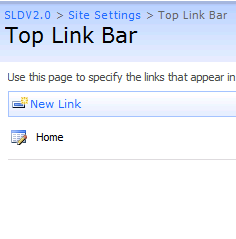
Change the name of the 'Home' tab to something like 'SCOM Service Level Dashboard' as shown below, then click 'OK'


Now click on the 'New Link' button from the 'Top Link Bar' to create the other tabs for the SCOM dashboard


From the window below, copy the URL for your previously created 'SCOM Admin Dashboard' and type 'SCOM Admin Dashboard' into the description field as below, then click 'OK'


Now for the final time, click on the 'New Link' button again from the window below

This time, copy the URL for your previously created SCOM Distributed Applications Health State Dashboard into the web address field and type the description as shown below, then click 'OK'


Your top link bar from within the Service Level Dashboard site settings window should now look something like this


Click on the 'Change Order' button to move the order of the tabs around to reflect the same order that you have from within your SCOM Admin Dashboard to provide a seamless integration look to both dashboards. Once you are happy with the order of the tabs, click 'OK' to complete the tab editing


Now all that's left to do is to change the theme of the SCOM Service Level Dashboard to look similar to the other SCOM dashboards. We do this by clicking on 'Site Actions' on the right hand side and then selecting 'Site Settings' again. When this opens, click on 'Site Theme' from within the 'Look and Feel' column
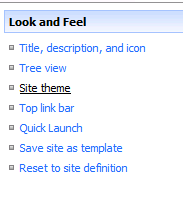
I have used the default SCSM dashboard theme of 'Obsidian' for my other dashboards so I will again choose this for the SCOM Service Level Dashboard by highlighting it and then clicking on 'Apply'


Your final SCOM Service Level Dashboard with associated SCOM dashboard tabs should now look like this


This completes your configuration of the SCOM dashboard solution that incorporates a SCOM Admin Dashboard, SCOM Distributed Application Dashboard and a SCOM Service Level Dashboard as three separate tabs within one web browser view.

The final post of this series will summarise what we have achieved so far, will provide web links to sites that I have found very useful when working with dashboards in SCOM and will provide some of the SQL queries that I have used to create these web parts.

SCOM Dashboards - Part 7 - The SCOM Distributed Application Health State Tab

Before reading this post, please ensure you have reviewed my previous posts on SCOM Dashboarding from the links below:

SCOM Dashboards - The Intro
SCOM Dashboards - Part 1 - Installing WSS 3.0
SCOM Dashboards - Part 2 - Installing the Dashboard Solution Accelerator
SCOM Dashboards - Part 3 - Customizing the Dashboard Banner and Logo
SCOM Dashboards - Part 4 - Customizing the Dashboard Tabs
SCOM Dashboards - Part 5 - Installing the Service Level Dashboard (SLD 2.0)
SCOM Dashboards - Part 6 - Adding SQL Queries to the Dashboards

Next we are going to modify the 'SCOM Distributed Applications Health State' tab and provide a live view of the health state of all your DA's through the dashboard

Click on the 'Edit page' link as below to continue


Now we are going to remove all of the existing SCSM web parts simply by clicking on the 'X' beside each one until we get a screen that looks like this


Configure your Dataset exactly as shown below otherwise the DA health states and colours will be incorrect (the SQL query will be specific to your own site in relation to the DA names however and you can get the SQL query I used from Steve Beaumont's blog credited here)


The Score Card label and value information below is VERY IMPORTANT and needs to be exact!


Next up is to add a new web part to the horizontal bottom section of the screen as shown


Select the 'Microsoft Dashboard Viewer' option


Now from this newly created web part, click on the 'Edit' button, and then select 'Modify Shared Web Part' from the list


From the menu on the right hand side of the screen, select the 'DAHealthState' dataset that was configured earlier, and then click 'OK' to close the window

You should now have a tab that looks something like this


The penultimate Part 8 post of this SCOM Dashboard blog series will demonstrate how to create a new tab alongside your SCOM Dashboard and SCOM Distributed Application Health State Dashboard tabs that includes the Service Level Dashboard 2.0.

SCOM Dashboards - Part 6 - Adding SQL Queries to the Dashboards

Before reading this post, please ensure you have reviewed my previous posts on SCOM Dashboarding from the links below:

SCOM Dashboards - The Intro
SCOM Dashboards - Part 1 - Installing WSS 3.0
SCOM Dashboards - Part 2 - Installing the Dashboard Solution Accelerator
SCOM Dashboards - Part 3 - Customizing the Dashboard Banner and Logo
SCOM Dashboards - Part 4 - Customizing the Dashboard Tabs
SCOM Dashboards - Part 5 - Installing the Service Level Dashboard (SLD 2.0)

To customise your SCOM Dashboard and remove the pre-inserted SCSM web parts, follow the screens below:

Open your SCOM Dashboard and click on 'Edit Page' from the menu on the right hand side


Input in a new Dataset Configuration Name, add your SQL Server and instance name, add your OperationsManager database name and copy and paste your SQL query into the SQL Query window as below (SQL queries can be obtained from the list of community blog references in the final part of this series)


Select 'Parse Query' and then 'Validate Query' and ensure you get the green tick and preview data before continuing


Expand 'Charts', leave 'Pie' selected and then click 'Add' to create a Pie Chart with your SQL query information. Fill out the fields similar to the graphic below


Once this is completed, click on 'Save and Close' to complete the new SQL query injection

Now what you need to do is to add your new 'Top20AlertsbyRepeatCount.xml' file into an existing Web Part for display within your dashboard

Click on an the 'edit' button from within an existing web part on the dashboard and select 'Modify Shared Web Part'


This will open the web part for editing on the right hand side of the screen. From here, use the 'Select Data Set Configuration' button and highlight your previously created SQL query as below

 
Next, put an entry into the 'Title' field to give your new web part a name and then leave all of the other settings as they are and click on 'OK'

 
This should now replace the old SCSM web part on the dashboard with your new 'Top 20 Alerts by Repeat Count' dashboard as shown below


Repeat this process as many times as you like using different SQL queries and chart types and then changing the existing SCSM web parts one by one until you get the dashboard that you want for your business

If you want to remove any excess web parts and tidy up the dashboard a bit, then all you need to do is to select the 'X' in the corner beside the 'Edit' button to remove it completely

Your final SCOM Dashboard tab should look something like this:


With the SCOM dashboard itself finished now, in Part 7 I will describe how to create a scorecard web part that acts as a Distributed Application Health State dashboard.

SCOM Dashboards - Part 5 - Installing the Service Level Dashboard (SLD 2.0)

Before reading this post, please ensure you have reviewed my previous posts on SCOM Dashboarding from the links below:

SCOM Dashboards - The Intro
SCOM Dashboards - Part 1 - Installing WSS 3.0
SCOM Dashboards - Part 2 - Installing the Dashboard Solution Accelerator
SCOM Dashboards - Part 3 - Customizing the Dashboard Banner and Logo
SCOM Dashboards - Part 4 - Customizing the Dashboard Tabs

Download the Service Level Dashboard 2.0 from the following URL:

http://www.microsoft.com/downloads/en/details.aspx?FamilyId=1d9d709f-9628-46a8-952b-a78f5dd2bdd9&displaylang=en

Export the contents of the ZIP file to a folder on your SCOM management server


Import the Management pack highlighted below into SCOM

From the Management Server that is hosting the WSS 3.0 and SCOM dashboard websites, run the installer highlighted below with administrator rights.


Copy the URL from the URL field below so we can use this to quickly logon to the SLD for the first time


Open Internet Explorer and browse to the URL for the SLD that was noted during the install - typically something like: http://managementservername:51918

Click on 'Site Settings' to modify the users and groups allowed to access the website


Select 'People and Groups'


Now click on 'Add Users' to add new users to your group


Add the users or groups and select 'Full Control', then click 'OK'


From the SLD Home page, click on the options below to add previously created service level objects for your distributed applications into the SLD


Click on the available Service Levels from the list and then select 'Apply Filter'


When you go back to your home page, you should see something like the screen below


This completes the installation of your Service Level Dashboard 2.0. In Part 6 of this series, I will demonstrate how to add SQL queries to your SCOM dashboard and create web parts with them.